

Before installing BizTalk Server or its prerequisites, make sure you have installed the latest critical Windows updates from Microsoft.
📝 One-Minute Brief
Before installing BizTalk Server, you must correctly configure Internet Information Services (IIS). This post covers the essential “Turn Windows features on or off” settings, specifically for Windows Server and Windows 7. It details the required Role Services, including ASP.NET, IIS 6 Management Compatibility, and Windows Authentication, which are critical for the BizTalk Management and Isolated Host web services to function correctly.
Install Critical Windows Updates
To install Windows updates:
- Click Start, point to All Programs, and then click Windows Update.
- Follow the directions on the Windows Update site.
- If prompted, restart your computer.
Enable Internet Information Services
Microsoft Internet Information Services (IIS) provides a Web application infrastructure for many BizTalk Server features. BizTalk Server requires IIS for the following features:
- HTTP adapter
- SOAP adapter
- Windows SharePoint Services adapter
- Secure Sockets Layer (SSL) encryption
- BAM Portal
To enable Internet Information Services 7.5
- Click Start, point to Administrative Tools, and then click Server Manager.
- In Roles Summary, click Add Roles.

- On the Before You Begin screen, click Next.
- On the Select Server Roles screen, click Web Server (IIS).

- If prompted, click Add Required Features, and then click Next.
- Review the information on the Web Server (IIS) screen, and then click Next.
- On the Select Roles Services screen, in addition to the default values, select Application Development, and then click Add Required Features.
- Under Security, select Basic Authentication and Windows Authentication.

- Under Management Tools, select IIS 6 Management Compatibility, and then click Next.

- Review the information on the Confirm Installation Selections screen, and then click Install.
- On the Installation Results screen, click Close.
Note:
BAM Portal runs only runs in a 32-bit mode. If you are installing IIS on a 64-bit machine then you must ensure that ASP.NET 2.0 is enabled in 32-bit mode. To do this, follow these steps:
- On the taskbar, click Start, point to Administrative Tools, and then click Internet Information Services (IIS) Manager.
- In the Connections pane, expand the server name, and then click Application Pools.
- In the Actions pane, click Set Application Pool Defaults…

- On the Application Pool Defaults dialog box, to Enable 32-bit applications, select True.
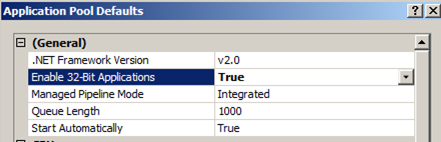
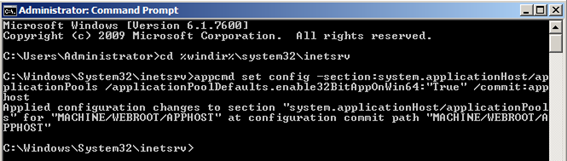
To enable it from the command prompt:
- Click Start, right-click Command Prompt, and then click Run as administrator.
- At the command prompt, type cd %windir%\system32\inetsrv, and then press Enter.
- Type appcmd set config -section:system.applicationHost/applicationPools /applicationPoolDefaults.enable32BitAppOnWin64:”True” /commit:apphost, and then press Enter.
Related links
- BizTalk 2010 Installation and Configuration – Install Microsoft Office Excel 2007 (Part 2)
- BizTalk 2010 Installation and Configuration – Install Visual Studio 2010 (Part 3)
- BizTalk 2010 Installation and Configuration – Install SQL Server 2008 R2 (Part 4)
- BizTalk 2010 Installation and Configuration – Install SQL Server 2005 Notification Services on top of SQL Server 2008 R2 (Part 5)
- BizTalk 2010 Installation and Configuration – Install and Configure Windows SharePoint Services (Part 6)
- BizTalk 2010 Installation and Configuration – Install and Configure SharePoint Foundation 2010 (Part 6.1)
- BizTalk 2010 Installation and Configuration – Disable the Shared Memory Protocol (Part 7)
- BizTalk 2010 Installation and Configuration – Installing and Configuring BizTalk Server (Part 8 )
- BizTalk 2010 Installation and Configuration – Installing and configuring local SMTP for Reporting Server (Part 9)
- BizTalk 2010 Installation and Configuration – Installing BizTalk Adapter Pack 2010 and BizTalk AppFabric Connect feature (Part 10)
- BizTalk 2010 Installation and Configuration – Configure BizTalk Server SQL Jobs (Part 11)
- BizTalk 2010 Installation and Configuration – Enable TCP/IP, Named Pipes protocols and DTC on the Local Host Server (Part 12)
- BizTalk 2010 Installation and Configuration – Configure the Application Event Log (Part 13)




FYI: “True” should not be in quotes…
Fantastic, thank you very much for writing this stuff up 🙂
Is Basic Authentication for IIS actually required by any of the BizTalk components? It’s a more insecure authentication method, so I normally do not turn on the feature.
Is Basic Authentication for IIS actually required? Given that it is a more insecure authentication method (the password is unencrypted, base64-encoded), I typiclly do not enable that feature.
BizTalk server requires IIS for the HTTP Adapter, SOAP Adapter, Windows SharePoint Services Adapter, SSL encryption, Business Activity Services (BAS) but I believe that Basic Authentication is not a mandatory requirement for none of them, you need this option only to have the ability to expose web service that uses basic authentication
The related links is missing your Part 9 for SMTP
Thanks Steve, I already fixed the post.