


Another day, another error to report, directly retrieved from my backlog to publication. Today is about another error that can happen on the Backup BizTalk Server job: Executed as user NT SERVICE\SQLSERVERAGENT. Cannot open backup device destination path\database name. I got this error a few months ago in a client while doing an installation assessment:
Executed as user: NT SERVICE\SQLSERVERAGENT. Cannot open backup device ‘C:\Program Files\Microsoft SQL Server\MSSQL13.BIZTALK\MSSQL\Backup\<destination path>\NAME_BAMPrimaryImport_Log_BTS_2017_12_18_15_07_41_447.bak’. Operating system error 123(The filename, directory name, or volume label syntax is incorrect.). [SQLSTATE 42000] (Error 3201) BACKUP LOG is terminating abnormally. [SQLSTATE 42000] (Error 3013). The step failed.
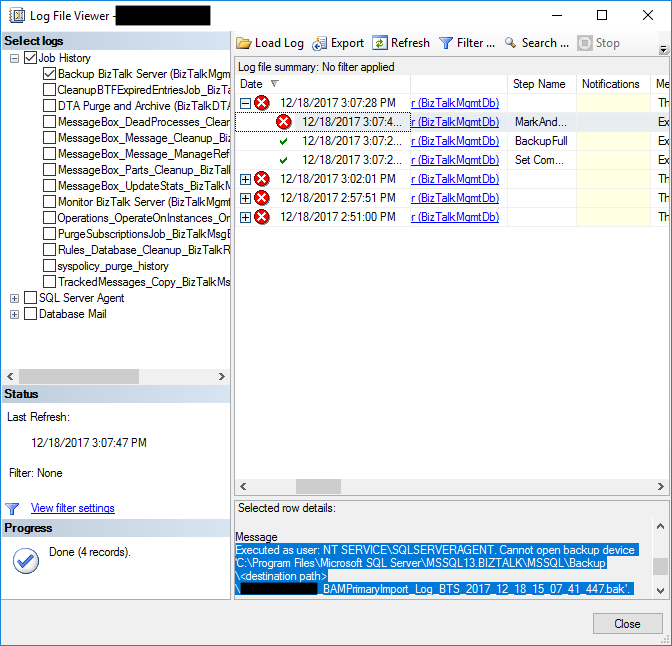
This error occurred during the third step of the Backup BizTalk Server job: MarkAndBackupLog.
📝 One-Minute Brief
A troubleshooting guide explaining why the Backup BizTalk Server SQL job fails with a “Cannot open backup device destination path” error and how to fix incorrect or missing backup paths in the MarkAndBackupLog job step.
Cause
On the third step, MarkAndBackupLog, of the Backup BizTalk Server job, check the input parameters of the stored procedure invoked there: sp_MarkAll. You will find that the second parameter is the location of the backup files, and that location must exist in the file system.
The reason for this error to occur may be related to one of these reasons:
- This step is not properly configured, and you still have <destination path> set as the value for the location of backup files – second parameter.
- Or the folder/path that you define as the location of backup doesn’t exist.
Solution
You must remember that you need to ensure that all the paths specified in the BizTalk jobs must exist in the file system.
But in this case, as you will see in the error description, the backup job was not properly configured and still has <destination path> set as the backup files’ location.
To solve this problem, you need to:
- Press the Windows key, type SQL Management or SQL, and click on SQL Server Management Studio.
- In the Object Explorer panel, connect to the SQL Server instance and expand the server tree.
- Expand the SQL Server Agent node.
- Expand the Jobs node.
- Double-click the Backup BizTalk Server (BizTalkMgmtDb) to open the job properties window.
- In the Job Properties – Backup BizTalk Server (BizTalkMgmtDb) dialog box, under Select a page, click Steps.
- In the Job step list, click the job you want to edit (in this case, MarkAndBackupLog), then click Edit.
- On the Command property, correctly specify a path for the backup files.
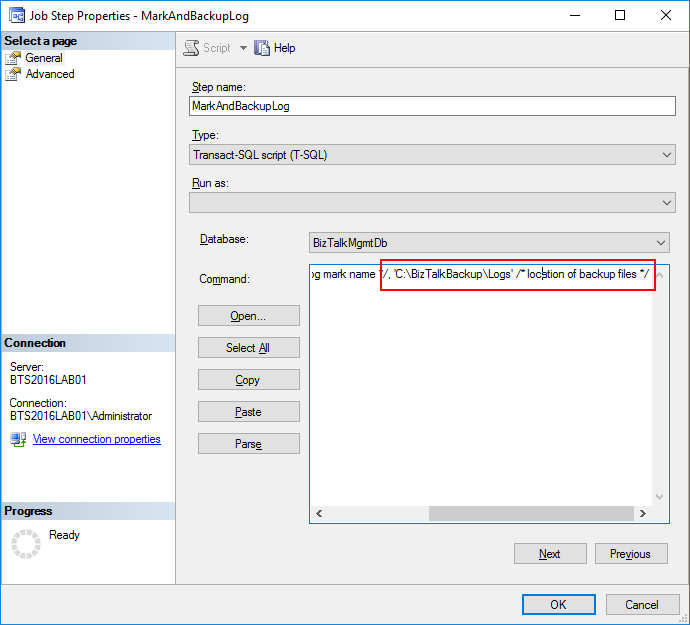
After I properly configured the job, this error was solved, and I was successfully able to run the Backup BizTalk Server job.
Hope you find this helpful! If you liked the content or found it useful and would like to support me in writing more, consider buying (or helping to buy) a Star Wars Lego set for my son.



