


In the sequence of one of my last blog posts, I notice that in the same project also while trying to open a BizTalk pipeline inside Visual Studio, again, normally a simple and easy double-click operation to open this time the BizTalk Pipeline Editor, the resource didn’t open with the correct editor: BizTalk Pipeline Editor, instead, it opened with the XML (Text) Editor
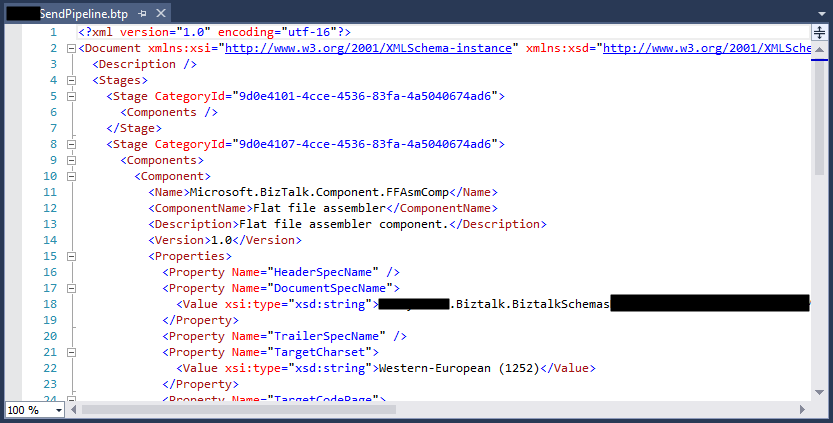
I’m used to seeing this behavior in orchestration, but it is the first time that I can remember seeing the same happening with pipelines. Again, this has a quick workaround, but it becomes annoying after a few times.
📝 One-Minute Brief
A quick fix for an annoying Visual Studio issue where BizTalk pipelines open in the XML/Text Editor instead of the BizTalk Pipeline Editor. The post explains the root cause—an incorrect project configuration—and how to force the correct editor and permanently fix the pipeline project metadata.
Cause
Well, again and similar to the orchestrations, I don’t know exactly what can cause this problem but I suspect that this behavior happens more often when we migrate projects, or when we try to open previous BizTalk Server versions projects in recent versions of Visual Studio, special if we skip one or more versions, for example: from BizTalk Server 2010 to 2013 R2.
And may happen due to different configurations within the structure of the “<BizTalk>.btproj” file.
The cause of this strange behavior is, without a doubt, related to a mismatched setting within the structure of the <BizTalk>.btproj file in the Pipeline nodes (each pipeline in your project corresponds to one Pipeline node that specifies the file name, type name, and namespace). Normally, it has this aspect in recent versions of BizTalk Server:
<ItemGroup>
   <Pipeline Include="SendOrReceivePipelineName.btp">
      <Namespace>MyProjectName.Pipelines</Namespace>
      <TypeName>SendOrReceivePipelineName</TypeName>
   </Pipeline>
</ItemGroup>
But sometimes we will find an additional element:
<ItemGroup>
   <Pipeline Include="SendOrReceivePipelineName.btp">
      <Namespace>MyProjectName.Pipelines</Namespace>
      <TypeName>SendOrReceivePipelineName</TypeName>
      <SubType>Designer</SubType>
   </Pipeline>
</ItemGroup>
When the SubType element is present, this strange behavior automatically opens the pipeline with the XML (Text) Editor.
Solution
First, once again, let’s describe the easy workaround for this annoying problem/behavior:
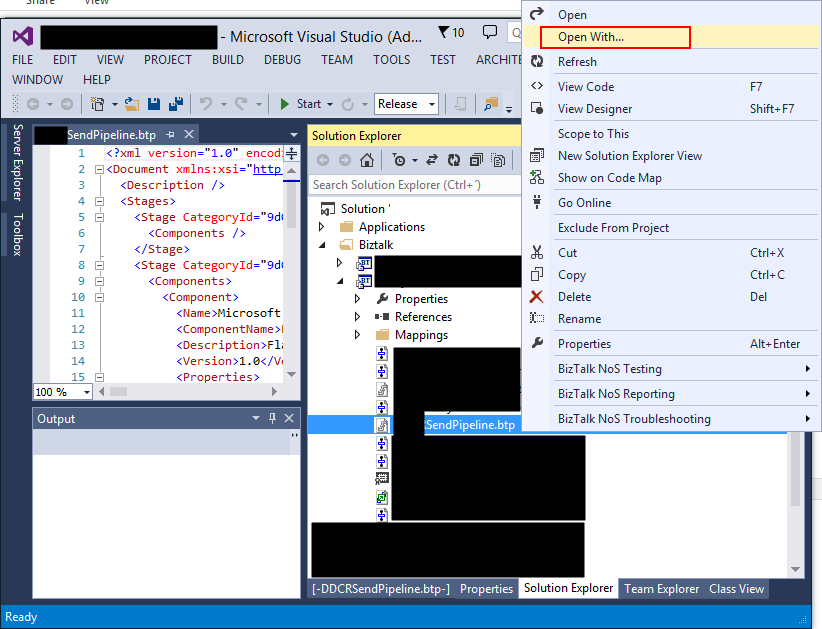
- In the Solution Explorer, right-click the pipeline name, then select the Open With… option.
- On the Open with … window, select the BizTalk Pipeline Editor option and click OK.
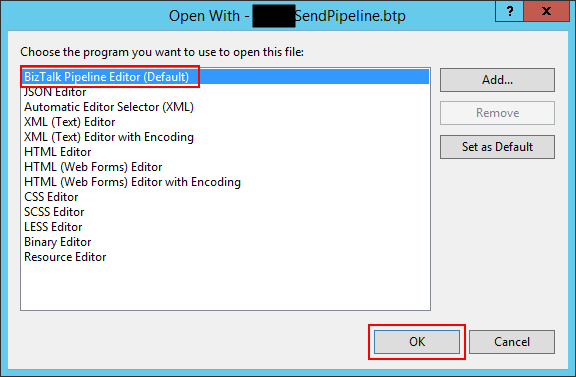
Once again, this will force Visual Studio to actually open the pipeline with the Pipeline Editor. But again, this will be a simple workaround, because next time you try to open the pipeline in Visual Studio, it will open with the XML (Text) Editor.
Similar to the orchestration behavior, force to Set as Default inside the Open with… window:
- Select the BizTalk Pipeline Editor option, click Set as Default.
- And then click OK.
It will not solve the problem. As you can see in the picture above, it is already configured as the default viewer.
So, to actually solve once and for all this annoying behavior, once again, you need to adjust the configurations inside the btproj file, by:
- Open the <BizTalk>.btproj (or project) file(s) that contain the pipeline(s) with this behavior with Notepad, Notepad++, or other text editors of your preference.
- Remove the <SubType>Designer</SubType> line.
- Save the file, then reload the project in Visual Studio.
If you then try to open the pipeline, it will now open with the BizTalk Pipeline Editor.
Hope you find this helpful! If you liked the content or found it useful and would like to support me in writing more, consider buying (or helping to buy) a Star Wars Lego set for my son.



