


Following my last blog post on how to Processing Feedback Evaluations (paper) automagically with SmartDocumentor OCR, Logic Apps, Azure Functions & Power BI, I mention that you can try the solution yourself, at least part of the solution – the most important part – by sending an email with your survey to sandro.pereira.demos@gmail.com with the following subject SmartDocumentorSurvey and that I had a very simple Microsoft Flow listening to this mailbox that:
- Extracts the attachment.
- Sends it to SmartDocumentor OCR.
- Send the file to an on-premise folder.
- And notifies you that the file was received.
In this post I will explain you can you use Microsoft Flow to easily extend an existing product, in my case, how I was able to easily extend SmartDocumentor OCR without me being an expert on that product – this DevScope team is super busy to spend to much time with me explaining me everything – jokes apart, I intentionally don’t want there help the product should be easy to use without requiring too much knowledge and I also want to see and try how people can easily extend and interact with the product in different ways.
📝 One-Minute Brief
An integration scenario showing how Microsoft Flow can be used to dynamically extend SmartDocumentor OCR receive processing points or locations, allowing flexible document routing and configuration without changing BizTalk Server components.
For example, in this particular case, we actually didn’t need any Flow because SmartDocumentor has the capability to listen to an Email but in that case, I confess that my knowledge of SmartDocumentor product and its tools is a little reduced, and I will probably need the help of my coworkers to teach me how to do it. Nevertheless, I had my demo working in two different receive processing points (or locations):
- Directly from the Scan device that I used on all my presentation demos.
- Or through a receiving folder.
I knew how to change that receive folder, I knew how I could easily connect and extract attachments using Microsoft Flow, and I knew a very stupid and simple way to send that file to an “On-premise” folder using Flow… so, for me, it was a simple math operation: 1+1+1=solution!
As Logic Apps, the beauty of using Microsoft Flow’s is that provides almost all Logic Apps capabilities, once it runs on top of Logic Apps, it is part of my Office365 subscription and therefore it provides a very simple and robust way to also extend the capabilities of my OCR software but also by being very cheaper and fast to implement without requiring too much technical knowledge.
Flow’s to the help: The Solution
In order to be able to extend SmartDocumentor OCR receives processing points (or locations) with Microsoft Flow. We need to create a Flow, and for that, we need to:
- Access the Flow portal: https://flow.microsoft.com/ and sign in with your account.
- In flow.microsoft.com, select My flows in the top navigation bar, and then select + Create from blank to create a Flow from scratch.

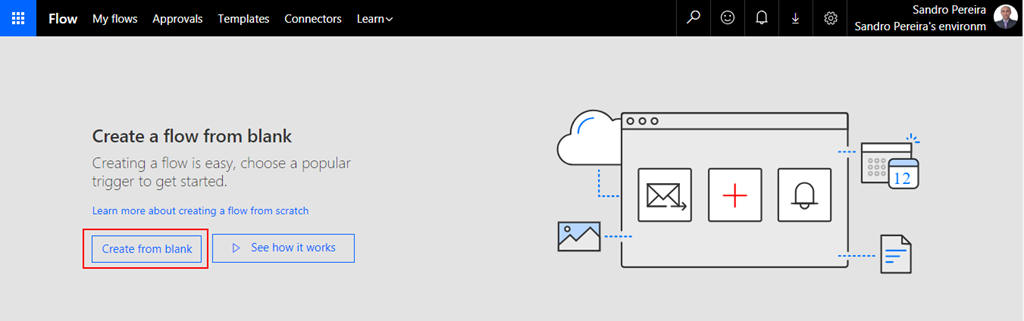
- On the Create a flow from blank, select Create from blank to start the process of creating an empty Flow.
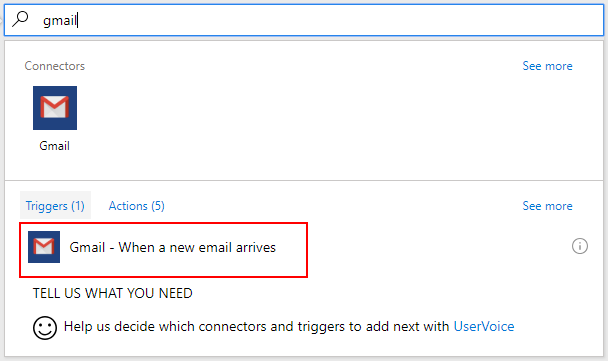
- On the Flow designer, on the Trigger event, enter Gmail and select the option Gmail – When a new email arrives.
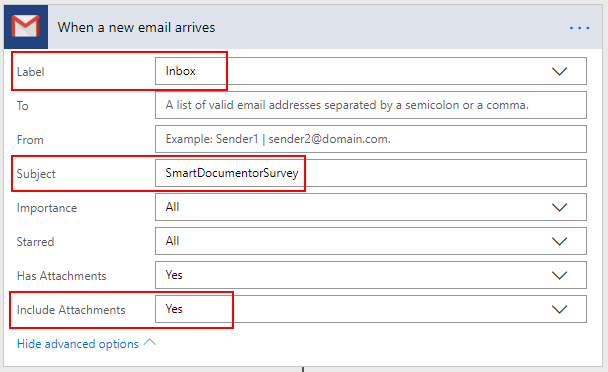
- We want all the emails received with the Subject: SmartDocumentorSurvey to trigger this flow, so on the Gmail Trigger configuration:
- Confirm that the Inbox is configured in the Label property.
- Specify the filter: in my case, all emails with the Subject equal to SmartDocumentorSurvey.
- And confirm that the Include Attachments property is set to Yes.
- Add the next step by clicking the +New step button and then choosing the Add an action option.

After we receive the email, we want to store/save the Survey attachment file in a specific folder where SmartDocumentor is listening, and there are several ways to archive this:
- The most common will be using the File System connector that allows you to connect to any File Systems on your local or network machines using the On-Premises Data Gateway, but this is also the most technical option, which needs you to configure an On-Premises Data Gateway
- Another option is to make use of the Dropbox desktop client, which runs on Windows, Mac, or Linux operating systems and gives you access to your Dropbox directly through a folder on your hard drive. The advantages of this approach are that:
- You don’t need any technical skills (no need to configure an On-Premises Data Gateway), and all users know or are familiar with Dropbox.
- We can easily store files in Dropbox using Flow.
- And once synchronize to your local machine running SmartDocumentor, SmartDocumentor will peak that file and process it (deleting that file from the folder and from Dropbox) – and there isn’t too much latency on the file synchronization, Dropbox client is actually really good.
Because we want to keep this really simple and familiar to Business users, we will go with the Dropbox approach, so for that, we will need to:
- On the Choose an action window, enter Dropbox and select the trigger Dropbox – Create file.

- On the Dropbox action configuration:
- Specify the folder where you want to store the file; in my case, /publicdemos/smartdocumentorsurvey.
- On the File Name property, select from the list of tokens the Name token from the When a new email arrives trigger.
- On the File Name property, select from the list of tokens the Content token from the When a new email arrives trigger.
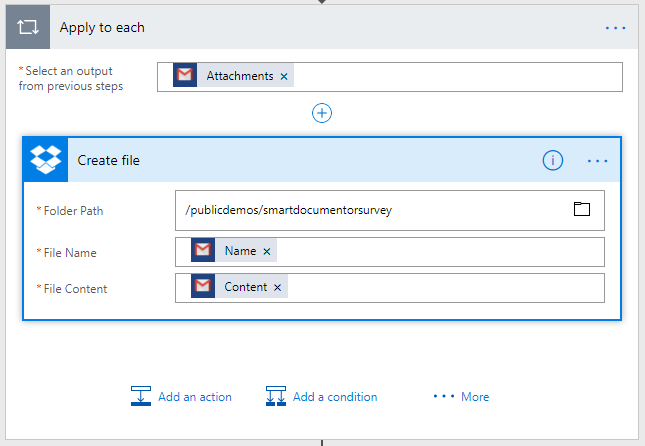
- Because we can have multiple attachments in a single email, the Flow designer will automatically place the Dropbox – Create file inside a loop that iterates over each attachment.
The last step we want is to notify the user testing the SmartDocumentor Survey solution that their email has been received and is being processed. To do that, we need to:
- Add the next step by clicking the +New step button and then choosing the Add an action option.
- On the Choose an action window, enter Gmail and select the trigger Gmail – Send email.
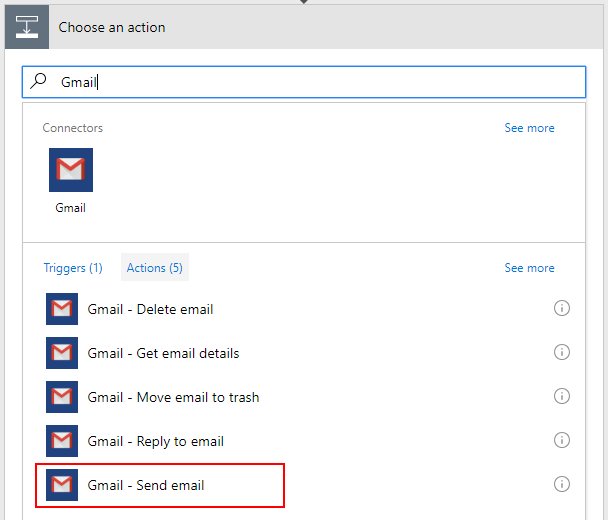
- On the Gmail action configuration:
- On the To property, select from the list of tokens the From token from the When a new email arrives trigger.
- On the Subject property, specify the email subject, in my case: SmartDocumentor submitted document.
- On the Body property, we will specify the name of the file we are processing as well as the URL where you can consult the Survey Report. So, we are combining static text with some tokens provided from previous actions, as you will see in the picture below.
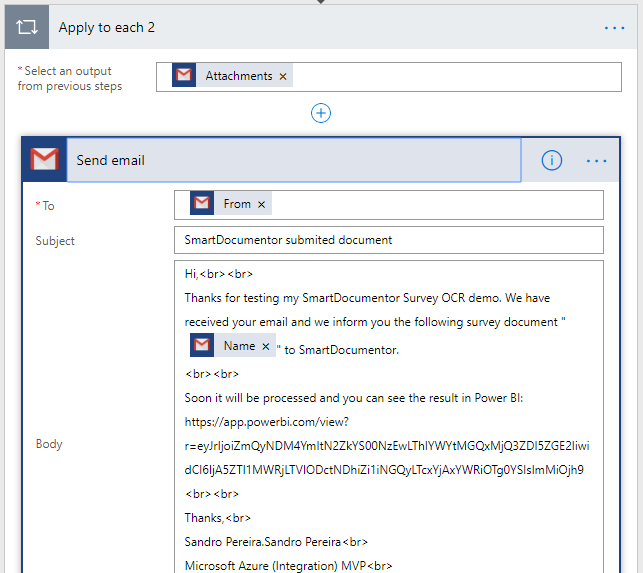
- Again, because we can have multiple attachments in a single email, the Flow designer will automatically place the Gmail – Send email action inside a Loop that iterates over each attachment.
At the end, the flow will look like this:
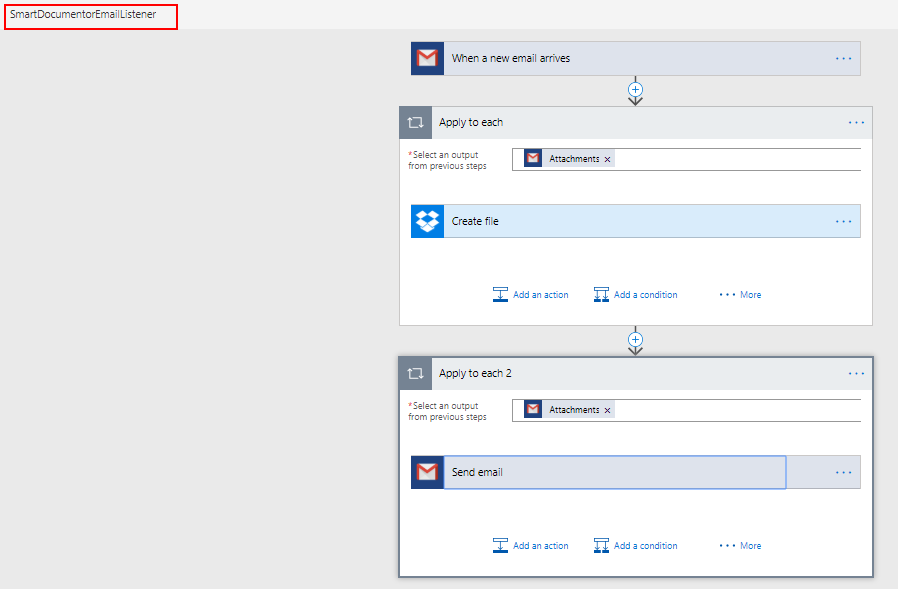
And once it is triggered:
- It will copy the attachment to a Dropbox folder that is synchronized with our local SmartDocumentor server using the Dropbox desktop client, to our local SmartDocumentor server.
- SmartDocumentor OCR will process this survey picture and perform the process described in my previous post.
- And finally, will send an email to the user who is testing this SmartDocumentor OCR solution.
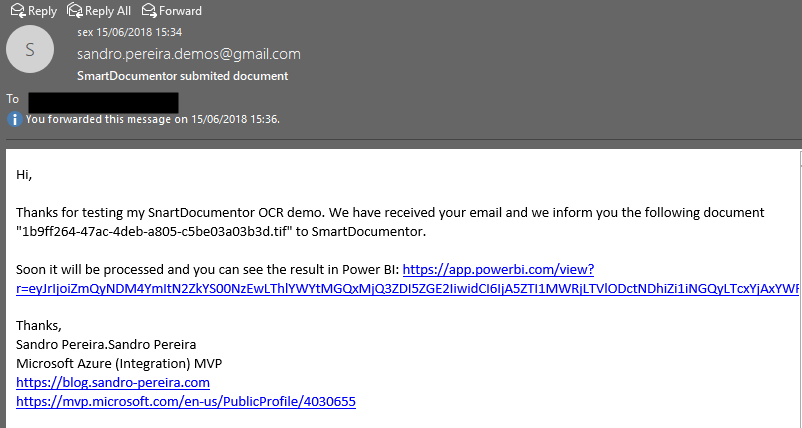
I intentionally want to keep this as simple as possible, so there are some limitations in the current approach:
- You can send multiple form pictures in attachments, but you shouldn’t send any other type of pictures in attachments (that aren’t surveys). Again, I can easily create some flow rules to validate, but I didn’t implement anything like that.
- Avoid sending an email signature with pictures; the process will work, but it will trigger some SmartDocumentor and Logic Apps runs that fail (didn’t implement these validations, but it is possible).
I will improve this approach in the future. Stay tuned!
Hope you find this helpful! If you liked the content or found it useful and would like to support me in writing more, consider buying (or helping to buy) a Star Wars Lego set for my son.



