


Unfortunately, as of this date, there isn’t an Azure Logic Apps Tools for Visual Studio Extension for Visual Studio 2022, so we still need to use Visual Studio 2019 to create Logic App Consumption projects.
An opposite to other Azure Services like Azure Functions, which have a dedicated Azure Function project Template:
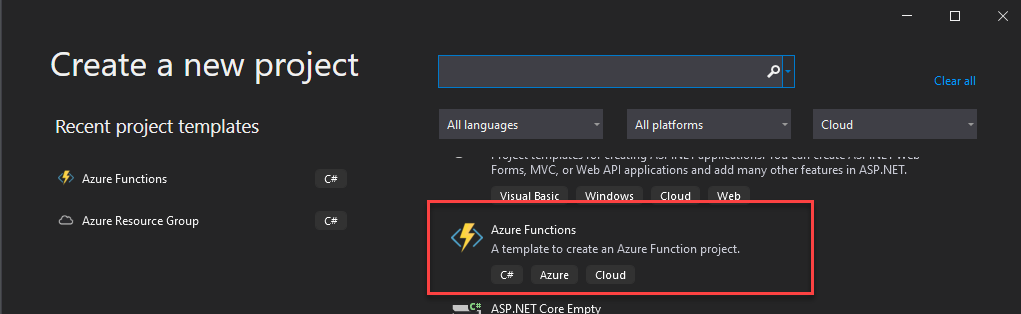
There isn’t a Logic App Consumption Visual Studio project template. Instead, we need to use the Azure Resource Group project template, and inside we will select that it will be applying a Logic App template.
📝 One-Minute Brief
Creating a Logic App Consumption project in Visual Studio is not always straightforward. This article explains how to set up the correct project type, required extensions, and templates, helping developers avoid common pitfalls when building and managing Logic Apps outside the Azure Portal.
Creating a Visual Studio Logic App Consumption project
The Logic Apps designer integrates with the current Azure Resource Group project. That being said, you will not find any Logic App template in the list of templates. Instead, we need to create an Azure Resource Group project to get started, and to do that, we need:
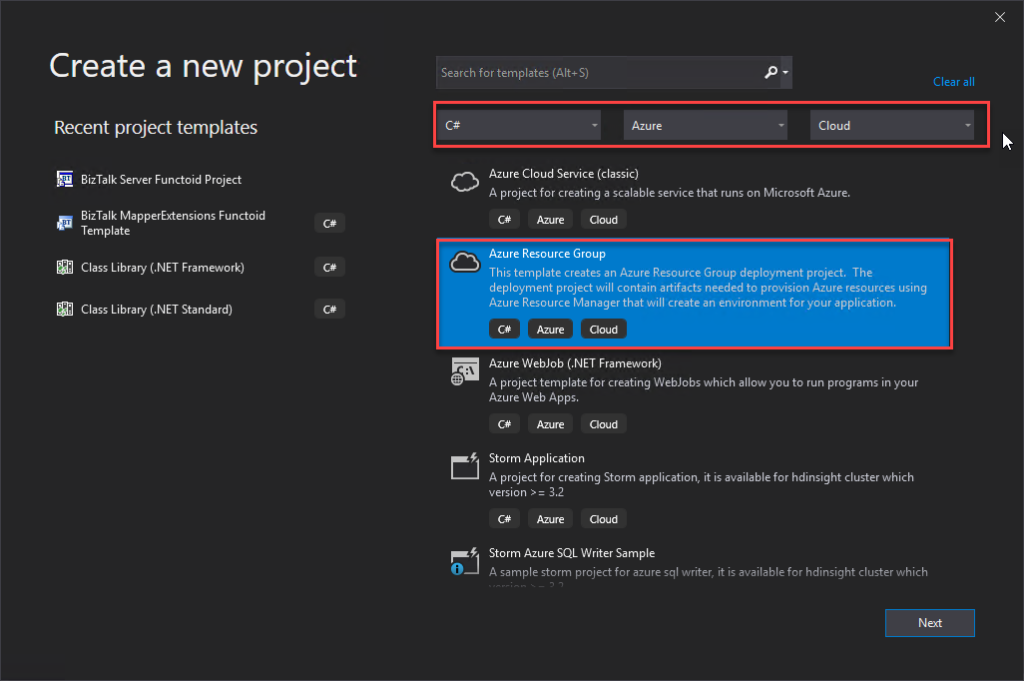
- Open Visual Studio, and on the Create a new project panel, select C# > Azure > Cloud, or search for Azure Resource Group:
- From the list of project templates, select the Azure Resource Group template.
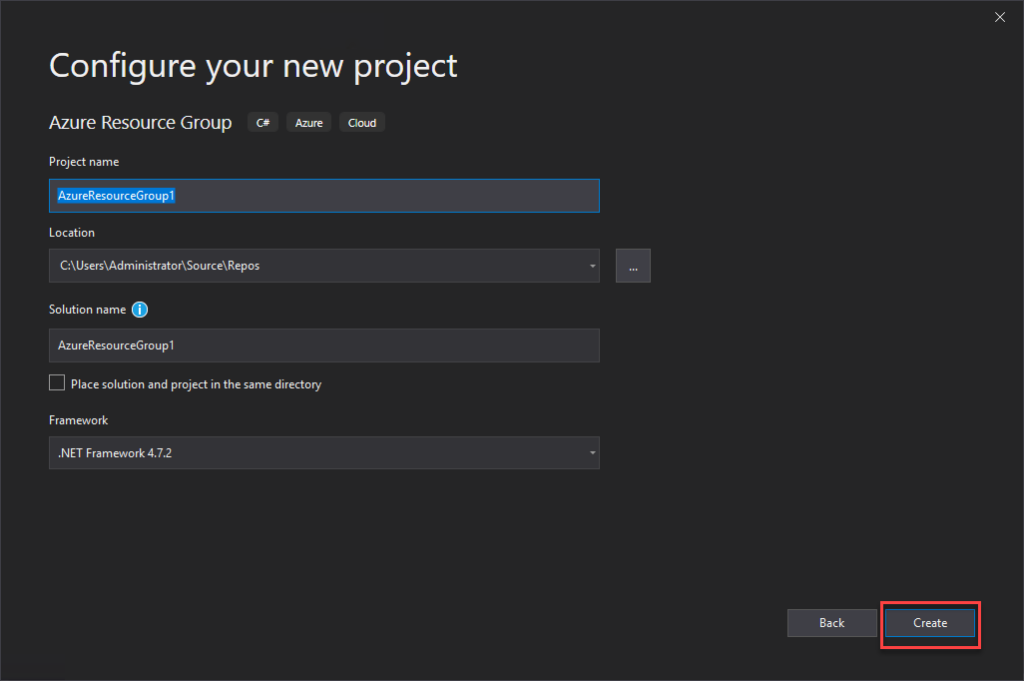
- On the Configure your new project panel, give a proper Project name, Location, and Solution name. Leave the Framework as .NET Framework 4.7.2 and select Create.
- Finally, on the Select Azure Template panel, from the Visual Studio Templates list, select the Logic App template and select OK.
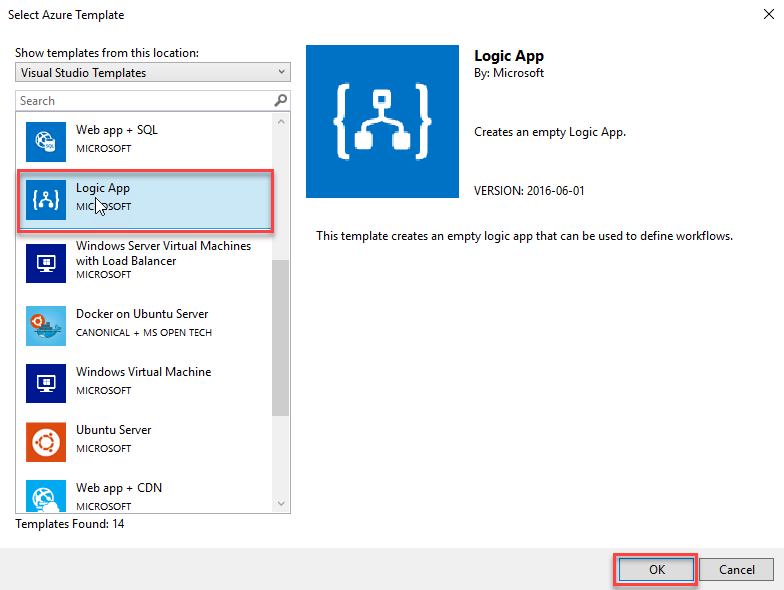
This will create an empty Visual Studio Logic App solution. Now on the Visual Studio solution:
- Right-click on the LogicApp.json file and select Open With Logic App Designer.
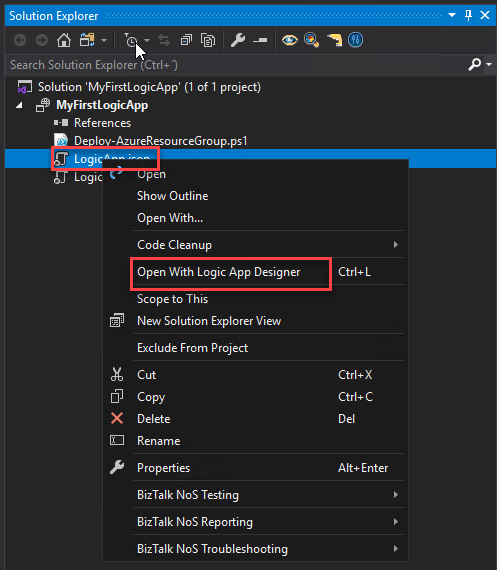
- This will open a Logic App Properties window, where you need to:
- Define the credentials to authenticate on the Azure subscription.
- Define the Subscription and Resource Group where you want to create these resources.
- Define if you want the Location to be in the same Region or in an Integration Service Environment (ISE) – be aware that the ISE is being deprecated.
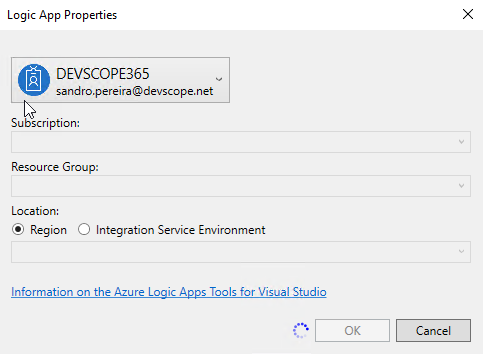
- And then select OK.
This will embed the Logic App designer inside Visual Studio.
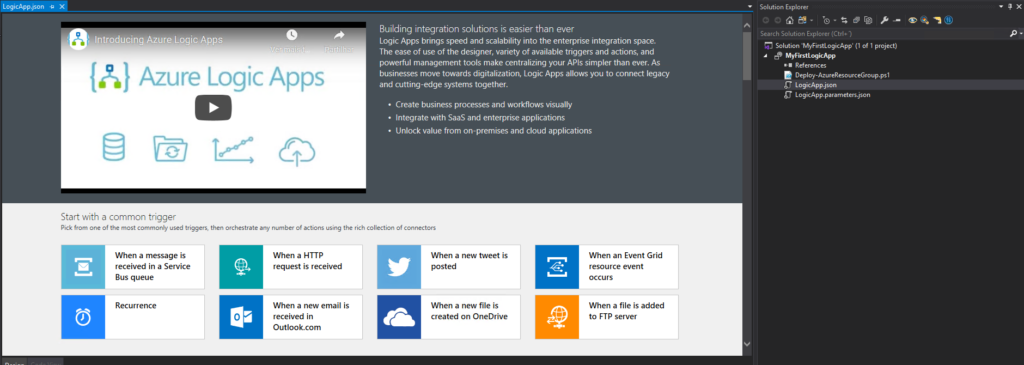
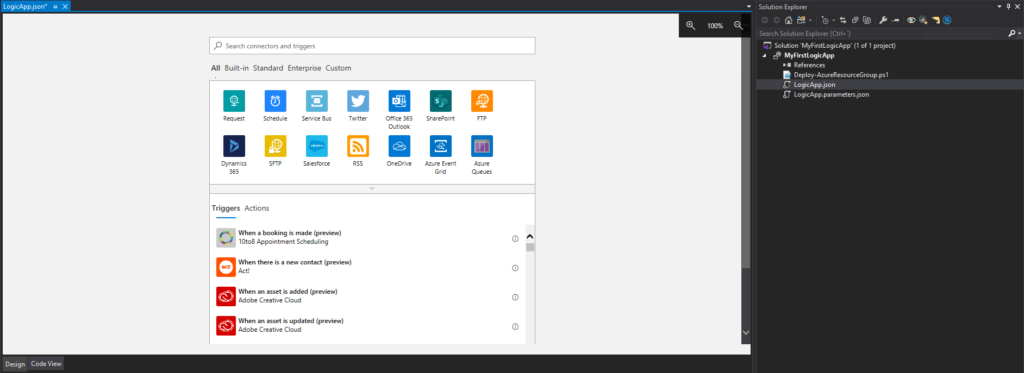
Now you need to select a common trigger, a template, or use a blank Logic App to start creating your business process.
Hope you find this helpful! So, if you liked the content or found it helpful and want to help me write more content, you can buy (or help buy) my son a Star Wars Lego!



