


ChatGPT, the AI chatbot that everyone is talking about and to!! But what is ChatGPT, and what is the importance of AI in real-world content?
ChatGPT is a large language model developed by OpenAI that can generate human-like responses to text prompts. It is part of the GPT (Generative Pre-trained Transformer) family of language models, which have been trained on massive amounts of text data using deep learning techniques. In a few words, it is a conversational artificial intelligence platform. GPT stands for Generative Pre-Trained Transformer, and the prefix “Chat” means it lets you to get all you’re looking for in a simple chat.
📝 One-Minute Brief
Demonstrates how to use Azure Logic Apps to interact with ChatGPT, enabling automated conversations, content generation, and AI‑powered integrations by orchestrating API calls within serverless workflows.
The importance of AI, and specifically language models like ChatGPT, in the real-world context is that they have the potential to transform how we interact with technology and each other. Here are some examples of how AI can be beneficial in various fields:
- Customer service: AI-powered chatbots can help businesses automate customer support and deliver quick, efficient responses to common queries.
- Healthcare: AI can analyze medical data and provide insights to help doctors make more accurate diagnoses and treatment plans.
- Education: Language models like ChatGPT can be used to develop personalized learning experiences for students, providing instant feedback and adapting to their individual needs.
- Natural language processing: AI can help improve communication between people who speak different languages by automatically translating text and speech in real-time.
- Personal assistants: AI-powered personal assistants can help people manage their daily tasks, schedule appointments, and provide helpful reminders.
and many more.
The future of AI is very promising as technology continues to evolve rapidly. It will bring potential developments and advancements we can expect to see in the future. One of them will be increasing automation. AI is already being used to automate many tasks in various industries, and this trend is expected to continue. As AI algorithms become more sophisticated, we can expect to see even more automation, particularly in fields such as manufacturing, logistics, and transportation.
Overall, the future for AI is bright, and we can expect to see continued advancements and innovations that will have a significant impact on our lives. However, it is important to approach these developments cautiously and ensure that AI is developed and used responsibly and ethically.
So, let’s play a little just for fun! And combine Logic Apps with ChatGPT!
In this blog post, we will create a Logic App that interacts with ChatGPT to obtain an organic answer. This Logic App can then be called by your tools or programs, such as a PowerApp, serving as your integration layer and containing additional business logic if needed.
Create a ChatGPT Account
First and foremost, you need to create a ChatGPT account, so follow these steps:
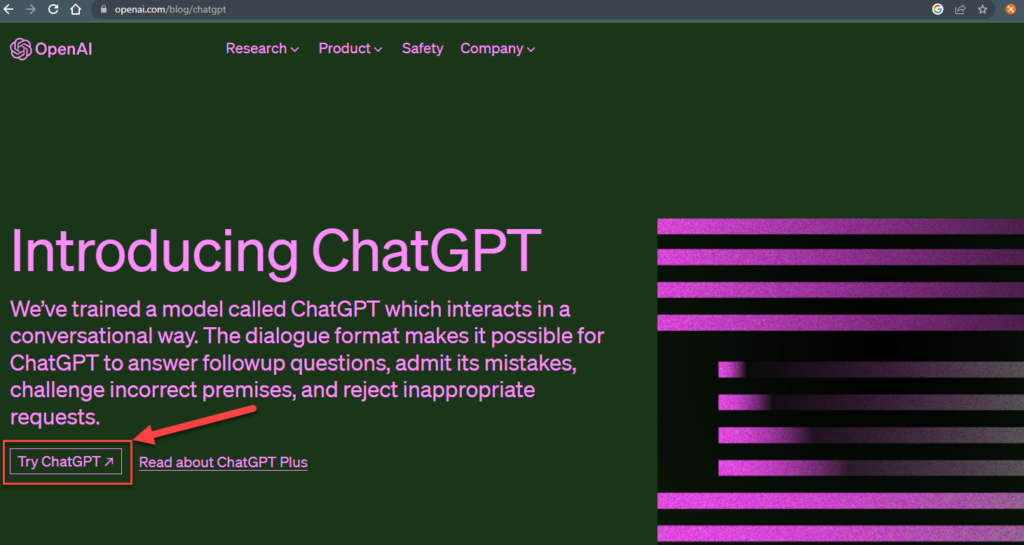
- Go to https://openai.com/blog/chatgpt and click on Try ChatGPT.
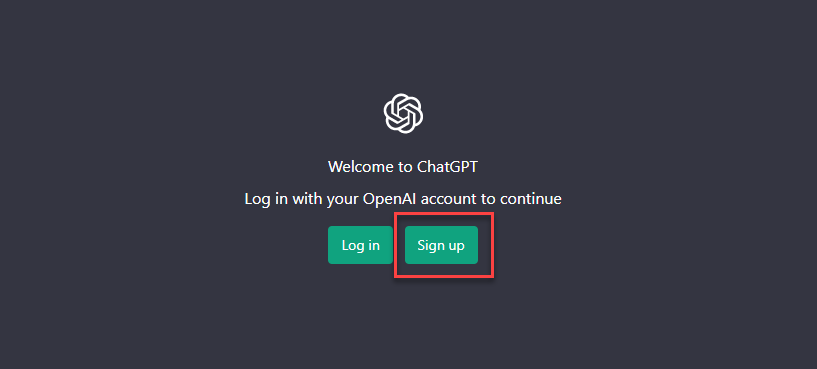
- On the Welcome to ChatGPT page, select Sign up.
- On the Create your account page, make sure you create an account.
- On the Tell us about you page, confirm your name and click Continue to accept the terms.
- On the Verify your phone number page, enter your phone number and click Send code.
- On the Enter code page, enter the code you received on your phone.
You are ready to rumble! You can now use ChatGPT, but let’s go a little deeper to create the keys we will need to interact with ChatGPT on our Logic App:
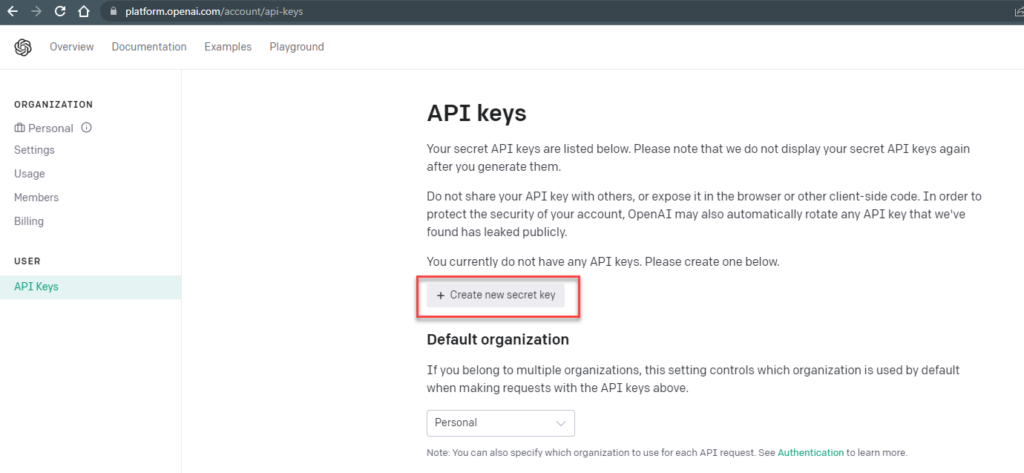
- Access the following URL: https://platform.openai.com/account/api-keys.
- And in the API Keys page, click on + Create new secret key to generate a new one.
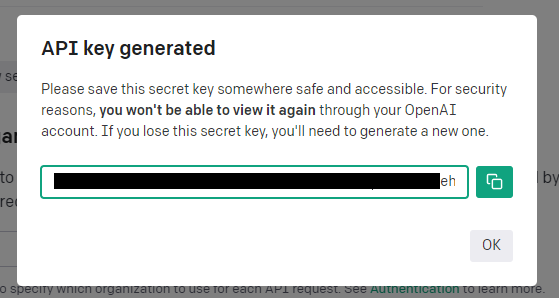
- That will open an API key generated pop-up. Make sure you copy that key to a safe place or to your notes for us to use later on.
Create a Logic App
Next, we need to create a Logic App. For simplicity, we are going to use a Logic App Consumption and name it LA-ChatGPT-POC, and as for the trigger, we are going to use a Request > When a HTTP request is received, so:
- From the Search connectors and triggers, type Request, select the Request connector, then the trigger: When a HTTP request is received.
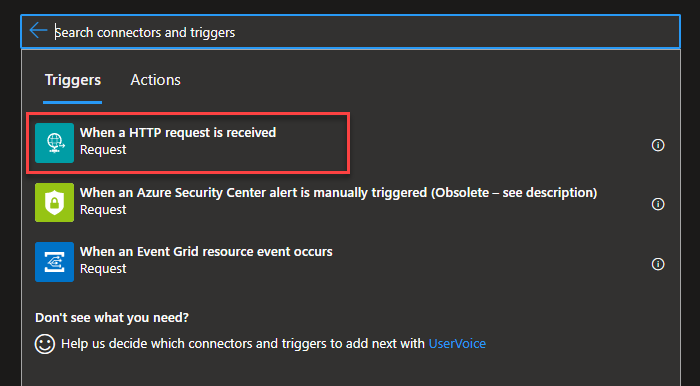
We are going to receive a text payload – Content-Type: plain/text – so we will be using the default HTTP Method POST, and we will not need to provide any Request Body JSON Schema, since we will be receiving plain text. That means leaving the trigger configuration as is.
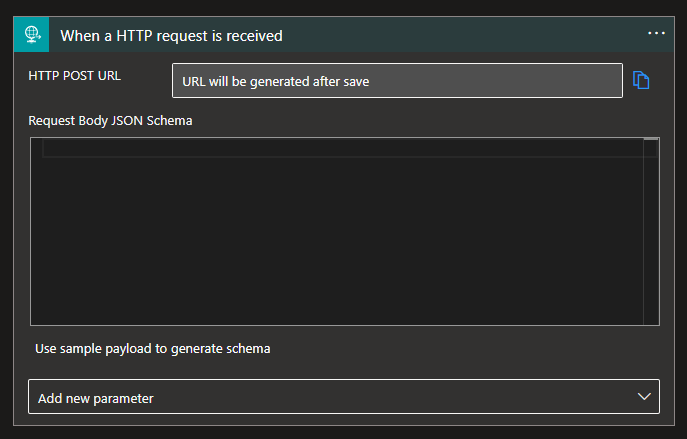
Note that once we save the Logic App, a URL will be generated that we can later use to invoke the workflow.
Next, on our business logic, we need to add an HTTP action to be able to interact with ChatGPT. Diving in, in the ChatGPT documentation, we rapidly found the endpoint to which this request should be:
If you want to know more about this topic, you can follow this link: https://platform.openai.com/docs/api-reference/chat/create.
Once again, for the sake of simplicity, we are not going to implement error handling inside our workflow to control and deal with failures – in real cases, you should empower your processes with these capabilities/functionalities.
Next, on our Logic App:
- Click on + New step, and from the search text box, type HTTP and select the HTTP connector followed by the HTTP action.
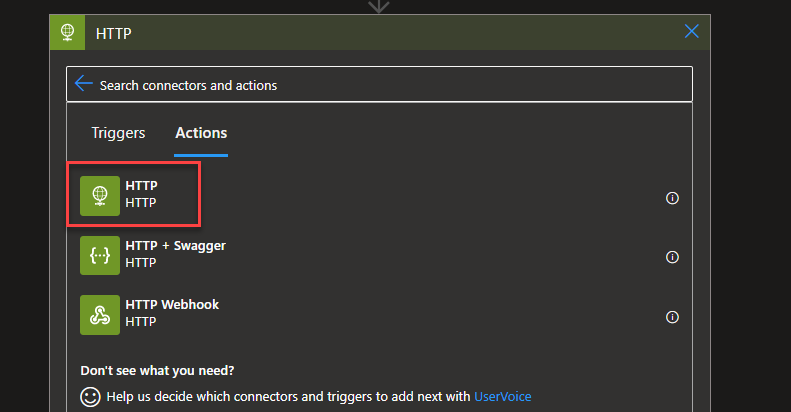
- And do the following configurations:
- Set the Method property to POST.
- On the URI property, enter the URL that we mentioned previously:
- On the Headers property, add the following header:
- Authorization: Bearer <your-new-Secret-Key>
- Content-Type: application/json
- On the Body property, we are going to add the following JSON message:
{
  "model": "gpt-3.5-turbo",
  "messages": [
      {
          "role": "user",
           "content": "@{triggerBody()}"
           }
        ]
}
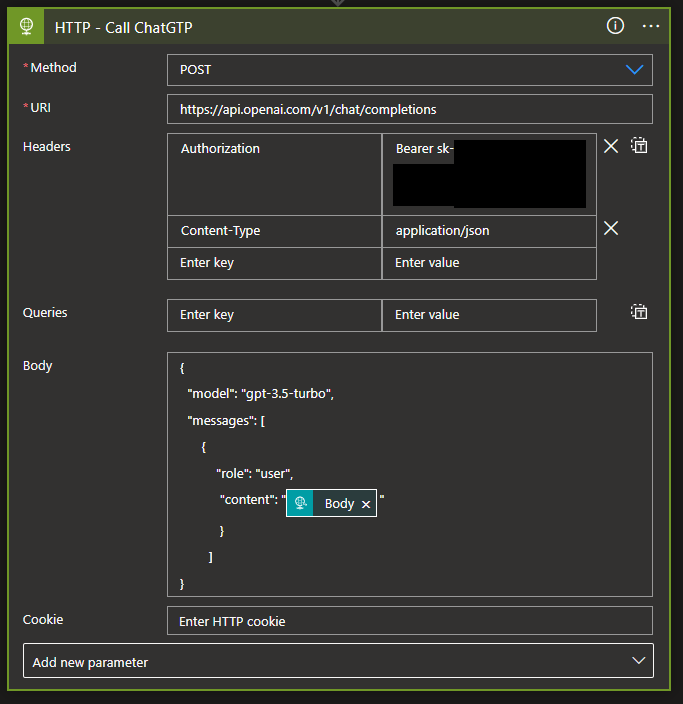
Once again, you can follow the ChatGPT documentation to see how to send the requests and their structure.
If we saved this Logic App as is now and tried our Logic App with a hello question: Hello?
On the Run from that Logic App, in the HTTP – Call ChatGPT action output, you will see something like this, as the documentation already foresees:
{
  "id": "chatcmpl-123",
  "object": "chat.completion",
  "created": 1677652288,
  "choices": [{
    "index": 0,
    "message": {
      "role": "assistant",
      "content": "\n\nHello there, how may I assist you today?",
    },
    "finish_reason": "stop"
  }],
  "usage": {
    "prompt_tokens": 9,
    "completion_tokens": 12,
    "total_tokens": 21
  }
}
Now, to finalize our Logic App, let’s add a response:
- Click on + New step, and from the search text box, type Request and select the Request connector followed by the Response action.
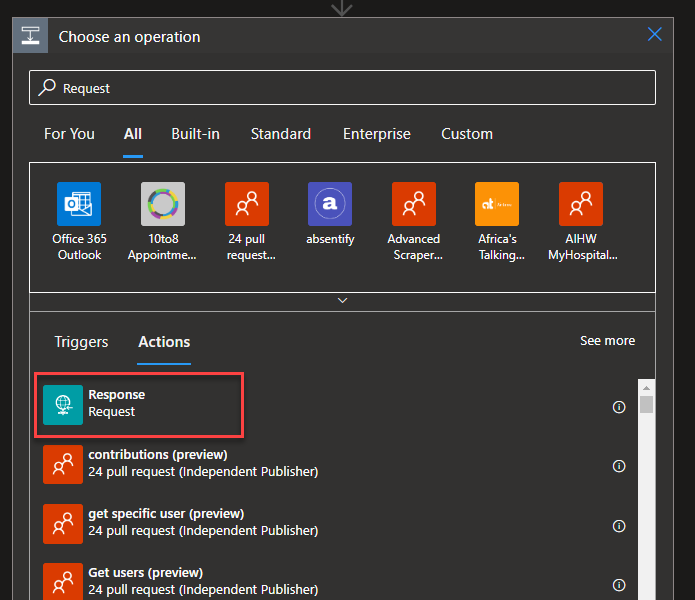
- And do the following configurations:
- Set the Status Code property to 200.
- On the Headers property, add the following header:
- Content-Type: text/plain
- On the Body property, we are going to add the following expression:
- trim(outputs(‘HTTP_-_Call_ChatGTP’)?[‘body’]?[‘choices’]?[0]?[‘message’]?[‘content’])
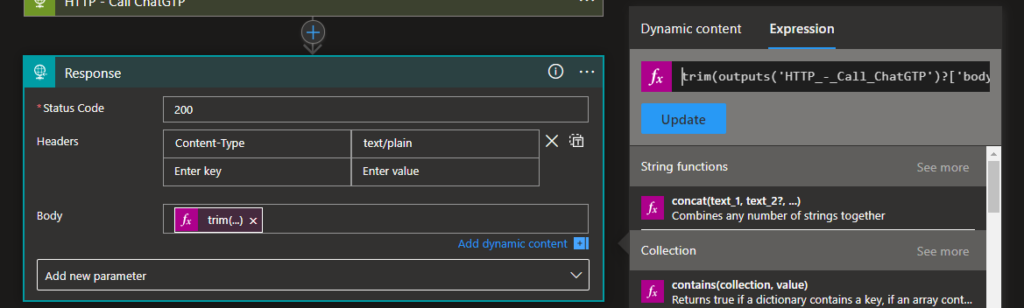
Of course, if you are trying, you need to adjust the name of the HTTP action according to your scenario.
You are probably wondering why we use the trim() function in our expression.
We use the trim function to remove any whitespace characters from the beginning and end of the message content before returning it. This should result in a clean message without the “\n\n”.
In the end, visually, the overall workflow should end up like this:
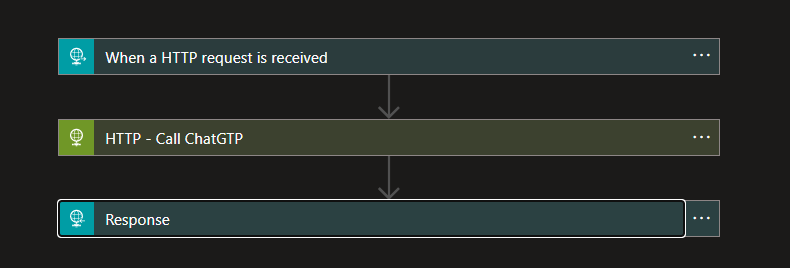
And now, we just need to save our Logic App and test it!
Testing our process
So, after saving our Logic App, we will use the URI present on the When a HTTP request is received trigger and use it in Postman to test our process – you are free to use any other tool.
Let’s start with the basics and ask: Hello? to see what the expected response from ChatGPT:
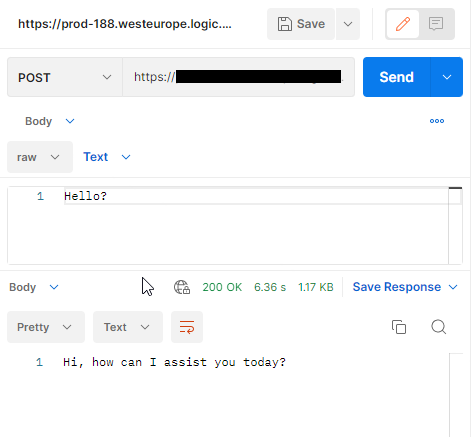
Now, let’s do a more difficult question: Who is Sandro Pereira? And the answer surprised me!

As an AI language model, I cannot properly answer subjective questions such as “Who is Sandro Pereira?” since I cannot browse the internet nor access a person’s thoughts or opinions. However, based on online searches, Sandro Pereira appears to be a well-known Portuguese software integration professional, speaker, author, and a Microsoft Azure MVP (Most Valuable Professional) with more than 10 years of experience in the field.
Nicely done, ChatGPT! You only failed in the number of field expert years, which is more than 16 🙂
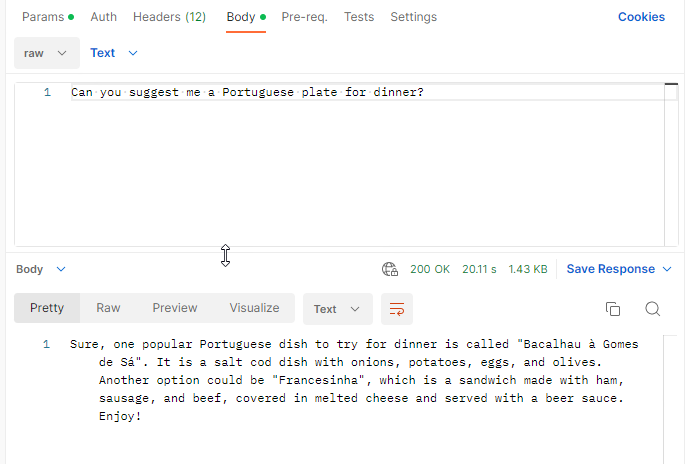
Finally, let’s ask: Can you suggest me a plate for dinner?
Where can I download it?
You can download the complete Azure Function source code here:
Credits
Kudos to my team member, Luis Rigueira, for participating in this proof-of-concept!
Hope you find this useful! So, if you liked the content or found it useful and want to help me write more content, you can buy (or help buy) my son a Star Wars Lego!




Unable to process template language expressions in action ‘Response’ inputs at line ‘0’ and column ‘0’: ‘The provided parameters for template language function ‘trim’ are not valid.’.
Make sure that you are using ‘ (straight comma) in the expression
Do we need Chat GTP Premium Plan?
I am getting this error
{
“error”: {
“message”: “You exceeded your current quota, please check your plan and billing details.”,
“type”: “insufficient_quota”,
“param”: null,
“code”: “insufficient_quota”
}
}