


Sometimes I like to use my friends to have a different point of view on things, which is one of these cases. I have been discussing with Mike Stephenson and Nino Crudele this week how we can easily manage and monitor our current Azure Logic App Connectors present on our Azure integration solutions.
One of the reasons why this is so important is because some of the connectors like for example, Office 365 connectors: Team Connector, Office 365 Outlook, and so on, can stop working for the simple reason that the access token has expired due to inactivity and without notice, your processes stop working also and it was precisely what happened in one of my clients. We noticed that the API Connections had expired because we were troubleshooting another issue.
Recently, Mike wrote about his great solution here: Monitoring the status of API Connections for Logic Apps. But you can achieve that goal using different approaches. Of course, you will find advantages and disadvantages in all of them.
📝 One-Minute Brief
Monitoring Azure API Connections is critical to avoid unexpected failures caused by expired or invalid access tokens. This article introduces the first approach in a three‑part series and shows how to detect unhealthy Logic App API connections using a simple PowerShell script across an Azure subscription.
I decided to create this series of 3 blog posts to present 3 different approaches by starting with the simplest one:
Solution 1: Using a simple PowerShell Script
The first thing I did while thinking about the problem was, yep, let’s create a PowerShell script to see what is possible or not. And so, my first approach was creating a simple PowerShell script that goes to all resources I have on my subscription and does a simple report of the current status of the existing API connections.
It is for sure not the most elegant and best PowerShell script, but for a proof of concept works well, and it will provide a simple and color report of how your existing API Connections are:
##############################################################
# Get list of API Connectors available on the Resource Group
##############################################################
Write-Host 'Looking up API Connectors'
Write-Host '#########################################################'
$resourceName = ''
$resources = Get-AzResource -ResourceType Microsoft.Web/connections
$resources | ForEach-Object {
    $logicAppUrl = $_.ResourceId + '?api-version=2018-07-01-preview'

    # Get Logic App Content
    $resourceJsonResult = az rest --method get --uri $logicAppUrl
    $resourceJson = $resourceJsonResult | ConvertFrom-Json

    $resourceName = $_.Name
    $resourceGroupName = $_.ResourceGroupName

    # Check Logic App Connectors
    $apiConnectionStatus = $resourceJson.properties.overallStatus
    if($apiConnectionStatus -eq 'Error')
    {
        Write-Host "`t Resource Group: " -NoNewline; Write-Host $resourceGroupName -ForegroundColor Red -NoNewline; Write-Host "`t -> `t API Connection: " -NoNewline; Write-Host $resourceName -ForegroundColor Red -NoNewline;  Write-Host "`t -> `t Status: " -NoNewline; Write-Host $apiConnectionStatus -ForegroundColor Red;
        Write-Host "`t`t Target: " -NoNewline; Write-Host $resourceJson.properties.statuses.target -ForegroundColor Red -NoNewline;
        Write-Host "`t -> `t Error Code: " -NoNewline; Write-Host $resourceJson.properties.statuses.error.code -ForegroundColor Red -NoNewline;  Write-Host "`t -> `t Message: " -NoNewline; Write-Host $resourceJson.properties.statuses.error.message -ForegroundColor Red;
    }
    else
    {
        Write-Host "`t Resource Group: " -NoNewline; Write-Host $resourceGroupName -ForegroundColor Green -NoNewline; Write-Host "`t -> `t API Connection: " -NoNewline; Write-Host $resourceName -ForegroundColor Green -NoNewline;  Write-Host "`t -> `t Status: " -NoNewline; Write-Host $apiConnectionStatus -ForegroundColor Green;
    }
}
The result will be something like:
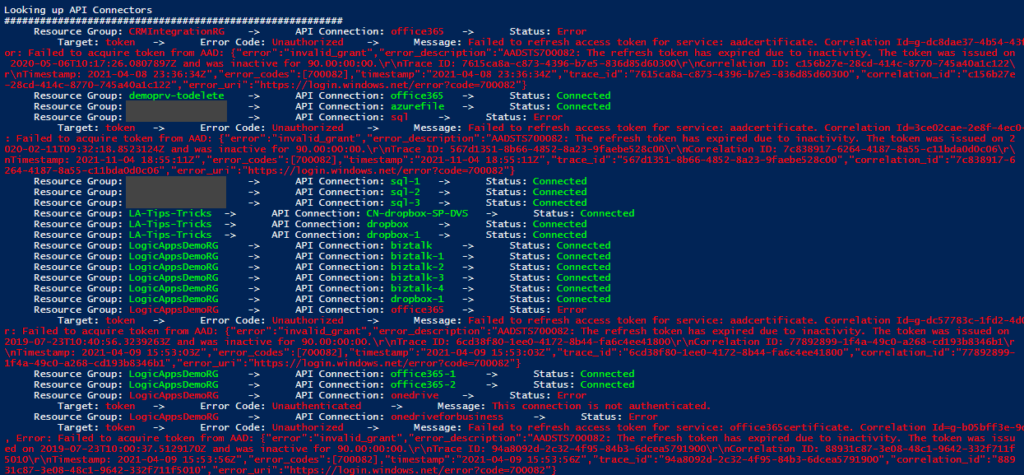
You will see in the picture above many samples where the refresh token has expired due to inactivity. Which is normal because most processes I have under my subscription are samples or POC, and I only execute them from time to time, most of the time when I have speaking engagements or meetings with clients. However, there are real scenarios like my client case where we are using a Team Connector to notify us on the team channel when a significant issue appears. And this is something that should not happen often. Luckily, it was our case, and due to inactivity, the API connection got broken. Still, unfortunately for us, we were not notified on the Teams channel when the issue appeared in production.
It was not a big issue because it was not a critical operation. The Logic App didn’t fail because it is configured not to fail on these notifications. Could we have a better logging system? Yes, we could, but we don’t have it at the moment. But with or without logging, you will only be aware of the issue when the error happens. And you don’t want to be in that position. So it is always better for you to be proactive and prevent these issues from occurring.
The main issue with this approach is that this script is good enough to run from time to time manually on demand, but this again is not the situation you want to be in. So, in the following parts, I will address 2 approaches on how and where you can set up this to be a scheduled process using Azure features.
Download
THIS POWERSHELL SCRIPT IS PROVIDED “AS IS”, WITHOUT WARRANTY OF ANY KIND.
You can download the API Connections Status Report from GitHub here:
Hope you find this helpful! If you liked the content or found it useful and would like to support me in writing more, consider buying (or helping to buy) a Star Wars Lego set for my son.



