


The Challenge with Deprecated Logic Apps Actions
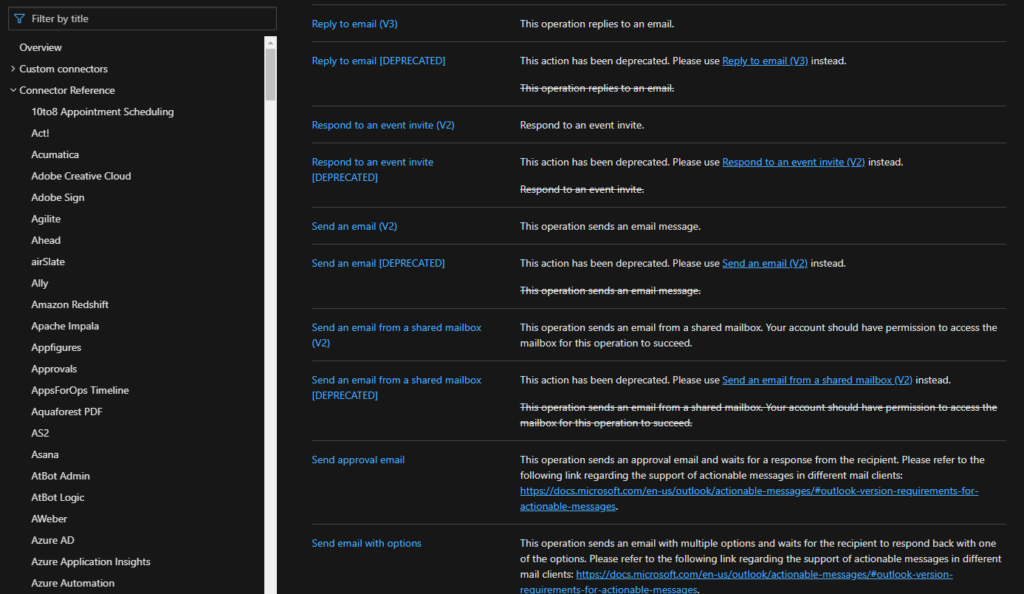
Microsoft has been discontinuing some actions for quite some time. In some cases, it even runs multiple versions side by side. Don’t get me wrong—this approach is understandable in a fast‑moving platform.
However, Microsoft has never been particularly strong at documentation. This was already true when software releases happened every two or three years. Today, in a world of continuous and rapid delivery, the problem is even more evident.
The Documentation Gap
As a result, a significant gap exists between the available features and how well they are documented.
In many situations:
- Features exist, but lack proper explanations.
- Behavior changes are undocumented.
- Previous capabilities disappear without clear migration guidance.
What Deprecation Really Means in Logic Apps
When I say that Microsoft deprecated connection actions, I mean something very specific.
Microsoft didn’t just mark these actions as deprecated. Instead, it completely removed them from the Logic Apps designer. Using the two connectors mentioned earlier as an example, you can no longer see those deprecated actions in the designer at all.
This behavior makes it harder for developers to understand:
- How to adapt existing logic going forward.
- Why did an action disappear?
- What replaced it?
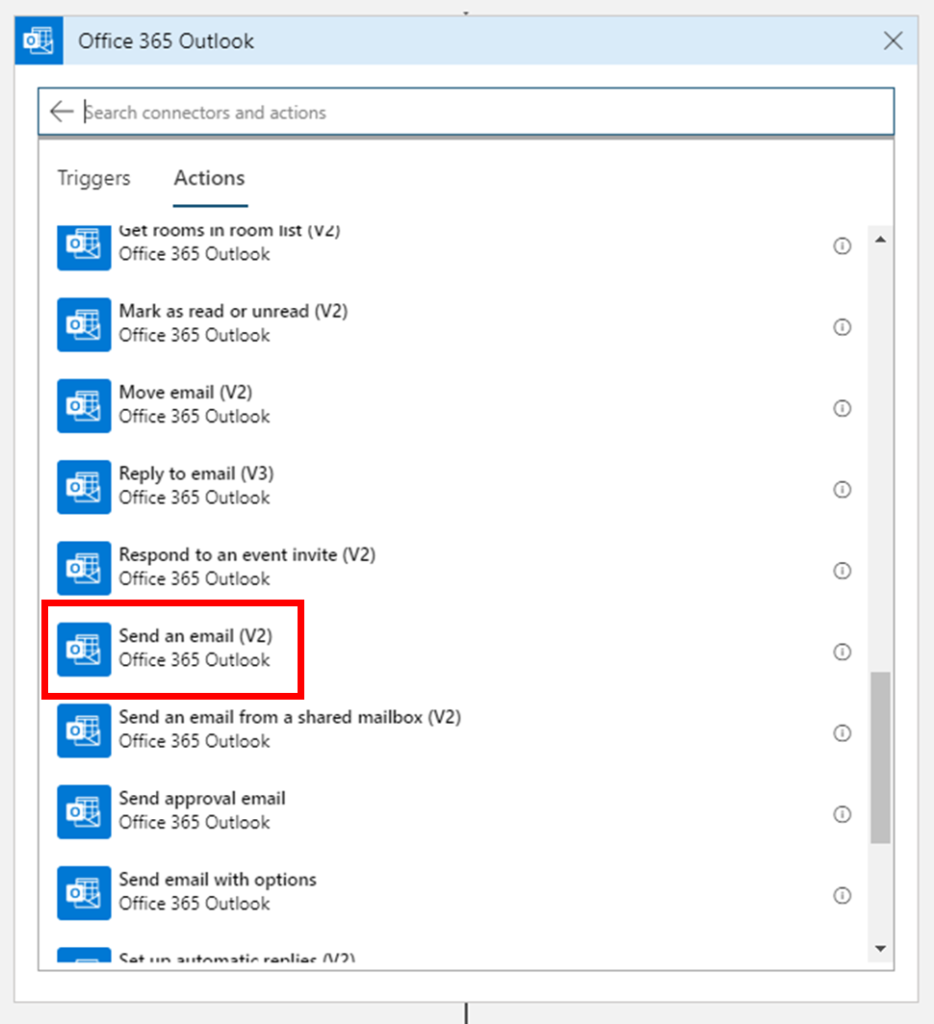
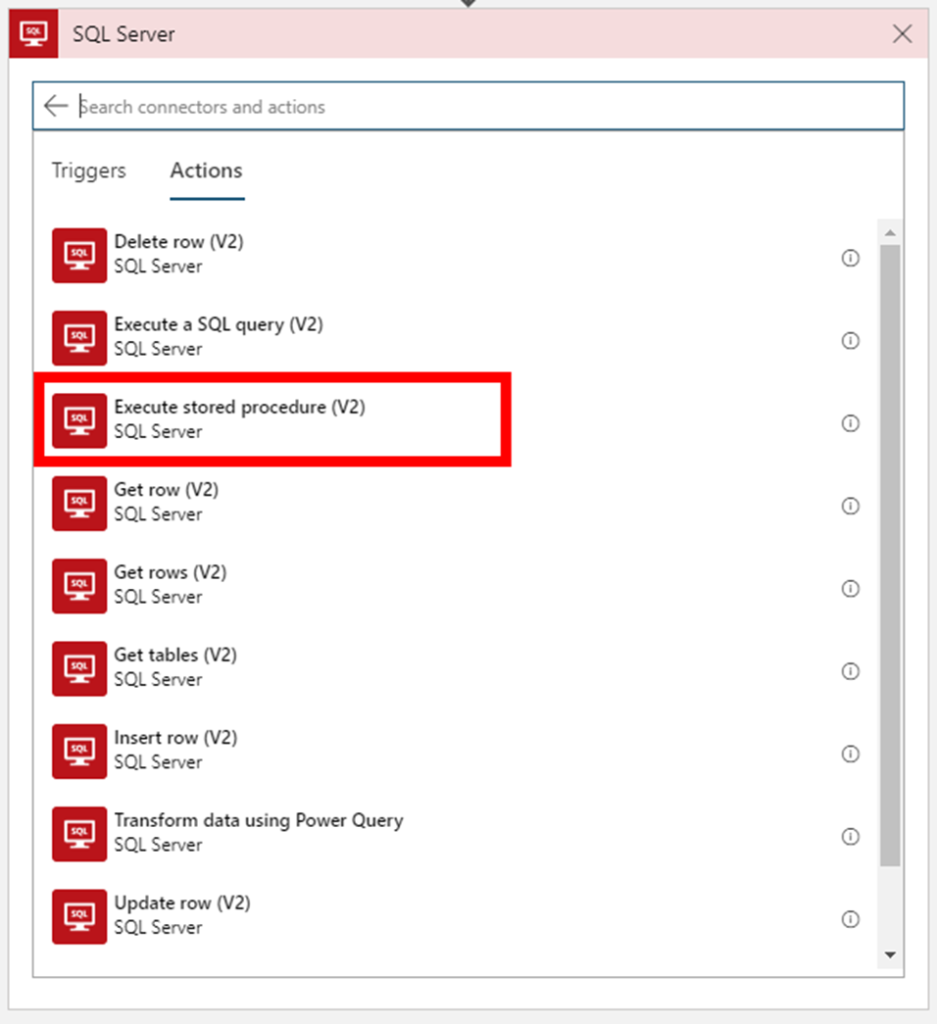
But don’t be alarmed, your existing logic apps that still use these deprecated actions continue to work properly.
In this article, we will address the Office 365 Outlook connector, especially the Send an Email V2 action, since the Send an Email action is now deprecated. So the question here is:

📝 One-Minute Brief
Explains how to send well‑formatted HTML email notifications from Azure Logic Apps using the Office 365 Outlook “Send an email (V2)” connector, including how to handle HTML content after the deprecation of the original action.
How to send a well-formatted custom HTML Email using the Send an Email V2 action available on the Office 365 Outlook connector?
I personally liked the Send an Email action because we were able to directly put HTML code on the body property and define that the email body format would be HTML by setting the property Is HTML to true.
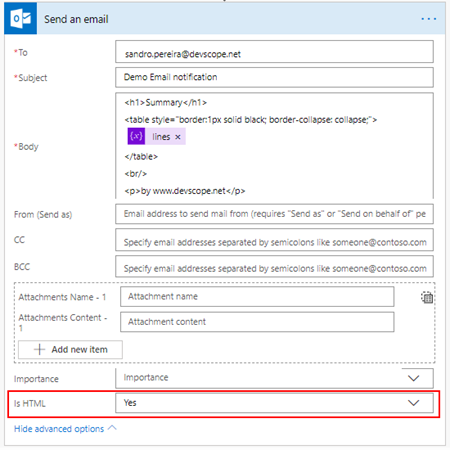
Quite simple to use and efficient.
However, the Send an email (V2) action has a totally different behavior. First of all, it owns fewer properties:
- Is HTML property was removed from this action.
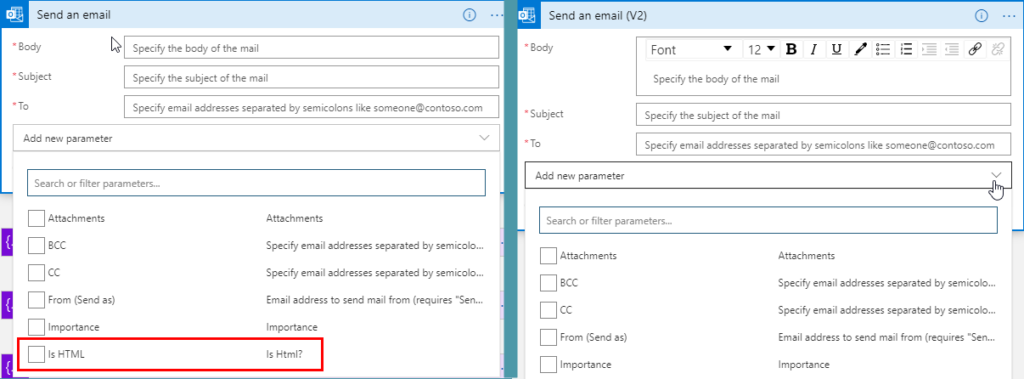
And a completely new look and feel of the Body property, as you see in the picture below:
- With a powerful editor similar to what we have in our office tools (Word, Outlook, …)
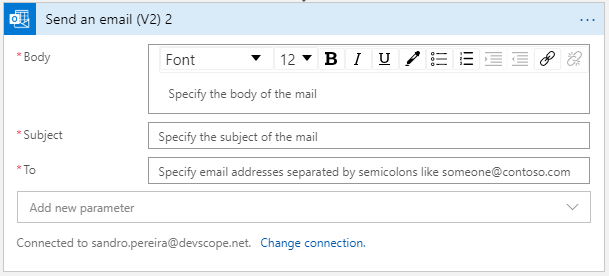
That also means that we no longer have the possibility to directly insert HTML code into the body property of the message as we did earlier with the previous version. Well, we can write HTML code on the body of this action:
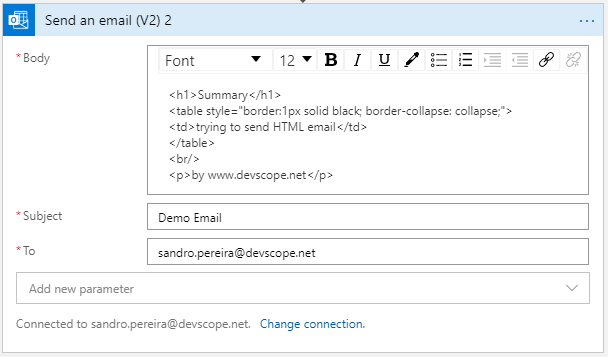
But the end result will not be what you expect:
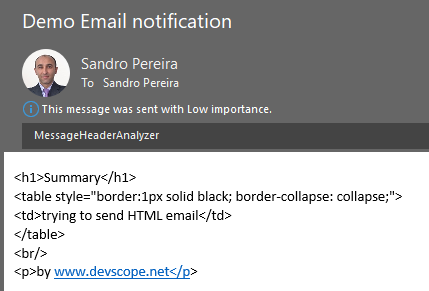
Unfortunately, in Power Automate Designer, we don’t have a Code View button (</>) in the Body property editor. I will be blogging about this feature soon on the Serverless360 blog. So, can we able to send a properly formatted, well-formatted HTML Email using the Send an email V2 action?
The answer is: unfortunately, at least in my opinion, we need to build the HTML in an action beforehand in a composite action or in a variable. And then put the compose output or variable as the send mail body property, and the action will render the output correctly as HTML.
To do that, we need:
- On the Logic App designer, add the next step by clicking the +New step button
- On the Choose an action window, enter Variables and select the action Initialize variable.
- On
the Variable action configuration:
- On the Name property, type EmailBody.
- On the Type property, specify the type as String.
- On the Value property, leave it blank.
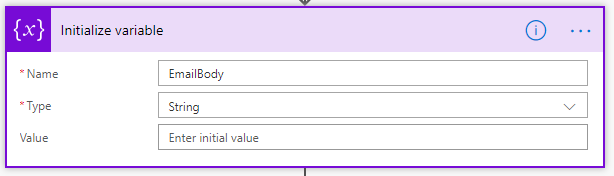
- On the Logic App designer, add the next step by clicking the +New step button
- On the Choose an action window, enter Variables and select the action Set variable.
- On
the Variable action configuration:
- On the Name property, select EmailBody variable.
- On the Value property, type your custom HTML.
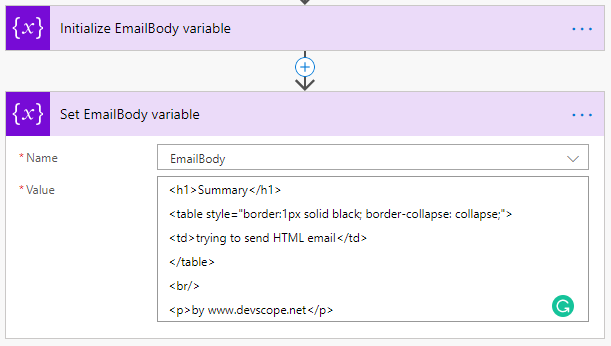
Note: you can take, for example, this fancy HTML Template that I created specifically for this article here: HTML Notification Template to use Logic App or Power Automate Outlook connector, and not this basic HTML that you are seeing in the picture.
- And then define directly on the Body editor (without switching to Code View) that the body will be the content of the variable we created earlier:
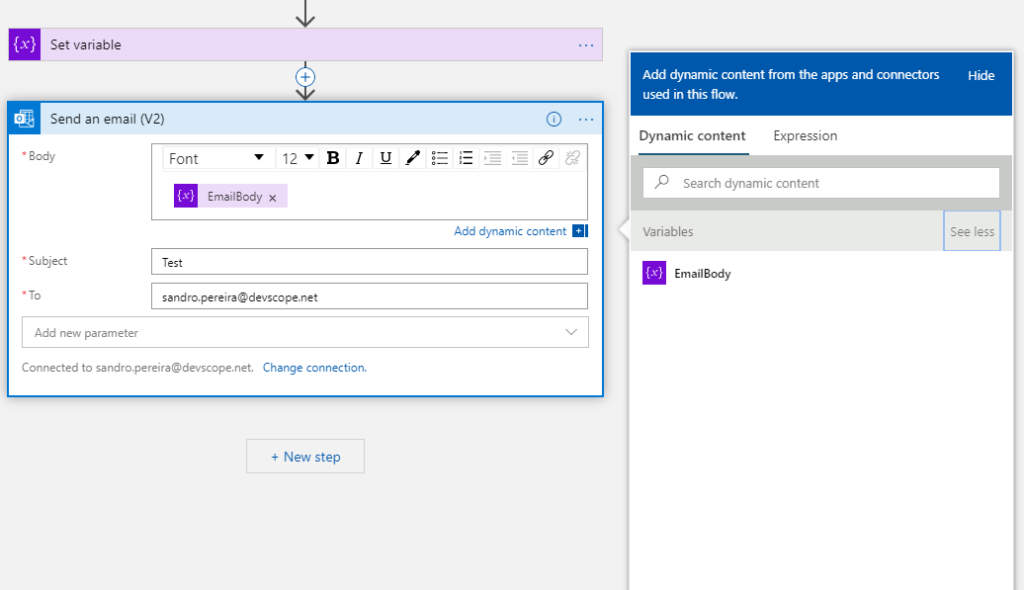
And you will see that you will also be receiving a well-formatted HTML email in your mailbox:
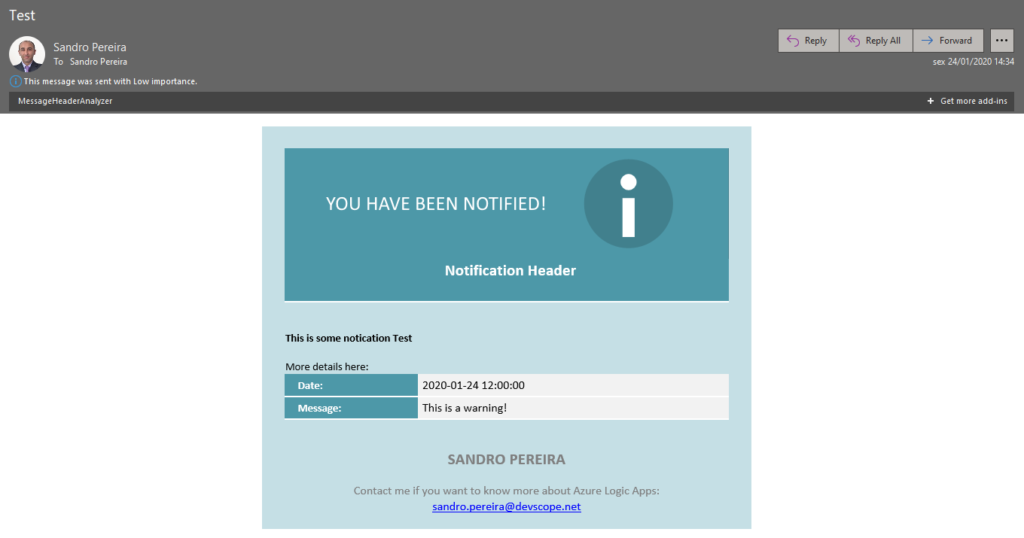
Thanks to Thiago Almeida for the help, and to Pedro Rosa for the HTML Template that helped me create this HTML Template, and, most importantly, for making it compatible with Outlook, because not all the stylesheets we can apply are compatible.
Hope this helps!
To know more about Logic Apps: Learn more
Hope you find this helpful! If you liked the content or found it useful and would like to support me in writing more, consider buying (or helping to buy) a Star Wars Lego set for my son.




Thanks, It was such a useful blog on Logic app Email Notification. Thanks
I have been looking for a creative way to set up a professionally looking notification. This is exactly what I was looking for. Thank you for sharing this information with us!
Thank you for your post it has been very helpful. Would you do the same for graphs that you would like to email? I’m looking for a way to email performance graphs using logic apps
I think this has been revised now, as there is a code button within automate’s simple email V2 connector – but this still does not work very well when sent to outlook. outlook seems to reject most html css styling from what we can see – no max-width on tables allowing centering of a table within the viewport, no border-radius… only simple styles like text and such are respected. it would be great if microsoft could bring all of their products together to offer a unified solution.
How can you replace the \r\n and \t from an error message in a more readable email message?
I normally use an Azure Function to parse the error messages to the desired format and replacing unwanted characters.
Thanks for the tip
Hi what if i want to change the subject color red i tried with setting a variable but it displays the variable not the value
How to send email with high importance. By default Logic App is sending the email with low importance
The link to the template is broken
Fixed, thanks for the alert.
Thanks you really much Sandro for taking the time to publish this really helpful article.
This is the kind of content that would be worth including in the official documentation.
HUGELY helpful article. Thank you!
for me email received with email,body,subject… in json format .how to customise it
I used the same code, but my list order is changed while receiving email…
Thanks for the post, really helpfull. As some poeple comments. This info should be in the official documentation.
How to send the contents of a files as a table in email body using logic apps.
Thank you so much. Very useful article
Hi this has been extremely helpful. Do you happen to have any examples or tutorials on how to embed “Alert Custom Details” into an email.
I have a KQL query where I want to embed a few columns and their associated data into the email directly.
You saved my day
Now all became clear to me, I thank for the necessary information.