

This part of the article will focus on installing the BizTalk prerequisites and performing the necessary configuration on the BizTalk Server machine.
Before installing BizTalk Server or its prerequisites, make sure you have installed the latest critical Windows updates from Microsoft.
📝 One-Minute Brief
This fifth part of the series details the essential prerequisites for the BizTalk Server machine in a multi-server setup. It covers enabling IIS via PowerShell, installing Office Excel (for BAM), and configuring SQL Server Client Tools. Crucially, it explains how to create SQL Aliases for non-standard ports and how to configure RPC dynamic port allocation for MS DTC to work through firewalls.
Important considerations before setting up the servers
Check if all the considerations described above are implemented:
- Join the BizTalk Administrator Group to the Local Administrators Group
- Install Critical Windows Updates
- Disable IPv6
- Turn off Internet Explorer Enhanced Security Configuration
- Disable User Account Control
- Install .NET Framework 3.5 SP1
- Configure Microsoft Distributed Transaction Coordinator (MS DTC)
- Enable Network COM+ access
Enable Internet Information Services
Microsoft Internet Information Services (IIS) provides a Web application infrastructure for many BizTalk Server features. BizTalk Server requires IIS for the following features:
- HTTP adapter
- SOAP adapter
- Windows SharePoint Services adapter
- Secure Sockets Layer (SSL) encryption
- BAM Portal
The steps are described in my blog:
Alternatively, you can install these features by using PowerShell:
- Open PowerShell as administrator and run this script
- Set-ExecutionPolicy unrestricted press ‘y’
- Import-Module ServerManager
@(“Web-Server”,
“Web-Http-Errors”,
“Web-App-Dev”,
“Web-Asp-Net”,
“Web-Net-Ext”,
“Web-ASP”,
“Web-CGI”,
“Web-ISAPI-Ext”,
“Web-ISAPI-Filter”,
“Web-Includes”,
“Web-Basic-Auth”,
“Web-Windows-Auth”,
“Web-Mgmt-Compat”,
“Web-Metabase”,
“Web-WMI”,
“Web-Lgcy-Scripting”,
“Web-Lgcy-Mgmt-Console”
)| Add-WindowsFeature
Install Microsoft Office Excel 2010 or Excel 2007
Microsoft Office Excel is required for using the Business Activity Monitoring (BAM) feature in BizTalk Server. You use the BAM Office Excel Workbook to define the business processes you want to monitor. You also use the BAM Excel Workbook to define the way in which business users see the data collected by BAM.
The steps are described in my blog:
Install Visual Studio 2010
The BizTalk Server development tools are based on Visual Studio 2010. Because this is an emulation of a production environment, I will skip this part. However, the steps are described in my blog:
SQL Server Considerations
The following software requirements are needed when SQL Server is installed on a computer other than the one where BizTalk Server is installed:
| BAM feature | Feature configuration | BizTalk Server | SQL Server |
| BAM Tools | BAM Primary Import Tables and BAM Archive database | ADOMD .NET 10SQL Server 2008 R2/2008 SP1 Integration Services | SQL Server 2008 R2/2008 SP1 |
| BAM Tools | Enable Analysis Services for BAM aggregations | SQL Server 2008 R2/2008 SP1 Integration Services | SQL Server 2008 R2/2008 SP1 Analysis Services |
| BAM Notification Services Application Database | Enable Notification Services for BAM alerts | SQL Server 2005 Notification Services Engine Components | N/A |
The following conditions apply regarding remote computers.
- SQL Server Client Tools must be installed on the local computer when SQL Server is remote. The SQL Server Client Tools install the client libraries required to communicate with the remote instance of SQL Server.
- The version of the SQL Server Client Tools on the local computer must be the same version that is installed on the remote SQL Server.
- SQL Server OLAP client must be installed on the local computer if you plan to use Analysis Services remotely.
- The remote SQL Server must be running during BizTalk Server configuration.
- The TCP and UDP ports you specified during the SQL Server setup process must be open during BizTalk Server configuration.
- Named instances of SQL Server 2008 Analysis Services are not supported.
Install SQL Server 2008 R2 Client Tools
SQL Server Client Tools must be installed on the local computer when SQL Server is remote.
The SQL Server Client Tools (must be the same version that is installed on the remote SQL Server) install the client libraries required to communicate with the remote instance of SQL Server.
To Install SQL Server 2008 R2 Client Tools:
- Insert the SQL Server 2008 R2 installation disk into the DVD-ROM drive. The setup program will begin automatically. If prompted for automatic installation of prerequisite software, click OK.
- On the SQL Server Installation Center, click Installation.
- Click New Installation or Add Features to an Existing Installation.
- Review the information on the Setup Support Rules screen, and then click OK.
- On the Product Key screen, enter your product key and click Next.
- On the License Terms screen, select I accept the license terms and then click Next.
- On the Setup Support Files screen, click Install.
- On the Feature Selection screen, select the following features, and then click Next.
- Shared Features
- Management Tools – Basic
- Management Tools – Complete
- Shared Features
The similar steps are described in my blog:
Install SQL Server 2005 Notification Services
If you plan to use BAM Alerts in your BizTalk Server project, you must install SQL Notification Services and its prerequisites.
The steps are described in my blog:
Microsoft SQL Server Native Client
Microsoft SQL Server Native Client (SQL Native Client) is a single dynamic-link library (DLL) containing both the SQL OLE DB provider and SQL ODBC driver. It contains run-time support for applications using native-code APIs (ODBC, OLE DB, and ADO) to connect to Microsoft SQL Server 7.0, 2000, or 2005. SQL Native Client should be used to create new applications or enhance existing applications that need to take advantage of new SQL Server 2005 features. This redistributable installer for SQL Native Client installs the client components needed during run time to take advantage of new SQL Server 2005 features and optionally installs the header files needed to develop an application that uses the SQL Native Client API.
Microsoft SQL Server 2005 Management Objects Collection
The Management Objects Collection package includes several key elements of the SQL Server 2005 management API, including Analysis Management Objects (AMO), Replication Management Objects (RMO), and SQL Server Management Objects (SMO). Developers and DBAs can use these components to programmatically manage SQL Server 2005.
Note: Microsoft SQL Server 2005 Management Objects Collection requires Microsoft Core XML Services (MSXML) 6.0 and Microsoft SQL Server Native Client, also available on this page.
Microsoft SQL Server 2005 Notification Services Client Components
The SQL Server 2005 Notification Services Client Components package provides client APIs that enable subscription management and event submission within custom applications that include SQL Server 2005 Notification Services functionality. The subscription management APIs allow developers to create subscriptions and subscribers, and manage subscriber devices. The event submission APIs allow users to specify events using event APIs or stored procedures.
Create SQL Alias to communicate with remote SQL Server using Non-Standard Port
When we want to install BizTalk Server with a remote SQL Server using a non-default port, we cannot use “servername\instance, port number” for BizTalk installation; it will give you the following error:
Error Configuration Framework]Feature: [Group] Failed to configure with error message [Exception of type ‘System.EnterpriseServices.TransactionProxyException’ was thrown.]
Instead, you should create a SQL Server Alias on the client machine to connect to the SQL Server machine.
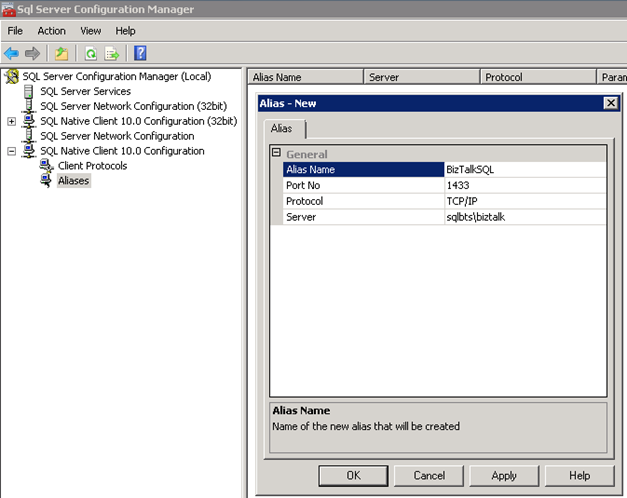
An alias can be created on the client machine by running the SQL Server Configuration Manager tool.
- Under the SQL Server Native Client folder, right-click on the Aliases item and select the New Aliases item.
- When doing this, the Alias – New dialog box will be displayed. In the new alias dialog box, you can create an alias where you can specify the instance name and the port number it is using.
- In the Alias Name, set the name of the alias: BizTalkSQL.
- In the Port No, specify the port where the Database Engine is listening: 1433.
- In the Protocol, leave the default value: TCP/IP.
- In the Server, specify your servername\instance.
List of ports between SQL Server and BizTalk Server
The following table lists the ports that we need to configure in the firewall or request ACLs to network IT.
Direction:
- Source Host: SQL Server
- Destination Host: BizTalk Server
| Port No. | Protocol /Service | Description of Service |
| 135 | TCP | RPC: Transacted connection to SQL ServerTransacted connection to SQL Server for SQL adapter |
| 5000-8976(you may extend more ports for performance) | TCP | Secondary RPC ports Secondary RPC ports for SQL adapter |
Reference:
Configuring Microsoft Distributed Transaction Coordinator (DTC) to work through a firewall or network address translation firewalls
DTC uses Remote Procedure Call (RPC) dynamic port allocation. By default, RPC dynamic port allocation randomly selects port numbers above 1024.
You can configure DTC to communicate through firewalls, including network address translation firewalls, just follow these steps:
- Go to Component Services.
- On the Component Services console, expand Component Services.
- Right-click My Computer, then select Properties.
- Go to the Default Protocols tab, and select the Connection-oriented TCP/IP option in DCOM protocols.
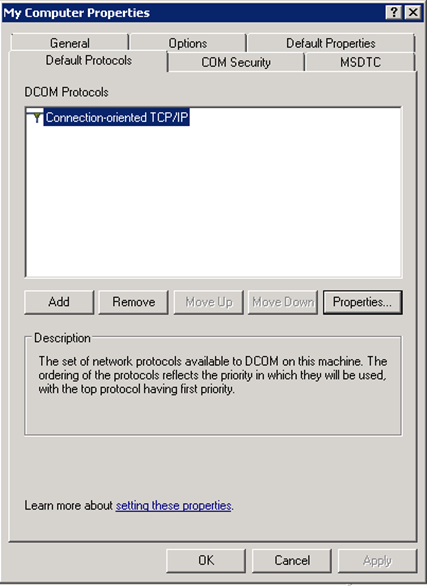
- Click on the Properties button.
- On Properties for COM Internet Services window, click the Add button to set a port range.
- Specify the range of ports you want to use. I set the following range: 5000-8976.
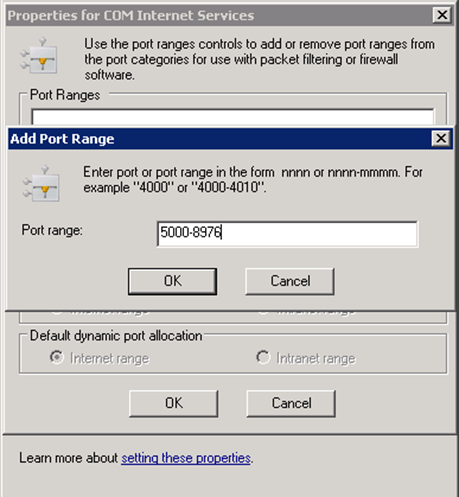
- Click Ok.
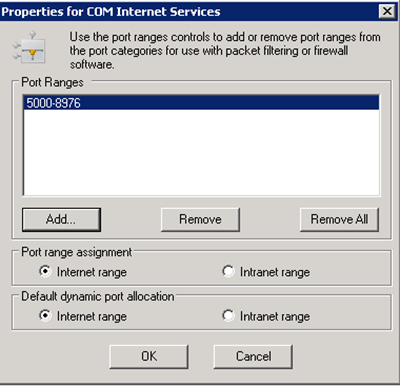
- Ensure that the Internet range is checked in both options: Port range assignment and Default dynamic port allocation.
Configure the firewall on the BizTalk Server machine
Inbound Rules
In order to make DCOM applications work in Windows Server 2008 R2, you need to add the COM+ network access as shown below:
- As described previously, configure the firewall on the SQL Server machine. Enable the following inbound rules by selecting them and right-clicking and selecting the option Enable Rule option:
- COM+ Network Access (DCOM-In)
- COM+ Remote Administrator (DCOM-In)
- Also, enable Microsoft Distributed Transaction Coordinator (MS DTC) to communicate through a firewall with another MS DTC.
- Distributed Transaction Coordinator (RPC)
- Distributed Transaction Coordinator (RPC-EPMAP)
- Distributed Transaction Coordinator (TCP-In)
Now we need to create new rules for each of the ports described in the topic List of ports between SQL Server and BizTalk Server to allow SQL Server to communicate with the BizTalk Server machine. As described previously, configure the firewall on the SQL Server machine.

Outbound Rules
The first thing is to enable the following outbound rules:
- Distributed Transaction Coordinator (TCP-Out) – this will allow Outbound traffic for the Distributed Transaction Coordinator.
The second is to create a new outbound rule for RPC ports:
- Right-click on the Outbound Rules on the left tree and select the option New Rule.
- On the New Outbounded Rule Wizard window, in the step Rule Type, select the Port option
- In the step Protocol and Ports:
- Select the protocol: TCP.
- Specify the range of ports: 5000-8976.
- In the Action step, select the Allow the connection option.
- In the Profile step, leave the default options.
- In the name step, set the name and description of the rule.

Related Links
- Installing BizTalk Server 2010 in a Basic Multi-Computer Environment – Installation scenario (Part 1)
- Installing BizTalk Server 2010 in a Basic Multi-Computer Environment: The need for a Domain Controller – Windows Groups and Service Accounts (Part 2)
- Installing BizTalk Server 2010 in a Basic Multi-Computer Environment: Preparing Computers for Installation – Important considerations before setting up the servers (Part 3)
- Installing BizTalk Server 2010 in a Basic Multi-Computer Environment: Preparing and Install SQL Server 2008 R2 machine (Part 4)
- Installing BizTalk Server 2010 in a Basic Multi-Computer Environment: Testing environment connectivity’s (Part 6)
- Installing BizTalk Server 2010 in a Basic Multi-Computer Environment: Install and configure BizTalk Server 2010 machine (Part 7)
Hope you find this helpful! If you liked the content or found it useful and would like to support me in writing more, consider buying (or helping to buy) a Star Wars Lego set for my son.




Hi Sandro
I can not thank you enough for all the time you spend on these blog entries. These have helped me tremendously. I have a question/experience regarding creating SQL Alias to communicate with remote SQL Server using non-standard port. My recent experience (a BizTalk 2010 installation) was that you also need to create a 32-bit alias to make this work. My guess is that BizTalk config wizard runs as a 32-bit app, and therefor you will need to also create a 32-bit alias? When I created the 32-bit alias as well, this worked great.
Kind Regards
Henrik
Hi Henrik,
First of all thanks for your comments.
As regards the SQL Alias, I actually believe that you only need to create a 32-bit alias. However for not having inexplicable problems or the difficult perception, I create the SQL alias in both: 64 and 32-bit.
You may be right BizTalk config wizard and BizTalk Administration Console runs as a 32-bit app and therefor we need to create a 32-bit alias.
Hi Sandro,
This is a great article. I had to set this up before this article and it took me weeks. For my second setup, I read this article and it took hours. I especially liked the screenshots, that were a nice visual confirmation that I was looking at the screen that I should be looking at.
Keep up the good work. I will refer you to all of my friends.
BTW… Do you have a linkedin profile. I would love to add you to my colleagues list.
Hi Lee,
Thanks for your comments.
All my personal information and social Networks are in the about page (http://sandroaspbiztalkblog.wordpress.com/about/), you will find there my linkedin profile.