


BizTalk Server 2020 – 20 days, 20 posts – day 6. In the last post, I published the BizTalk MapperExtensions Functoid Wizard to be compatible with BizTalk Server 2020 and Visual Studio 2019 but I reference that Visual Studio 2019 has a completely different look and fill and you will not be able to see this project under BizTalk projects in your Visual Studio 2019, instead, you need to search for it or scroll down to find it. So I decided to develop an alternative approach: BizTalk Mapper Extensions Functoid Project Template.
📝 One-Minute Brief
Introduces the BizTalk MapperExtensions Functoid Project Template for BizTalk Server 2020, an alternative to the wizard that lets you create a custom functoid project in Visual Studio 2019 without installing anything—just copy the template to the Visual Studio templates folder and start building.
BizTalk Mapper Extensions Functoid Project Template
BizTalk Mapper Extensions Functoid Project Template is a Custom Functoid Project Template for Visual Studio 2019. It allows you to create a new Functoids project for BizTalk Server 2020 without having to create the project manually, in other words, having to manually create:
- A new class library project in Visual Studio.
- Add a reference to Microsoft.BizTalk.BaseFunctoids assembly.
- Add a new class and have to code the entire class.
This Template will automatically create a project sample reference for you to use when creating your custom Functoid. You need to make the necessary changes and implement the required logic.
The difference between this resource, BizTalk MapperExtensions Functoid Project Template, and the BizTalk MapperExtensions Functoid Wizard is:
- You don’t need to install anything; you just need to copy this resource to a specific folder (explain below).
- There is no Wizard involved to customize the project; instead, a sample project will be created, and you need to implement all the required changes.
- You can filter on the Visual Studio menu for BizTalk project, and this template will appear, which doesn’t happen with the wizard.
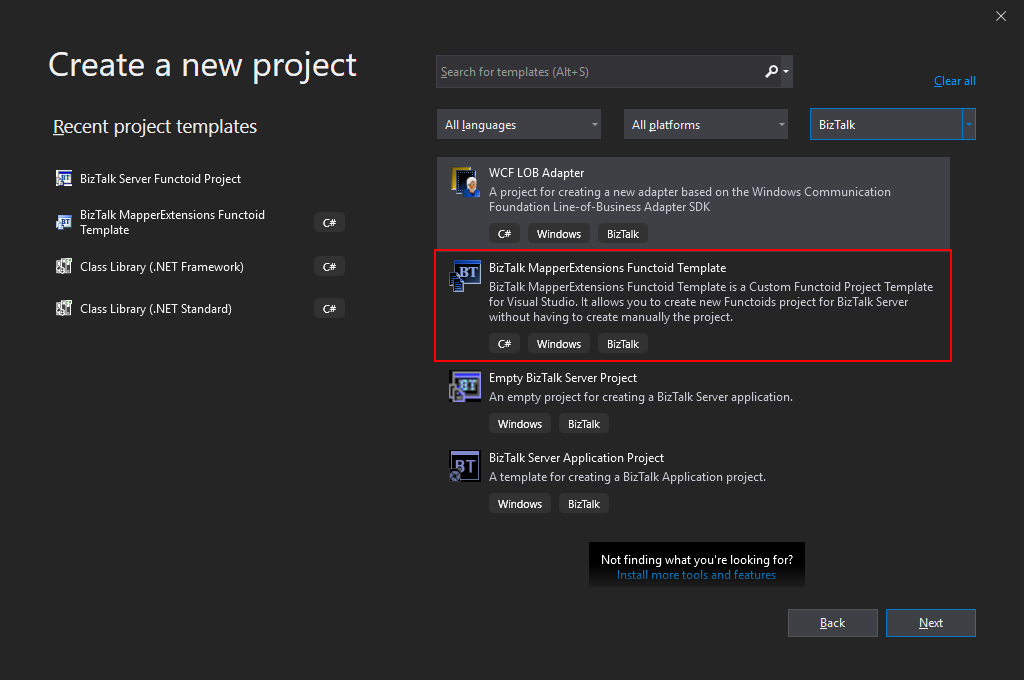
Installation
To use this project template, just download the BizTalk MapperExtensions Functoid Template.zip file (without unzipping) and copy it to the following location:
- C:\Users<your-account>\Documents\Visual Studio 2019\Templates\ProjectTemplates
Download
You can download the BizTalk Mapper Extensions Functoid Project Template from GitHub:
Hope you find this helpful! If you liked the content or found it useful and would like to support me in writing more, consider buying (or helping to buy) a Star Wars Lego set for my son.



