

There is a lot of inconsistent and incorrect information about the BizTalk SAP Adapter (or in this case, WCF-SAP Adapter) installation process and how it works. It is normal to see comments that the adapter only runs on 32-bit, or to see indications that we have to copy DLLs to two different places (System32 and SysWOW64), but which ones?
I hope this step-by-step installation guide to clarify a bit and document this task a little better.
So, one of the key questions that we need to clarify is: Does the WCF-SAP adapter run under a 64-bit Host Instance?
And the correct response to this question is: Yes, it does! The SAP adapter supports both the 32-bit and the 64-bit versions of the SAP RFC SDK. So, it can run under 32 or 64-bit Host Instances.
The second important question that we need to clarify is: Documentation specifies that we need to add the 32-bit version of the client DLLs for the SAP adapter to the C:\Windows\SysWow64 folder, and the 64-bit version of the DLLs must be added to the C:\Windows\System32 folder, but what does this mean? Do I need to add the same DLL in two different folders?
Indeed, the documentation is correct and we need to add both 32 and 64-bit to different folders in our system… but these are different DLL and no the same ones – so if you only have one SDK resource, for example, the SAP RFC SDK 32-bit, you just need to add this into one of the folders, copy for both places doesn’t make any difference because the adapter will only run in this case under a 32-bit Host Instance.
For each SAP Client version (6.4, 7.0 and so on) there are two SAP RFC SDK one for 32-bit and one for 64-bit and you need to download and install both… just like the BizTalk Server Adapter Pack.
There are SAP UNICODE and NON-UNICODE versions, so which version of the SAP RFC SDK should I download?
The SAP adapter requires a Unicode version of the RFC SDK, irrespective of whether the SAP system is Unicode or non-Unicode.
Official documentation states that only the following SAP server versions are supported:
- SAP 7.2, SAP 7.0, SAP ERP 6.0 with EHP 4.0, SAP ECC 6.0 Unicode
However, earlier versions that were mentioned in previous versions of the documentation are also supported:
- SAP ECC 5.0 Non-Unicode, SAP ECC 5.0 Unicode, SAP R/3 4.7 Non-Unicode, SAP R/3 4.7 Unicode, SAP R/3 4.6c Non-Unicode, SAP ERP 6.0 with EHP 4.0
Also, official documentation states that the only supported client version is the SAP RFC SDK 7.2 UNICODE – I always recommend using the latest version… however, once again, as previous versions of the documentation mentioned, these client versions are also supported:
- SAP client 6.4 version: SAP RFC SDK 6.40 UNICODE
- SAP client 7.0 version: SAP RFC SDK 7.00 UNICODE
- SAP client 7.1 version: SAP RFC SDK 7.10 UNICODE
- SAP client 7.11 version: SAP RFC SDK 7.11 UNICODE
I’m not an SAP expert, but I think that all depends on whether the SAP client version is supported in your SAP System version. For example, in one BizTalk Server 2013 R2 environment, I have the SAP client 7.2 version installed, and in another one, a BizTalk Server 2013, I have the 7.0, and both are working fine.
And finally: Can I install only the 64-bit version?
No, you can’t and for the exact same reason that we need to install both versions of the BizTalk Server Adapter Pack: Visual Studio and BizTalk Administration console are 32-bit applications, so in order to configure the adapter in runtime (Receive Locations or Send Ports that will be using the SAP Adapter) or to use it to generate the schemas in the development phase you always need to have installed the 32-bit version of the SAP RFC SDK.
The 64-bit version of the SAP RFC SDK is optional, but if you have a 64-bit BizTalk environment and you want to run it under a 64-bit Host Instance, then you also need to install both versions of the SAP RFC SDK.
📝 One-Minute Brief
This comprehensive guide covers the end-to-end installation of the WCF-SAP Adapter for BizTalk 2013/2013 R2. It details the prerequisites, including the SAP Front End (GUI) and the essential SAP Connector for Microsoft .NET (NCo) 3.0, while explaining how to handle the LOB Adapter SDK and GAC requirements for both 32-bit and 64-bit environments.
Download Prerequisites
As happened with other LOB adapters (like Oracle, for example), installing the BizTalk Adapter pack is not enough, and you will need the additional resources that will be specified below.
Download SAP Resources from SAP Service Marketplace
You need to obtain a few resources from the SAP Service Marketplace in order to properly install the WCF-SAP adapter:
- SAP RFC SDK <version> UNICODE 32-bit.
- SAP RFC SDK <version> UNICODE 64-bit.
- R3DLLINST.zip containing Microsoft run-time DLLs.
- SAPCAR – SAPCAR is a compression utility (similar to WinZip, tar, and so on) that is used by SAP to compress and decompress nearly all delivered files.
Unfortunately, SAP Service Marketplace is restricted, so if you would like to benefit from the content and services offered in the different portals of the SAP Service Marketplace, you need to request your personal User ID; otherwise, you need to ask your client or your SAP team to give you these resources.
In addition to the links above, you may also find it useful to give these two SAP notes to your client or SAP team:
Unlike R3DLLINST.zip, which is a unique resource, on the SAP Service Marketplace portal, the SAP RFC SDK page, you will find several resources, and we must understand exactly what we need. In this case, for example purposes, I’m using the SAP RFC SDK 7.20 page:

Depending on the SAP client version you want to install, this may change a little, but it is practically the same for the other versions, as you can see in the case of the SAP RFC SDK 7.00 page

What you need to download is the:
- “Windows Server on IA32 32bit” –> this is the SAP RFC SDK 7.00 UNICODE 32-bit
- And the “Windows on x64bit” –> SAP RFC SDK 7.00 UNICODE 64-bit
You also need to download SAPCAR to extract (unzip) the SAP resources. I think you may found this resource at service.sap.com/patches under:
- Download, Support Packages and Patches, Entry by Application Group, Additional Components, and then SAPCAR

Extract SAP Resources
Once we have downloaded all these SAP resources, we need to use the SAPCAR to extract the SAP resources, in this case (SAP RFC SDK 7.20):
- “RFC_12-10009744.SAR” is the 64-bit SDK that we want to extract to the “rfcsdk 64” folder
- “RFC_12-100097446.SAR” is the 32-bit SDK that we want to extract to the “rfcsdk 32” folder

To accomplish that, we need to:
- Open a command-line prompt
- Change our directory to the location where we saved the SAPCAR.exe and execute the following command to extract the SAR archive:
- SAPCAR.exe -xfv “RFC_12-10009744.SAR”
- This will create a folder called rfcsdk, rename that to rfcsdk 64.
- SAPCAR.exe -xfv “RFC_12-10009744.SAR”

- SAPCAR.exe -xfv “RFC_12-10009746.SAR”
- This will create a folder called rfcsdk, rename that to rfcsdk 32.
The final step regarding SAP Resource is to unzip the r3dllinst.zip file using, for example, an open-source Windows utility for manipulating archives like 7-Zip.
Download Microsoft Visual C++ 2005 SP1 Redistributable Package
Microsoft Visual C++ run-time DLLs, again, both 32-bit and 64-bit are required for SAP 7.11 client or higher. These resources are available for download in the following links:
- For 32-bit SAP 7.2 client: Vcredist_x86.exe from http://go.microsoft.com/fwlink/?LinkID=107086.
- For 64-bit SAP 7.2 client: Vcredist_x64.exe from http://go.microsoft.com/fwlink/?LinkID=107087.


Step-by-Step WCF-SAP Adapter Installation Guide
The first thing you need to make sure that you have installed already is both 32 and 64-bit versions of the Microsoft BizTalk Adapter Pack.
- The Microsoft BizTalk Adapter Pack contains adapters that enable enterprise applications and databases to interface with each other by implementing a common adapter framework. Similar to programming to Web services, adapters enable clients to program to different enterprise applications. Technically, adapters are binding to the Windows Communication Framework (WCF). The BizTalk Adapter Pack consists of the following adapters:
- Microsoft BizTalk Adapter for Oracle Database (Oracle Database adapter).
- Microsoft BizTalk Adapter for Oracle E-Business Suite (Oracle E-Business adapter).
- Microsoft BizTalk Adapter for mySAP Business Suite (SAP adapter). This also includes the .NET Framework Data Provider for mySAP Business Suite (Data Provider for SAP).
- Microsoft BizTalk Adapter for Siebel eBusiness Applications (Siebel adapter). This also includes the .NET Framework Data Provider for Siebel eBusiness Applications (Data Provider for Siebel).
- Microsoft BizTalk Adapter for SQL Server (SQL adapter).
- Find more about the BizTalk Adapter Pack installation process in the following articles:
Notice that, at this point, if you try to create a receive or send port using the WCF-SAP adapter, you will get the following error:
Exception has been thrown by the target of an invocation. (mscorlib)
Could not load file or assembly ‘Microsoft.Adapters.SAP.SAPGInvoker.dll’ or one of its dependencies. The specified module could not be found. (Microsoft.Adapters.SAP)
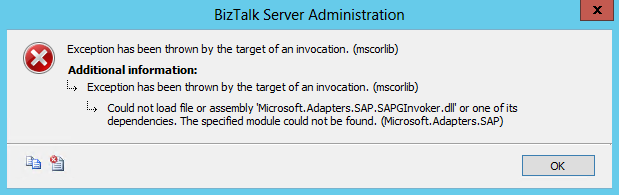
This is because we need the SAP resources required to run the adapter, which are not installed (or are installed incorrectly).
So, now that we have installed the Microsoft BizTalk Adapter Pack, we need to install the SAP Resources that we previous download in our BizTalk Server machine:
- Open the rfcsdk 64 folder containing the SAP RFC SDK 7.20 UNICODE 64-bit and access to the lib folder:
- C:\SAP Resources\rfcsdk 64\lib

- Install the SAP RFC SDK 64-bit DLLs by copying (or dragging) them to the System32 folder in your system’s Windows folder:
- C:\Windows\System32

- And now we need to do a similar process to the Open the SAP RFC SDK 7.20 UNICODE 32-bit
- For that, you need to open the rfcsdk 32 folder containing the SAP RFC SDK 7.20 UNICODE 32-bit and access to the lib folder:
- C:\SAP Resources\rfcsdk 32\lib

- Install the SAP RFC SDK 32-bit DLLs by copying (or dragging) them to the SysWOW64 folder in your system’s Windows folder:
- C:\Windows\SysWOW64

- Open the r3dllinst\ntpatch folder containing the content of r3dllinst.zip file, and we need to execute the R3DLLINS.EXE tool in order to install the SAP R/3 DLLs (Microsoft run-time DLLs):
- msvcr71.dll
- msvcp71.dll
- mfc71.dll
- mfc71u.dll

- The tool specifies that the DLLs were installed under the C:\Windows\System32 folder. However, because I’m using a 64-bit environment instead, they were installed in the c:\Windows\SysWOW64 folder.

- You should check if DLL’s are present in the C:\Windows\System32. If they are not, I advise you to:
- Leave them in the c:\Windows\SysWOW64 folder.
- And, just to be sure, copy the same four DLLs to the C:\Windows\System32 folder.

- And finally, we also need to install Microsoft Visual C++ 2005 SP1 Redistributable Package – 32-bit and 64-bit – containing the Visual C++ run-time DLLs required for SAP 7.20 (or 7.11) client:
- Install the Microsoft Visual C++ 2005 SP1 Redistributable Package (x86) – 32-bit – by executing the Vcredist_x86.exe file that we previous download
- On the Microsoft Visual C++ 2005 SP1 Redistributable Package window, click Yes.
- Install the Microsoft Visual C++ 2005 SP1 Redistributable Package (x86) – 32-bit – by executing the Vcredist_x86.exe file that we previous download

- Do the same steps to install the Microsoft Visual C++ 2005 SP1 Redistributable Package (x64) – 64-bit – by executing the “Vcredist_x64.exe” file that we previous download
- On the Microsoft Visual C++ 2005 SP1 Redistributable Package window, click Yes.
Add adapters to BizTalk Administration Console
As it happens with all adapters that we installed on our BizTalk Server environment, before we can begin to use them, we need to register or add the adapters. So in the next step, it will describe how we can add the enterprise adapters, or any other custom adapter, to the BizTalk Administration Console. To accomplish that, we need to:
- Open BizTalk Administration Console by pressing the Windows key to switch to the Start screen, typing BizTalk Server Administration or BizTalk, and clicking the BizTalk Server Administration option from the Search menu.
- In the console left tree, expand BizTalk Server Administration > BizTalk Group > Platform Settings and then Adapters.
- Right-click on Adapters and add a new adapter by selecting the option New > Adapter.

- In the Adapter Properties window:
- In the Name box, type a descriptive name for this adapter.
- WCF-SAP
- In the Adapter combo box, select the adapter from the drop-down that you want to add.
- WCF-SAP
- In the Description box, type a description for the adapter (this is optional).
- The WCF-SAP adapter provides a rich metadata layer on top of SAP that enables the consumption of RFCs and enables seamless BAPI and IDOC exchange in an interoperable manner. The SAP adapter exposes the SAP system as a WCF service to client applications.
- In the Name box, type a descriptive name for this adapter.

- Click OK to complete the process of adding the adapter.
- We will receive a warning message saying that we need to restart the Host Instances.
- Click Ok, we will deal with it in a moment.

- Now we need to create other send and receive adapter handlers for the WCF-SAP Adapter. To accomplish that, we need to:
- Expanded the adapter list, right-click the WCF-SAP adapter, point to New, and then:
- Click Send Handler… to create a send handler.
- Or click Receive Handler… to create a receive handler.

Notice: that by default the adapter already have one Receive and one Send handler that is associated with the default Host Instance – normally the BizTalkServerApplication Host Instance.
- Add two send handlers using Dedicated Send Hosts:
- One running under 32-bit: BizTalkServerSend32Host.
- One running under 64-bit: BizTalkServerSendHost.
- Add two receive handlers using Dedicated Receive Hosts:
- One running under 32-bit: BizTalkServerSend32Host.
- One running under 64-bit: BizTalkServerSendHost.
- Delete the default handlers that use the “BizTalkServerApplication” Host (in my case, it was BizTalkServerApplication64Host)

- Finally, we just need to restart our BizTalk Server Host Instances. You need to:
- Expand the BizTalk group, click Platform Settings, and then click Host Instances.
- In the details pane, right-click the host instance you want to start, and then click Start.

Validate if the WCF-SAP adapter is properly installed
To do a preliminary test, you to your WCF-SAP Adapter installation you can create a new receive port:
- Right-click Receive Ports, point to New, and click One-way Receive Port.

- Just leave the default name and click on the Receive Locations tab, and then click New.

- In the Receive Location Properties dialog box, do the following:
- From the Type drop-down list, select the WCF-SAP adapter you added earlier, and then click Configure.

If you were able to access the WCF-SAP Transport Properties window and the URI SAP configuration windows, this is halfway through and a good indication that the adapter is properly configured in your environment

Of course, now you need to actually test it against your SAP environment to see if you actually can receive or send messages from or to the SAP System.
Hope you find this helpful! If you liked the content or found it useful and would like to support me in writing more, consider buying (or helping to buy) a Star Wars Lego set for my son.




Dear Mr.
We have installed a new BizTalk 2013 R2 environment. We are also testing the SAP Adapter.
Everything works fine until we do some failure tests. Like filling in No Password in the credentials. If we do that the host instance just crash. And message that needs to be send out stays in process.
This is the error we see in te eventlog. We have installed the same versions you described here above. We would expect that message just get suspended with a error about the credentials (just lik in BizTalk 2010).
Application: BTSNTSvc.exe
Framework Version: v4.0.30319
Description: The process was terminated due to an unhandled exception.
Exception Info: System.Runtime.CallbackException
Stack:
at Microsoft.Adapters.Internal.LayeredChannelBindingElement.LayeredAsyncResult.SignalFinished(System.Object, System.Exception)
at Microsoft.Adapters.Internal.LayeredChannelBindingElement.LayeredOutboundChannel`1[[System.__Canon, mscorlib, Version=4.0.0.0, Culture=neutral, PublicKeyToken=b77a5c561934e089]].AsyncRequest(System.Object)
at System.Threading.QueueUserWorkItemCallback.WaitCallback_Context(System.Object)
at System.Threading.ExecutionContext.RunInternal(System.Threading.ExecutionContext, System.Threading.ContextCallback, System.Object, Boolean)
at System.Threading.ExecutionContext.Run(System.Threading.ExecutionContext, System.Threading.ContextCallback, System.Object, Boolean)
at System.Threading.QueueUserWorkItemCallback.System.Threading.IThreadPoolWorkItem.ExecuteWorkItem()
at System.Threading.ThreadPoolWorkQueue.Dispatch()
at System.Threading._ThreadPoolWaitCallback.PerformWaitCallback()
But we use the WCF-Custom adapter with SAP-Binding
I’m also using WCF-Custom adapter with SAP-Binding but I don’t get the behavior that you described. Instead as I expected I get : Reason: “Microsoft.ServiceModel.Channels.Common.ConnectionException: Details: ErrorCode=RFC_OK. ErrorGroup=RFC_ERROR_LOGON_FAILURE. SapErrorMessage=Name or password is incorrect (repeat logon).
Problem there is something wrong with your installation.
Hello
Did you set the EnableBizTalkCompatibilityMode to False in de SAP-Binding? I just found out if I set this to false that it works. But on our BizTalk 2010 it is set at true and there it works fine. I imported the resource Microsoft.Adapters.SAP.BizTalkPropertySchema in my application but that didn’t help. So it only works if I set EnableBizTalkCompatibilityMode to False.
Thanks in Advance.
Kind regards
Benny Verhamme
The link for downloading RFC SDK on SAP Marketplace suggests that we should migrate to new NW RFC SDK. So does that impact the steps for setting up SAP adapter. I am still getting the same error after following above steps.
Thanks!
It seems to be working fine now. I realized classic SDKs are still available.
Hi Darshan,
This post was made before BizTalk Server 2013 R2 CU2 have been released so… Upon installation of CU2, the WCF-SAP or WCD-Custom, sapBinding is enabled to utilize the SAP .Net Connector. This feature improvement also creates a binary dependency. The SAP .Net Conector 3.0 must be downloaded from the SAP Marketplace and installed on all BizTalk nodes running the WCF-SAP adapter.
According to the SAP note on the installation of the RFC SDK it will no longer be supported after March 31, 2016. The classic RFC SDK was replaced by the SAP .Net Connector