


In BizTalk Server, Business Activity Monitoring (BAM) allows business users to view real-time data from their business processes. The primary tool for defining these “Views” and “Activities” is Microsoft Excel. However, many users find that after installing the BizTalk Client tools, the BAM tab is nowhere to be found in Excel 2007.
Earlier versions of Office 2007 are quite different with regard to the layout of the menu, and some options may be hard to find in the beginning. Add-In is one of these options.
📝 One-Minute Brief
Using Business Activity Monitoring (BAM) in BizTalk requires the BAM Excel Add-in to define activities and views. However, in Excel 2007, the Add-in often doesn’t appear by default or gets disabled. This guide walks you through the manual activation process via the Excel Options menu, ensuring the “BAM” tab is visible in the Ribbon for business users to interact with real-time data.
To enable the BizTalk Server 2006 BAM Add-In for Excel 2007 (assuming that BAM and Excel are already installed), we need to add it to the ribbon so we can access it. We do that by:
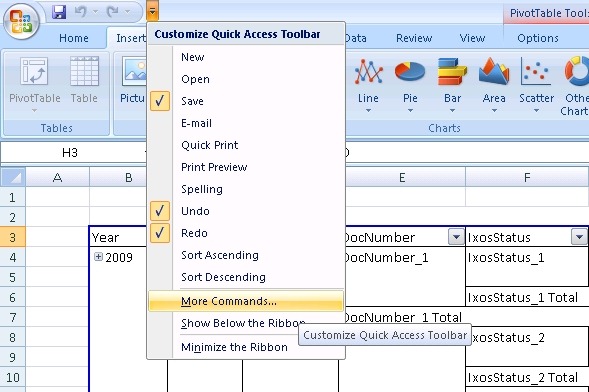
- Going to More Commands… option:
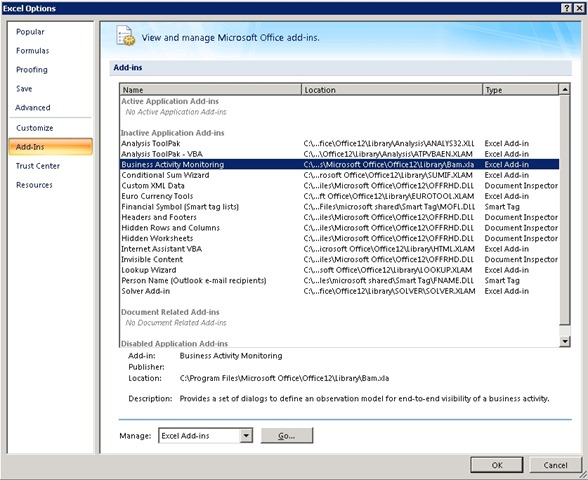
- This will open the Excel options dialog box, and from there you can select Add-Ins. You should select Business Activity Monitoring in the list:
- Do not exit from the Excel Option box…
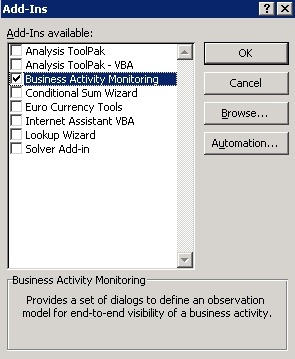
After selecting Business Activity Monitoring, select Manage: Excel Add-Ins, and press Go…, this will bring up a familiar dialog where you need to check the Business Activity Monitoring Add-In.
- Press OK
Having done this, the BAM Add-In will now be accessible through the ribbon, and you can edit your BAM Activities and Views.



