


Welcome again to another Logic Apps Best Practices, Tips, and Tricks post. Today, we will discuss how to add a new HTTP Header to an existing action that already has headers!

📝 One-Minute Brief
To add a new HTTP header to an action that already has headers, you can: edit inputs.headers in Code View, add it in the Designer’s action settings (see video), or click Switch to text mode in the headers table and append the JSON pair.
Pro tip: when the table looks “full,” Switch to text mode is the quickest way to add the new key/value without digging through the whole action JSON.
How to add a new HTTP Header to an existing action that already has headers
Adding a new HTTP Header to an existing action (or shape) that already has HTTP Headers defined should be a trivial operation. Still, sometimes even a trivial task may cause minor inconveniences to developers because, as you can see in the picture below, the Headers table shows only 3 lines, all filled, and there is no “add new row” button!

There are 3 options for you to accomplish this simple task:
- First option, and probably the most overcomplicated, is to access to Code View, find the action, and add the new header manually.

- The second option, and the simplest way, is to add it from the Designer inside the action settings as explain in this video
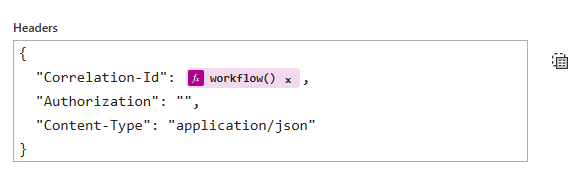
- The last option is also from the Designer, but this time on the action settings on the Header table, click on the Switch to text mode button

- And then add the new header to the JSON header message
Hope you find this helpful! If you liked the content or found it useful and would like to support me in writing more, consider buying (or helping to buy) a Star Wars Lego set for my son.



