


If you follow our Friday Fact series, you may be aware that the Logic App Designer can now copy and paste actions. To accomplish this, you just need to:
- Once the designer is open, right-click the action you want to copy, then click the Copy action option in the context menu.

- Then click the plus symbol where you want to paste the previous action, and select the Paste an action option.
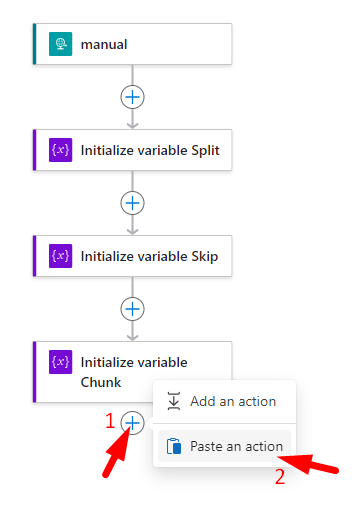
Notice that the content of the action remains intact, containing the name (that you can and should change later), the type, and the value.
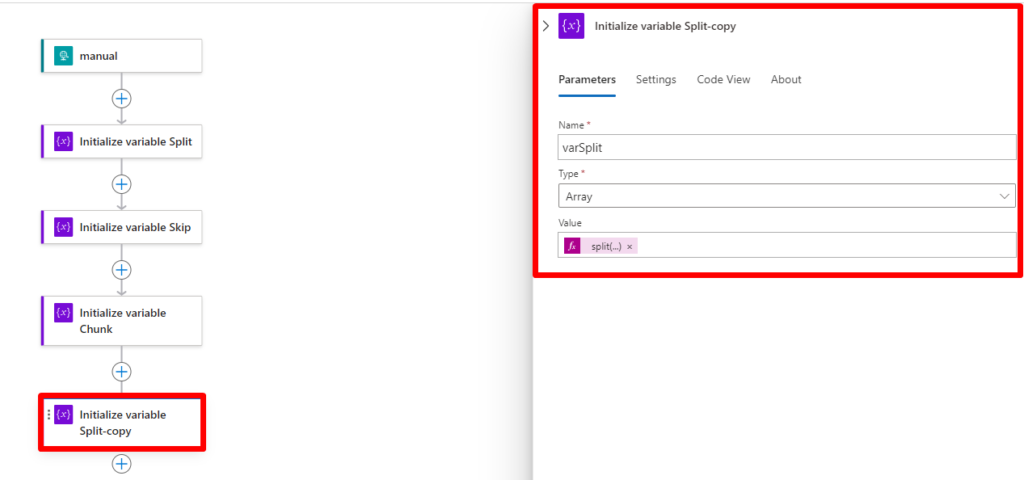
However, today I tried to paste an action, and to my surprise, the Paste an action option was not present!

📝 One-Minute Brief
A quick explanation of an Azure Logic Apps Designer issue where the portal stops allowing copy‑and‑paste of actions. The post walks through why this happens, the symptoms users see in the Azure Portal, and the workaround that restores copy‑paste support. It helps Logic App developers save time and avoid unnecessary redesign of workflows when the designer temporarily misbehaves.
Cause
The Paste an action feature in the Logic Apps portal is designed to allow users to quickly copy and paste actions or workflow steps between Logic Apps or within the same Logic App.
This feature requires the browser to have access to the clipboard, which is controlled by browser security settings. The issue where the Paste an action option doesn’t appear in the Azure Logic Apps portal is likely related to the fact that browser clipboard access is restricted or disabled.
Most of the time, when we copy an action in the Logic App designer, a pop-up window appears asking for clipboard access permission. The text in the image below is in Portuguese, but it will be something like:
- portal.azure.com wants: View text and images copied to the clipboard

However, this pop-up window does not always appear!
Solution
The solution to this issue is quite simple:
- If the pop-up windows asking for clipboard access permission appear:
- Click Allow. (or in Portuguese Permitir).
- If the pop-up windows asking for clipboard access permission don’t appear:
- In Chrome, next to the URL, click the View site information button, then enable the Clipboard option.

Microsoft Edge is quite similar:
- Next to the URL, click the View site information button, then enable the Clipboard option.

Now, if you try to copy and paste actions, it will work!
Hope you find this helpful! So, if you liked the content or found it helpful and want to help me write more, you can consider buying (or helping to buy) my son a Star Wars Lego set.



