


Let’s get back to the root essence of Friday Fact and deliver an elementary and fast-to-consume fact! Did you know or have you noticed that Comments in Logic Apps are now called Notes?
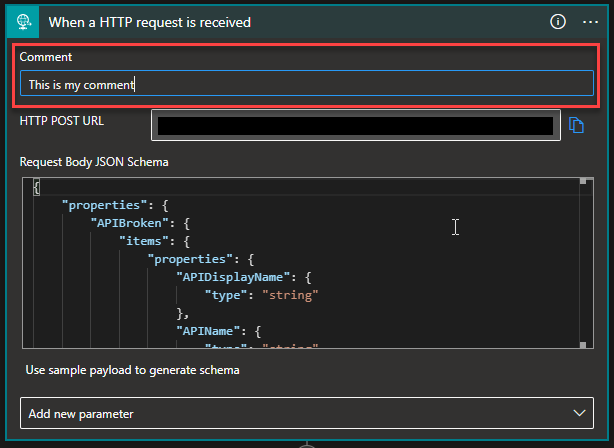
At first, especially in the old Logic App designer, developers could add comments by clicking an action or trigger, selecting the 3 dots to open the option list, and choosing to Add a comment.
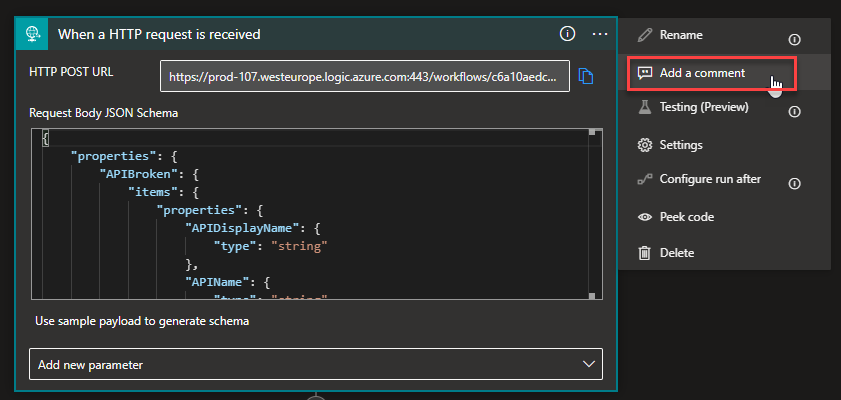
Then, a new comment section will be shown on the action or trigger configuration panel where you can enter your comment.
But that was before! In the new Logic App designer, comments are called Notes! As before, you can add Notes to your actions and triggers.
To add a note to an action step or trigger, you need to:
- Open your Logic App on the Azure Portal and click Edit. You can also click Logic App designer inside Development Tools.
- Then, on your action or trigger, click the 3 dots to open the options list, then choose Add a note.

- A new note section will appear on the action or trigger configuration panel where you can enter your comment. Once the comment is entered, you can exit the action step by moving to a new action or by collapsing the action.
- Once you leave the action, the note will be present if you click it again. Note that a note icon is also added in the lower right corner of the shape, indicating that the trigger or action has a note.

Essential Rules about Action/Trigger Comments
- Logic App allows you to set a note between a minimum of 1 and a maximum of 250 characters!
- You can now use all types of characters.
To lazy to read? We’ve got you covered! Check out our video version of this content!
If you liked the content or found it helpful and want to help me write more, you can buy (or help buy) my son a Star Wars Lego set!



