


Welcome again to another part of how to get started with Turbo360. In the first two parts of this season, I have explained how to configure a Service Principal in order to allow Turbo360 to connect to your Azure subscription and how to configure the Cost Analyzer module.
Today, I will address how to start with one of the modules I was also curious to test and see its capabilities: the Azure Documenter module. If you know me, you know that I am a big fan of creating proper and good documentation – so expectations were high!
📝 One-Minute Brief
Documenting Azure Integration solutions can be time‑consuming and error‑prone if done manually. In this third part of the Get Started series, I walk through how to use Turbo360 Azure Documenter to automatically generate clear, structured documentation for Azure Integration Services components. This article explains the initial setup, key configuration steps, and how Azure Documenter helps teams improve visibility, governance, and maintainability across their integration landscape.
Introduction to the Azure Documenter module
Azure Documenter is a module designed to facilitate the creation of technical documentation of Azure environments (subscriptions). It aims to simplify the process of generating comprehensive documentation for Azure resources, configurations, and architecture. The main goal is to automatically generate detailed documentation and provide up-to-date documentation reflecting the current state of our Azure subscriptions.
I have to confess that I was surprised at the beginning. I imagined this module to be something like Document360, allowing users to create their own documentation about Azure infrastructure, applications, and so on. Oh boy, I was completely wrong. To be honest, I dislike the module’s name: Azure Documenter. For me, it should be called Azure Reporting.
Azure Documenter supports generating different report types, each covering a different use case.

- Executive Summary Report: It auto-generates a summary report of Resource Groups, Resource types, Locations across which the resources are distributed, and a Billing Summary for the documentation period, with security assessment details.
- Details on Resources Report: It auto-generates an in-depth report containing information about each resource and a summary of resources grouped by Resource Types, Resource Groups, and Location.
- Details on Billing Report: It auto-generates a tabular and graphical representation of cost incurred, resource-wise, Resource type-wise, location-wise, and Resource group-wise. It also provides a split-up of costs consumed at the individual resource level.
- Compliance & Evaluation Report: It evaluates subscription(s) or resources and auto-generates a detailed report on policy definitions.
- Cost Comparison Report: It auto-generates a cost comparison report between two different date ranges at the subscription level.
- Resource Auditing Report: It auto-generates a report containing information on all the activities performed across the resources in the selected subscription(s).
- User Access Details Report: It auto-generates a comprehensive report on access within Azure Active Directory groups, Users, and Service Principals, and their roles at the subscription, resource group, and resource levels.
- Rightsizing Recommendations Report: It auto-generates a report with recommendations for cost savings, enhanced performance, and more efficient resource utilization.
- Reservation Recommendations Report: It auto-generates a report with recommendations for optimizing cost by discounting pay-as-you-go with a 1 or 3-year(s) plan.
- Network diagrams Report: Provides a diagrammatic representation illustrating Azure virtual networks and their topologies.
How to get started with the Azure Documenter module
To get started with the Azure Documenter module, we need to:
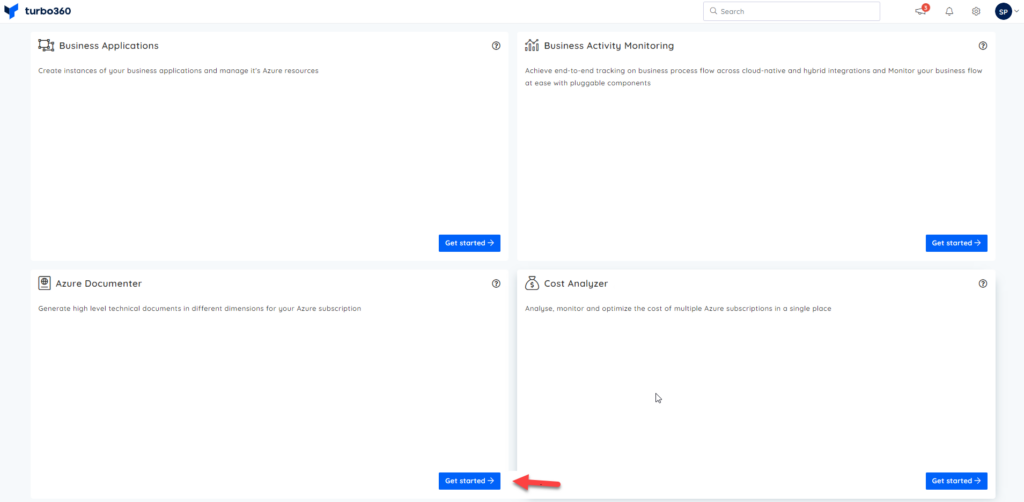
- On the Turbo360 home page, click on the Get started -> button inside the Azure Documenter panel
- The first step in the Setup Azure Documenter window is the Group details. There, we need to:
- On the Name property, set a name for the Azure Documenter Group.
- And on the Description, place a short description of that Azure Documenter Group. This is optional.
- Then click Next ->.

- The Configuration details are the second step in the Setup Azure Documenter window. There, leave the default settings and click Next ->.
- On the Service principal panel, on the service principal property, select the service principal you initially created in part 1 and then click Next ->.

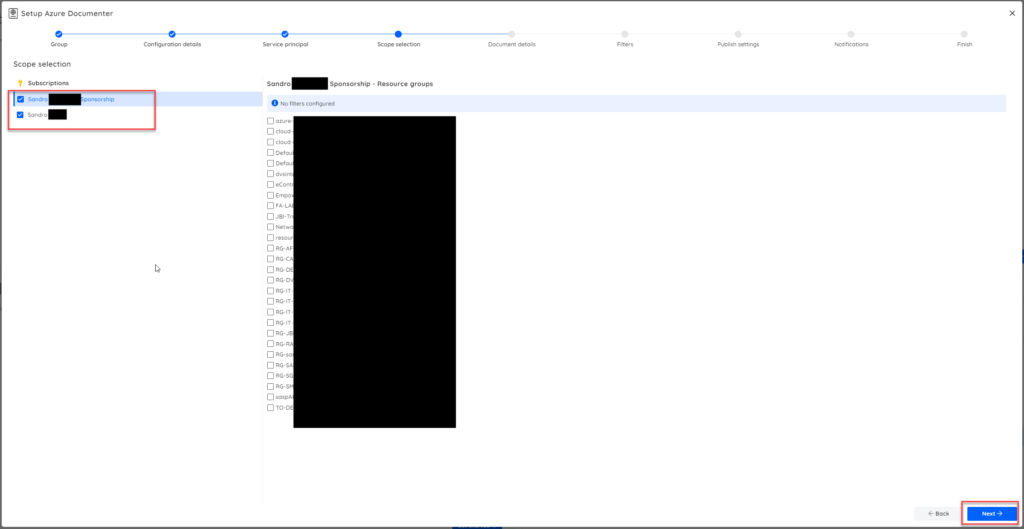
- Select the desired subscription on the Scope selection panel, then click Next.
- If you want to isolate the scope for certain resource groups, you can select all the necessary ones. I decide not to restrict the scope.
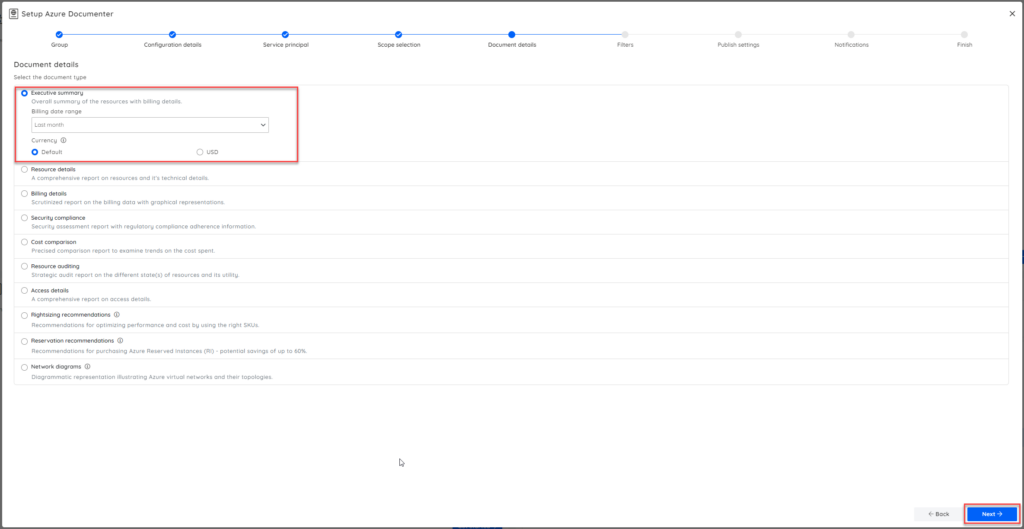
- On the Document details panel, you can select which types of reports you want to auto-generate. As a proof of concept, I decided to generate only the Executive summary, but you can add more options later.
- Click Next ->.
- Do not add a custom filter in the Filters panel, then click Next.

- On the Publish settings panel, you can select:
- To publish documents to an Azure Storage account, we have selected this option.
- Or to publish to Document360 (another product of Kovai).
- Generate the report as a PDF or Word document. We have selected PDF.
- Finally, because we select to publish to an Azure Storage account, we need to provide:
- The connection string to the Storage account.
- And the Storage account name.
- At the end, click Validate, then Next.

- On the Notification panel, set the Recipient email address and the Email template, and click Generate.

After a few seconds/minutes, you will receive an auto-generated report containing a summary of Resource Groups, Resource types, and Locations across which the resources are distributed, along with a Billing Summary for the documentation period, including security assessment details.

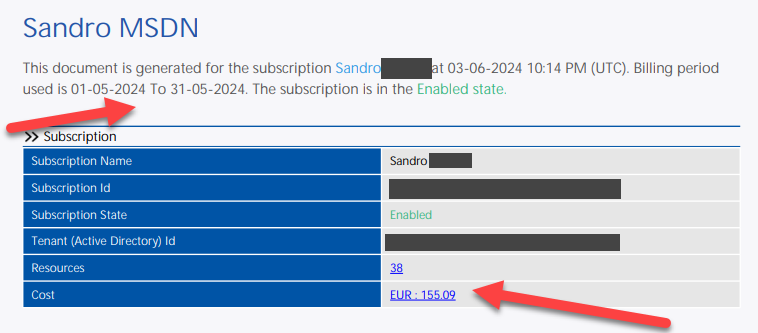

And many more details!
How cool is that? Imagine the time you would need to do this analysis manually! This is a time-saver and a very valuable module!
See you on my next Get Started with Turbo360 blog post.
Hope you find this helpful! If you enjoyed the content or found it useful and wish to support our efforts to create more, you can contribute towards purchasing a Star Wars Lego for my son!



