

Welcome back to another Decoding Logic App Dilemmas: Solutions for Seamless Integration!
In this proof of concept, we aim to solve a common integration challenge. Specifically, we want to merge different file types—such as PDF, PNG, and JPEG—into a single final PDF document. However, how can we accomplish this within a Logic App?
To answer that question, we first need to explore the available building blocks and understand how Logic Apps can orchestrate external services to handle this type of file processing. From there, we can design a clean and scalable solution that fits real‑world scenarios.

📝 One-Minute Brief
Merging multiple files into a single PDF is a common integration challenge that Azure Logic Apps alone cannot handle natively. In this proof‑of‑concept, a hybrid architecture using Azure Storage, Azure Functions, and Azure Logic Apps enables scalable document aggregation. Files are uploaded to Azure Blob Storage, processed by a custom Azure Function, and orchestrated by Logic Apps to generate a final consolidated PDF suitable for reporting, claims processing, and document automation scenarios.
Why do we want this?
Before we jump into the solution, let’s first address why we would need this.
There are many possible use cases. However, one clear example is automated report generation:
- For instance, companies often need to compile reports from different departments. These reports usually include textual and financial data in PDF format, along with charts or images. By merging these files into a single PDF, teams can automate report creation and simplify distribution or presentation.
- Similarly, insurance companies can use this approach to assemble claim documentation. Instead of handling multiple files, they can combine forms (PDFs) and photographic evidence (images) into a single consolidated PDF per claim. As a result, they streamline review and approval processes.
- Likewise, legal teams frequently need to compile evidence in different formats. These may include scanned images and documents from multiple sources. By merging everything into one structured PDF, they can organize case files or portfolios more efficiently..
These examples highlight only a few scenarios where this pattern makes sense. Nevertheless, keep in mind that this implementation is a proof of concept and still allows room for improvement and extension.
Creating the Storage Account
First, to make this proof of concept work, we need a storage account. If one already exists, we can reuse it. Otherwise, we must create a new one. To get started, follow these steps:
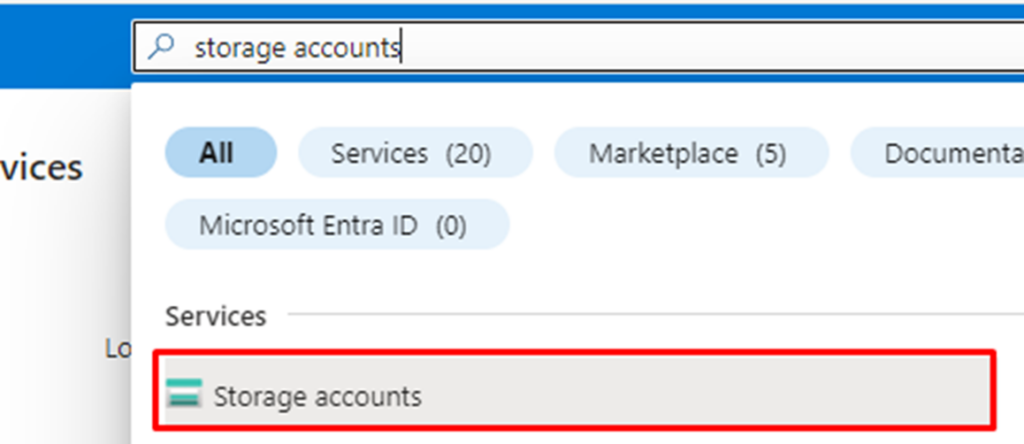
- In the Azure Portal, search for the Storage accounts and click on it:
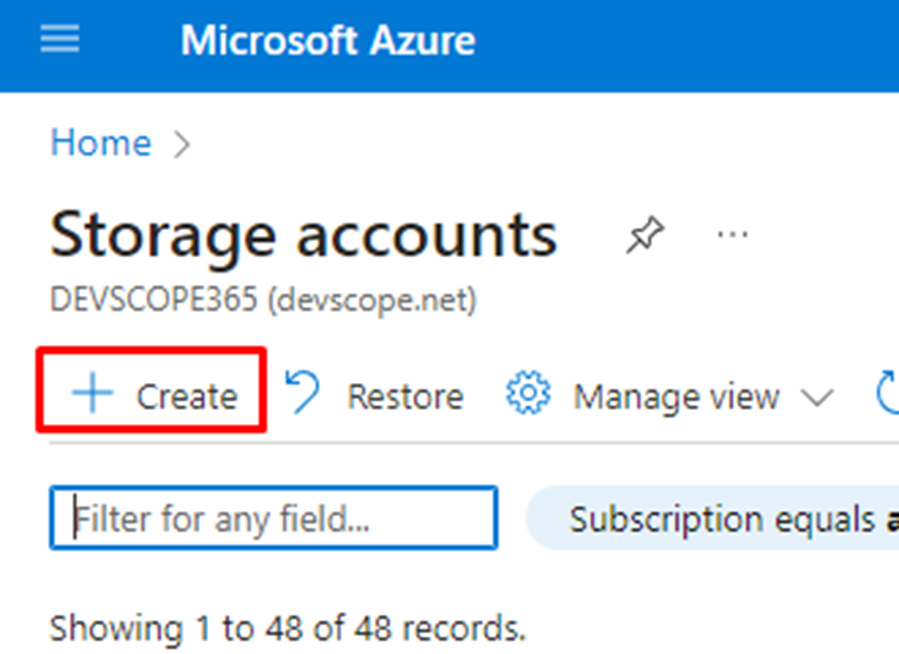
- Next, click on + Create.
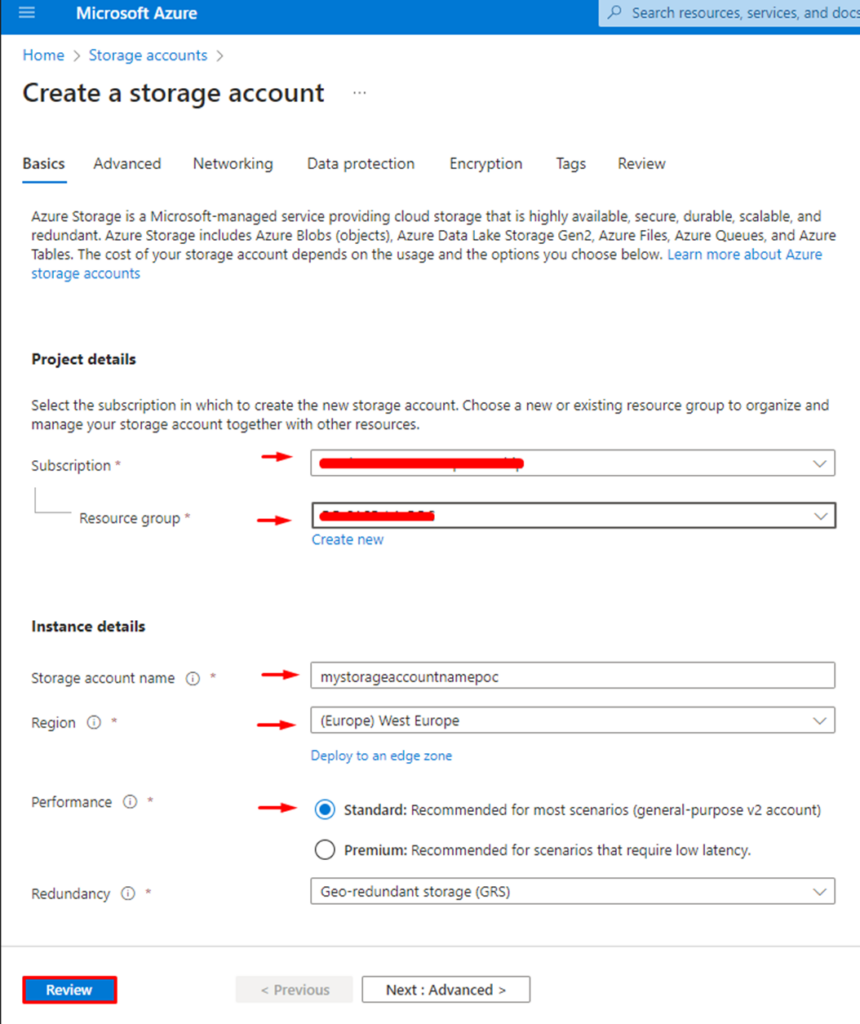
- Now you need to populate some fields:
- Your subscription.
- The resource group.
- Give a name to the storage account and select your region.
- As for the performance, choose the Standard.
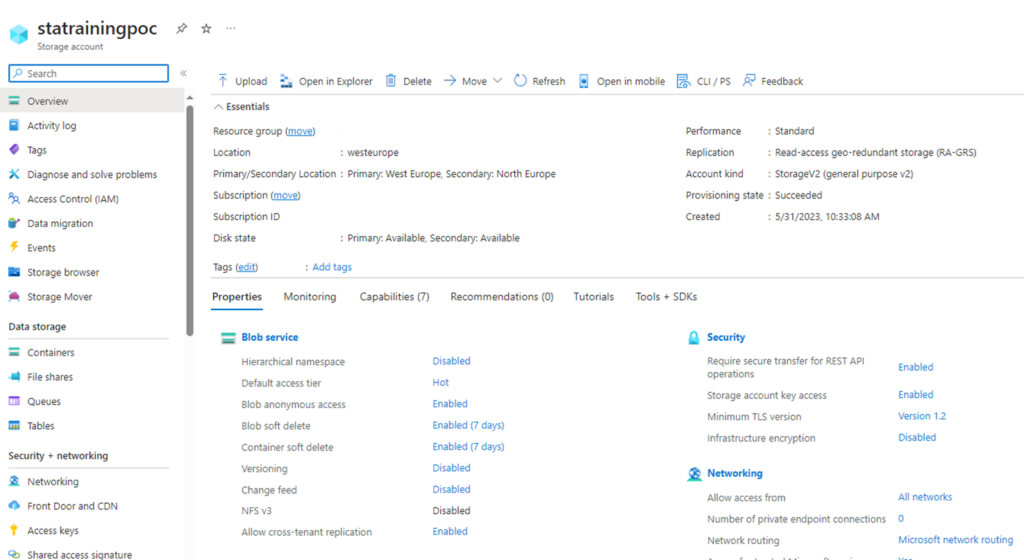
- Now, this is what your storage account should look like:
- On the overview page, click on Containers next to + Container to add a container.
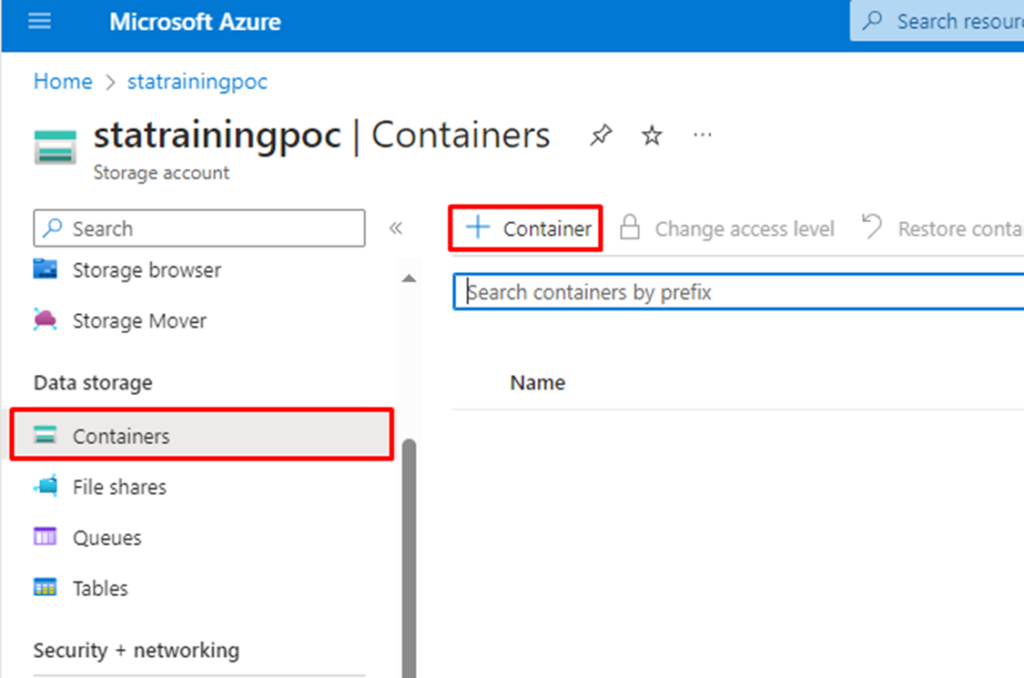
- Next, a new window will open. Choose your container name, and in the anonymous access level drop-down, select Container (anonymous read access for containers and blobs).
- Next, click on Create.

- In our case, we added 2 containers (as you should) and named them:
- filestomergeintopdf (here we will upload the files that we want to be merged).
- generatedpdfs (here we will store the generated PDF files).
Creating the Azure Function
Now that we have created the storage account and both containers, we can move on to the Azure Function. At this point, we shift our focus to implementing the logic that performs the file‑merging operation. To proceed, follow these steps:
- Open Visual Studio 2022 and click on Create a new project.

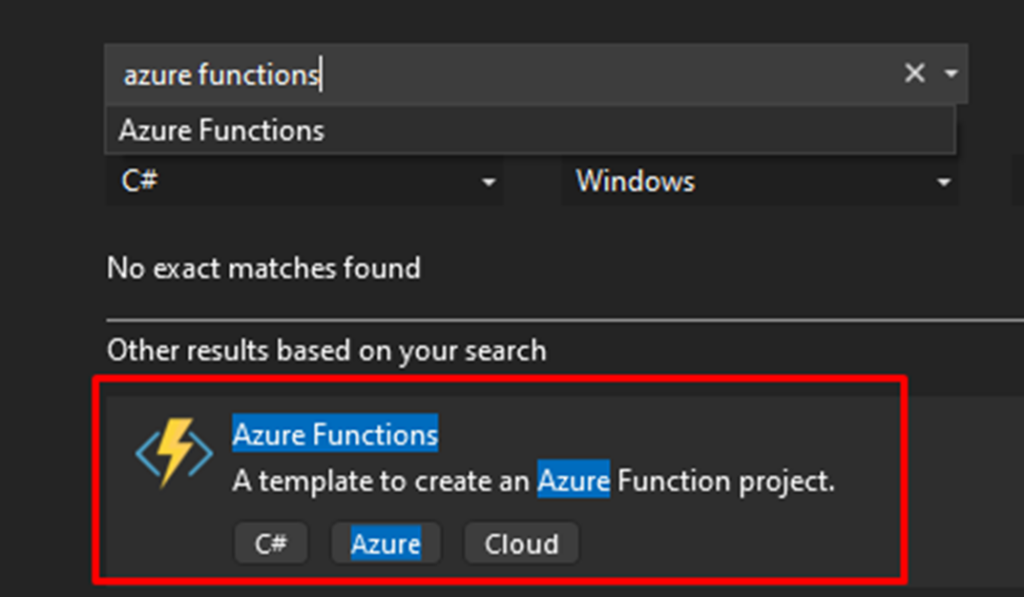
- Next, search for Azure Functions and double-click on it.
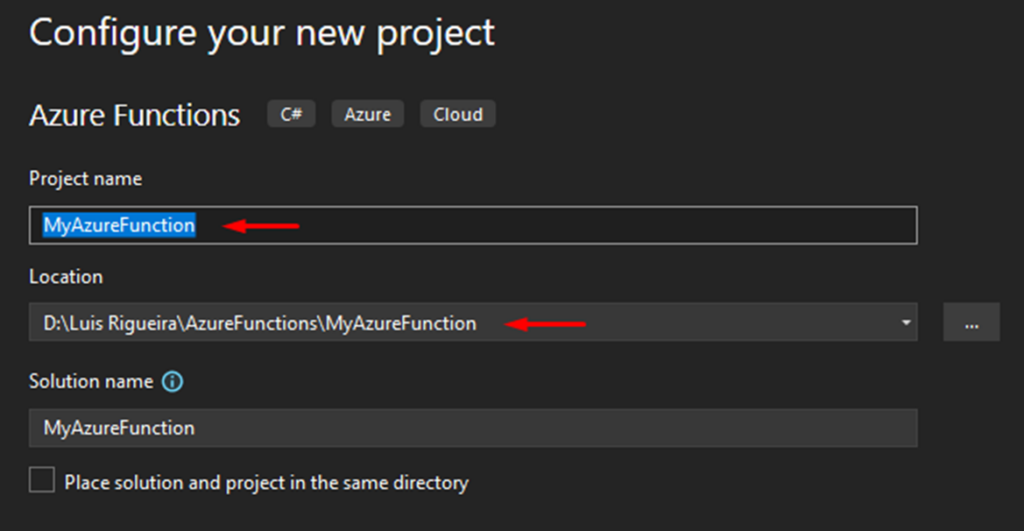
- Choose a Project name and a location for this Azure Function.
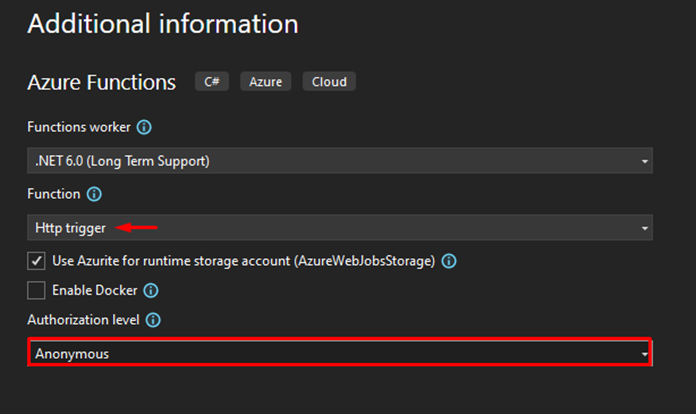
- The trigger should be an HTTP trigger, and for the Authorization level, you can choose it as Anonymous or Function.
- Next, replace the generated code with the one we present here:
THIS COMPONENT IS PROVIDED “AS IS” WITHOUT WARRANTY OF ANY KIND.
Explaining the Azure Function functionality
In simple terms, the Azure Function performs the following tasks to merge multiple files (PDF, JPG, or PNG) into a single PDF document. In a simple way, this function does:
- First, the function listens for HTTP POST requests. When it receives a request, it reads the request body, which should contain a JSON array with the names of the files to merge. However, if the request body is empty, the function automatically lists all files available in the configured Blob Storage container.
- Next, when the request does include data, the function deserializes the JSON payload to extract the file names. Then, for each file name, it retrieves the corresponding file content from Azure Blob Storage.
- After retrieving each file, the function processes it based on its type. If the file is a PDF, the function imports each page into a new PDF document. On the other hand, if the file is an image—such as JPG, JPEG, or PNG—the function resizes the image and positions it correctly on a PDF page.
- Once all files have been processed, the function merges every page and image into a single PDF document. It then generates a unique name for the final file and saves the merged PDF back to Azure Blob Storage.
- Finally, the function builds an HTTP response containing the generated PDF. It sets the appropriate response headers, including content type and content disposition, to enable file download. As a result, the client receives the merged PDF directly in the response.
Overall, this Azure Function exposes a simple and effective API that merges files stored in Azure Blob Storage into a single PDF document.
Sample request
So, in practical terms, this is an example of a JSON input request we can make to the Azure Function:
{
    "FileNames": [
        "Blood Pressure Tracker.pdf",
        "Calendar.pdf",
        "Form.pdf",
        "photo.jpg",
        "chart.png"
    ]
}
The files will be merged in the sequence listed in the request. If the request body is empty, the Azure Function will merge all files stored in the container.
Of course, as you can see, and if you are testing the Azure Function locally, notice that we have the ConnectionString, GeneratedPdfsContainerName, and BlobContainerName:
CloudStorageAccount storageAccount = CloudStorageAccount.Parse(_config["ConnectionString"]);
        CloudBlobClient blobClient = storageAccount.CreateCloudBlobClient();
        CloudBlobContainer container = blobClient.GetContainerReference(_config["GeneratedPdfsContainerName"]);
        // Create the container if it doesn't exist
        await container.CreateIfNotExistsAsync();
        // Upload the merged PDF to the container
        CloudBlockBlob blob = container.GetBlockBlobReference(fileName);
        using (MemoryStream stream = new MemoryStream(pdfBytes))
        {
            await blob.UploadFromStreamAsync(stream);
        }
    }
    private static async Task<byte[]> GetBlobContentAsync(string fileName)
    {
        // Get reference to storage account and container
        CloudStorageAccount storageAccount = CloudStorageAccount.Parse(_config["ConnectionString"]);
        CloudBlobClient blobClient = storageAccount.CreateCloudBlobClient();
        CloudBlobContainer container = blobClient.GetContainerReference(_config["BlobContainerName"]);
Azure Function Configuration Settings
All these data should be added to the local.settings.json file in your Solution Explorer in Visual Studio, meaning you must provide this data so the Azure Function can communicate properly. Do not forget that after deployment, these configurations need to be set manually in the function app, but to know more about this, check our Friday Fact content related to this topic here: https://blog.sandro-pereira.com/2024/01/19/azure-functions-local-settings-json-not-deployed/

If you’re looking to find the connection string for your Azure Storage Account, it’s quite straightforward. Here’s how you can do it:
- Navigate to the Azure portal and go to the overview page of your Storage Account.
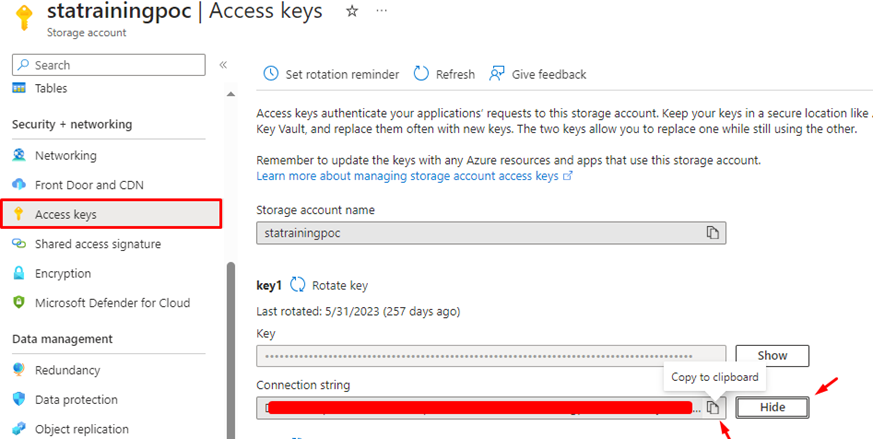
- Depending on the portal updates, click on the Access keys in the menu on the left side or under the Security + networking section.
- You’ll see two access keys and their respective connection strings. Locate the section for the first access key, then click Show keys or the Show button next to the connection string, if available.
- Once the connection string is visible, click on the Copy to clipboard button to copy your Connection String.
And that’s all there is to it! You now have the connection string needed to access your Azure Storage Account programmatically or from any application that requires it.
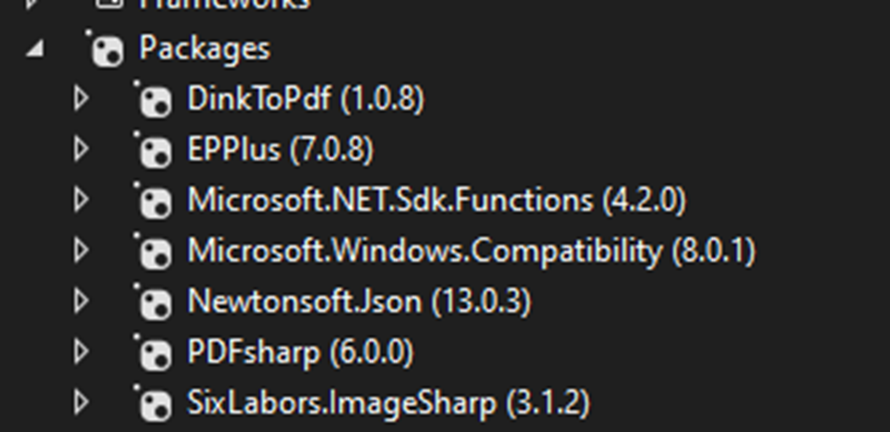
Another relevant point is the nugget packages that should be installed for this Azure function to work. Here you have them:
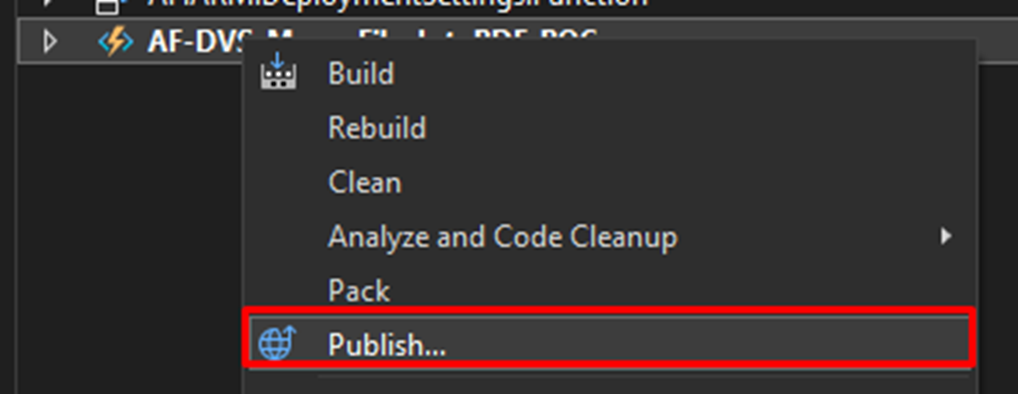
Once this is all set, it’s time to publish your Azure Function. In the Solution Explorer, right-click on your Azure Function App and click on Publish. You will then be prompted to use your own criteria and credentials.
Creating the Logic App
So, after the deployment and the Function App is configured properly, it is time to create a Logic App. In this case, we created a Logic App Consumption named:
- LA-MergeFilesIntoPdf-POC
And this is our flow:

We designed our Azure Function to retrieve the filename in the response headers. This way, the content is intact, and we can pass the name through.
Test the solution
Follow these steps to fully test your Azure Function, which merges files into a single PDF and integrates with a Logic App for further processing (like sending an email). This example assumes you’ve already set up your Azure Function and Logic App and have Postman installed for sending HTTP requests.
- Step 1: Prepare Your Azure Storage
- Navigate to your Azure Storage Account through the Azure portal.
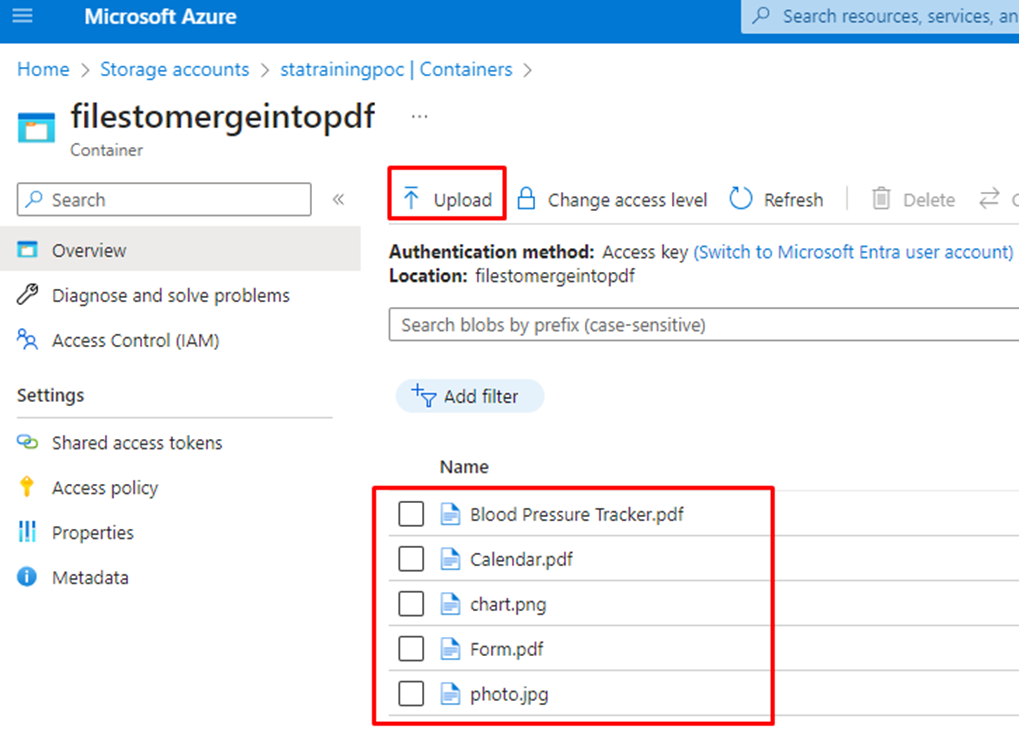
- Next, access your container where the files to be merged are to be uploaded.
- Then, you need to upload the files: Click on Upload to select and upload the files (e.g., images or PDFs) you wish to merge. You can select multiple files for this purpose.
- Step 2: Trigger Your Azure Function via Postman
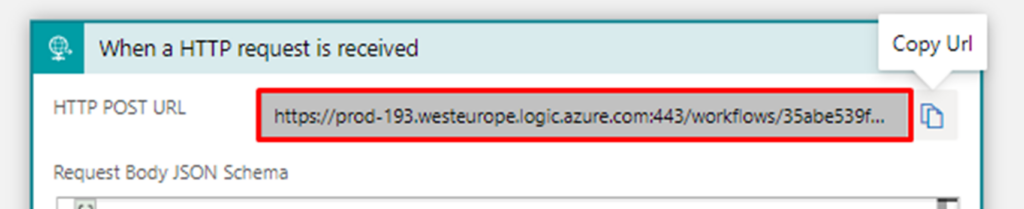
- Copy the URL of your Logic App trigger: Navigate to your Logic App, find the HTTP trigger, and copy its URL.
- Open Postman and set up a new request:
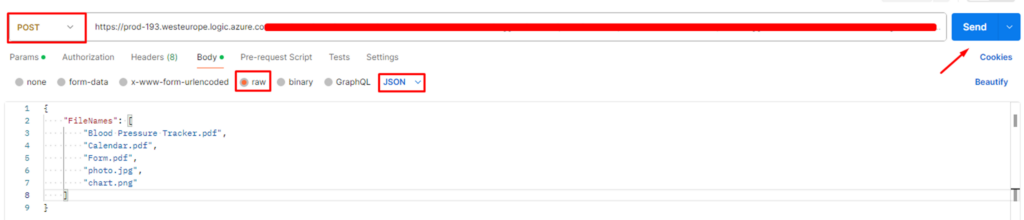
- Set the method to POST.
- Paste the copied URL into the request URL field.
- Set the body type to raw and format to JSON (application/json).
- In the body, list the file names you want to merge. It should be in JSON format.
- Click on Send.
- Step 3: Verify the Output
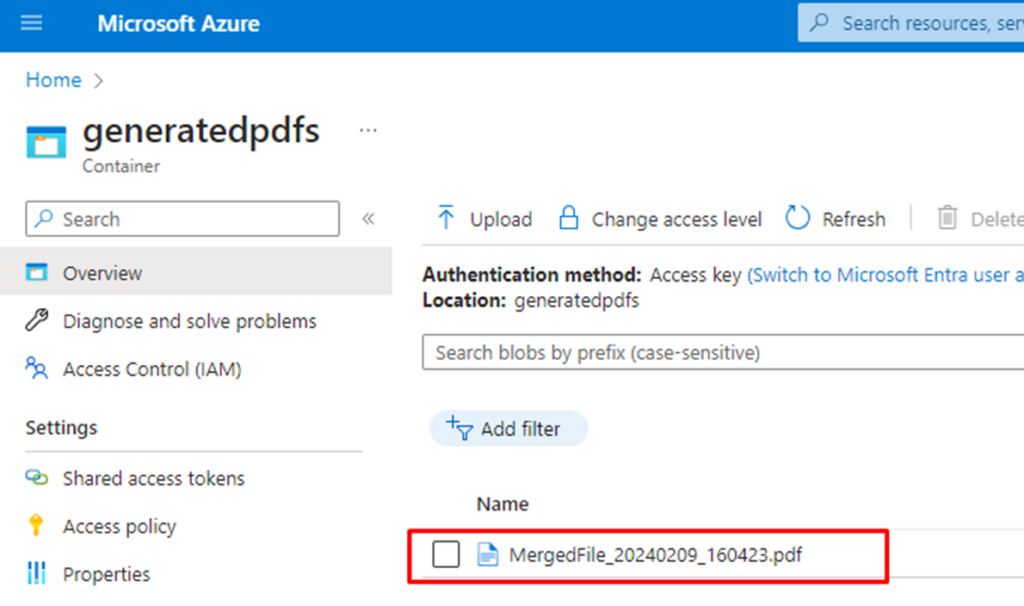
- Check your generatedpdfs container in the Azure Storage Account for the merged PDF file. If the function works as intended, you’ll find the merged PDF there.
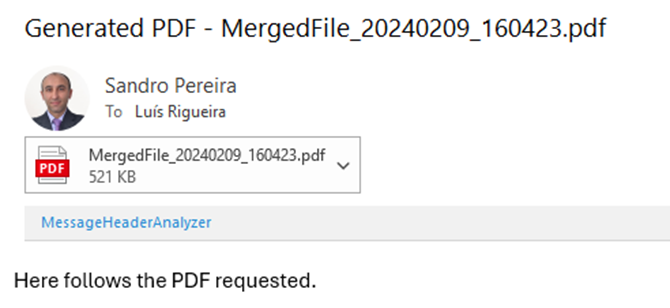
- Email Notification: If your Logic App is configured to send an email upon completion, check your email for a new message with the merged PDF as an attachment. This verifies that the entire workflow, from file merging to email notification, is functioning correctly.
And as you can see, here is the PDF with all the merged files:


And with a beautiful photo of myself on it!
I hope you have enjoyed this POC, and we will see you at the next one. If you enjoyed the content or found it useful and wish to support our efforts to create more, you can contribute towards purchasing a Star Wars Lego for Sandro’s son!



