


Time to start another series of blog posts about Logic Apps: Data Mapper Tricks and Tips! In this section, I will share simple tips and tricks we can apply to our Data Mapper to be more productive, solve problems, or work around limitations or constraints.
📝 One-Minute Brief
Keeping maps readable becomes challenging when functions overlap in the Data Mapper. This video shows a simple workaround to better organize functions in the Logic Apps Standard Data Mapper, improving clarity and maintainability until drag‑and‑drop support becomes available.
For this first blog post, I decided to explain a simple workaround we can use today to help us organize our maps better and make them more readable. Unfortunately, at the moment, I’m writing this post, when we add a Function to our map, we cannot drag and drop the function into another position in the data mapper area. That means that often when we are applying the mapping rules, they will overlap, as you see in the picture below:
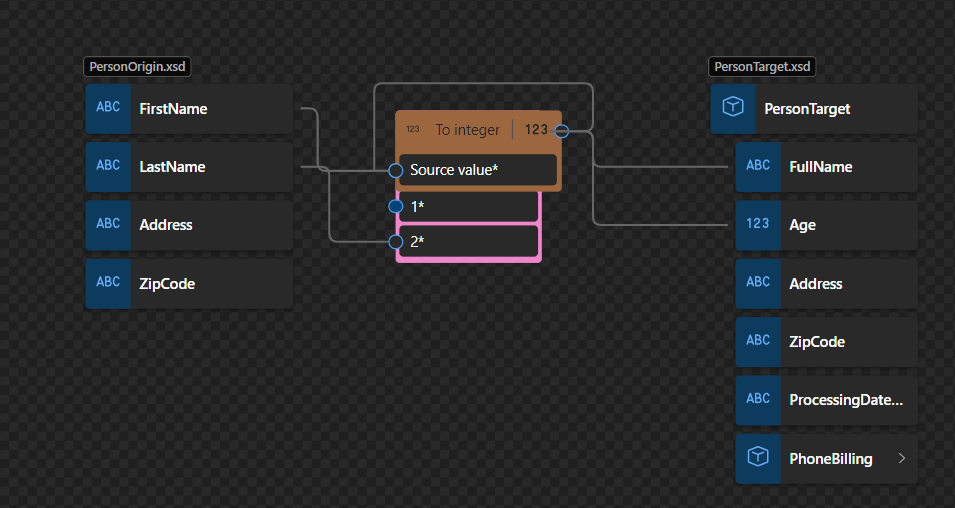
In this case, the To Integer Function is on top of the Concat function, which makes it difficult to read and work inside the Data Mapper. In this short video, we will see a very useful trick and Tip to organize our functions inside the Logic Apps (Standard) Data Mapper – it may not work in all scenarios, but it is the best option we have for now.
P.S: Microsoft is working on adding this drag-and-drop capability, so in the future, we will be able to move the shapes, aka functions, in the mapping area.
Hope you find this helpful! So, if you liked the content or found it helpful and want to help me write more content, you can buy (or help buy) my son a Star Wars Lego!



