


.NET 3.1 Retirement and Its Impact on Azure Functions
This Azure Function App issue will likely become more common in the coming months because Microsoft will retire .NET Core 3.1 on December 3, 2022. When that happens, Azure Functions runtime versions 2.x and 3.x—which rely on .NET Core 3.1—will also retire on the same date. Because of this, it is extremely important to migrate all your Azure Functions to .NET 6.0, which uses runtime 4.x.
That means that you not only have the need to update your Azure Functions to .NET 6.0 on your solutions, but you also need to update your existing Function apps (using the runtime versions 2.x and 3.x) to start using the runtime 4.x.
📝 One-Minute Brief
A clear explanation of why Azure Function Apps may show the warning “Your app is pinned to an unsupported runtime version for ‘dotnet’” and how to fix it. The issue appears when a Function App is set to use runtime ~4 but is still tied to an older .NET Framework version (like v4.0). You walk through how to check the actual .NET version behind the scenes, correct mismatched configuration settings, and ensure the Function App properly runs .NET 6 and Functions runtime 4.x.
How to check the runtime version
You can check the runtime version that your Function App is using by using:
- Access your Azure Function App on the Azure Portal (https://portal.azure.com/).
- On the Azure Function App page, under Settings, select the option Configuration, and then on the top menu, select the tab Function runtime settings.
- The running version is shown in the Runtime version property.
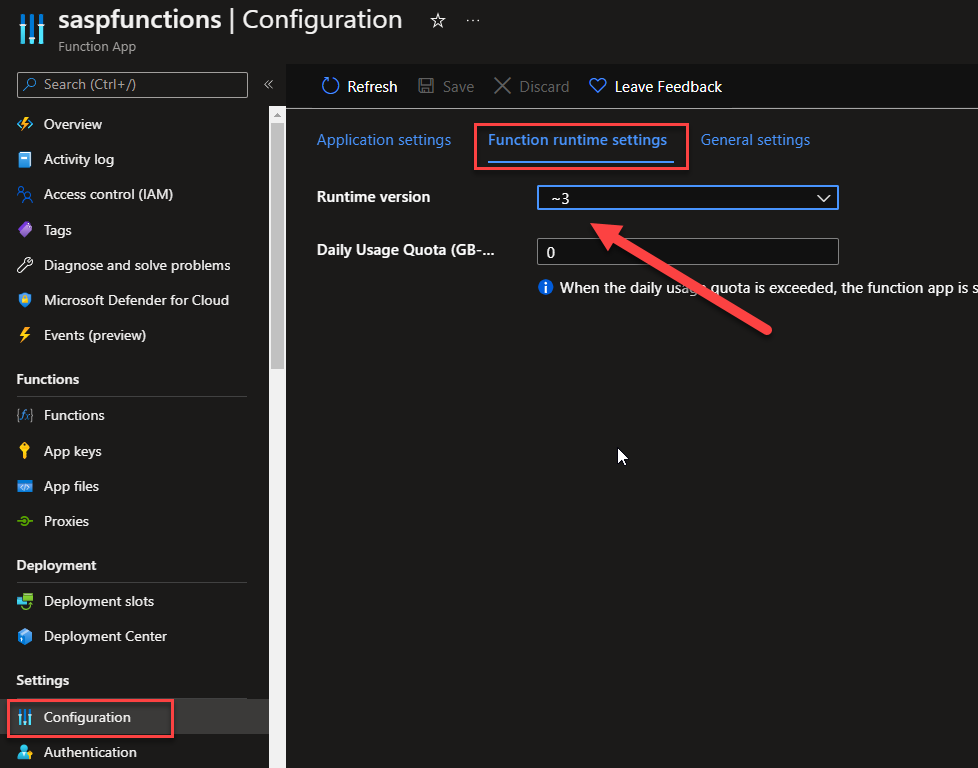
Unfortunately, at least for now, we cannot upgrade it to ~4 directly from the Portal, or at least easily, simply, and directly. And while trying to upgrade one of their Function Apps, one of my clients contacted me to say they were now seeing a strange warning in the Function runtime settings.
Your app is pinned to an unsupported runtime version for ‘dotnet‘. For better performance, we recommend using one of our supported versions instead: ~3.
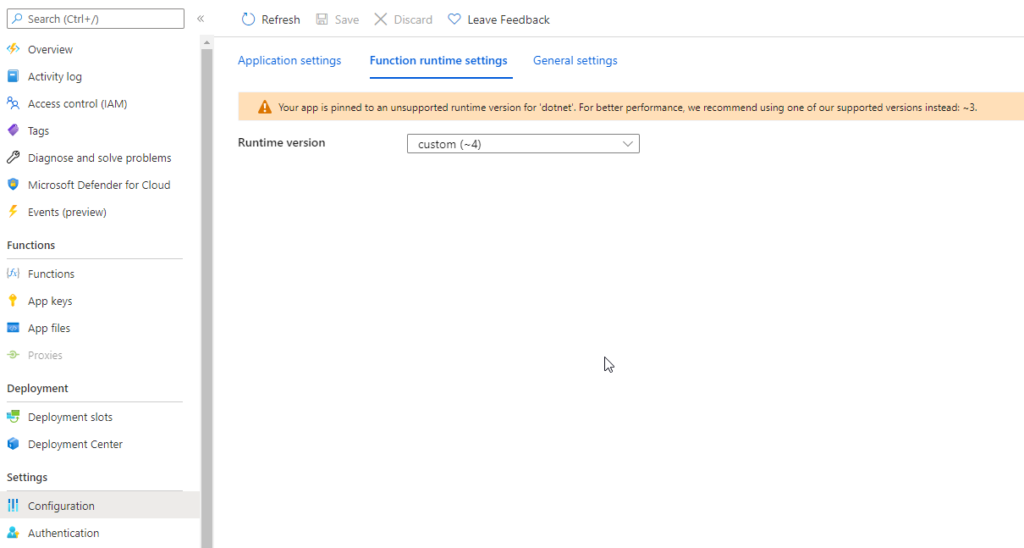
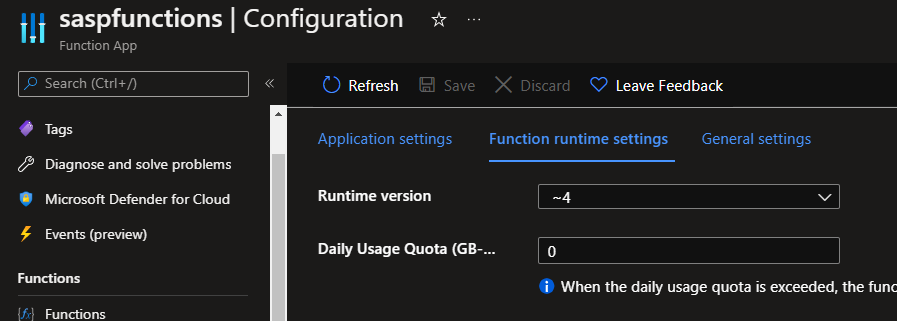
Strangely, we were also seeing the runtime version to be custom (~4).
Cause
The runtime version ~3 normally runs on the .NET Framework v4.0. However, runtime version ~4 requires .NET Framework v6.0.
If you are seeing this warning or a similar warning, that means that you defined a runtime version that is using an unsupported version of the .NET Framework. In this case, we define the runtime version ~4, but behind the scenes, it was still using the .NET Framework v4.0.
How can you validate which .NET Framework is defined?
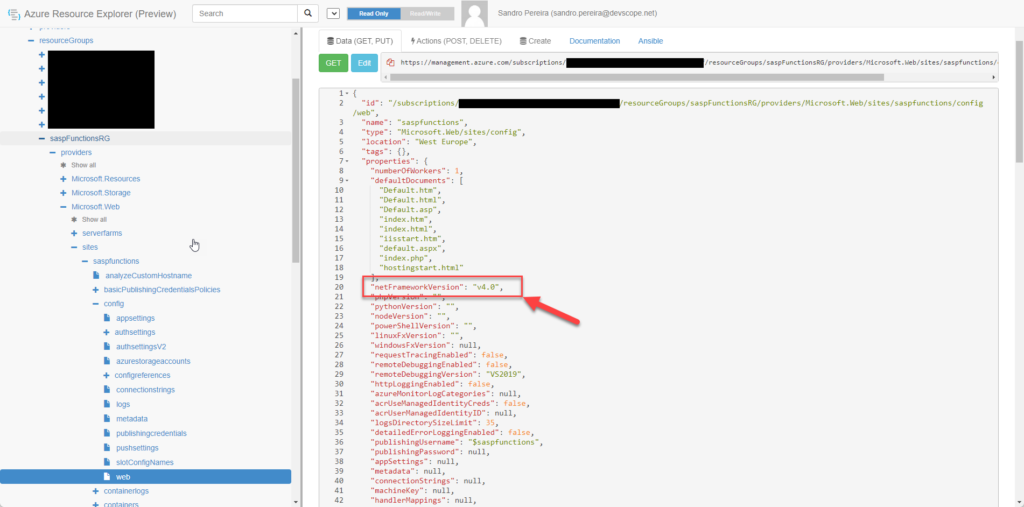
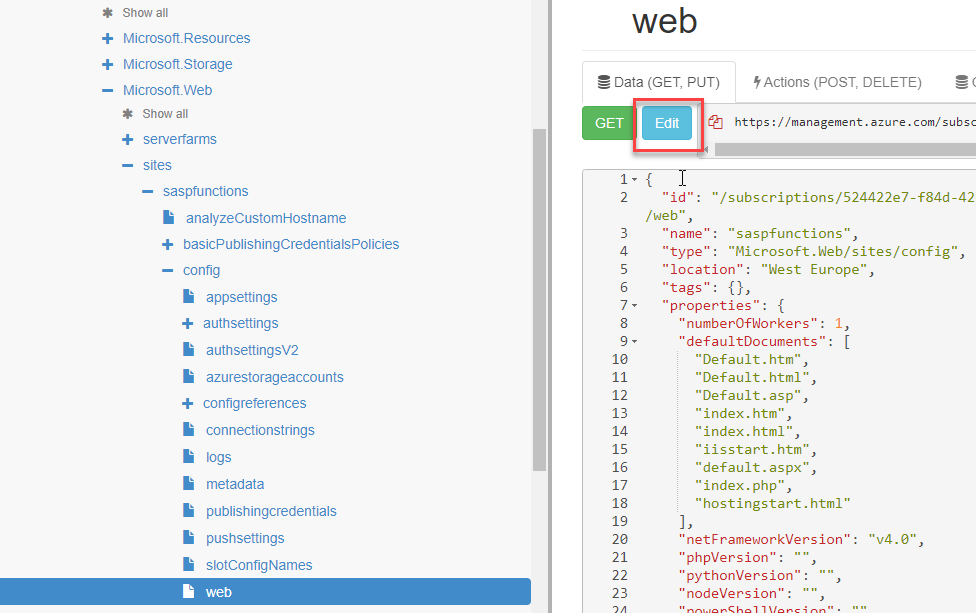
You can’t easily know that information directly from the Azure Portal, but you can access the Azure Resource Explorer (https://resources.azure.com/):
- browse your subscriptions > your subscription name> resourceGroups > your resource group name > providers > Microsoft.Web > sites > Your Function App name > config > web.
- Check the netFrameworkVersion property.
Solution
The solution is quite simple, we need to define the runtime to ~4 to use the .NET Framework v6.0.
But before that, let’s first see how we can upgrade the runtime.
How to upgrade the runtime to version 4?
You can do it from the Azure Portal by:
- On the Azure Function App page, under Settings, select Configuration.
- Click/Edit the FUNCTIONS_EXTENSION_VERSION setting and change the value from ~3 to ~4
- Click OK.
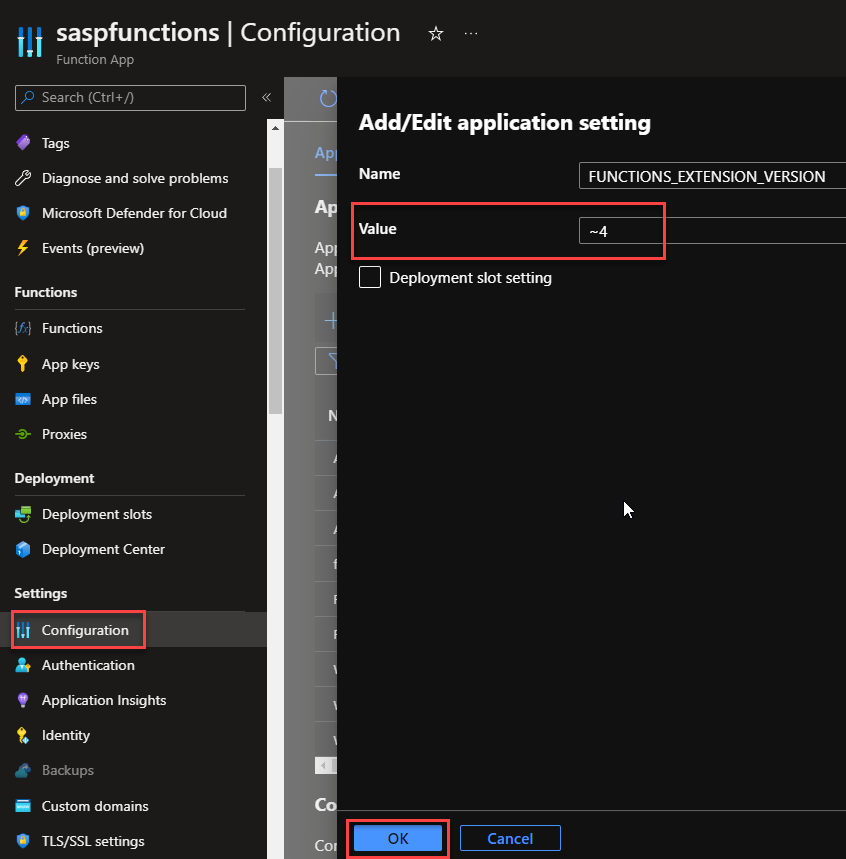
Or you can execute the following Azure CLI command:
az functionapp config appsettings set --name <function-app-name> --resource-group <resource-group-name> --settings FUNCTIONS_EXTENSION_VERSION=~4
How to upgrade the .NET Framework version to version v6.0?
Finally, and actually to solve the initial issue reported, to upgrade the .NET Framework version, we can:
- Access the Azure Resource Explorer (https://resources.azure.com/)
- Browse your subscriptions > your subscription name> resourceGroups > your resource group name > providers > Microsoft.Web > sites > Your Function App name > config > web
- In the top menu, click Edit.
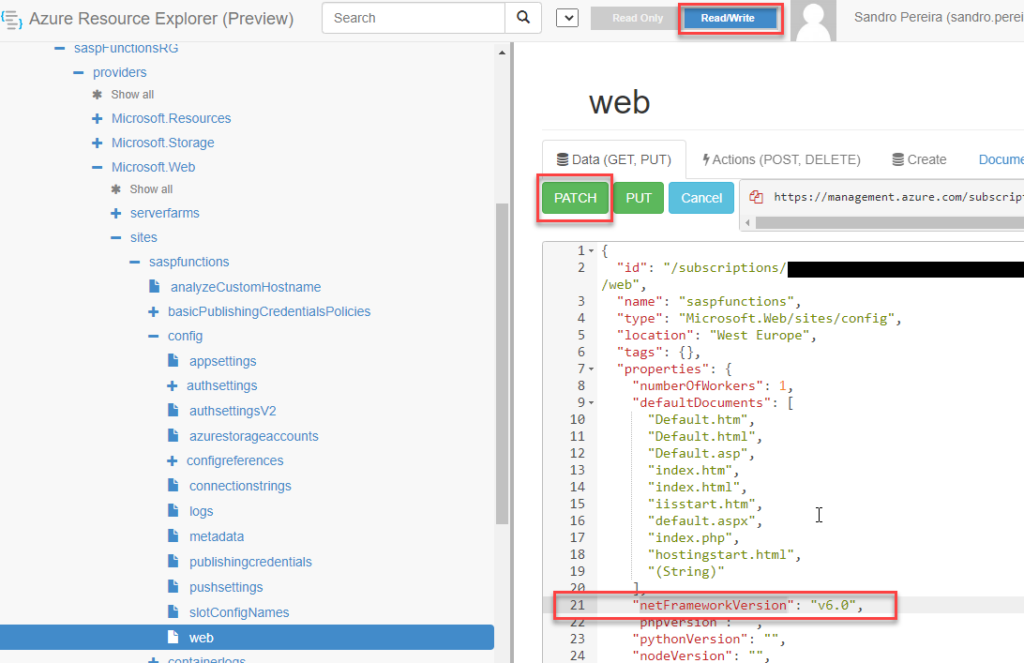
- Change the value of the netFrameworkVersion property to v6.0
- On the top menu, make sure you select the option Read/Write and then click on PATCH.
In the end, a success message will be presented, and if you check on the Azure Portal, the issue is no longer present:
Of course, you can also execute the following Azure CLI command to achieve the same result:
az functionapp config set --net-framework-version v6.0 -n <function-app-name> -g <resource-group-name>
Hope you find this helpful! If you liked the content or found it useful and would like to support me in writing more, consider buying (or helping to buy) a Star Wars Lego set for my son.




Great work Sandro
Is it possible to set “netFrameworkVersion” programmatically in a settings file in an azure function project?
Hi, thanks for this Sandro. I have the same question as “A” above. Plus at what point is this configured initially? Why is the .NET version not updated when the project is updated accordingly?
Hi, thanks for this Sandro. I have the same question as “A” above. Plus at what point is this configured initially? Why is the .NET version not updated when the project is updated accordingly? Every re-deployment sets the netFrameworkVersion back to v4.0????
Sorry it can be done in Terraform:
site_config {
dotnet_framework_version = “v6.0”
}
In answer to the question as to whether it can be set programmatically, yes it can – I use the Azure CLI to do it:
az functionapp config set –net-framework-version v6.0 -g -n
My syntax got sanitized in the previous comment, so here it is again: az functionapp config set –net-framework-version v6.0 -g RESOURCEGROUP -n FUNCTIONAPPNAME
My syntax got sanitized in the previous comment, so here it is again:
az functionapp config set –net-framework-version v6.0 -g RESOURCEGROUP -n FUNCTIONAPPNAME
From my findings it doesn’t work when specififying the runtime extensions as suggested. I had to update it using CLI for all our functions.
Anyone know if there is an equivalent Powershell command (to az functionapp config set) for setting this?