


What Is CI/CD?
Continuous Integration and Continuous Delivery (CI/CD) is a development practice that accelerates software delivery. It allows teams to deploy changes reliably at any time, without manual intervention.
As a result, teams can release software faster and with greater confidence.
CI/CD for Azure Logic Apps Consumption
For this post series, I will explain how to enable this practice, oriented to Logic Apps and Azure Pipelines.
In short, I’d like to talk about Azure Logic Apps monitoring’s key performance metrics and gaining actionable insights to resolve problems in real-time in the other posts.
Getting Started: Building the Logic App
We will start by building the Logic App, using Visual Studio. I will not approach Logic Apps Preview, because, since it’s still a preview feature, many changes can happen and render all this useless.
Prerequisites
As you may know, to create Logic Apps in Visual Studio, there are a few requirements, such as:
- Visual Studio 2015, 2017, 2019 or greater, if available
- Azure SDK
- Azure Logic Apps Tools for Visual Studio Extension (if using VS)
- An active Azure subscription
- Time, will, and patience.
After you have all this installed, you can begin to create and let your creativity flow!
📝 One-Minute Brief
Continuous Integration and Continuous Delivery help automate and standardize Logic Apps deployments. This article starts a CI/CD series by explaining how to build an Azure Logic App in Visual Studio, prepare ARM templates, and structure parameters so the solution is ready for Azure DevOps pipelines.
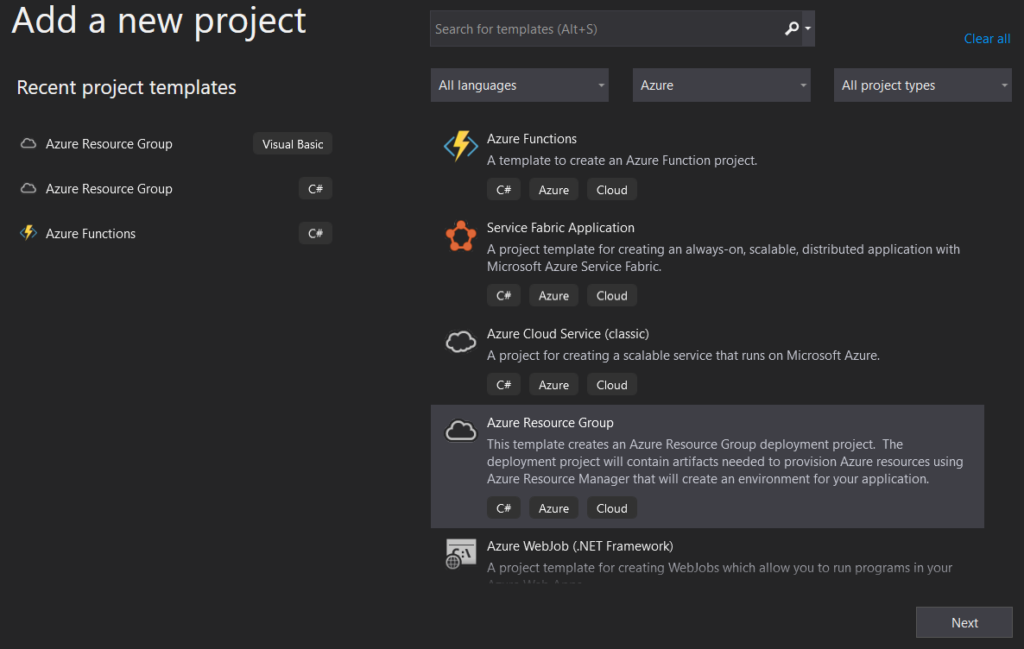
We’ll start from scratch. Open your VS and start a new Project, by selecting the Azure Resource Group C# template and the Logic App template after that.
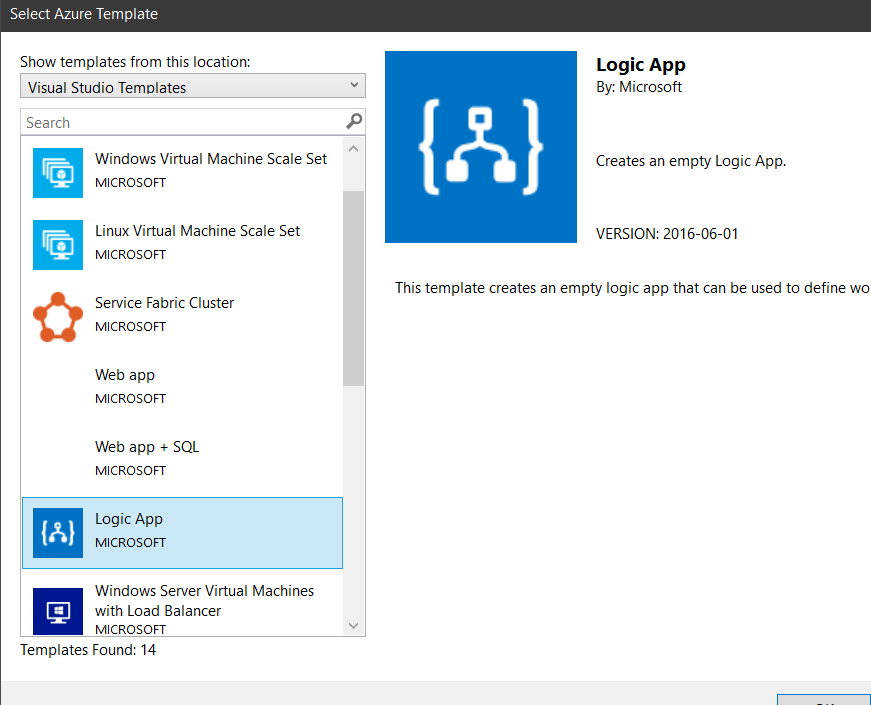
You will end with a new Project and Solution, if it’s the case, with 3 files. The PowerShell file is the deployment script that VS uses to automate the ARM deployment. Only in a special case do you need to fiddle with this file.
The other two files are the Logic App code and the Parameters file. You will need to create a new one to be used as a Template for the Azure Pipeline. So go ahead and copy the Parameters file and change the name to LogicApp.parameters.template.json.
You should end with something like this.
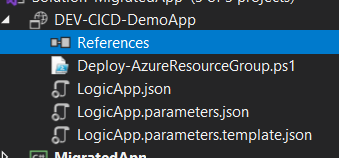
This Parameters Template file will contain our Tokens, which will be replaced in the Pipeline using the “Replace Tokens” Task. In the coming posts, I will explain how it works and why we’re using it.
For the sake of simplicity, I’ll just use the Service Bus connector, where, depending on the input, I’ll send a message to the Queue with the provided information.
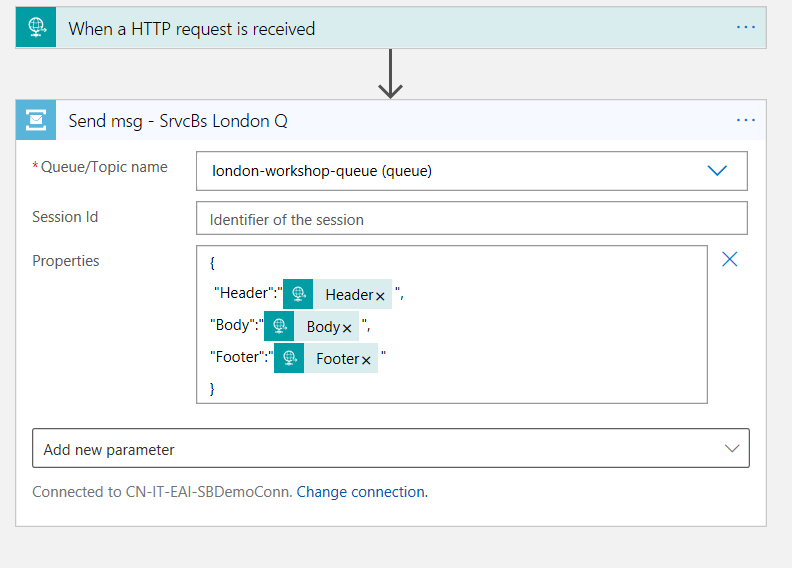
After creating the connection, you will see that, in the back code, several parameters and a Resource node were created as well, which contain the link and inputs for this connection.
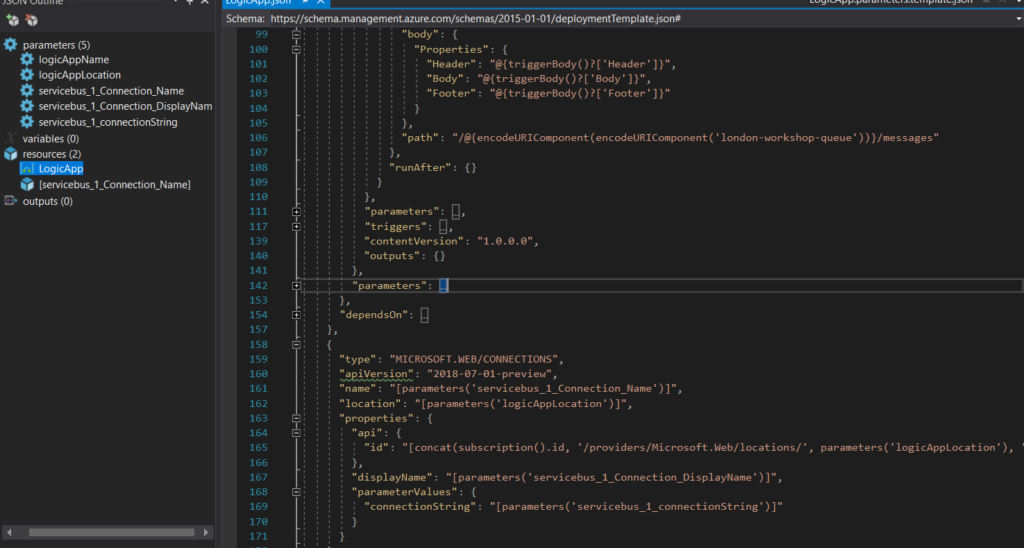
Even when working in a single Resource Group, it is a good practice to prepare this for CI CD, because even though it’s static, connections change and instead of having to re-do all of it, you just need to re-deploy the pipeline with the new configurations.
We will not be making any changes to the Resource node, but to the action path and parameters. This will define that instead of having a fixed value, it will point to the parameter itselft, making it possible to have an ARM parameter configurable in the Pipeline.
Hope you find this helpful! If you liked the content or found it useful and would like to support me in writing more, consider buying (or helping to buy) a Star Wars Lego set for my son.




good article. would like to know the links for next parts of the article
Hello Harsha,
Here’s the link to the next part of the article.
https://blog.sandro-pereira.com/2021/10/27/logic-apps-ci-cd-part-2-preparing-for-ci-cd/
Hope you like it 🙂