


Many people are having doubts and reaching out to me to provide some explanations on how to configure the SSO Application Configuration that I recently published, and, consequently, they are facing some problems/issue on using the tool. So, I decided to write this post to properly document this tool and explain how you can easily start using it.
Where can I use this SSO Application Configuration tool?
The first thing that you need to be aware of is that I released 3 different versions of this tool:
- BizTalk Server SSO Application Configuration Tool for BizTalk Server 2016
- BizTalk Server SSO Application Configuration Tool for BizTalk Server 2013 R2
- BizTalk Server SSO Application Configuration Tool for BizTalk Server 2013
And the reason is that each version of BizTalk Server uses a particular version of Microsoft.EnterpriseSingleSignOn.Interop.dll – BizTalk Server 2016 uses the 10.0.1000.0 version. So, each version of the tool will only work properly for that specific BizTalk Server version.
📝 One-Minute Brief
A practical guide that explains how to configure and use the SSO Application Configuration Tool to securely manage application settings in BizTalk Server, including environment setup, permissions, and key‑value configuration management.
If you want to use the tool, for example, in BizTalk Server 2010, then you need to use Assembly Binding Redirection in the machine configuration file (Machine.config):
- 32-bit: c:\Windows\Microsoft.NET\Framework\[version]\config\machine.config
- 64-bit: c:\Windows\Microsoft.NET\Framework64\[version]\config\machine.config
Check for more information here.
What do I need to do to start using the SSO Application Configuration tool?
When you download the SSO Application Configuration tool, it will not work in your environment by default because it contains my personal configurations for my LAB machine.
To properly use this tool, you need to first configure your environment settings by:
- Execute the SSO Application Configuration tool.
- And then select the Settings option from the top menu.
- This will pop up the SSO Application Configuration Setting windows, and there you need to configure:
- AppAdminAcct: SSO Administrator Group – Administrators of the Enterprise Single Sign-On (SSO) service.
- This is used to define which counts have access to this tool.
- ContactInfo: Internal field that is normally in the format of an email that is used internally in SSO tables for Application Configurations.
- AppUserAcct: SSO Affiliate Administrators Group – Administrators of certain SSO affiliate applications.
- This is used to describe the accounts that can access the configurations.
- AppAdminAcct: SSO Administrator Group – Administrators of the Enterprise Single Sign-On (SSO) service.
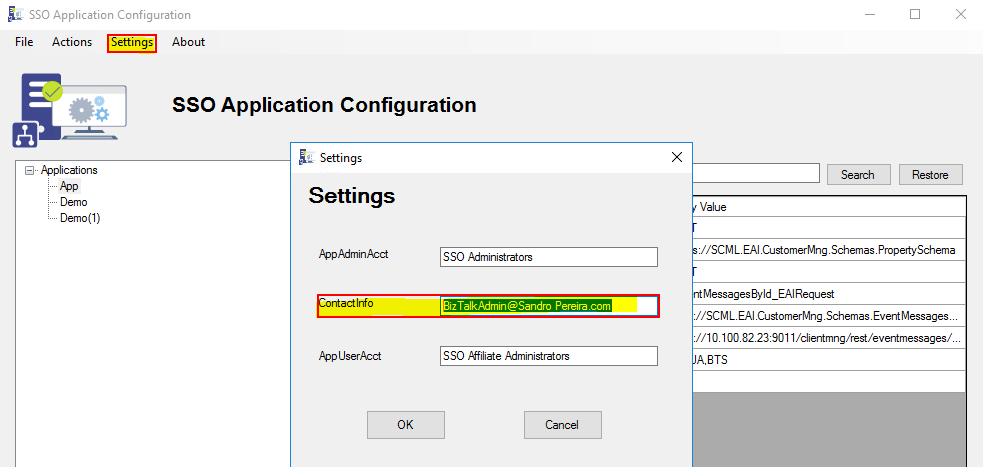
The AppAdminAcct and AppUserAcct fields are easy to understand; they need to be the BizTalk Groups that you have created in your environment. Nevertheless, with this tool, it is not mandatory that the AppUserAcct be a member to the SSO Affiliate Administrators Group. You can, for example, change that to BizTalk Application Users.
However, the ContactInfo may raise some doubts. To demystify this value, here are the rules for its definition:
- If you don’t have any application configuration created in your environment, this field can be any value, which is normally defined in a kind of “email format”, for example, BizTalkAdmin@Sandro Pereira.com.
- If you already have an application configuration created in your environment, created by another SSO Application or by the MSFT SSO Application Configuration snap-in, then you need to use the value that is already defined in your system.
I already have an application configuration created in my environment, so how can I properly configure the “ContactInfo” property?
The SSO Application Configuration tool is fully compatible with the MSFT SSO Application Configuration snap-in. But to further clarify this field, let me explain how the MSFT snap-in works:
- When you install the MSFT SSO Application configuration snap-in, during the installation process, it will ask you for a company name. I set mine as Sandro Pereira.
- Once you open the MSFT SSO Application configuration snap-in, you will see that the tool will use the company name that you defined in the installation process + SSO Application Configuration in the Application tree root
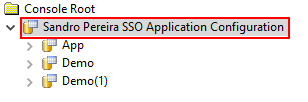
- Also, behind the scenes, all the applications you create will use “BizTalkAdmin@“ + company name + “.com” as the contact info; mine is BizTalkAdmin@Sandro Pereira.com.
- You can validate this value in the BizTalk SSO Database in the table SSOX_ApplicationInfo using the following SQL query:
USE [SSODB]
 GO

 SELECT DISTINCT [ai_contact_info]
 FROM [SSODB].[dbo].[SSOX_ApplicationInfo]
- The result you get will be something like this:
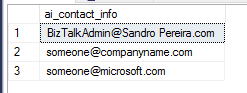
- someone@companyname.com and someone@microsoft.com are used internally by BizTalk (at least the latter) – please do not use these values or change them.
So, to make my tool compatible with the MSFT tool, you need to go to Settings and properly enter the contact info with that specific value, again, in my case: BizTalkAdmin@Sandro Pereira.com.
Note: Additionally, you have and use different contact info values to be used in different contexts/teams, to they have access to only a subset of all your Application Configurations. This is something that the MSFT tool will not allow you to do.

Hope you find this helpful! If you liked the content or found it useful and would like to support me in writing more, consider buying (or helping to buy) a Star Wars Lego set for my son.




Hi Sandro,
Thank you for sharing this amazing tool.
I would like to store config’s credentials by using command prompt.
I created the affiliate application type ConfigStore. But I faced the issue when entering the credentials (-setcredentials command), error detail is: ERROR: 0x80070057 : The parameter is incorrect.
Do you have any idea on this?
Thanks,
Quy HO