

Have you ever encountered a situation where your BizTalk map produces data you didn’t explicitly map? Or perhaps a field is being populated, but you can’t find the link responsible?
Hidden links can sometimes cause your map to behave in unexpected ways!
If this occurs, always check out the compiler-generated links to make sure that he (the compiler) hasn´t misinterpreted your intentions.
📝 One-Minute Brief
Discover how to reveal hidden compiler-generated links in the BizTalk Mapper. These links (shown as orange dashed lines) are automatically created during the “Validate Map” process and can often cause unexpected mapping behavior. Learn the simple steps to toggle their visibility and ensure your mapping logic is executed exactly as intended.
What are Hidden Links?
When you compile or validate a map, the BizTalk Mapper compiler sometimes “guesses” your intentions to help complete the transformation. It creates automatic links—represented as orange dashed lines—that aren’t visible during standard design time. While helpful, they can lead to unexpected mapping results if the compiler misinterprets your schema.
To see them:
- Go to Solution Explorer, right-click over the map, and select the Validate Map option.
- Then go to the main menu and select the View ➤ Error List option. This opens the Error Window. Select the Message tab.
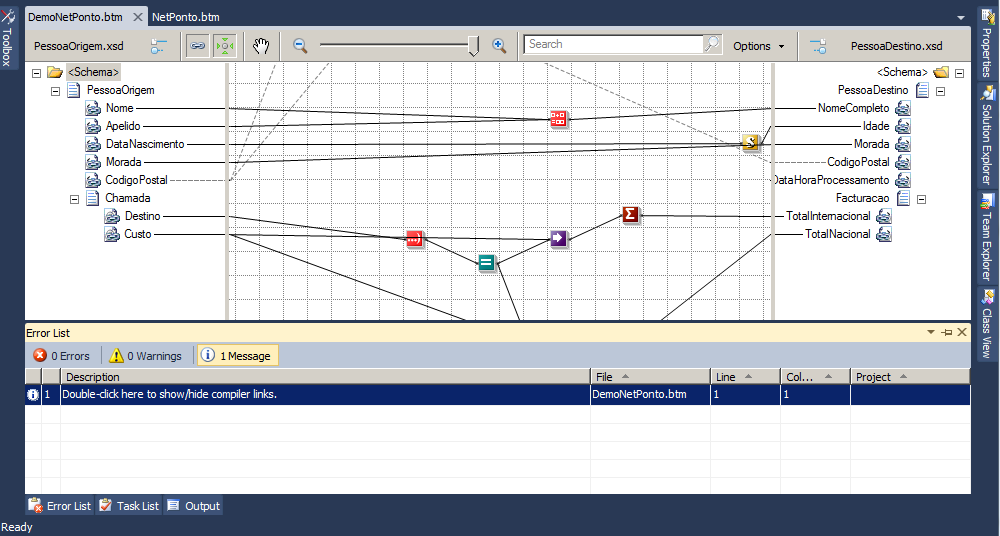
You will see the line Double-click here to show/hide compiler links. Double-click on the line, and the hidden links generated by the compiler will appear on the map represented by orange dashed lines.
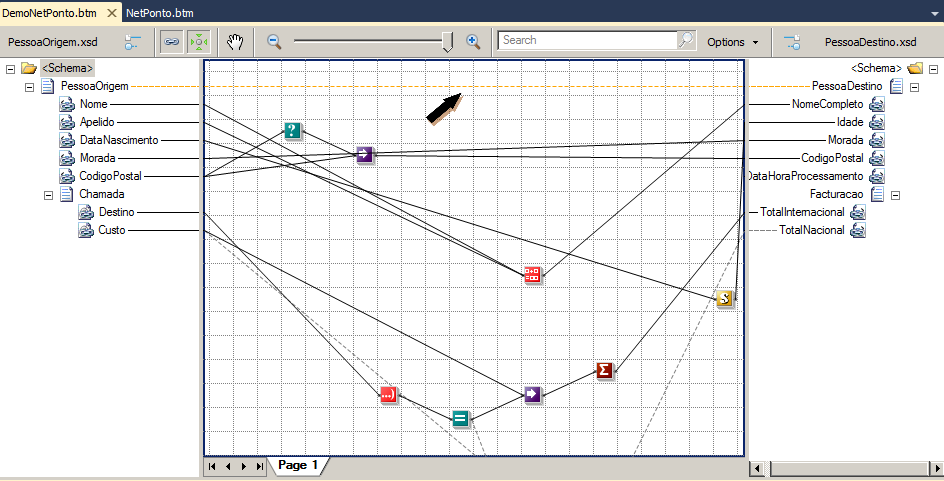
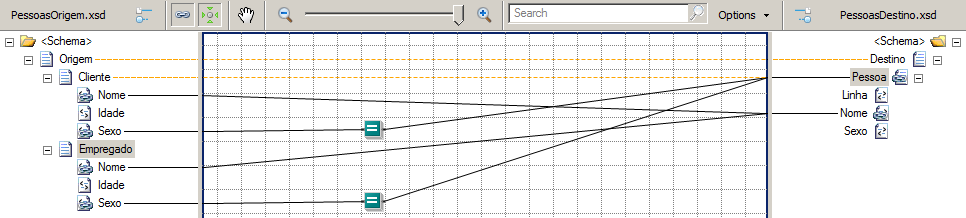
Another example:
Managing complex links and avoiding compiler errors is just the beginning. To truly master the Mapper, you need to understand the underlying patterns.
I have documented over 400 pages of tips, tricks, and best practices in my official eBook:
👉BizTalk Mapping Patterns & Best Practices ebook
Hope you find this helpful! If you liked the content or found it useful and would like to support me in writing more, consider buying (or helping to buy) a Star Wars Lego set for my son.



