


When developing Azure Logic Apps (Standard) locally, we often create placeholders or new folders to organize our logic. A common pitfall occurs when creating a workflow folder and an empty workflow.json file, then proceeding to deploy the project. While it seems harmless, this “empty” state is a silent breaker for the entire Logic App host.
📝 One-Minute Brief
A frequent issue arises when a workflow folder and a blank workflow.json file are created and the project is deployed in that state. Although it may appear harmless, this empty configuration can silently break the entire Logic App host and prevent it from running correctly.
The implementation and the root cause
The problem doesn’t trigger during development, but rather as a chain reaction once the code reaches the cloud. Here is how the failure typically manifests:
- The Culprit (VS Code): It starts when a workflow folder is created, but remains unconfigured. The file exists in the project, but it is “hollow.” In VS Code, this looks like a harmless draft, but to Azure, it is a broken definition.

- The Deceptive Success: When deploying, VS Code will confirm that all files were copied successfully. This is deceptive because the system only confirms that the file transfer is complete; it doesn’t check whether the content in those files will actually work or “break” the system once they arrive.

- The Runtime Crash: As soon as Azure receives the files, it tries to read every workflow to get them up and running. When it hits that empty file, the Logic App engine crashes. This is why the “Runtime Version” status switches to Error. The “brain” of the application has stopped because it doesn’t know how to handle the incomplete data.

- The Total Lockdown: The final result is the “Object reference” error in the portal. Because the main engine failed to load the list, Azure can no longer display any workflows at all. It’s not just the empty workflow that disappears. All your other workflows, even the healthy ones, become inaccessible in the portal until the error is fixed.
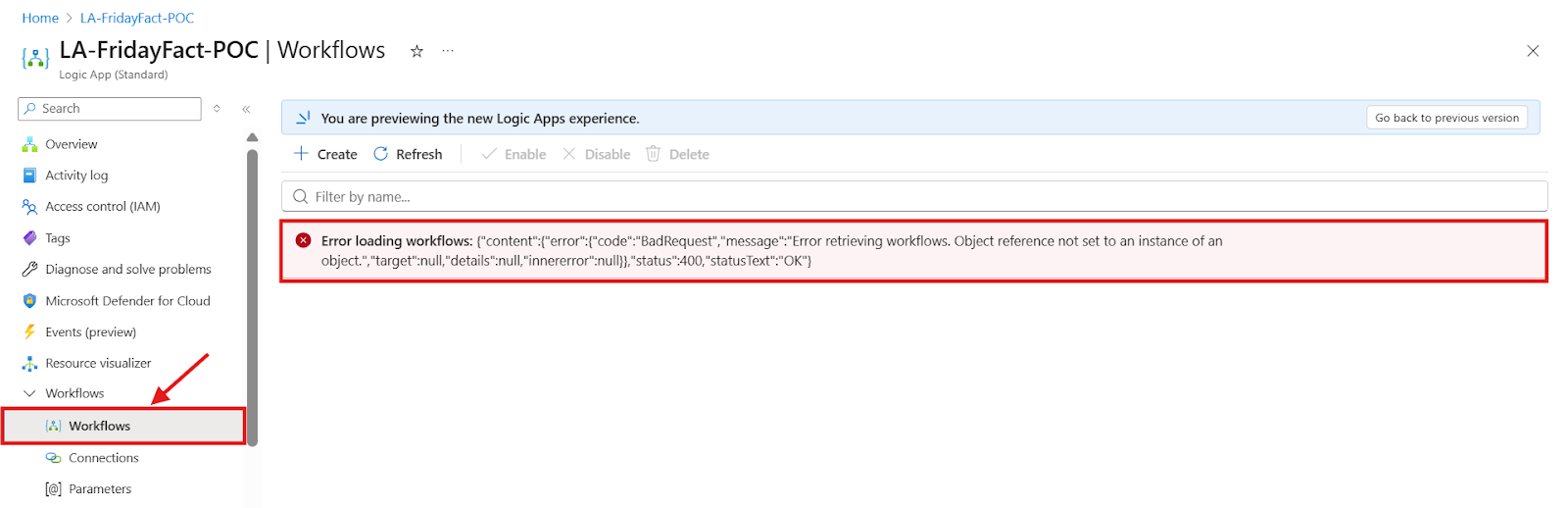
How to resolve and prevent
This is one of the most frustrating errors to debug because it often goes completely unnoticed during the development flow. Since the deployment tool gives you a “green light” and no specific file is flagged as broken, you might spend hours looking at your valid workflows trying to find a mistake that isn’t there.
To resolve this, you must identify the empty placeholder folder and either delete it entirely from your project or initialize it using the VS Code Designer by adding at least one basic trigger, such as a Request or Recurrence.
A golden rule to prevent this headache is to always verify that the Designer can open the workflow locally before pushing your code. If the local designer fails to render the workflow, it is guaranteed that the Azure Runtime will crash upon arrival. Simply cleaning up these empty files and redeploying will make your entire workflow list magically reappear in the portal.
Conclusion
In Logic App Standard, the runtime follows an “all or nothing” rule. A single empty placeholder is enough to break the management UI for the entire app. A quick local validation is the best way to ensure your cloud environment stays healthy and visible.
To lazy to read? We’ve got you covered! Check out our video version of this content!
A special thanks to Luís Rigueira (@luisrg) and João Sá (@joaosa) for helping identify and write this Friday Fact!
Hope you find this helpful! If you enjoyed the content or found it useful and wish to support our efforts to create more, you can contribute towards purchasing a Sauron’s Action Figure for Sandro’s son, yep, not for me!



