


Welcome again to another BizTalk Server Best Practices, Tips, and Tricks blog post! In my previous blog posts, I discussed some essential tips and tricks for BizTalk Server administrators:
- #1 What do RosettaNet, ESB, and UDDI have in common?
- #2 BizTalk MarkLog tables
- #5 Tracking Data enabled
- #6 Maintaining Archiving Folders
- #11 Duplicate BizTalk Server Ports
- #12 Export Bindings of a Single Port
- #17 Delete BizTalk Database Backups files from the local drive
And for BizTalk Server Developers:
- #3 Creating Custom Functoids
- #4 The Database Lookup Functoid
- #7 Automatically Generate XSD Schemas
- #8 Another way to Validate CSV structures
- #9 Visual Studio BizTalk Server Deployment properties
- #10 Visual Studio BizTalk Server Signing Properties
- #13 Stop using BizTalk Config file to store application configurations
- #14 Understand Orchestration Persistence Points
- #15 Using External Custom XSLT files
- #16 Using prefixes in inline XSLT scripts
- #18 Orchestration Designer Shortcut Keys
Today, we are going to switch and speak about another critical Best practice, Tips, and Tricks, this time, again, for BizTalk Server developers: How to easily search for code inside the Orchestration Designer.

#19 Search for code inside the Orchestration Designer
The Orchestration Designer is the visual design surface in Microsoft BizTalk Server (inside Visual Studio) used to model and implement long-running, message-driven business processes. Simplistically, lets you drag-and-drop shapes (Receive, Send, Transform/Construct, Decide, Loop, Parallel, Scope/Exception, Compensation) to define the process flow, and basically behind the scenes it compiles your diagram into an XLANG/s.
Your business process, also known as process flow or orchestration, can be straightforward with a few shapes or very complex with a considerable number of shapes. In simple orchestration, we can go through each shape to find the code we want, because even if it’s annoying, it will not take much time. In complex orchestration, this can be a tedious and time-consuming task.
So how can we do it better or more simply?
- Right-click on the orchestration and choose the option Open With… and select XML (Text) Editor option.
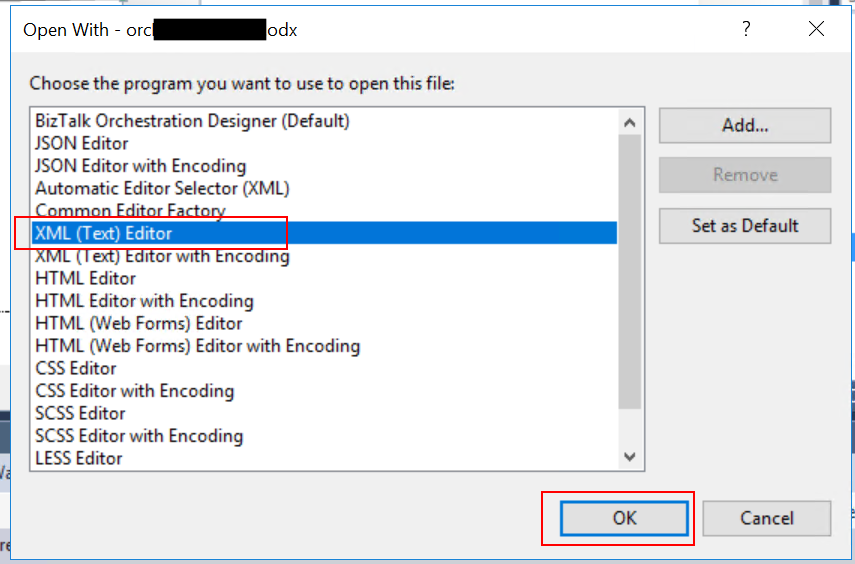
- On the odx file, press CTRL-F and search for what you want to search – keep the search simple since inside the odx file is not native C# code as we are familiar.

- In my case, I was searching for configurations, so I searched for the configuration key I needed to replace.
- Once you find what you are looking for, you’ll want to know the name of the shape the code is in! To do that, you need to go to the property Name and see the Value.
- Typically, this is set as:
- A record with a message type, in my case MessageAssignment
- A property Expression: containing the code.
- A property ReportToAnalyst.
- A property Name: containing the name of the shape you see inside the orchestration design.
- A property Signal.
- Typically, this is set as:
Now that you know the shape or shapes the code is in. Open the orchestration inside the Orchestration Designer and make the required changes. Of course, you can change directly on the file you opened with the XML (Text) Editor, but be very careful doing that. I do prefer to use the Orchestration Designer.
I hope you enjoy this developer tip and stay tuned for the following BizTalk Server Best practices, Tips, and Tricks.
Hope you find this helpful! If you liked the content or found it useful and would like to support me in writing more, consider buying (or helping to buy) a Star Wars Lego set for my son.



