


Long time since I played with PowerShell and BizTalk Server, but today I had a request from one of my clients who wants to restart to SAP receive locations on a scheduled basis. So, while helping them, I decided to publicly publish a series of resources related to this:
- How to restart a BizTalk Server Receive Location with PowerShell/BizTalk360 – will be published soon on the BizTalk360 blog.
- How to restart a BizTalk Server Send Port with PowerShell/BizTalk360 – will be published soon on the BizTalk360 blog.
- How to restart a BizTalk Server Send Group with PowerShell/BizTalk360 – will be published on my blog soon.
- And this is one of course.
There may be several reasons we want to stop and start BizTalk Server applications. One of the reasons is for planned external or internal systems interventions. For example, we know that our external system is down for maintenance on the first day or the last day of each month. There are several ways to do this, Stopping only the send ports or the receive location or entirely stopping the application.
You can do this using BizTalk360; many customers are actively using it, but that doesn’t mean you cannot use this PowerShell script. Actually, BizTalk360 allows you to extend its out-of-the-box capabilities by allowing you to integrate PowerShell scripts with BizTalk360.
Of course, to use this script on a scheduled basis, you need to use it inside BizTalk360, or you can create a Task Scheduler on the BizTalk Server machine or any other machine with access to BizTalk Server.
📝 One-Minute Brief
A practical guide (with script) to stop and start BizTalk Server applications using PowerShell—and how to schedule or operationalize it via BizTalk360 or Windows Task Scheduler. Ideal for maintenance windows, planned system outages, or automated recovery, the approach leverages ExplorerOM to guarantee a full stop/start and can be integrated into BizTalk360 runbooks.
PowerShell to Stop and Start a BizTalk Server Application
With this script, we can accomplish exactly that: Stop or/and Start a BizTalk Application by using PowerShell.
The function below accepts the BizTalk Application name and guarantees that a full stop is made.
function stop-bts-application (
    [string]$appName,
    [Microsoft.BizTalk.ExplorerOM.BtsCatalogExplorer]$btsCataloglog)
{
    # Get the BizTalk Application
    $application = $Catalog.Applications[$appName]

    # Going to check if the application status is stopped or not
    if ($application.Status -ne "Stopped")
    {
         # Force a full stop to the application
         $application.Stop("StopAll")
         $btsCataloglog.SaveChanges()
    }
}
The function below accepts the BizTalk Application name and ensures a full start is performed.
function start-bts-application (
    [string]$appName,
    [Microsoft.BizTalk.ExplorerOM.BtsCatalogExplorer]$btsCataloglog)
{
    # Get the BizTalk Application
    $application = $Catalog.Applications[$appName]

    # Going to check if the application status is stopped or not
    if ($application.Status -ne "Started")
    {
         # Force a full stop to the application
         $application.Start("StartAll")
         $btsCataloglog.SaveChanges()
    }
}
THESE POWERSHELL SCRIPTS ARE PROVIDED “AS IS”, WITHOUT WARRANTY OF ANY KIND.
Download
You can download PowerShell to stop and start a BizTalk Server Application from GitHub here:
Use BizTalk360 to Start and Stop a BizTalk Application
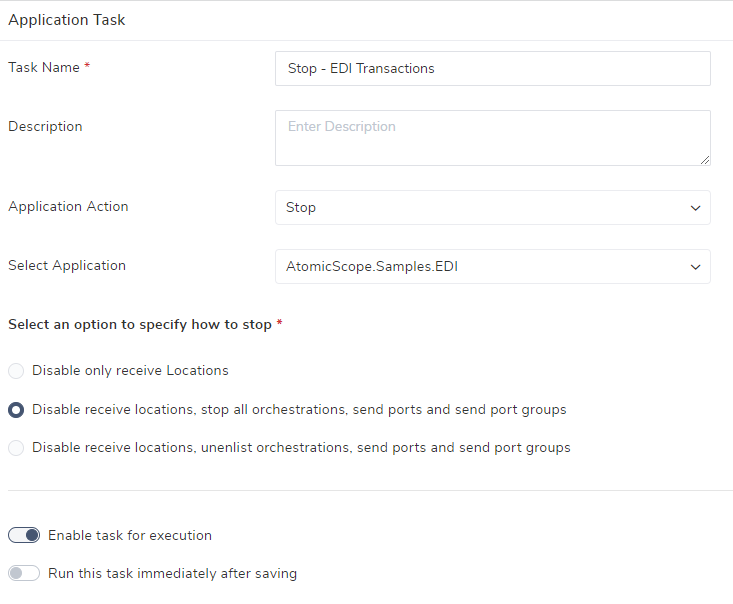
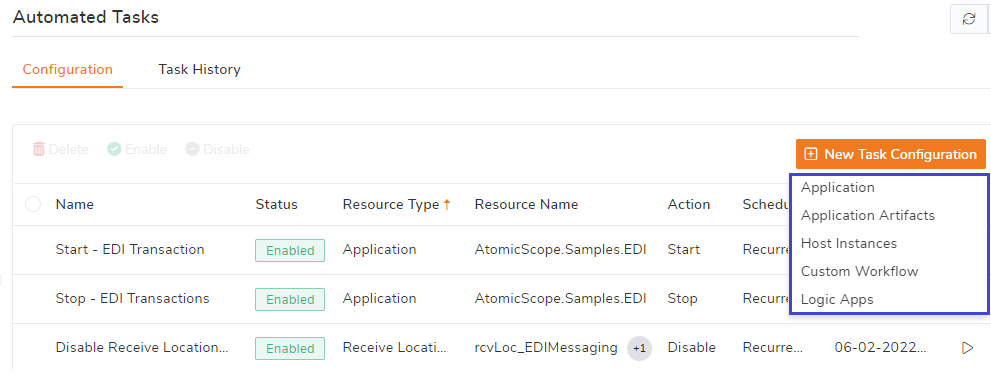
At the time of writing, the BizTalk360 team is working on v10.3. An important feature of that release will be the Automated Task feature. This will allow you to stop/start/restart ports, orchestrations, host instances, and logic apps on a scheduled basis.
See below, a couple of screenshots of the feature. Be aware that the feature has not been released, so the screenshots are subject to change.
Hope you find this helpful! If you liked the content or found it useful and would like to support me in writing more, consider buying (or helping to buy) a Star Wars Lego set for my son.



