
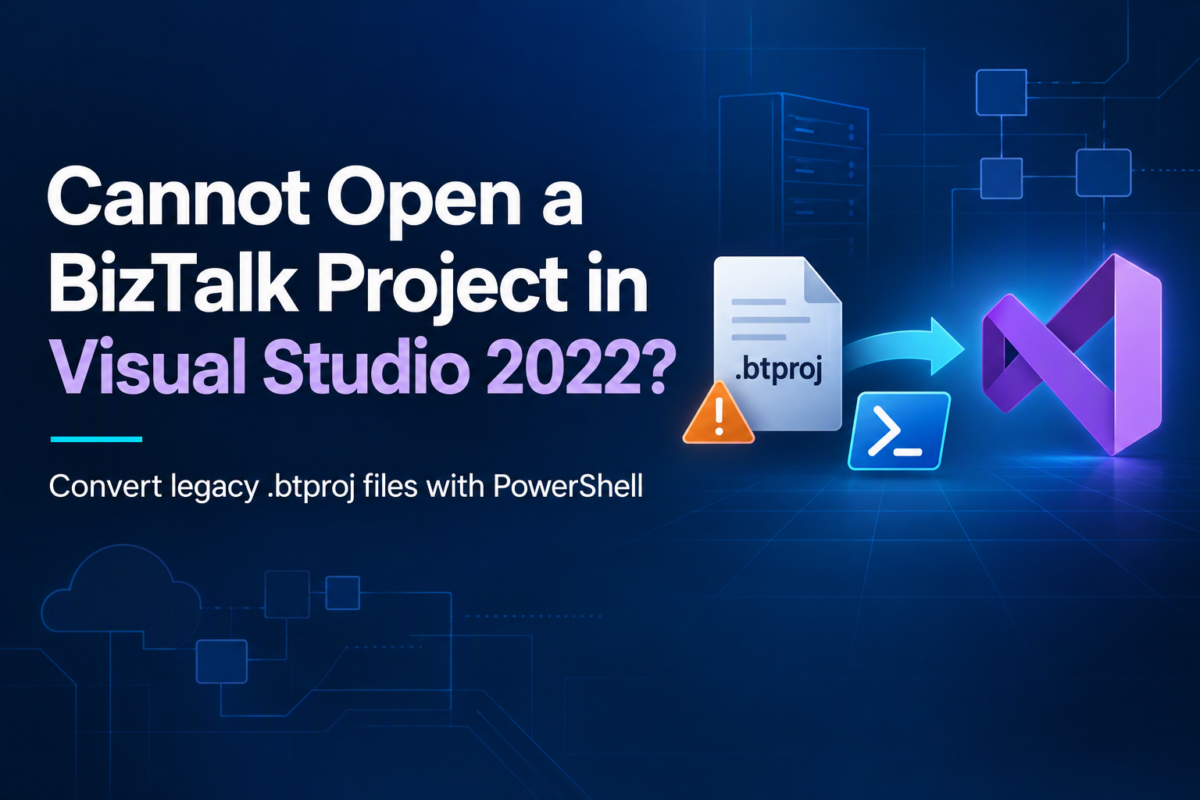
Have you ever tried to open an old BizTalk Server project in Visual Studio 2022 in order to migrate it to BizTalk Server 2020, only to find that Visual Studio cannot load or migrate the project?

If you work with old BizTalk Server solutions, especially solutions that have been running reliably for many years and haven’t been touched since, sooner or later you will probably face this problem.
And the reason is relatively simple. The BizTalk project is too old to be directly migrated by the current development tools.
The normal solution would be to migrate the project through one or more intermediate versions of BizTalk Server and Visual Studio. But let’s be honest: how many people still have a BizTalk Server 2006, 2009, or 2010 development environment available today?
Creating one just to migrate a .btproj file is time-consuming, annoying, and potentially carries infrastructure and licensing costs.
Fortunately, there is another way.
📝 One-Minute Brief
Opening a legacy BizTalk Server project in Visual Studio 2022 can fail because old .btproj files use a different project structure. Learn how to convert these projects with PowerShell without installing old BizTalk environments.
The problem: the old BizTalk project format
You may find this problem when opening a very old BizTalk Server solution in a more recent version of Visual Studio, such as Visual Studio 2022 with the BizTalk Server development tools installed.
The solution itself may open, but the BizTalk project fails to load, or Visual Studio isn’t able to migrate it successfully.
When you inspect the .btproj file, you may find something similar to this:
<VisualStudioProject>
    <BIZTALK
        ProductVersion="3.5.1602"
        SchemaVersion="1.0"
        ProjectGuid="{C7A6D75D-1186-4ED5-9DD4-2F81E4420B2B}"
        SccProjectName='"$/SupplyChain/Sources/Customers/Biztalk/Orders", VCVAAAAA'
        SccLocalPath="."
        SccProvider="MSSCCI:Microsoft Visual SourceSafe">

        <Build>
            <Settings>
                <EditorCommon />
                <ProjectCommon
                    AssemblyKeyName=""
                    AssemblyKeyFile="D:\Source\Customers\Orders\key.snk"
                    AssemblyDelaySign="False"
                    AssemblyTitle=""
                    AssemblyDescription=""
                    AssemblyDefaultAlias=""
                    AssemblyConfiguration=""
                    AssemblyTrademark=""
                    AssemblyProduct=""
                    AssemblyInformationalVersion="2.1.2.0"
                    AssemblyFileVersion="2.1.2.0"
                    AssemblyCopyright=""
                    AssemblyCompany=""
                    AssemblyVersion="2.1.2.0"
                    DefaultNamespace="myNamespace"
                    AssemblyName="myAssemblyName"
                />
...
If you have been working with BizTalk Server for long enough, this format probably brings back some memories.
This is the old Visual Studio/BizTalk project format, where the BizTalk configuration is stored below:
<VisualStudioProject>
    <BIZTALK>
Modern BizTalk projects use an MSBuild-based project structure, which is fundamentally different.
What Visual Studio expects
A newer BizTalk .btproj file looks much more like a traditional MSBuild project.
For example:
<?xml version="1.0" encoding="utf-8"?>
<Project ToolsVersion="4.0"
         DefaultTargets="Build"
         xmlns="http://schemas.microsoft.com/developer/msbuild/2003">
  <PropertyGroup>
    <Configuration Condition=" '$(Configuration)' == '' ">Development</Configuration>
    <Platform Condition=" '$(Platform)' == '' ">AnyCPU</Platform>
    <SchemaVersion>2.0</SchemaVersion>
    <ProjectGuid>{C7A6D75D-1186-4ED5-9DD4-2F81E4420B2B}</ProjectGuid>
    <ProjectTypeGuids>
      {EF7E3281-CD33-11D4-8326-00C04FA0CE8D};
      {FAE04EC0-301F-11D3-BF4B-00C04F79EFBC}
    </ProjectTypeGuids>
    <OutputType>library</OutputType>
    <GenericProcessing>true</GenericProcessing>
    <RootNamespace>myNamesapce</RootNamespace>
    <AssemblyName>MyAssemblyName</AssemblyName>
    <TargetFrameworkVersion>v2.0</TargetFrameworkVersion>
    <BpelCompliance>True</BpelCompliance>
    <TargetFrameworkProfile />
  </PropertyGroup>
  <PropertyGroup Condition=" '$(Configuration)|$(Platform)' == 'Development|AnyCPU' ">
    <DebugSymbols>true</DebugSymbols>
    <DebugType>full</DebugType>
    <Optimize>false</Optimize>
    <OutputPath>bin\Development\</OutputPath>
    <DefineConstants>DEBUG;TRACE</DefineConstants>
    <TreatWarningsAsErrors>False</TreatWarningsAsErrors>
    <WarningLevel>4</WarningLevel>
    <ErrorReport>prompt</ErrorReport>
  </PropertyGroup>
...
There are substantial differences between these two structures.
This isn’t simply a matter of changing:
SchemaVersion="1.0"
To:
<SchemaVersion>2.0</SchemaVersion>
The entire project structure changed.
The traditional migration path
Normally, when migrating very old BizTalk applications, you would perform the migration through intermediate versions of BizTalk Server and their corresponding development environments.
Depending on how old the original project is, you may need a migration path similar to:
- Old BizTalk project → intermediate BizTalk version → newer BizTalk version → current development environment
For example, a very old project may first need to be converted into the MSBuild-based BizTalk project format before newer development tools can understand and upgrade it.
And technically, there is nothing wrong with that approach. The problem is having the environments available.
Who still has a BizTalk Server 2010 development environment?
That’s the real problem.
Today, most developers and organizations don’t have an old BizTalk Server 2010 development environment sitting around waiting to migrate a project that hasn’t been changed for 15 years.
And building one just for this purpose means:
- Provisioning a compatible Windows environment
- Installing a compatible Visual Studio version
- Installing the required BizTalk Server development tools
- Installing prerequisites
- Dealing with old or unsupported software
- Performing the intermediate conversion
- Repeating the process for additional migration steps, if necessary
- Finally opening the solution in your current environment
All of that… just to convert a project file.
There has to be an easier way. And there is.
Migrating the old BizTalk project with PowerShell
Instead of creating one or more legacy BizTalk development environments, we can automate the project conversion.
I created a PowerShell script that reads the old .btproj format and generates the equivalent MSBuild-based BizTalk project structure that can then be used as the starting point for the remaining migration.
The idea is simple:
Legacy .btproj
     ↓
PowerShell conversion
     ↓
MSBuild-based .btproj
     ↓
Open/upgrade with the newer BizTalk development tools
This allows us to bypass the most painful part of the migration: having to maintain or recreate an ancient BizTalk development environment simply to convert the project structure.
What does the script need to migrate?
This is the important part. A correct migration cannot simply create an empty .btproj file and copy the project name.
The script needs to translate the relevant information from the old project model into its MSBuild equivalent. That typically includes:
ProjectGuid- Assembly name
- Default/root namespace
- Assembly version information
- Strong-name configuration
- Build configurations
- Output paths
- Project references
- Assembly references
- BizTalk schemas
- Maps
- Orchestrations
- Pipelines
- Other project files
- BizTalk-specific build actions
- Relevant project properties
For example, the old project contains:
ProjectGuid="{C7A6D75D-1186-4ED5-9DD4-2F81E4420B2B}"
The converted project needs to represent that property using the MSBuild structure:
<ProjectGuid>{C7A6D75D-1186-4ED5-9DD4-2F81E4420B2B}</ProjectGuid>
Likewise:
DefaultNamespace="MyNamespace"
AssemblyName="MyAssemblyName"
need to become:
<RootNamespace>MyNamespace</RootNamespace>
<AssemblyName>MyAssemblyName</AssemblyName>
But those simple examples are only part of the conversion. The real value of the script is rebuilding the project structure while preserving the BizTalk artifacts and their corresponding build information.
Before running the script
I strongly recommend creating a backup or, preferably, running the migration against a copy of the original solution. Remember that we’re dealing with projects that may be 15 or even 20 years old.
There may be dependencies on:
- Custom .NET assemblies
- Old pipeline components
- Old versions of third-party components
- GAC assemblies
- Hard-coded file paths
- Strong-name key files
- Visual SourceSafe bindings
- Old .NET Framework versions
- Components that are no longer available
I also recommend treating project conversion and application modernization as two different tasks.
First, get the project into a format the modern development tools can understand.
Then fix obsolete references, paths, dependencies, frameworks, and code.
Don’t try to solve everything at once.
After the conversion
Once the PowerShell script finishes, don’t immediately assume that the project is fully migrated and ready for production.
The objective of this first step is simpler: Get the legacy BizTalk project into a project format understood by newer BizTalk development tools.
Open the converted solution in your target Visual Studio/BizTalk development environment and allow the supported tooling to perform any additional upgrade steps it requires.
Then:
- Check that all BizTalk projects load.
- Check the project references.
- Check external assembly references.
- Verify strong-name key files.
- Review .NET Framework targets.
- Check schemas, maps, pipelines, and orchestrations.
- Build the entire solution.
- Fix compilation errors one by one.
- Validate custom pipeline components and adapters.
- Deploy to a non-production BizTalk environment and perform functional testing.
Pay particular attention to warnings during the first load and build.
A project loading successfully in Visual Studio does not automatically mean that the BizTalk application has been successfully migrated.
Don’t confuse project migration with BizTalk application migration
This distinction is extremely important.
What we’re solving here is:
“Visual Studio can’t open my old BizTalk project.”
We’re not automatically solving:
“My 20-year-old BizTalk application is fully compatible with the latest BizTalk environment.”
Those are completely different problems.
The PowerShell script removes one significant obstacle: the dependency on an old development environment purely for transforming the project format.
You still need to test the actual BizTalk artifacts and application behavior.
Final thoughts
One of the challenges of maintaining BizTalk Server environments isn’t necessarily BizTalk itself.
It is time.
There are BizTalk applications running today that were originally developed 15 or 20 years ago. Many of them have survived multiple operating systems, SQL Server versions, Visual Studio versions, and BizTalk Server releases.
And sometimes the biggest obstacle to migrating one of those applications isn’t an orchestration, a map, or a custom pipeline component.
It is a .btproj file.
Setting up several legacy development environments simply to transform that project file is possible, but in many cases it is unnecessary overhead.
With a relatively simple PowerShell conversion process, we can transform the legacy project structure into the MSBuild-based format and let the newer BizTalk development tools take the migration forward from there.
Sometimes, a small automation script saves hours of installation and configuration work.
And, more importantly, it means you don’t have to find a machine where Visual Studio 2010 and an ancient BizTalk development environment are still alive!
Download
THIS POWERSHELL SCRIPT IS PROVIDED “AS IS”, WITHOUT WARRANTY OF ANY KIND.
You can download the PowerShell Script used from GitHub here:
Hope you find this helpful! If you liked the content or found it useful and would like to support me in writing more, consider buying (or helping to buy) a Star Wars LEGO set for my son.