

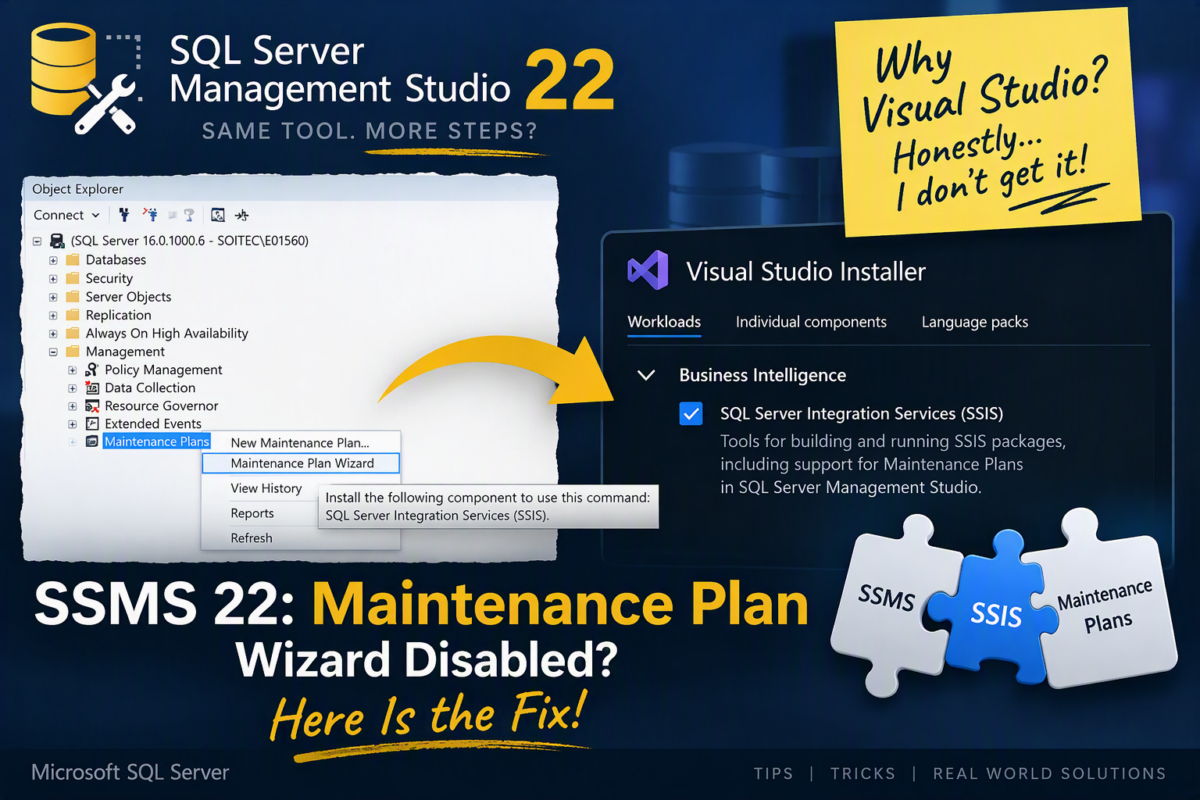
Sometimes I’m genuinely mesmerized by how Microsoft manages to complicate something that has been simple for ages! For years, installing SQL Server Management Studio (SSMS) was one of those straightforward experiences:
Download SSMS → Next → Next → Next → Install → Done!
Simple. Predictable. Everyone was happy.
Well… apparently, simple was too simple.
With SQL Server Management Studio 22, Microsoft completely changed the installation experience. Instead of providing the traditional standalone installation experience, Microsoft now uses the Visual Studio Installer to install SSMS 22.
Yes, you read that correctly: Visual Studio Installer.
Why Visual Studio?
Honestly… I don’t get it!
For ages, installing SSMS was a simple process. However, now Microsoft confirms we need another installer to install and manage SQL Server Management Studio, and that there is no standalone MSI installer for SSMS 22. Moreover, if you later discover that you are missing a component, you need to return to the Visual Studio Installer and modify your SSMS installation.
And unfortunately, things get even more interesting when you try to perform one of the most basic SQL Server administrative tasks: creating a Maintenance Plan.
📝 One-Minute Brief
SSMS 22 may disable the Maintenance Plan Wizard if the required SSIS component isn’t installed. Learn why Maintenance Plans depend on SSIS and how to modify your SSMS 22 installation to add the Business Intelligence component and restore this functionality.
The problem
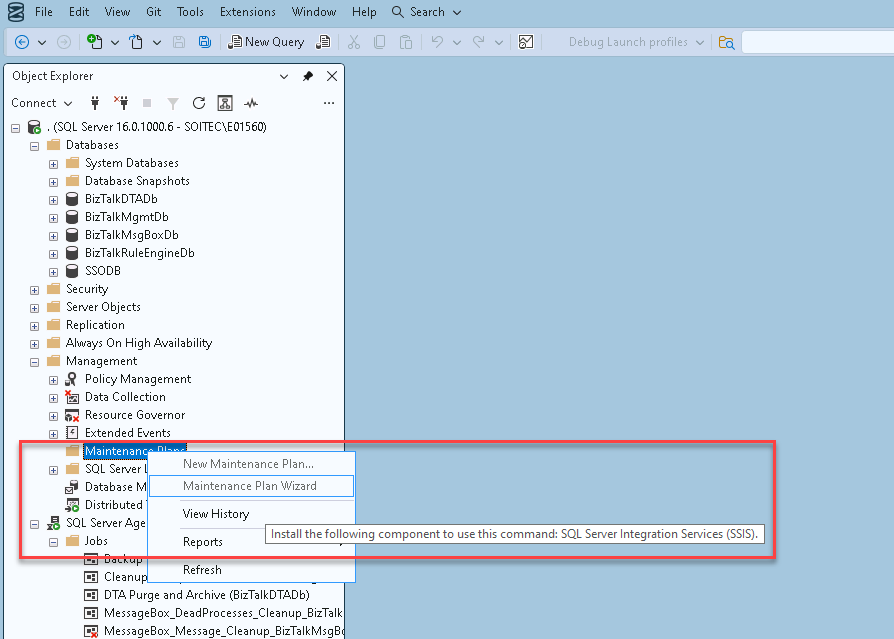
After installing SSMS 22, I connected to my SQL Server instance and navigated to:
- Management → Maintenance Plans
- Then I right-clicked Maintenance Plans and tried to select:
- Maintenance Plan Wizard
But the option was disabled. When hovering over the option, SSMS displayed the following message:
Install the following component to use this command: SQL Server Integration Services (SSIS).
What?!
I just want to create a Maintenance Plan! Why is this basic task not installed by default?
And, even better, why do I need to go back to the Visual Studio Installer and install a Business Intelligence component to perform a basic SQL Server administrative task?
Honestly, I don’t get it. And I don’t get why SQL Server Integration Services packages are in the Business Intelligence label, but I’m not a SQL or Business Intelligence expert.
Why does a Maintenance Plan require SSIS?
Although it may look strange at first, there is a technical reason behind this requirement.
SQL Server Maintenance Plans are implemented as SQL Server Integration Services packages. The resulting packages are executed by SQL Server Agent jobs. So even if you’re not actually developing SSIS solutions, Maintenance Plans rely on SSIS technology behind the scenes.
This dependency itself isn’t new. What makes the experience confusing with SSMS 22 is that the required functionality may not be present in your default SSMS installation.
After reviewing the official documentation, Microsoft states that you can install SSMS with the SQL Server Integration Services (SSIS) component under the Business Intelligence feature to enable Maintenance Plan functionality. Without it, certain Maintenance Plan features aren’t available
How to fix it in SSMS 22
Fortunately, the solution itself is simple. Finding out why you need to do it is probably the hardest part!
Because SSMS 22 is managed through the Visual Studio Installer, you need to modify your existing installation.
- First, close any running instances of SQL Server Management Studio 22
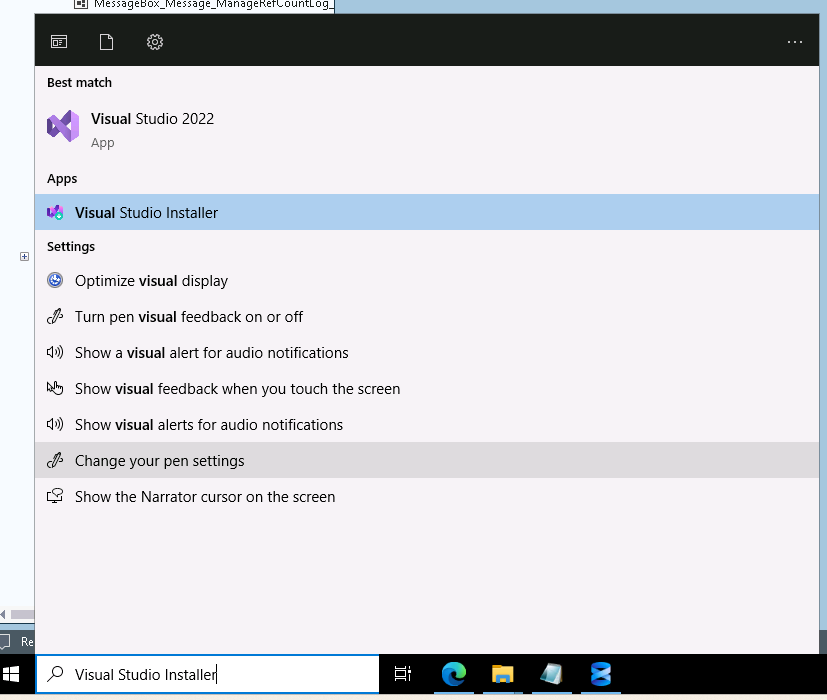
- Open the Visual Studio Installer from the Windows Start menu.
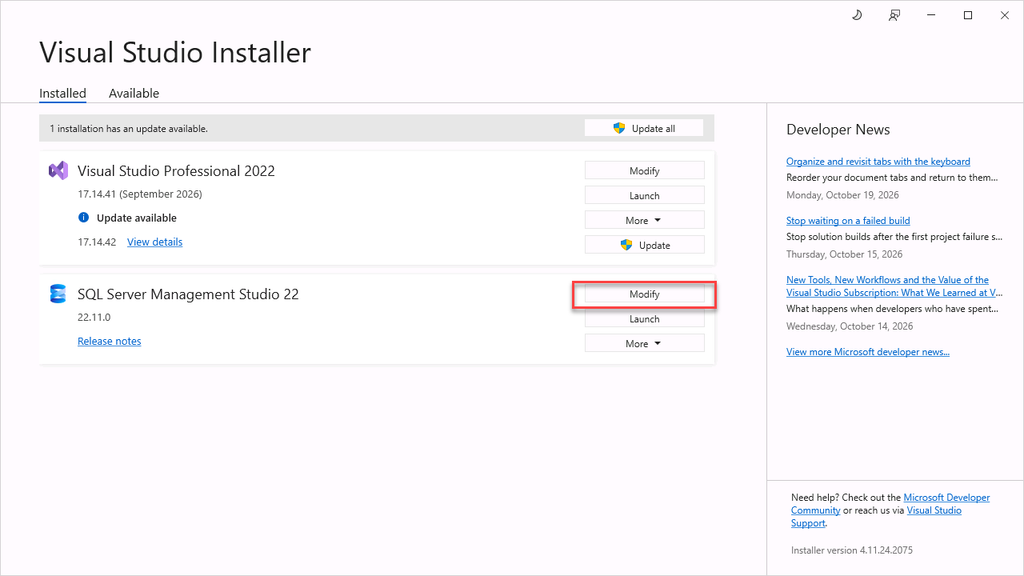
- From the Visual Studio Installer, you should see your SQL Server Management Studio 22 installation.
- Select the option to Modify your SQL Server Management Studio 22 installation.
- Finally, to install the Business Intelligence/SSIS component, go to the Workloads page, locate and select the Business Intelligence feature.
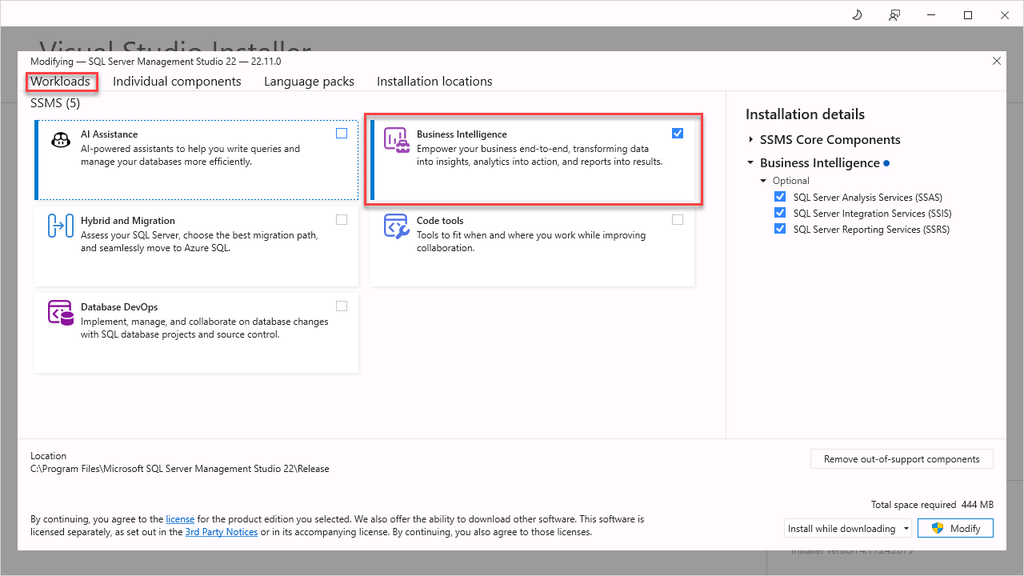
- Click Modify to complete the installation, then start SSMS again.
Hope you find this helpful! If you liked the content or found it useful and would like to support me in writing more, consider buying (or helping to buy) a Star Wars LEGO set for my son.



