


In the previous articles of this series, we explored the fundamentals of Tracking Properties in Azure Logic Apps, how to implement them effectively, and the rules of engagement you should follow to ensure they provide meaningful and consistent business context across your integration solutions.
In Logic Apps Tracking Properties – Part 1, we introduced the concept of Tracking Properties, discussed their benefits, limitations, and why they are an important building block for observability in enterprise integration solutions. We then moved on to How to Implement Logic Apps Tracking Properties, where we covered the practical aspects of configuring and using Tracking Properties within Logic Apps workflows. Finally, in Logic Apps Tracking Properties Rules of Engagement, we looked at governance recommendations, naming conventions, and best practices that help maintain consistency across solutions and teams.
However, implementing Tracking Properties is only part of the story. To truly benefit from them, you need to understand how to access, search, and analyze the information they generate. In this article, we will focus on monitoring Logic Apps through Azure Log Analytics and demonstrate how Tracking Properties can be leveraged to troubleshoot issues, trace business transactions, and build more effective operational monitoring and reporting capabilities.
📝 One-Minute Brief
Tracking Properties become truly valuable when combined with Azure Log Analytics. In this article, you’ll learn how to configure diagnostic settings, access workflow runtime telemetry, and use KQL queries to search for business identifiers, correlation IDs, action tracking IDs, and custom tracking data. These techniques enable faster troubleshooting, improved observability, and end-to-end tracking across your Azure Logic Apps integrations.
How to Monitor Logic Apps and Tracking Properties in a Log Analytics workspace
Enable diagnostics first
Tracking Properties are only sent to Log Analytics if your Logic App is configured to send workflow runtime logs to a Log Analytics workspace. Collect diagnostic data for workflows – Azure Logic Apps explains that workflow runtime data (trigger, run, and action events) can be sent to Log Analytics through Diagnostic Settings.
To do that, we need to go to the Azure Portal to:
- Open your Logic App.
- Go to Monitoring → Diagnostic settings.
- Create or edit a diagnostic setting.
- Send logs to a Log Analytics Workspace.
- Enable workflow runtime logging (or allLogs depending on the resource type).
Note that this is normally done by the network team.
Open Log Analytics
On the Azure Portal, navigate to:
- Your Log Analytics Workspace and then select the Logs option from the left menu.
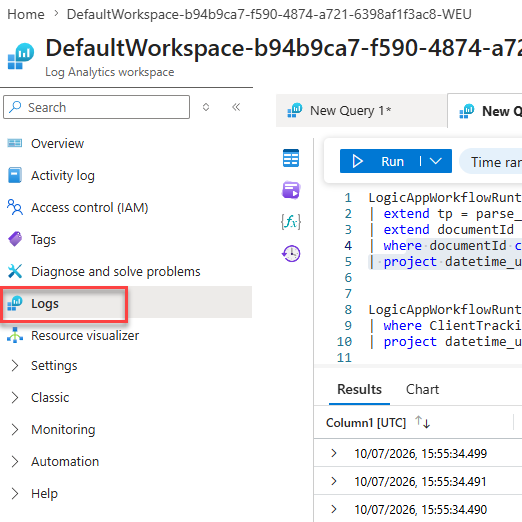
Then use KQL (Kusto Query Language) to query the telemetry.
Most useful queries
View all Logic App runtime records
Use the following KQL to view all Logic App runtime records:
LogicAppWorkflowRuntime
| order by TimeGenerated desc
The LogicAppWorkflowRuntime table contains runtime information including:
- WorkflowName
- RunId
- Status
- ActionName
- TriggerName
- Error
- TrackedProperties
Find failed runs
Use the following KQL to find all failed runs, from all Logic Apps:
LogicAppWorkflowRuntime
| where Status == "Failed"
| project TimeGenerated, WorkflowName, ActionName, Error, RunId
| order by TimeGenerated desc
The table exposes the Status, Error, and RunId columns.
View runs containing Tracking Properties
Use the following KQL to view runs containing Tracking Properties with information inside:
LogicAppWorkflowRuntime
| where isnotempty(TrackedProperties)
| project TimeGenerated, WorkflowName, TrackedProperties, RunId
The TrackedProperties column contains the custom tracking information emitted by your workflow.
Search by Document ID
Use the following KQL to view runs containing Tracking Properties with information inside:
LogicAppWorkflowRuntime
| extend tp = parse_json(TrackedProperties)
| extend documentId = tostring(tp["custom-track-properties"]["document-id"])
| where documentId contains "7424257414"
| project datetime_utc_to_local(TimeGenerated, 'Europe/Paris'), WorkflowName, ClientTrackingId, TrackedProperties, RunId, Status, Code, Error, ActionName, _ResourceId
Useful when document-id is configured as a Tracking Property.

Of course, we can simplify the query, like this:
LogicAppWorkflowRuntime
| where TrackedProperties contains "INV-12345"
But that can return false results. In other words, TrackedProperties that have that string but are not related to document-id
Search by Correlation ID
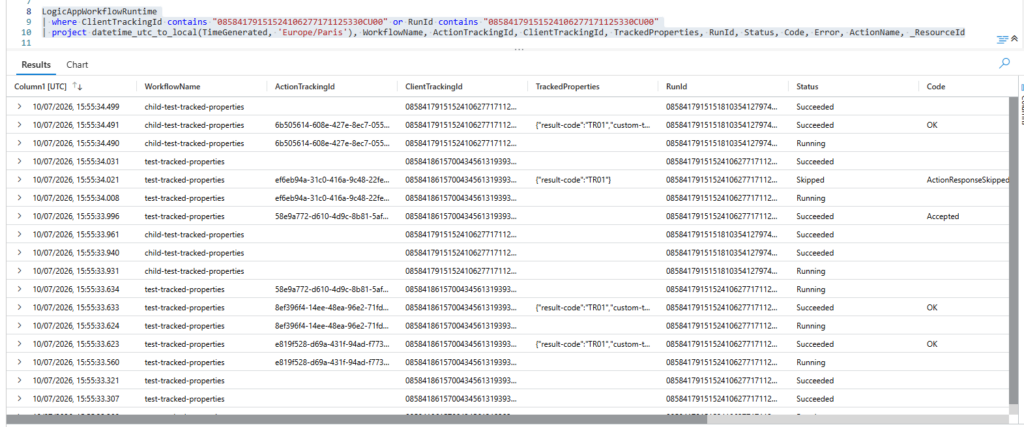
Use the following KQL to search for results based on a Correlation ID:
LogicAppWorkflowRuntime
| where ClientTrackingId contains "08584179151524106277171125330CU00" or RunId contains "08584179151524106277171125330CU00"
| project datetime_utc_to_local(TimeGenerated, 'Europe/Paris'), WorkflowName, ActionTrackingId, ClientTrackingId, TrackedProperties, RunId, Status, Code, Error, ActionName, _ResourceId
This is one of the most common operational scenarios for end-to-end tracing across systems.
Parse Tracking Properties
If the Tracking Properties are stored as JSON, you can use the following KQL to parse the TrackingProperties as JSON:
LogicAppWorkflowRuntime
| extend tp = parse_json(TrackedProperties)
| project TimeGenerated, WorkflowName, tp
or:
LogicAppWorkflowRuntime
| extend tp = parse_json(TrackedProperties)
| extend documentId = tostring(tp["custom-track-properties"]["document-id"])
| where documentId contains "7424257414"
You can extract individual values and build dashboards around them.
Search by Action Tracking ID
Sometimes we are in the Logic App Run history, and we want to make sure what kind of tracking a specific shape did – to validate if it is accurate, for example, because in the run history we cannot see the tracking data made.
But every single action has an action ID that we can use to query the Log Analytics
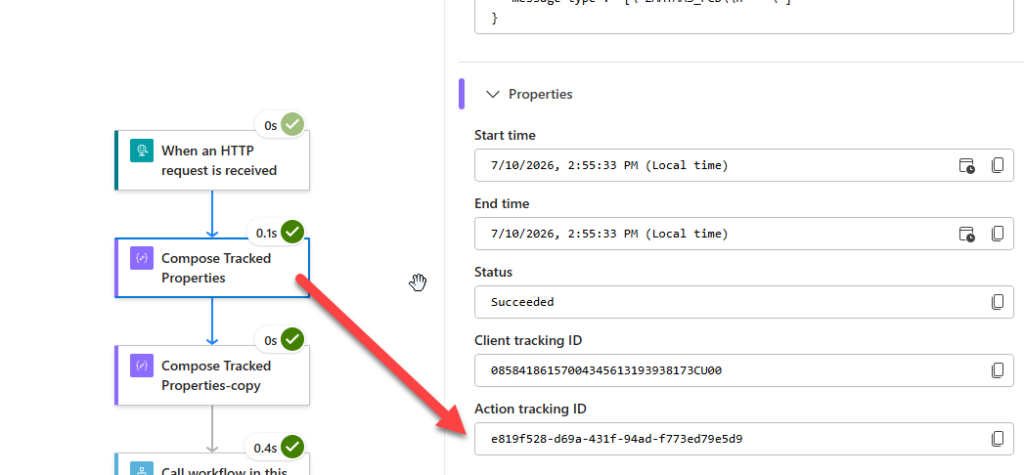
LogicAppWorkflowRuntime
| where ActionTrackingId contains "e819f528-d69a-431f-94ad-f773ed79e5d9"
| project datetime_utc_to_local(TimeGenerated, 'Europe/Paris'), WorkflowName, ClientTrackingId, TrackedProperties, RunId, Status, Code, Error, ActionName, _ResourceId

Useful tip
A useful tip for your team guide: the LogicAppWorkflowRuntime table is the primary table to monitor Tracking Properties because it explicitly exposes the TrackedProperties column.
Conclusion
Tracking Properties are a simple yet powerful feature that can significantly enhance monitoring, diagnostics, and business process visibility in Azure Logic Apps. By capturing meaningful business and technical data at key points in a workflow, you can make Log Analytics queries more effective and simplify troubleshooting when issues occur.
However, to get the most value from Tracking Properties, it is important to understand their scope and limitations, carefully select the information to track, and adopt consistent naming conventions across your integration solutions. When implemented correctly, Tracking Properties become an essential building block of a robust observability strategy, helping operations teams gain deeper insights into workflow executions without the need to track entire message payloads.
I hope you find this helpful! If you liked the content or found it useful and want to help me write more, you can consider buying (or helping to buy) my son a Star Wars Lego set.



