


In the previous articles, I introduced Tracked Properties and explained why they are essential for improving observability and business monitoring in Azure Logic Apps. In Logic Apps Tracking Properties Part 1, we explored the fundamentals of Tracked Properties, their benefits, and how they enhance Log Analytics telemetry. Then, in Implement Logic Apps Tracking Properties, we walked through the technical implementation and configuration process. In this article, we take the next step and establish a set of Rules of Engagement and best practices to help ensure consistency, governance, and effective end-to-end tracking across enterprise integration solutions.
📝 One-Minute Brief
Azure Logic Apps Tracked Properties are far more powerful when used consistently. This article defines a practical set of Rules of Engagement, covering naming conventions, mandatory tracking fields, correlation strategies, and implementation guidelines to ensure effective monitoring, troubleshooting, and end-to-end traceability across enterprise integration solutions.
Tracking Properties Rules of Engagement
Here is the list of Tracking Properties we need to guarantee that they are being tracked:
- status-code: Status code of the reason for the termination
- You should define a status code list for your organization.
- flow-code: Source system where the original message was triggered.
- For example: “INTF-SYSTEMA-SYSTEMB” or “INT001-SAP-PARTNER”
- business-object: The business object/application we are handling.
- For example: Sales Order, Product, Inventory, …
- document-id (optional): If there is a way to easily fetch the document ID from the trigger body.
@json(xml(triggerBody()))?['ProcessAdvanceShipNotice']?['DataArea']?['AdvanceShipNotice']?['AdvanceShipNoticeHeader']?['DocumentID']?['ID']
- custom-track-properties: JSON payload with all custom tracking properties that we need and make sense for the specific half-flow and business object.
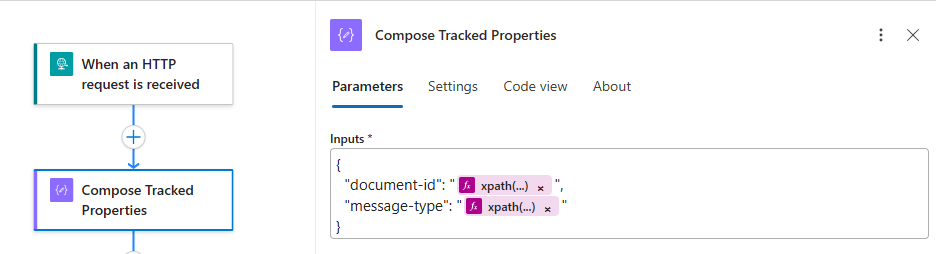
{
        "document-id": "7424257414",
        "message-type": "ZMATMAS_PCD"
}
Alert: Do not add metadata just because we can. This is just to have the mandatory and essential data!
Built-in tracking properties
Notice that the following properties are already being tracked by default in Log Analytics:
- TimeGenerated: Datetime of the track in UTC.
- WorkflowName: the name of the workflow that is performing the tracking.
- RunId: the workflow run time ID. This is the value we can use to search in the run history for a specific execution/run.
- ActionName: Action inside the workflow that performed the tracking information.
- ClientTrackingId: by default, this value is an identifier auto-generated identical to the workflow run ID. But if you define custom tracking in the workflow trigger, it can be used as a correlation ID between different workflows for end-to-end traceability.
- Along with other tracking properties that are less important for our context.
Tracking properties naming convention
For tracked properties, it is normally recommended to use the kebab-case convention: all lowercase letters, with words separated by hyphens (-)
| Resource | Naming Pattern | Example |
| Tracking Property | {name-separated-by-hyphens} | status-code custom-track-properties business-object |
All built-in Tracking Properties are defined in Pascal Case (PascalCase) – First letter of every word is capitalized, including the first word.
- Example: TimeGenerated, ActionName, ClientTrackingId
Custom tracked properties should follow the kebab-case convention. Beyond improving readability and consistency, this approach helps avoid naming collisions with Microsoft built-in tracked properties, which are defined using PascalCase.
Where should we apply tracking properties?
Basically, you can apply tracking properties in any action. However, here is the list of shapes (actions) where you should guarantee that the Tracking Properties are defined:
- Terminate Shape
- Dedicated Compose tracking shape
- Trigger Actions
- Other Shapes
Terminate Shape
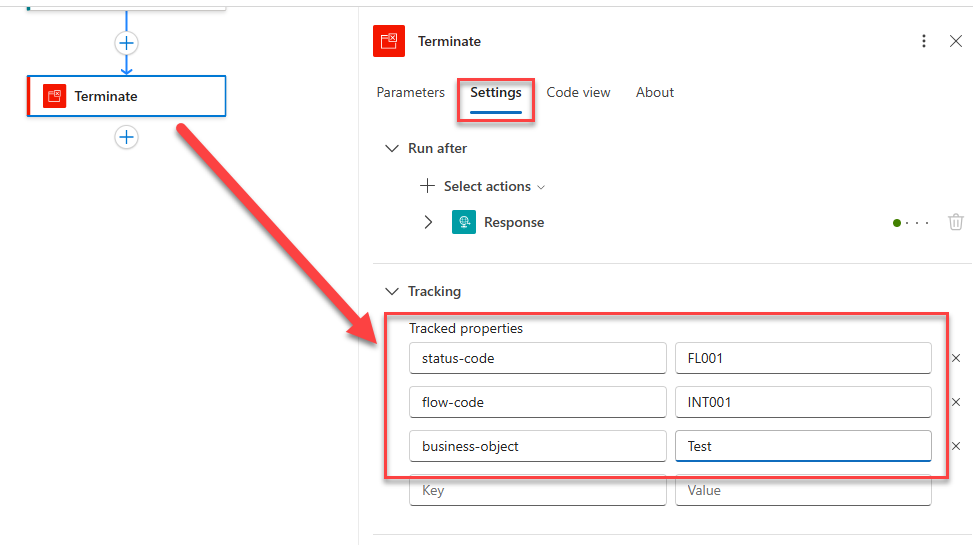
Every Terminate action should track, at a minimum, the following properties:
- status-code
- flow-code
- business-object
Dedicated Compose tracking shape
When we need to apply custom-track-properties, we create a JSON payload with all the custom tracking properties that make sense for the specific half-flow and business object. We should take the following steps:
- Create a dedicated Compose action named Compose Tracked Properties.
- This action acts as a centralized location for defining all custom tracking metadata that needs to be captured for the current workflow execution.
- Define the inputs to a JSON document that contains all the information we want to track. In this case, a document-id and a message-type.
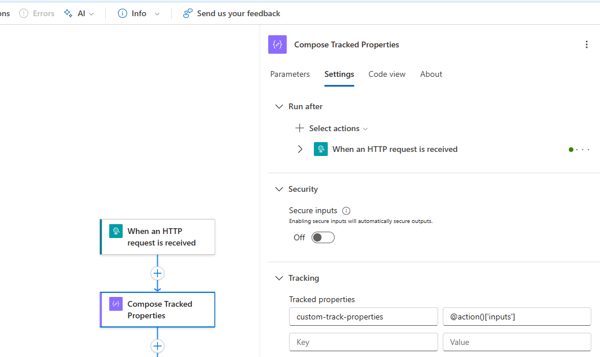
- And on the Settings, under the Tracking panel, define the custom-track-properties to be the following expression:
@action()['inputs']
Trigger Actions
Trigger actions will not have tracking properties defined, but they will play a critical role in tracking, especially to define and follow the correlation IDs that enable us to do end-to-end traceability.
These are the main configurations you need to understand and implement in the triggers:
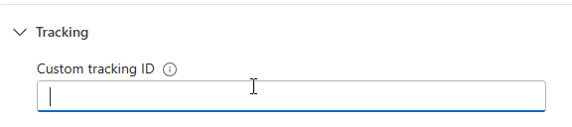
- Inbound flow that triggers the process
- No correlation should be added to the Custom tracking ID
- Service Bus trigger
- Use the following expression to see the Custom tracking ID:
@if(equals(triggerBody(),null), trigger()['clientTrackingId'], coalesce(triggerOutputs().body?['correlationId'], trigger()['clientTrackingId']))
- Child Logic Apps – When an HTTP request is received trigger
- The Child workflow will need to fetch the correlation ID by using the following expression:
@triggerOutputs()?['headers']?['Correlation-Id']
Of course, the “father” workflow needs to define that the correlation ID has a header:
@workflow()?['run']?['name']
Of course, any process that is calling a child process or system (Service Bus, APIM, External Service, and so on), needs to propagate the correlation id in the context of the message.
Other Actions
The tracked properties can be added in any action/shape. If you think they make sense to add data there, do it!
Most important rule about Tracking Properties
One of the most important aspects to understand when working with Tracking Properties is their scope and limitations. Although you can configure Tracking Properties on any action, the values you track can only reference data that is available within that action’s context.
In practice, this means that Tracking Properties can only be used:
- Workflow parameters
- The action’s inputs
- The action’s outputs
- Data from the workflow trigger
This limitation is important when designing your tracking strategy. You cannot directly reference data from actions that are outside the current action’s scope. Therefore, if you need to track a specific business identifier, such as an Order ID, Customer ID, or Message ID, you should ensure that the value is available either in the trigger, a parameter, or the inputs and outputs of the action where the Tracking Property is configured.
By understanding this rule early, you can design your workflows more effectively and avoid situations where critical business or technical information cannot be captured in Log Analytics because it is not available within the action’s context.
I hope you find this helpful! If you liked the content or found it useful and want to help me write more, you can consider buying (or helping to buy) my son a Star Wars Lego set.



