


Errors rarely appear alone. Sometimes, it feels like a project is determined to challenge you. Still, I find that enjoyable because it fuels my writing.
While migrating an old BizTalk Server 2013 solution to a newer BizTalk Server version, I ran into an uncommon issue. After upgrading the Visual Studio solution and changing the target .NET framework, I hit the following error during deployment:
The database or the database version is incompatible with the installed version of this product.
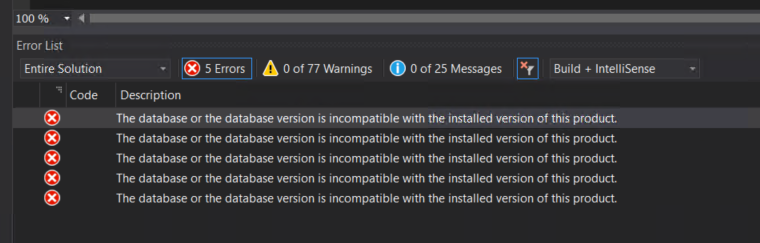
📝 One-Minute Brief
Deploying BizTalk Server solutions after migration can fail with a database compatibility error. This article explains why the error occurs when copying Visual Studio projects between environments and shows how incorrect deployment settings stored in .btproj.user files cause the issue—and how to fix it.
Causes
When migrating BizTalk Server solutions side by side, we usually create a new developer environment. In most cases, this environment has no access to the previous one.
However, when you copy a BizTalk Server Visual Studio solution from the old environment to the new one, you also copy the *.btproj.user files. These XML files store BizTalk deployment settings and personal user settings, such as reference paths and test file names.
Regarding BizTalk deployment properties, all these settings are stored in the “*.btproj.user” file:
- Application Name (ApplicationName): The name of the BizTalk application to which we want to deploy the assemblies in this project. If the application already exists, the assemblies will be added to it when you deploy the project. If the application does not exist, the application will be created. If this field is blank, the assemblies will be deployed to the default BizTalk application in the current group (“BizTalk Application 1”). Names that include spaces must be enclosed in double quotation marks (“).
- Configuration Database (ConfigurationDatabase): The name of the BizTalk Management database for the group. The default value is “BizTalkMgmtDb”.
- Server (Server): The name of the SQL Server instance that hosts the BizTalk Management database on the local computer. By default, this is usually the name of the local computer.
- Redeploy (Redeploy): Boolean property that indicates if you want to allow redeployments from within Visual Studio. Setting this to “True” (the default) enables you to redeploy the BizTalk assemblies without changing the version number.
- Install to Global Assembly Cache (Register): Setting this to “True” (the default) installs the assemblies to the Global Assembly Cache (GAC) on the local computer when you install the application. Set this to False only if you plan to use other tools for this installation, such as gacutil.
- Restart Host Instances (RestartHostInstance): Setting this to “True” automatically restarts all host instances running on the local computer when the assembly is redeployed. If set to False (the default), you must manually restart the host instances when redeploying an assembly.
Well, if you do not change it, it will retain the previous SQL Server name and instance.
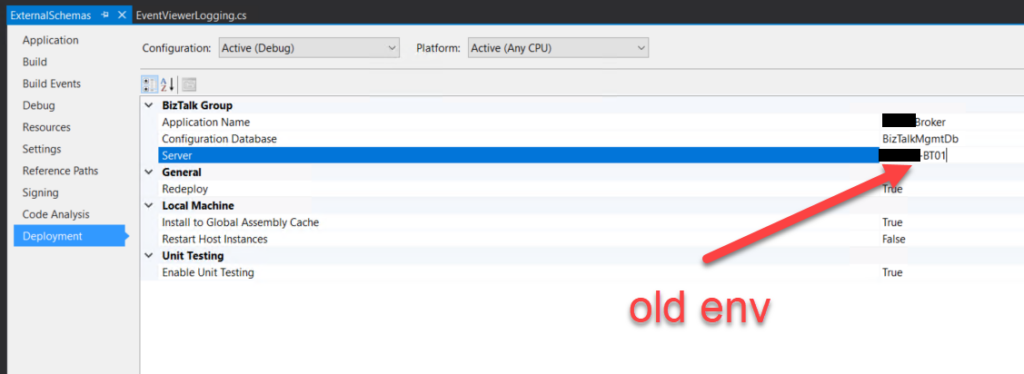
So, if this SQL Server is accessible from this machine and you try to deploy the solution, you will get an error stating that the database version is incompatible because you are now using a higher version of the product.
Solutions
The solution is quite simple to accomplish:
- Access the Deployment tab of the Properties of each BizTalk Server project inside the solution.
- And make sure that you set correctly at least the Server name (or name and instance)
If you want to play it safe, it will give you a little bit more work, but you can:
- Close the solution.
- 2Open Explorer and delete *.btproj.user files.
- Reopen the solution, reconfigure the Deployment properties – this time mainly the Application name, because the rest will be properly configured by default – rebuild and deploy the solution.
Both these options will fix this problem.
Hope you find this helpful! So, if you liked the content or found it helpful and want to help me write more, you can buy (or help buy) my son a Star Wars Lego set!



