


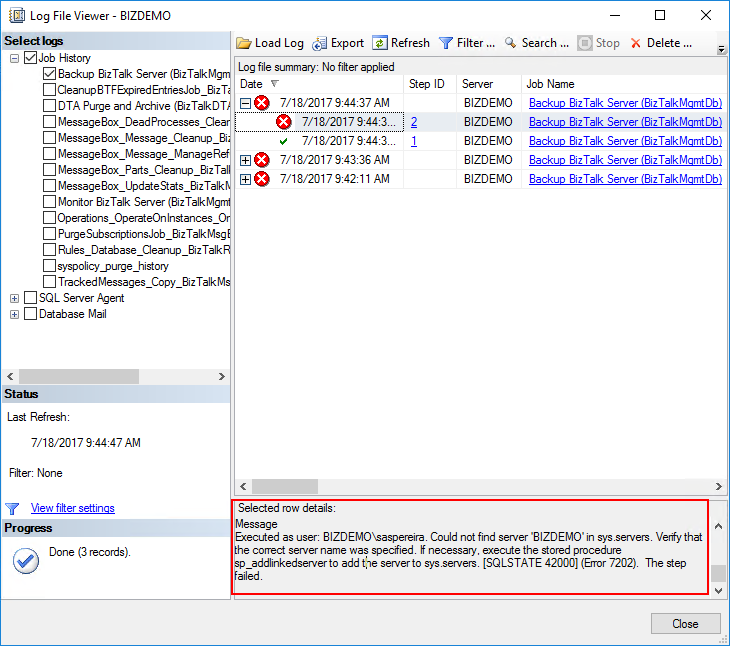
After you install and configure a BizTalk Server Azure Virtual Machine, the first time you try to run the main BizTalk Server job: Backup BizTalk Server (BizTalkMgmtDb) – of course, after you properly configure it – it will fail every time with the following error:
Executed as user: BIZDEMO\saspereira. Could not find server ‘BIZDEMO’ in sys.servers. Verify that the correct server name was specified. If necessary, execute the stored procedure sp_addlinkedserver to add the server to sys.servers. [SQLSTATE 42000] (Error 7202). The step failed.).
Note: will not be the only one that you will find but let’s will go step by step and we will address other errors in different blog posts
📝 One-Minute Brief
A troubleshooting guide that explains why the Backup BizTalk Server SQL job fails with the error “Could not find server in sys.servers” and how to fix the issue by correcting the SQL Server name configuration.
Cause
Well, I guess (I’m sure) that this error happens because we are using a default Microsoft BizTalk Server image with all the components already installed: Visual Studio, BizTalk Server, and especially SQL Server.
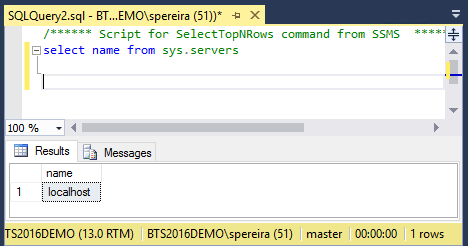
This problem happens because of the SQL Server name present in sys.servers table – maybe that was specified during setup of this image – is defined as “localhost” and not the actual VM name that you created on the Azure Portal, and for the job to work properly:
- The SQL server name specified during setup of the Azure Virtual Machine must match the Name in sys.servers of the SQL server
To check the Name present in sys.servers table, please run the following SQL Script:
SELECT name FROM sys.servers
GO
Solution
To fix this issue, we need to remove the old server name from SQL and add the new server name. You can do that by:
- Log in to SQL Server and open SSMS.
- Connect to the instance and run the following query to remove the old server name.
sp_dropserver 'localhost'
GO
- And then run the query below to add the new server name, which in my case was “BIZDEMO”:
sp_addserver 'BIZDEMO', local
GO
After you execute these scripts, this particular problem will be solved.
Hope you find this helpful! If you liked the content or found it useful and would like to support me in writing more, consider buying (or helping to buy) a Star Wars Lego set for my son.




Sandro,
This helped me a great deal, in particular I noticed that the tracked messages copy job was failing due to the same problem. However in this case, these steps are not sufficient, and exposed a new error message:
Executed as user: NT SERVICE\SQLSERVERAGENT. Server ‘BIZTALKWORKSHOP’ is not configured for DATA ACCESS. [SQLSTATE 42000] (Error 7411).
To remedy this I had to subsequently run
EXEC sp_serveroption ‘BIZDEMO’, ‘DATA ACCESS’, TRUE
Thanks for the update and feedback
Had this same issue after a sql migration, having the old server as a linked server cause was the UpdateDatabase.vbs script used in the migration missed the entries for the RuleEngine DB in the adm_OtherBackupDatabases and adm_OtherDatabases tables in the BizTalkMgmtDb. After manually correcting these the error is gone.