


We learn new things every day. When it comes to Logic Apps, learning never stops because the platform constantly evolves and new components appear.
However, deploying Logic Apps with ARM templates introduces additional challenges. As a result, each deployment brings new lessons—and sometimes small frustrations that test your patience.

When working with CSV files, we usually follow the required specification. However, the sorting is not always alphabetical or strictly ascending or descending.
In many cases, the structure looks messy. Still, it makes sense to both the client and the consuming application.
A few days ago, while working on a client project and running multiple tests, I noticed unexpected issues in a CSV file. The headers and columns suddenly appeared in alphabetical order. I hadn’t intended this behavior, as I built the CSV array with a specific column order in mind.
So what caused the array to sort itself? More importantly, who triggered this behavior, and how could I fix it?
📝 One-Minute Brief
Logic Apps can unexpectedly reorder CSV headers and columns alphabetically when deploying workflows through ARM templates. This article explains why this behavior occurs, how JSON sorting affects CSV arrays, and how to preserve the intended column order when generating CSV files in Azure Logic Apps.
Why and who:
When we dig into the Logic App code, we quickly see that Logic Apps rely on JSON at their core (surprising, I know!). Because of that, they follow JSON sorting rules.
When we set or append a variable with an array, the array may appear unordered in the code. However, once we deploy the Logic App to the Resource Group, the platform automatically sorts it.
Let’s prove this behavior.
First, we create the Logic App in Visual Studio and initialize a string variable. Next, we append two values to it using the Append to string variable—one as a string and the other as an array.
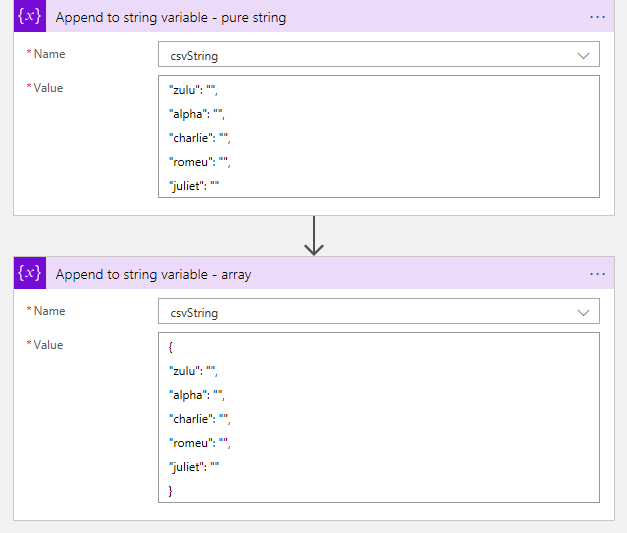
Let’s look at the back code.
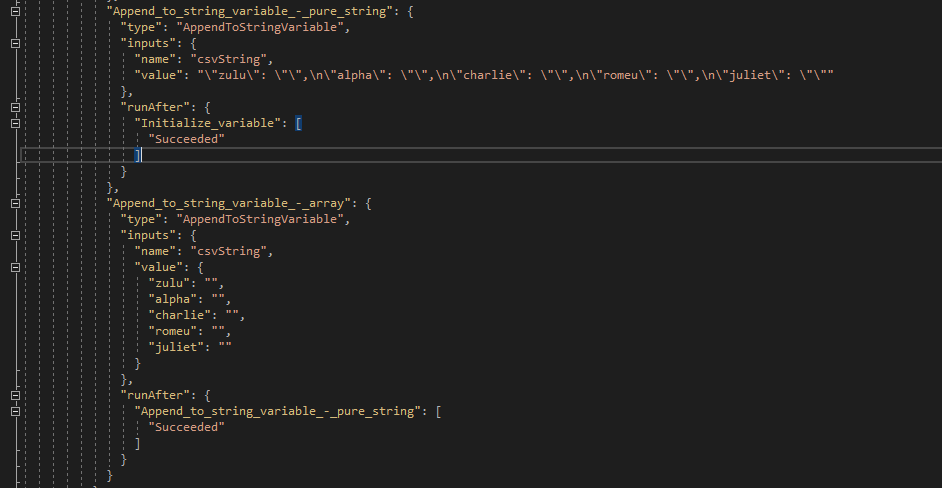
Looking good so far. Our strings are set, and it’s in the order we want.
Let’s deploy it to our RG and check again.
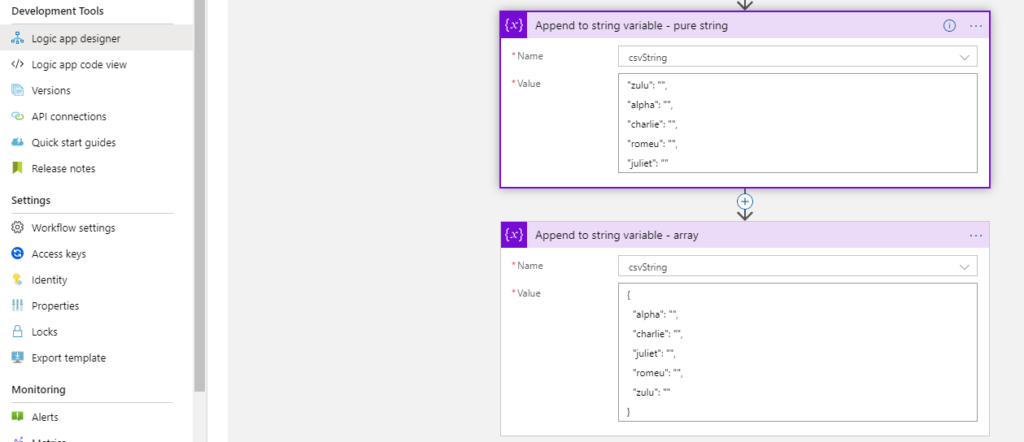
Well, there it is. In ARM deployment, if we write a JSON object, on deployment, it gets sorted and will appear like this in the designer tool in Portal.
Funny thing is that if we change our object to the string we want, the designer will not recognize this as a change and will not let us save.
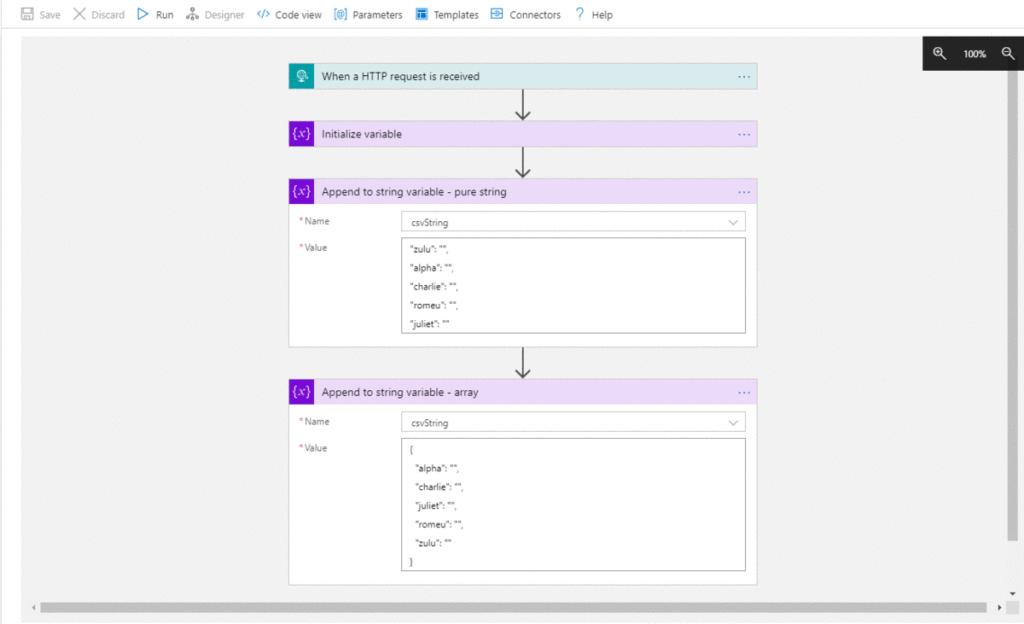
Even in Code View, the changes are not recognized.
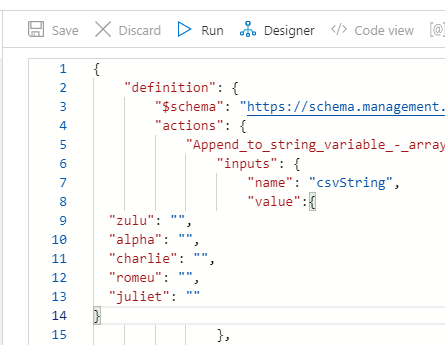
But if we add other text to it, the changes are now recognized, and Portal allows us to save.
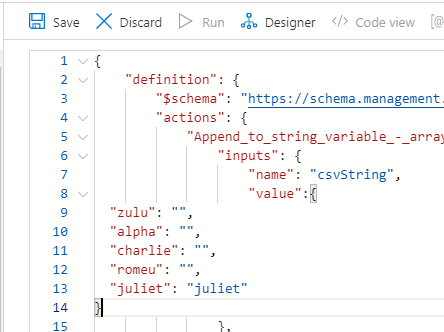
But still, it won’t show you the changes and will still sort out your CSV array, once again, because it’s JSON.
A few weeks ago, this behavior wasn’t noticeable. I had a few Logic Apps in place with the string array in a specific order, and when deploying, it didn’t get sorted.
I searched in Azure updates to see if anything was mentioned, but nothing came up.
How to bypass this issue?
If you’re working with a CSV file like I was, after you build your array, you’ll need to build a CSV table.
The action Create CSV table will take care of this for you, but as we know, it will not be in the same format we need.
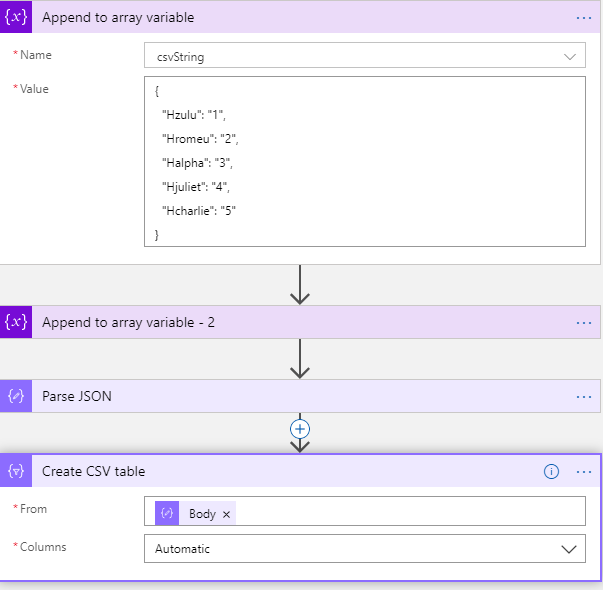
(Notice I’ve switched to an array variable because I can’t parse the string in JSON.
So, leaving the Columns in automatic mode will mess up your integration, as you can see. The output will be sorted, and it won’t be what you want/need.
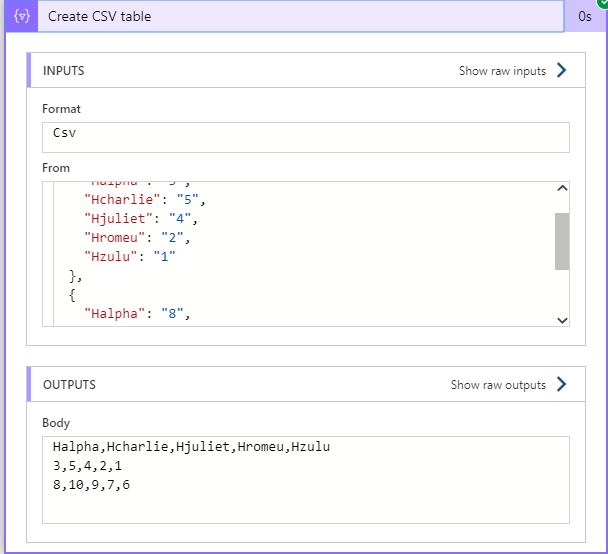
What a mess!! This is nothing like we wanted.
We will need to manually define the columns headers and the value they’re going to have.
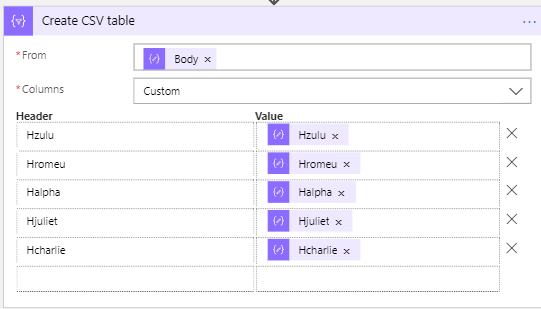
If you don’t have many fields, it’s quick to do this, but when you have lots of fields… well, let’s just say I hope you have plenty of time and don’t lose focus.
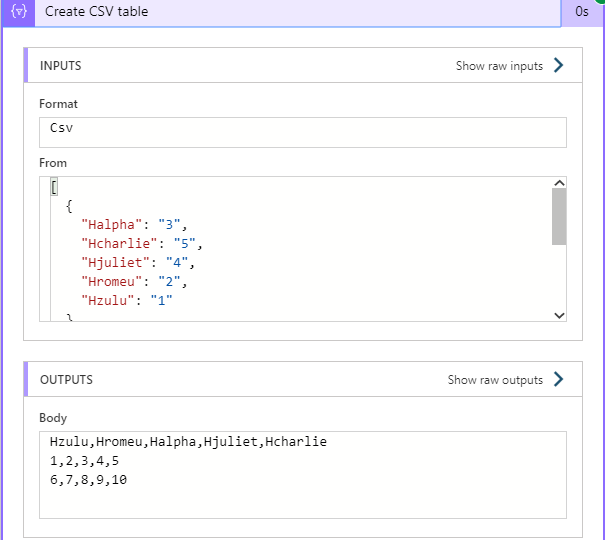
And there we have it. Fields are now displayed correctly, the data is in the right place and we’ve managed to get around this annoying problem.
Happy coding!
Hope you find this helpful! If you liked the content or found it useful and would like to support me in writing more, consider buying (or helping to buy) a Star Wars Lego set for my son.




1 thought on “Logic Apps: CSV Alphabetic sorting”