


I been delivering a lot of BizTalk Server Training Courses for Developers and for Administrator in the past years that I normally like to call them Developing BizTalk Server <version> Course or BizTalk Server Operations, Administration, and Maintenance (OAM) course – yes I know, I am very creative in terms of names – and one of the good things about using Azure Virtual Machines for that is that we can easily create several developer machines in a short period of time and manage them for not consuming resources. And normally on of the task that is present in both courses is to configure BizTalk Server environment, because I believe that all BizTalk Developers should know the basics of BizTalk Server in terms of installation, configuration and optimizations – tasks that are normally done by BizTalk Administrations – I can go further and say that, in my personal opinion, if you don’t know these basic concepts you are not truly a BizTalk Developer because many things can be done by configurations and not code.
One of these tasks is to install and configure BizTalk Server LOB adapters, especially the SQL Server adapter, since on a Developer standalone machine, we will need to have SQL Server installed, making it easy to test this LOB Adapter. However, if we create the Azure BizTalk Server 2016 Developer machine, configure BizTalk Server, and then install and configure LOB adapters without doing anything more, and you try to create a BizTalk Server solution using Visual Studio and generate SQL Server schemas:
- In the Solution Explorer, right-click your project, click Add, and then click Add Generated Items…
- In the Add Generated Items – <Project Name> dialog box, select Consume Add Service, and then click Add.
- Select the sqlBinding and properly configure the URI.
We will get the following error message:
Connecting to the LOB system has failed.
A network-related or instance-specific error occurred while establishing a connection to SQL Server. The server was not found or was not accessible. Verify that the instance name is correct and that SQL Server is configured to allow remote connections. (provider: TCP Provider, error: 0 – The remote computer refused the network connection.).
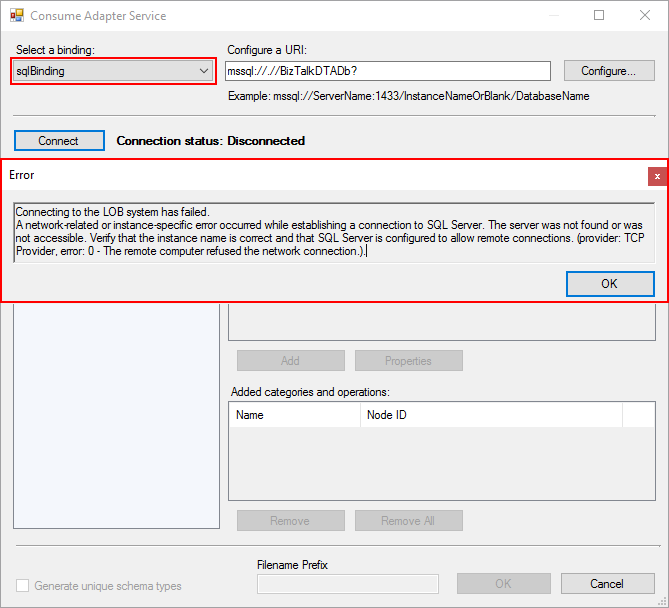
When we try to connect to the SQL Server configured.
📝 One-Minute Brief
A troubleshooting guide that explains why the BizTalk WCF‑SQL Adapter fails with “Connecting to the LOB system has failed” and how to identify configuration, security, or connectivity issues that prevent successful database access.
Cause
This error may occur for several reasons, such as BizTalk Server being unable to communicate with the SQL Server machine due to firewall restrictions, or SQL Server not accepting Remote Connections, and so on.
However, in our case, we are talking about a standalone BizTalk machine trying to access a database on the local SQL Server.
Our problem was that by default, what Microsoft could possibly configure wrong in terms of SQL Server protocols on the BizTalk Server developer image on Azure… is actually set up wrongly!
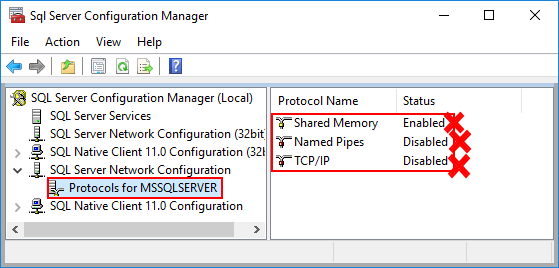
And as I described in my BizTalk Server Installation and configuration tutorial (see here), one of the important steps is to configure SQL Server Network Protocols, in special ensuring that TCP/IP is enabled and Shared Memory is disabled. You can see how to accomplish this using the SQL Server Configuration Manager tool here.
The actual problem that was causing the connection to fail while trying to connect to the LOB system, in this particular case, the SQL Server, is that the TCP/IP protocol is disabled.
Solution
To properly configure the protocols for SQL Server, especially the TCP/IP protocol, you should:
- Press the Windows key to switch to Metro UI and type SQL Server 20016 Configuration Manager and click on the SQL Server 2016 Configuration Manager option on the Apps menu.
- In SQL Server Configuration Manager windows, from the left-hand pane, expand SQL Server Network Configuration option and then click Protocols for MSSQLSERVER.
- Verify that both TCP/IP and Named Pipes are enabled.
- If not, right-click the protocol, then click Enable.
- Repeat to enable the other protocol if necessary.
- Verify that Shared Memory is disabled.
- If not, right-click Shared Memory, and then click Disable.
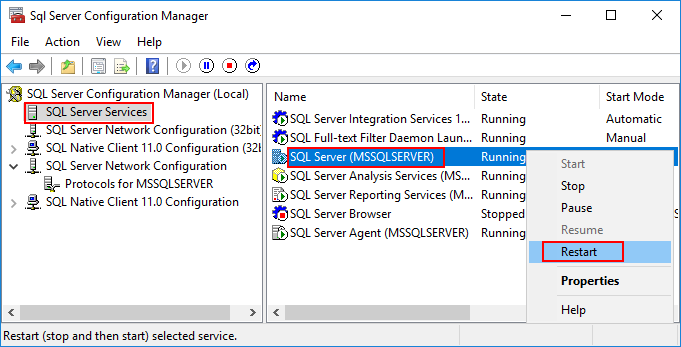
- In the left-hand pane, click SQL Server Services, right-click SQL Server (MSSQLSERVER), and then click Restart.
- Close SQL Server Configuration Manager.
- Click OK and then Apply.
After correctly configure the SQL Server protocols, again, especially the TCP/IP, you will be able to successfully connect and generate the SQL Server Schemas that you need for your BizTalk Server Solution.
Hope you find this helpful! If you liked the content or found it useful and would like to support me in writing more, consider buying (or helping to buy) a Star Wars Lego set for my son.




Thanks. That worked beautifully!
Thanks. It solved by problem.
Thank you!
Thanks. hat worked beautifully
You da man Sandro. 100x better than StackOverflow.
:):) thanks