

Recently, the product team released the first feature pack for BizTalk Server 2016 (only available for Enterprise and Developer editions), and I am trying all these features and at the same time trying to help a little Microsoft BizTalk team improve their documentation, especially regarding to these new features that appear with BizTalk Server 2016 Feature Pack 1. In this post, we will address the new Analytics feature of BizTalk Server 2016 associated with BizTalk operational data:
- Leverage operational data – View BizTalk operational data from anywhere and with any device using Power BI.
📝 One-Minute Brief
An introduction to the BizTalk Server 2016 Feature Pack 1 analytics capabilities, explaining how BizTalk operational data can be exposed and visualized in Power BI, what operational data represents, and the prerequisites required before enabling the data feed.
What is BizTalk Operational Data?
Operational data, as you can read on Microsoft’s official documentation here, is all the information on the instances and messages flowing through your BizTalk Server environment. The operational data feed is the same data you see when viewing Group Hub in the BizTalk Server Administration console. The feed includes the following data tables:
- Application data
- AS2 Status Records
- Batching information
- Instance information
- Interchange Aggregations Records
- Interchange Status Records
- Messages
- Subscriptions
- Tracked Events
- Transaction reports
- Transaction sets
These data can be accessed and queried using visualization tools such as Power BI.
System Requirements to Enable BizTalk Server 2016 Operational Data
To enabling BizTalk Server 2016 Operational Data feature available in Feature Pack, you need:
- Download and install Power BI Desktop on any computer that has network access to your BizTalk Server.
- Install and configure a Power BI Gateway to connect your on-premise BizTalk Server environment. (optional).
- Install Feature Pack 1 on your BizTalk Server 2016 Developer or Enterprise Edition.
- Check this post: Microsoft BizTalk Server 2016 Feature Pack 1: Step-by-step Installation, if you want to know more about installing Feature Pack 1.
- Install IIS on the BizTalk Server 2016.
- We will not address this point in this post because almost all BizTalk Server environments have IIS already installed. See more about it in this whitepaper: Installing BizTalk Server 2016 in a Standalone Machine.
Important note: is required to restart the BizTalk Server machine to finish the FP1 installation process.
Note: Feature Packs are not supported in BizTalk Server 2016 Standard Edition.
Step-by-step Configuration to Enable BizTalk Server 2016 Operational Data Feed
First step: Install Microsoft Power BI Desktop
So, the first “new thing” we need to install, assuming we already have Feature Pack 1 and IIS installed, is the Power BI Desktop tool. After you download the version of Power BI Desktop that matches the architecture (x86 or x64) of your Windows OS, you should:
- Run the downloaded .MIS file – in my case: PBIDesktop_x64.msi – from your hard drive.
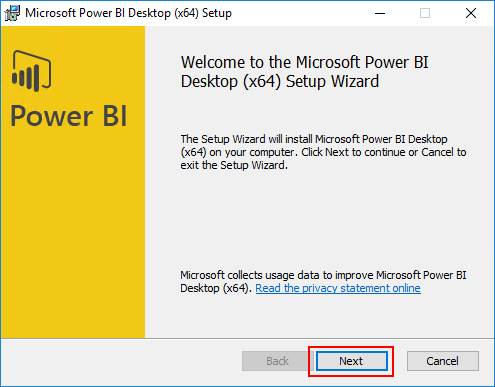
- In the Welcome to the Microsoft Power BI Desktop Setup Wizard screen, click Next.
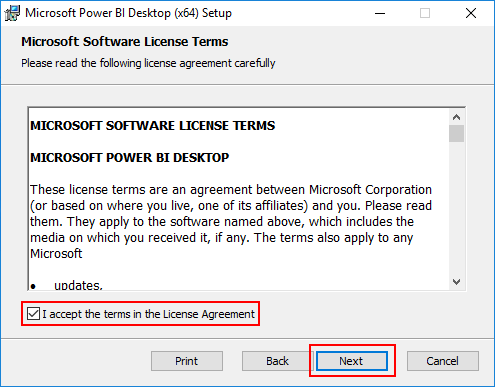
- On the License Agreement screen, select the option I accept the terms in the License Agreement, then click Next.
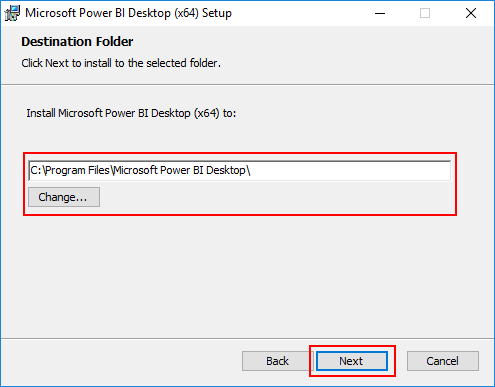
- On the Destination Folder screen, review or change the installation path, then click Next.
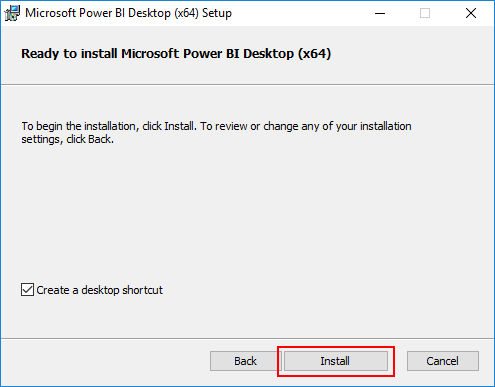
- In the Ready to Install Microsoft Power BI Desktop screen, click Install to continue with the installation.
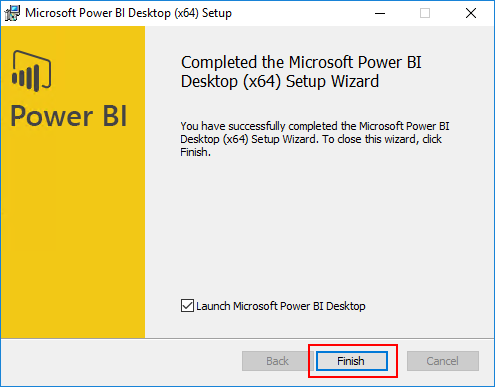
- In the Completed the Microsoft Power BI Desktop Setup Wizard screen, click Finish.
For more information about Power BI, check https://www.microsoft.com/en-us/power-platform/products/power-bi/.
Related Links
- BizTalk Server 2016 Feature Pack 1: How to publish BizTalk operational data on Power BI – Step-by-step configuration (Part 2)
- BizTalk Server 2016 Feature Pack 1: How to publish BizTalk operational data on Power BI – Step-by-step configuration (Part 3)
Hope you find this helpful! If you liked the content or found it useful and would like to support me in writing more, consider buying (or helping to buy) a Star Wars Lego set for my son.




Hi Sandro.
I have a doubt that is , how data refresh will happen?