

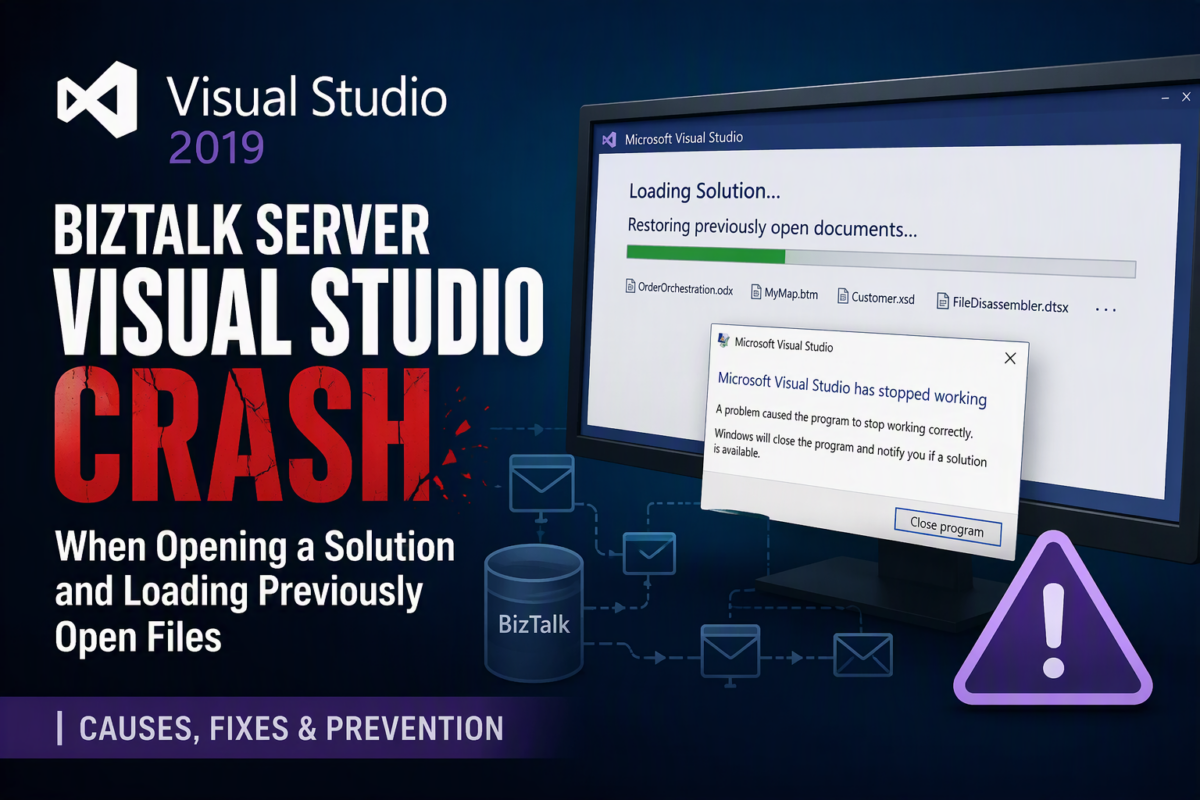
If you’ve worked with BizTalk Server solutions for any length of time, you’ve probably encountered a frustrating situation: Visual Studio starts to load your solution, begins restoring the files that were open during the previous session, and then suddenly crashes before the solution fully loads.
This issue can be particularly common in BizTalk Server projects because Visual Studio isn’t just reopening simple code files. It may also be trying to restore the state of orchestration designers (.odx), maps (.btm), schemas (.xsd), pipelines, or other BizTalk artifacts, some of which can become corrupted or fail to load correctly.
Recently, I experienced this exact problem with a BizTalk Server solution in Visual Studio 2019. Every attempt to open the solution caused Visual Studio to crash while trying to restore a set of previously opened files. Since the crash occurred before the IDE fully loaded, there was no opportunity to close the problematic documents manually.
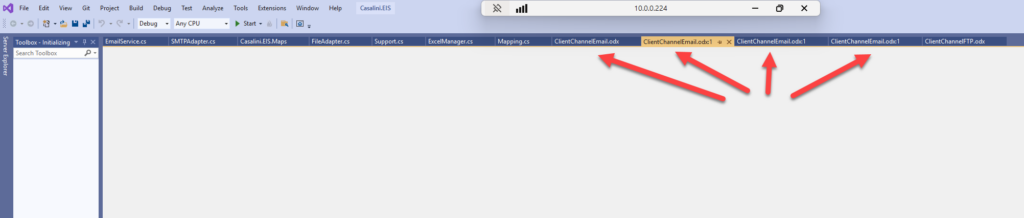
In this blog post, I’ll explain the cause and the quickest way to resolve it.
📝 One-Minute Brief
Have you ever opened a BizTalk Server solution in Visual Studio only to watch the IDE crash while restoring files from your previous session? This frustrating issue is often caused by corrupted document state information stored in the solution’s hidden .vs folder. In large BizTalk projects, Visual Studio may struggle to reopen orchestration (.odx), map (.btm), schema (.xsd), or other designer-based artifacts, leading to startup failures and crash loops. In this article, I explain the root cause of the problem, why it frequently affects BizTalk developers, and the quickest way to recover your solution by clearing Visual Studio’s cached workspace information and opening the project with a clean state.
Symptoms
You may notice one or more of the following symptoms:
- Visual Studio opens normally.
- The solution starts loading.
- Previously opened tabs begin to appear.
- Visual Studio freezes or crashes.
- Reopening the solution results in the exact same behavior.
- Safe Mode may work, but opening the solution normally continues to fail.
In many cases, the crashing file is one of the following:
- BizTalk orchestrations (
.odx) – for me, the most critical and that normally cause the issues. - Maps (
.btm) - Schemas (
.xsd) - Custom designer files
- Third-party extension files
Because Visual Studio stores information about open documents and window layouts, it continuously attempts to reopen the same problematic file every time the solution loads.
Root Cause
Visual Studio stores user-specific information in the hidden .vs folder located in the solution directory.
This folder contains information such as:
- Open documents
- Window layouts
- Breakpoints
- Debugging settings
- Designer state
- Other temporary solution-specific configuration
If one of the opened documents becomes corrupted or Visual Studio fails to load its designer correctly, the IDE can enter a crash loop where every startup attempt tries to reload the same file and immediately crashes again.
This scenario is especially common in large BizTalk Server solutions where orchestration and map designers can occasionally become unstable.
Solution
The quickest and safest fix is to remove the solution’s .vs folder. The hidden .vs folder contains the information about open documents, breakpoints, window layout, etc.
- Step 1: Close Visual Studio
- Close all Visual Studio instances.
- Step 2: Locate the solution folder
- Navigate to the root folder containing your
.slnfile. - You should see something similar to:
- Navigate to the root folder containing your
MyBizTalkSolution
│
├── MyBizTalkSolution.sln
├── .vs
├── Schemas
├── Maps
├── Orchestrations
└── Pipelines
- Step 3: Delete the
.vsfolder- Delete the hidden
.vsfolder:- MyBizTalkSolution\.vs
- Alternatively, delete all “.suo” files inside the subfolders inside the
.vsfolder
- Delete the hidden
- Step 4: Reopen the solution
- Open the solution again in Visual Studio.
Since the document state has been reset, Visual Studio will load the solution without attempting to reopen the previously opened files.
The solution should now open successfully.
I hope you find this helpful! If you liked the content or found it useful and want to help me write more, you can consider buying (or helping me buy) my son a Star Wars LEGO set.



