

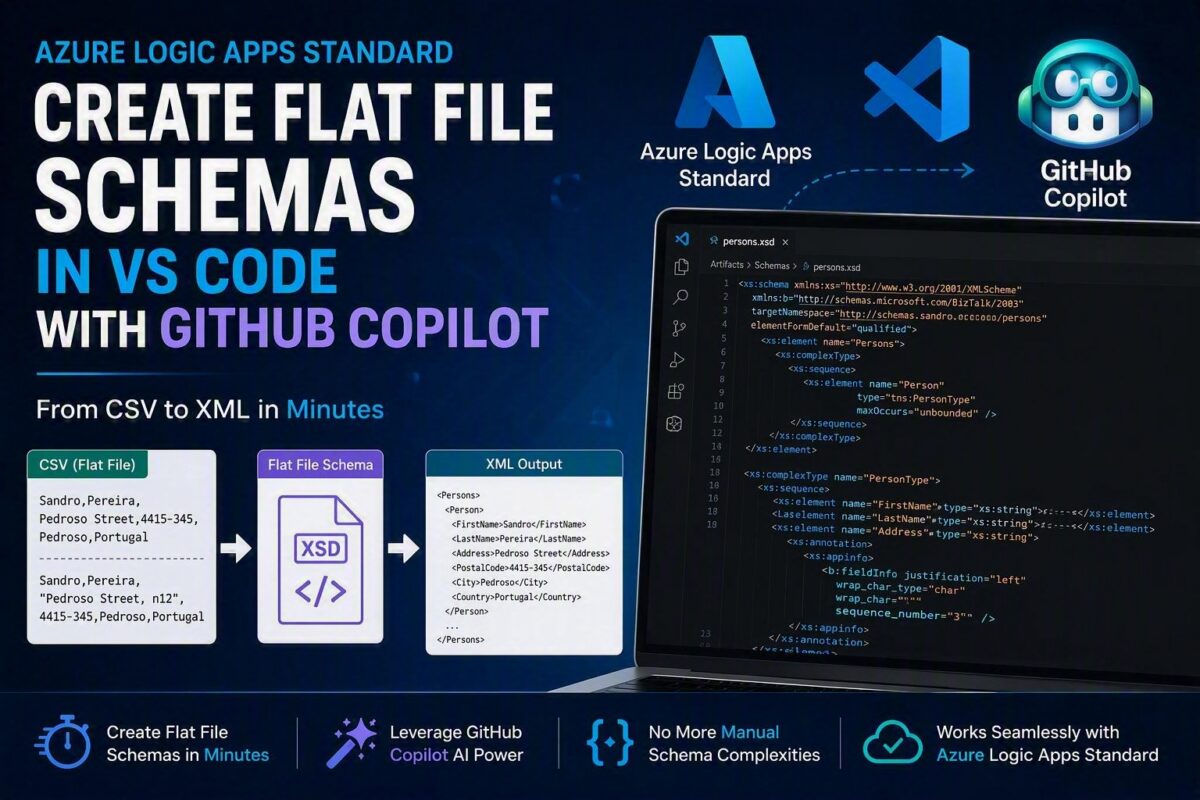
Flat files are far from dead. Today, APIs, JSON, and XML dominate most integration projects. Still, many enterprise integrations rely on CSV, TXT, fixed-width, and other flat-file formats. If you work with EDI, ERP systems, banking platforms, logistics providers, or legacy applications, you will likely encounter flat files sooner or later.
The good news is that Azure Logic Apps Standard includes native support for Flat File Schemas. This feature allows you to parse and generate flat files without custom code, complex expressions, or endless chains of Compose actions. Unlike Logic App Consumption, where these artifacts are usually stored in an Integration Account, Logic App Standard lets you keep schemas directly inside your project.
In this article, I will show you how to create a Flat File Schema inside VS Code. I will also explain how to make it available to your Logic App Standard workflows.
📝 One-Minute Brief
Flat files are still widely used in enterprise integrations. Azure Logic Apps Standard supports Flat File Schemas, but VS Code lacks native schema-design tools. In this article, I demonstrate how to use GitHub Copilot to generate a Flat File Schema directly inside VS Code, add it to a Logic App Standard project, and validate it against real CSV files, including scenarios where delimiters appear inside business data.
Understanding the Challenge
One thing that often surprises new Logic Apps developers is that VS Code cannot create Flat File Schemas natively.
While Logic Apps Standard includes folders for storing:
- Schemas
- Maps
- Rules
inside the Artifacts folder, VS Code currently doesn’t provide tooling to create XML or JSON schemas. It also does not include a Flat File Schema Designer. In fact, it only allows Data Mapper operations.
This means we usually have to create the schema elsewhere and then import it into our Logic App Standard project. The easiest and most reliable way to create a Flat File Schema is still through:
- Visual Studio + BizTalk Server Extensions
- or Visual Studio 2019 + Enterprise Integration tooling
Even if you are not using BizTalk Server or Integration Account, you can use these tools purely for schema design.
The generated artifacts are fully compatible with Azure Logic Apps Standard or Consumption. You can see more about this here:
- The Hidden Challenge of Delimited Files: When the Delimiter Is Also Part of the Data (Part 4) – The Correct Solution
- Logic Apps: Processing Flat Files With Delimiters inside business data
How to easily create a Flat File Schema inside VS Code using GitHub Copilot in Visual Studio Code
The challenge is that VS Code has no graphical schema designer. However, you can manually create or edit the schema directly.
Interestingly, many developers don’t realize you can create a Flat File Schema manually in VS Code. A Logic App Standard Flat File Schema is ultimately an XSD file that contains BizTalk and Logic Apps-specific annotations.
Let’s be honest, though. Creating a Flat File Schema manually can be tedious and complex. You must define record structures, delimiters, annotations, child records, and other flat-file metadata. Doing this by hand is time-consuming and prone to errors. Even experienced integration developers can spend hours troubleshooting small schema-definition mistakes.
Before we continue, let me be clear. I will not explain how to build a Flat File Schema from scratch in this article. There are too many details to cover in a single post. Flat File Schemas include numerous annotations, properties, and implementation nuances. You also need to understand record hierarchies, delimiters, positional data, child records, wrap characters, tag identifiers, escape sequences, and much more.
In fact, the subject could easily fill an entire series of articles. So this post has a different goal. Instead of exploring Flat File Schema internals, I will show you how to create and manage them entirely from VS Code.
Fortunately, there is a much better approach.
Rather than manually creating every element and annotation, you can use GitHub Copilot in Visual Studio Code. GitHub Copilot can help generate and refine the schema for you. Simply provide a sample flat file and describe the required structure. Copilot can then generate the XSD and the necessary flat-file annotations. As a result, development becomes faster, and the risk of human error decreases.
What previously required deep knowledge of Flat File Schema internals can now be done much faster. This allows you to focus on validating the schema and implementing the integration. As a result, you spend less time writing XML by hand and more time delivering business value.
Using GitHub Copilot in Visual Studio Code
Using the following sample, we use it in the blog series The Hidden Challenge of Delimited Files: When the Delimiter Is Also Part of the Data, where we have two CSV samples:
Sandro,Pereira,Pedroso Street,4415-345,Pedroso,Portugal
And
Sandro,Pereira,"Pedroso Street, n12",4415-345,Pedroso,Portugal
Note that both samples have:
- The same structure: FirstName;LastName;Address;PostalCode;City;Country{CR}{LF}
- They support multiple lines; each line is delimited by Carriage Return/Line Feed ({CR}{LF})
- The Address element may have a wrap character: double quote.
To create the Flat File Schema for this message, we need to:
- Open an existing Logic App Standard workspace inside VS Code or create a new Logic App Standard workspace.
- And in the GitHub Copilot Chat window, type the following prompt:
I have these two flat-files in this case both csv. Create me a flat file schema to parse it to xml_

The flat file can have multiple lines separate by {CR}{LF}
each lines has the folowing elements separated by comma: FisrName, LastName, Address, PostalCode, City and Country.

notice also that Address element inside csv sometime is inside doouble quotes because may include a comma. double quote is a wrapper character

The flat file should be called: persons.xsd The rootnode should be Persons and the repeting record should be called Person
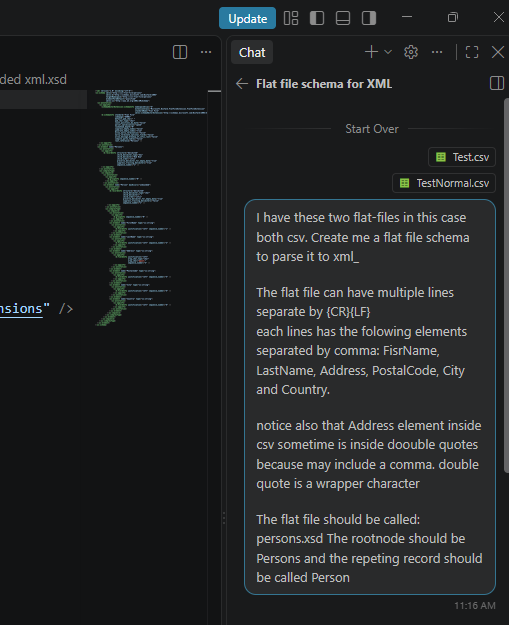
Note that I have attached two CSV files in the chat with the two sample messages described above for Copilot to interpret the requirements and the actions I’m asking it to do better.
- Once you click Enter, GitHub Copilot will start doing its magic: analyzing all the information provided, explaining what it’s doing and what it has done, and sometimes asking questions.
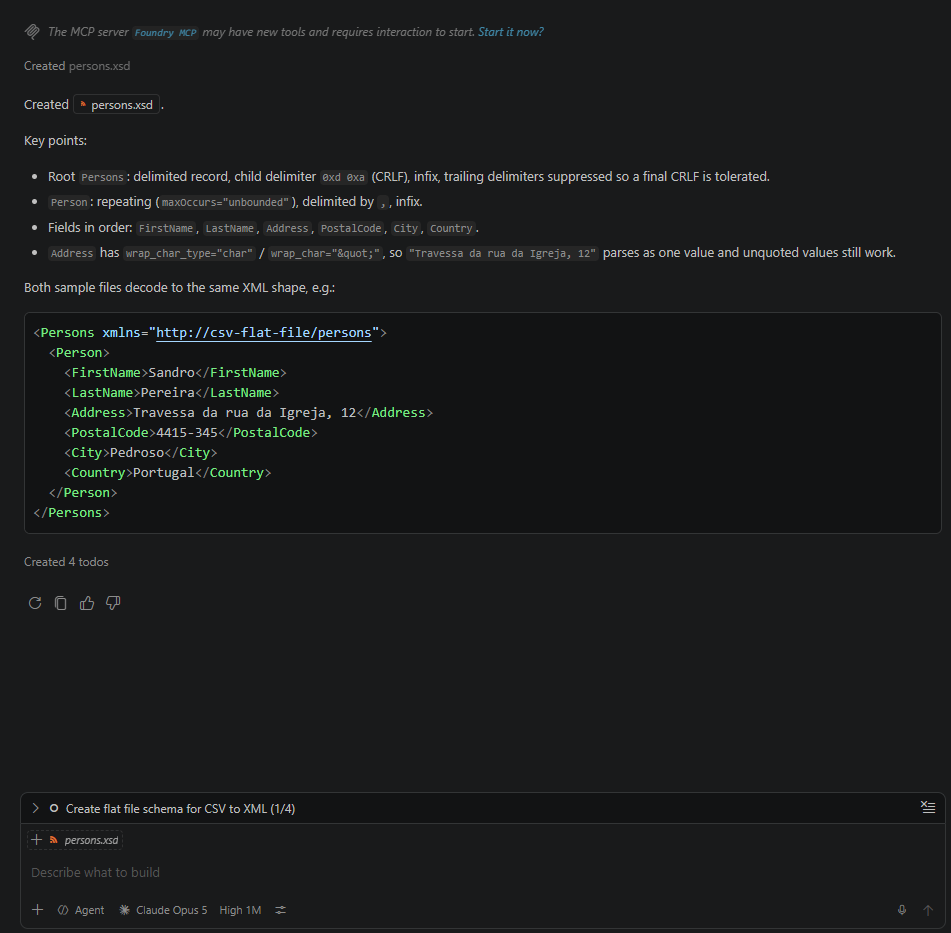
- After it finishes, you will notice that it has created a person.xsd file with the structure I have requested in my prompt.
- Notice that in my prompt I didn’t mention where it needs to create the file; in other words, in what folder inside my workspace. But it was smart enough to know that it needs to be inside the Artifacts > Schemas folder.
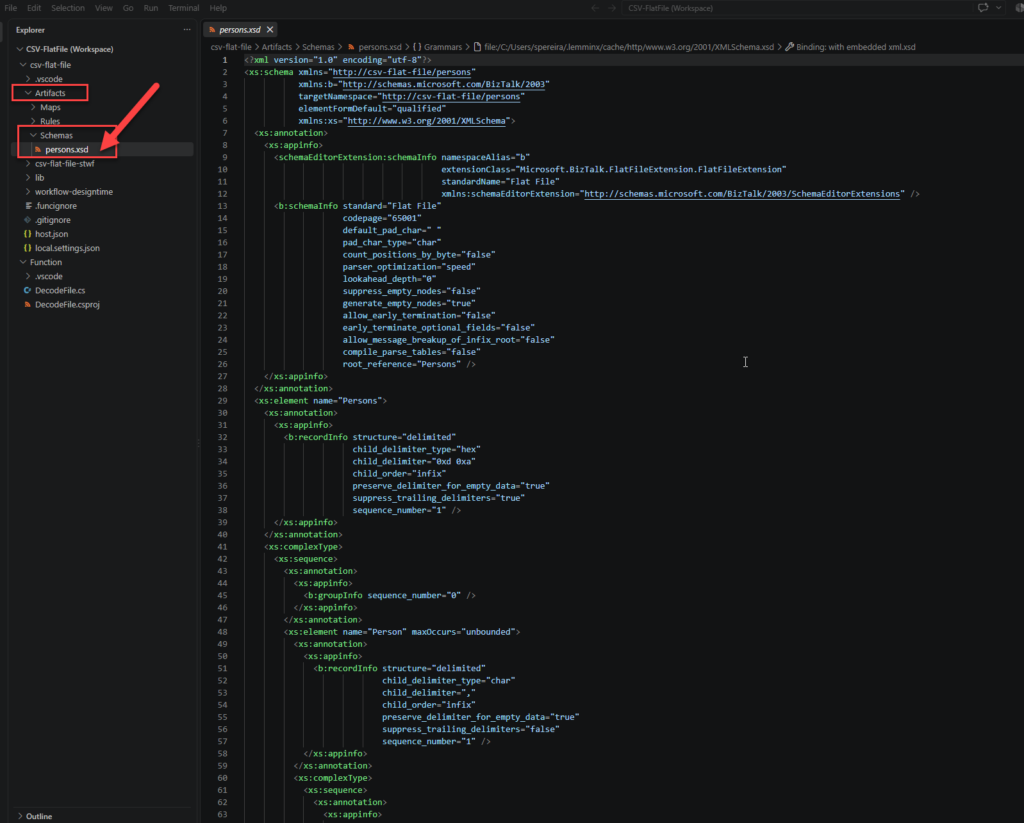
- You can also check that the Address element has the Wrap character defined:
<xs:element name="Address" type="xs:string">
<xs:annotation>
<xs:appinfo>
<b:fieldInfo justification="left"
wrap_char_type="char"
wrap_char="""
sequence_number="3" />
</xs:appinfo>
</xs:annotation>
</xs:element>
Of course, we don’t have a beautiful visual editor like BizTalk Server or Account Integration extensions have; we can only see the document in clear text, but in a single prompt and in a minute, we were able to generate a flat file schema that we can use inside our solutions.
The important question is: does it work? Let’s find out.
How to test the flat file schema
We could use GitHub Copilot to test the CSF files and provide the XML parsing, but that will not tell me whether it will work properly in Logic App. But we can create a dummy test workflow inside VS Code and test it locally, or do the same inside the Azure Portal.
Here, we will test inside the Azure Portal. For that, you need to:
- Access to a Logic App Standard in the Azure Portal.
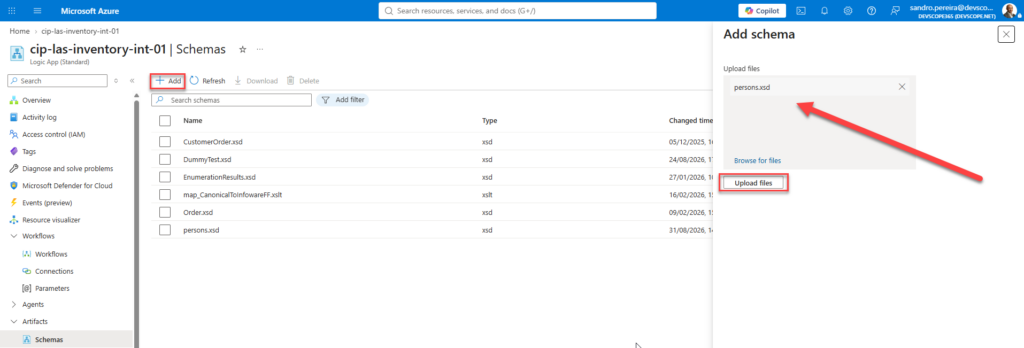
- And in the left menu, select the option: Artifacts > Schemas.

- On the Schemas page, click + Add, then in the Add schema panel, drag and drop the schema we created in VS Code, and finally click Upload files.
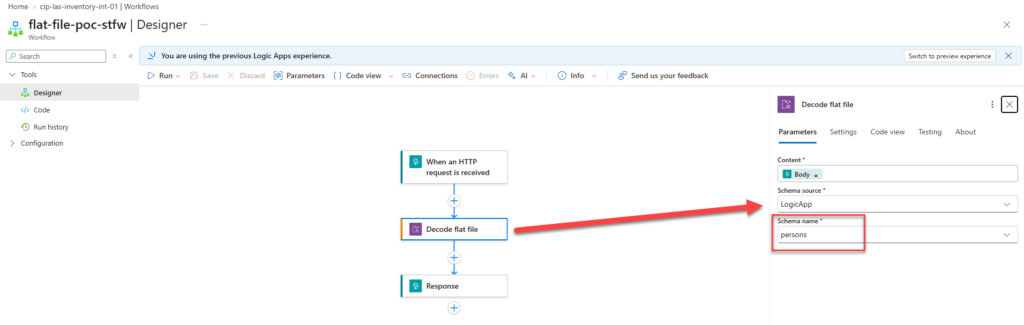
- Now, we need to create a workflow with the following business logic:
- When an HTTP request is received.
- Decode flat file.
- This action will try to parse the trigger body against the person.xsd schema.
- Response.
- This will return the result of the parse.
Now, if you try sending a request with Postman, you will get a correct response to the CSV parsing:
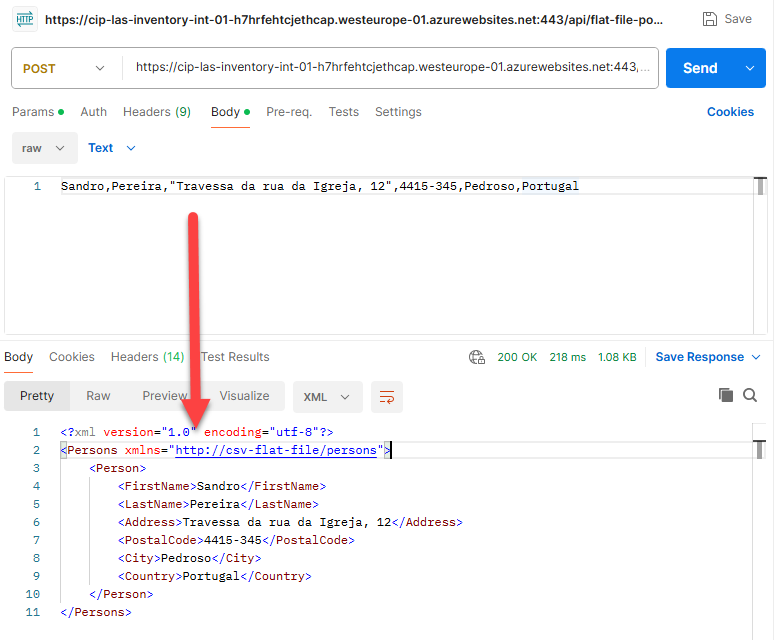
If you check the workflow run history, you will see that all steps executed successfully and the Decode flat file action did what it was supposed to do. This means the Flat File schema GitHub Copilot generated applies all the parsing rules I requested.
Conclusion
Although Visual Studio Code does not include a graphical Flat File Schema Designer, that limitation doesn’t prevent you from building and using Flat File Schemas in Azure Logic Apps Standard. Because these schemas are fundamentally XML Schema (XSD) documents enriched with BizTalk and Logic Apps annotations, you can author and maintain them directly in VS Code.
The real game changer is GitHub Copilot. Instead of manually creating every record definition, delimiter rule, annotation, and flat-file property, you can provide sample payloads and describe your requirements in natural language. Copilot can then generate a working Flat File Schema in seconds, dramatically reducing development effort and eliminating much of the complexity traditionally associated with flat-file schema creation.
Of course, you should always validate the generated schema and test it against real-world payloads. As demonstrated in this article, a simple Logic App workflow using the Decode Flat File action is enough to confirm whether the schema behaves as expected. In our example, the generated schema correctly handled CSV records with embedded commas wrapped in double quotes, proving the required parsing rules were implemented.
This approach won’t fully replace the rich design experience available in Visual Studio with BizTalk Server or Enterprise Integration tooling. However, for Logic Apps developers who spend most of their time in VS Code, it offers a practical, efficient alternative. By combining Azure Logic Apps Standard, Flat File Schemas, and GitHub Copilot, you can create, maintain, and validate flat-file integrations without ever leaving your VS Code workspace. That means less time fighting schema syntax and more time focusing on delivering integration solutions.
Source Code
You can download the Logic App Standard workspace source code from GitHub:
I hope you find this helpful! If you liked the content or found it useful and want to help me write more, you can consider buying (or helping to buy) my son a Star Wars LEGO set.



