


When working with Initialize variable actions in Azure Logic Apps, many developers assume that Boolean variables can only be assigned static values because the designer, at first glance, seems to restrict the Value field to True or False – which is not entirely true.
However, there is a useful tip that allows us to initialize a Boolean variable dynamically using expressions.
The Illusion of a Limitation
In the Logic Apps Designer, to initialize a Boolean variable using the Initialize variable action, you need to:
- Name: set a variable name
- Type: set type as
Boolean - Value: and the value can be
TrueorFalse- Normally, developers select one of the values by default: true or false
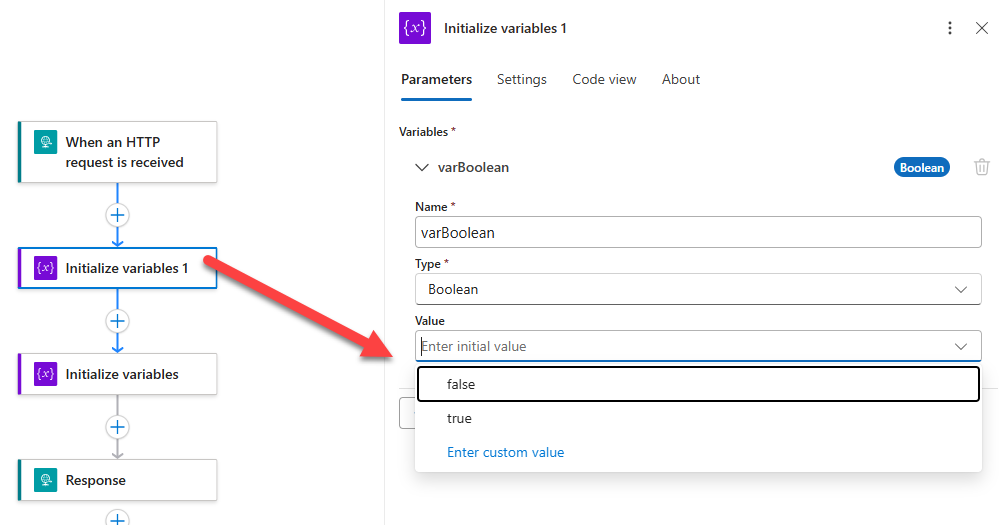
The designer doesn’t seem to provide an option to enter an expression directly. This often leads developers to initialize the variable with a default value and then immediately use a Set variable action afterward.
While functional, that approach adds unnecessary actions and complexity to the workflow.

📝 One-Minute Brief
Many Azure Logic Apps developers believe Boolean variables can only be initialized with static True or False values. However, the designer allows custom expressions through the Enter custom value option, enabling dynamic Boolean initialization. This approach eliminates unnecessary Set Variable actions, simplifies workflows, improves readability, and results in cleaner, more maintainable Logic Apps implementations.
How to Dynamically Initialize a Boolean Variable
Many Azure Logic Apps developers assume Boolean variables can only be initialized with static values because the designer seems to restrict them to True or False. However, this is false. If you look at the picture below, you will see an option labeled Enter custom value.
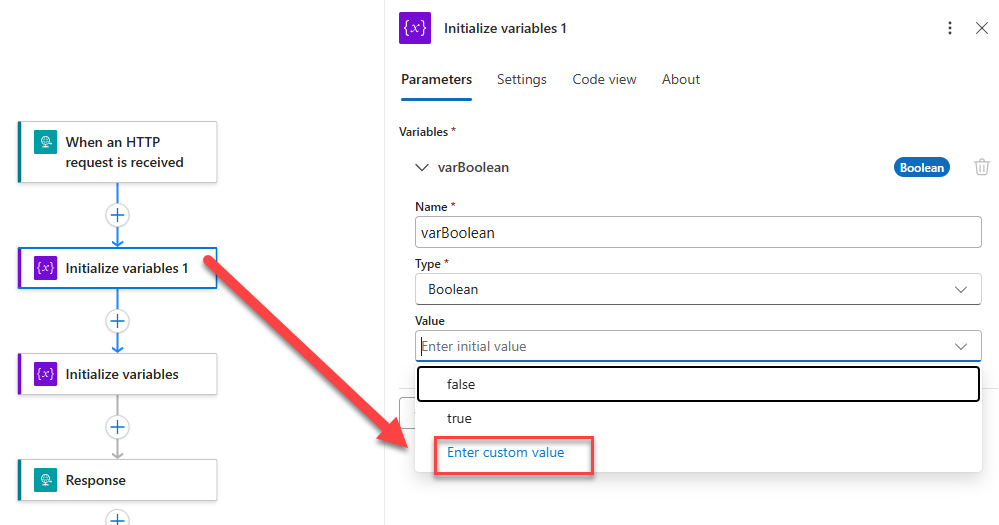
If you click on that option, then it will allow you to add expressions:
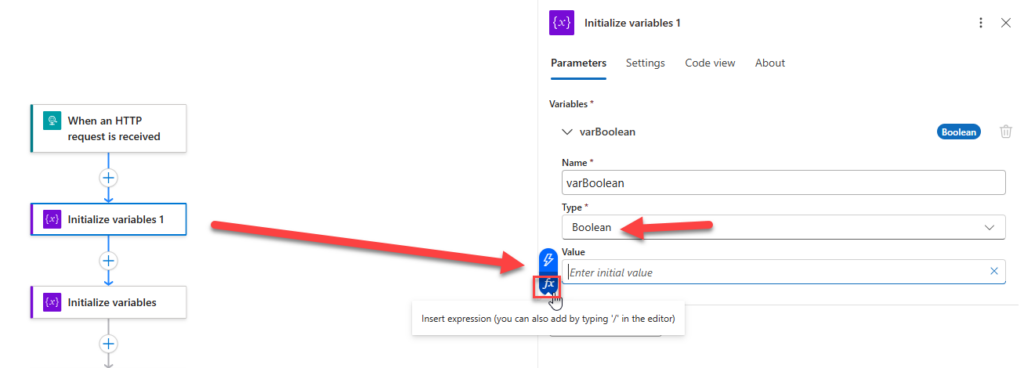
And apply any kind of expression like:
if(equals(triggerBody()?['Origem'], 'Test'), true, false)
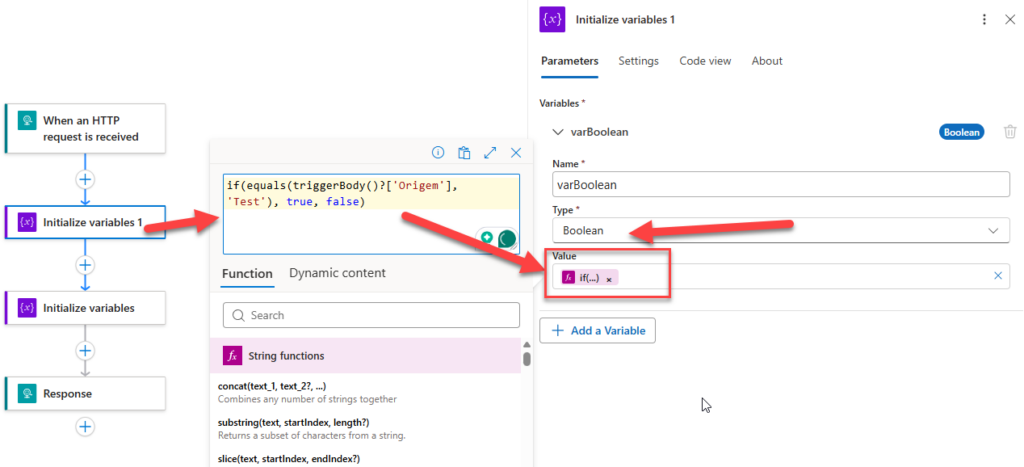
Of course, after creating the variable, you can also switch to Code View and replace the static value with an expression:
{
   "name": "result",
   "type": "boolean",
    "value": "@if(equals(triggerBody()?['Origem'], 'Test'), true, false)"
}
In this case, we are checking if the Origem field in the request is equal to “Test“. If yes, set the variable to true. Otherwise, set it to false.
Now, when the workflow runs, the Boolean variable is initialized dynamically based on your business logic.
Why this approach is better
This simple approach is better than the traditional approach that I have encountered in many existing workflows because:
- Eliminates an extra Set variable action.
- Sometimes more than one Set variable action.
- In some scenarios, it also eliminates the need for additional Condition actions that are used solely to determine the variable’s value.
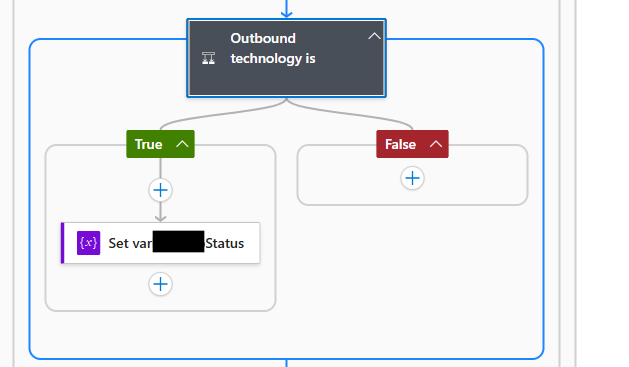
- Keeps the workflow cleaner and easier to understand.
- Reduces visual clutter in complex Logic Apps.
- Evaluates the value immediately during initialization.
- Makes the workflow slightly more efficient by reducing the number of actions.
Best Practice
Use this technique whenever the Boolean value can be determined at initialization time. Instead of:
- Initialize Variable (False)
- Set Variable (@equals(…))Show more lines
Prefer to use :
- Initialize Variable (@equals(…))Show more lines
by entering a custom value or editing the workflow definition in Code View.
Pro Tip
In many cases, you don’t even need the if() statement because equals() already returns a Boolean value:
{
    "name": "result",
    "type": "boolean",
    "value": "@equals(triggerBody()?['Origem'], 'Test')"
}
This approach is cleaner and more readable, and it follows the principle of allowing Logic Apps expressions to return their native data types whenever possible.
If you enjoyed this tip, also check out my previous article on properly creating an Empty String Variable in Logic Apps.
I hope you find this helpful! If you liked the content or found it useful and want to help me write more, you can consider buying (or helping to buy) my son a Star Wars Lego set.



