

Oh yes! I’m back to one of my favorite topics: Errors and warnings, causes and solutions – aka Troubleshooting! This time, on a very basic one inside the Azure Portal, while performing a proof-of-concept with Logic App Consumption.
While trying to sign in with the Office 365 Outlook connector inside the Azure Portal to create a brand new connection, I got the following error:
The browser has blocked the popup window

📝 One-Minute Brief
Get stuck with the error: The browser has blocked the popup window.
When a browser blocks a popup, it’s usually for security, but you can allow it by clicking the icon in the address bar or by going into your browser’s Settings > Privacy & Security > Site Settings > Pop-ups and redirects, where you can add the site to an ‘Allow’ list or turn the blocker off temporarily for that specific site.
Cause
When you create a new connection for certain connectors in the Logic App designer, the Azure Portal will open a pop-up window to complete authentication. However, most modern browsers aggressively block popups and cross-site auth flows — especially when:
- the popup is opened from a UI embedded inside another page.
- Tracking protection is strict.
- Third-party cookies are blocked.
- Or an extension (ad blocker/privacy tool) decides the auth window looks “suspicious”.
Result: the Portal tries to open the sign-in window, the browser blocks it, and you’re stuck.
And of course, that was my problem.
Solution
When a browser blocks a pop-up, it’s usually doing so for security reasons. However, in this case, the Azure Portal legitimately needs to open a pop-up window to complete the authentication flow for the Office 365 Outlook connector.
To fix this, you just need to allow pop-ups for the Azure Portal:
- Open your browser Settings.
- Go to Privacy & Security.
- Navigate to Site Settings.
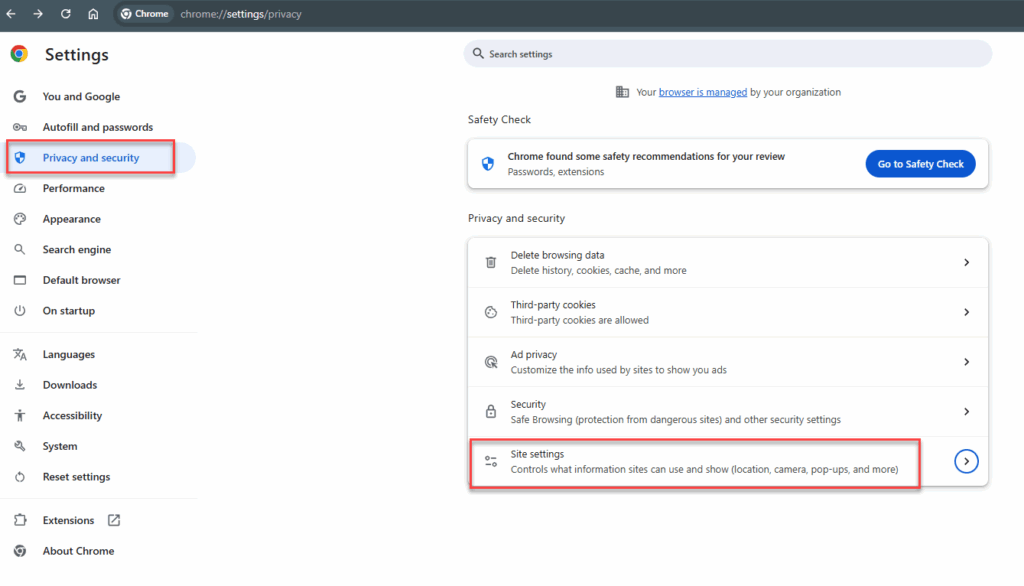
- Open Pop-ups and redirects.

- Add
https://portal.azure.comto the Allow list.

If you try again, it should be able to pop up the sign-in window.

Hope you find this helpful! If you liked the content or found it useful and would like to support me in writing more, consider buying (or helping to buy) a Star Wars Lego set for my son.



