


A quick, reliable workaround when the Logic Apps designer refuses to start in Visual Studio Code.
If you work with Azure Logic Apps (Standard) in Visual Studio Code, you may bump into this error when opening the designer:
Unable to find or download extension bundle
This happens right as VS Code tries to start the local design‑time host using Azure Functions Core Tools (func host start –port 8000). If the host can’t download the bundle that contains the managed connector definitions (Microsoft.Azure.Functions.ExtensionBundle.Workflows), the startup fails.
📝 One-Minute Brief
When the Azure Logic Apps designer fails to start in Visual Studio Code with the error “Unable to find or download extension bundle”, local development comes to a halt. This post explains why the issue occurs and shows a quick, reliable workaround by pinning a known‑good extension bundle version.
Why it happens
Typical reasons may include network restrictions (firewall/proxy), a transient issue with the hosting service, or a partially downloaded bundle in your local cache.
Quick diagnostic
Before fixing, make sure:
- Azure Functions Core Tools v4.x is installed and working.
- Your project structure and configurations (host.json, local.settings.json) are correct.
Finally, check this directory:
C:\Users\<user>\.azure-functions-core-tools\Functions\ExtensionBundles\Microsoft.Azure.Functions.ExtensionBundle.Workflows
In my case, I noticed that I had two bundle versions available in the local folder.

And oddly, the newest folder only contained an empty bundle.json file.
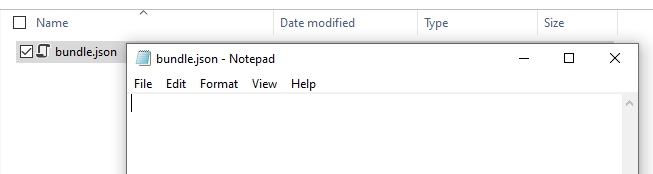
Unlike the 1.138.54 folder:

In this case, it’s clear that the local 1.145.22 bundle was only partially downloaded, containing just an empty bundle.json instead of the full content, which caused the designer to fail during initialization.
The incomplete 1.145.22 folder was probably created during a failed bundle download, the reason behind it is unclear, but it seems to be caused by a temporary issue on Microsoft’s side. Even deleting and re-downloading might not solve it (we tried it), since the source package itself could be is incomplete.
Now, looking at the project on VS Code, we found out that this error was being triggered on the filehost.json
In the image below, you can see the relevant folders/files where the error was happening and where the fix needs to occur:
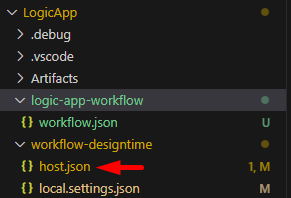
Note that the host.json that needs to be changed is the one inside the workflow-designtime folder.
The quick fix (force a complete local version)
Edit the host.json inside the workflow-designtime folder to temporarily pin the extension bundle to a known‑good local version. This prevents Core Tools from picking the newest (broken) one.
Original:
{
  "version": "2.0",
  "extensionBundle": {
    "id": "Microsoft.Azure.Functions.ExtensionBundle.Workflows",
    "version": "[1.*, 2.0.0)"
  },
  "extensions": {
    "workflow": {
      "settings": {
        "Runtime.WorkflowOperationDiscoveryHostMode": "true"
      }
    }
  }
}
Temporary fix (pin to your complete local version):
{
  "version": "2.0",
  "extensionBundle": {
    "id": "Microsoft.Azure.Functions.ExtensionBundle.Workflows",
    "version": "[1.138.54, 1.138.55)"
  },
  "extensions": {
    "workflow": {
      "settings": {
        "Runtime.WorkflowOperationDiscoveryHostMode": "true"
      }
    }
  }
}
Steps:
- Save the file in workflow-designtime/host.json.
- Close Visual Studio Code completely.
- Reopen the project and open the designer. It should start normally.
Why this works
Core Tools prioritizes the newest bundle that matches the configured range. By narrowing the range, you force it to skip the broken version and use your local, complete one.
Final tip (temporary nature)
This workaround is temporary. After a few weeks, revert your host.json back to the flexible range to let future updates flow normally:
“version”: “[1.*, 2.0.0)”
If the error returns, lock to the working version again until Microsoft resolves the underlying issue.
Hope you find this helpful! If you enjoyed the content or found it useful and wish to support our efforts to create more, you can contribute towards purchasing a Sauron’s Action Figure for Sandro’s son, yep, not for me!



