


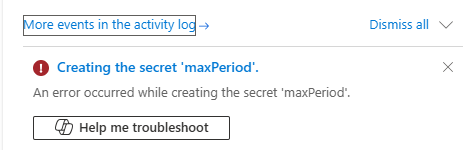
This week, while I tried to create a missing Key Vault secret for an ongoing project, I encountered a strange and generic error message saying:
An error occurred while creating the secret ‘secret-name’.
📝 One-Minute Brief
Creating secrets in Azure Key Vault can sometimes fail with cryptic errors that block deployments and automation. This post explains why the “An error occurred while creating the secret” issue happens, common root causes, and how to troubleshoot it effectively.
Cause
There are a few common reasons, some of them really obvious, for this error to occur:
- Unique Secret Name: If you already have a secret stored in your Key Vault with the name ‘maxPeriod’, attempting to create a new secret with the same name will not create a new secret but rather a new version of the existing one.
- So, yes, we must ensure that our name is unique within the Key Vault. But that was not my case, since the secret didn’t exist!
- Hidden or Reserved Names: Some secret names are reserved or hidden. For instance, if you have a certificate object in your Key Vault, the private key of that certificate is stored as a hidden secret with the same name.
- But that was not the case here, either.
- Permissions and Access: We must ensure we have the necessary permissions to create secrets in the Key Vault. You will encounter errors if your access policies do not allow secret creation.
- Once again, that was not the case because the windows to create the secret are presented. Otherwise, we will get a different error sooner. I had previously created other secrets.
Now, the other common reason is related to the soft-deleted secrets behavior in Key Vault:
- If you have previously deleted a secret, it may still exist in a soft-deleted state. In this case, you would need to either:
- Purge the deleted secret before creating a new one with the same name.
- Or restore the secret from the soft-deleted state.
This behavior comes from a default Azure Key Vault configuration, and you cannot disable it. Microsoft has deprecated the option to turn off soft delete in the Azure Portal. For a limited time, you can still create a new Key Vault with soft delete disabled by using the CLI, PowerShell, or the REST API. However, Microsoft will fully retire this capability by the end of the year.
In fact, this soft‑deleted behavior directly caused the error. After I accessed the managed deleted secrets, I discovered that someone had previously deleted the secret I was trying to create. The deletion may have been accidental or intentional, but Key Vault still retained it internally.

Solution
Resolving this issue is quite simple. And for that, we need to:
- Access your Key Vault inside the Azure Portal and then click on the Objects > Secrets option.
- And then from the top menu, select the Managed deleted secrets option.

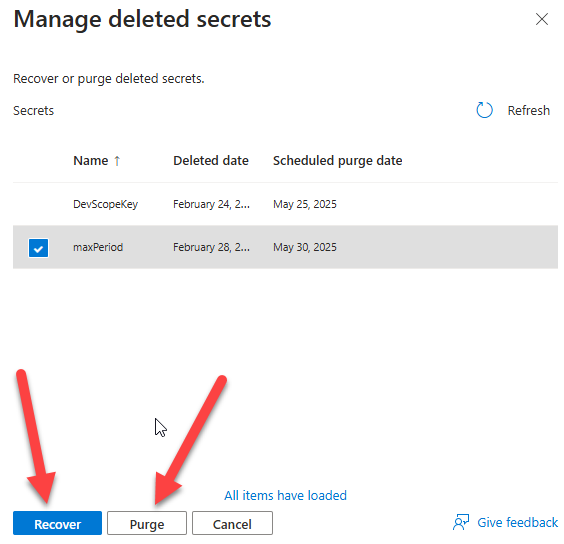
From the Manage deleted secrets panel, we can either:
- Purge the deleted secret before creating a new one with the same name. You can accomplish that by selecting the secret or secrets you want to permanently delete and then clicking the Purge button.
- Or restore the secret from the soft-deleted state by clicking the Recover button.
I hope you find this helpful! If you liked the content or found it useful and want to help me write more, you can buy (or help me buy) my son a Star Wars Lego!




thank you so much! You are very helpful!!!