


When you work with Logic Apps Standard in Visual Studio Code, keep one important limitation in mind. Deploying workflows from different projects can overwrite existing workflows in the same Logic App.
For example, suppose Project A has already deployed a workflow to an Azure Logic App. If you later deploy Project B to that same Logic App, Visual Studio Code replaces the workflow from Project A with the one from Project B. The deployment does not increment or merge workflows.

📝 One-Minute Brief
When developing Azure Logic Apps Standard workflows in Visual Studio Code, incremental deployment is not supported in the same way many developers expect. This Friday Fact explains why VS Code does not allow incremental workflow deployment for Logic Apps Standard, what actually happens during deployment, and why this behavior can overwrite existing workflows if you are not careful during development or CI/CD processes.
The Reason
In Azure Logic Apps, each Logic App acts as a single deployment unit. When you deploy a workflow, the deployment replaces the entire Logic App contents, including any existing workflows.
This approach simplifies deployment and version control. However, it also reduces flexibility. You cannot deploy individual workflows from different projects without overwriting the ones already in place.

To avoid the issue of workflows replacing one another, you can manually copy multiple workflows into the same Logic App folder.


This approach allows you to keep all workflows accessible without overwriting any existing ones. Additionally, organizing workflows within a structured folder hierarchy in your project can help you manage them more effectively.
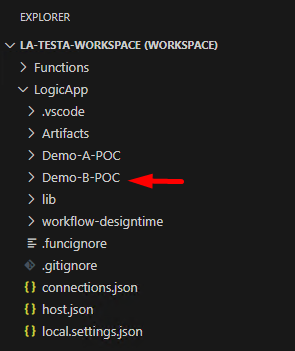
Since Visual Studio Code doesn’t currently support importing folders directly to your Logic App folder structure, this manual organization is essential for maintaining clarity and functionality across multiple projects.
Caution!
However, keep in mind that copying workflows requires extra attention. After you copy a workflow, you must realign connections, parameters, and any related settings to make it work correctly in the target Logic App.
Each workflow can rely on specific dependencies and configurations. These settings do not automatically align with the existing project. As a result, you need to review and update them after the copy.

Best Approach
The best practice is to create all related workflows within a single project from the start!

Considerations
In Azure Logic Apps, if you make changes to any workflow within a project that contains multiple workflows, all workflows must be redeployed when you deploy the project. This is because each deployment triggers a host restart, during which all workflows are parsed and initialized. Consequently, even if you modify only one workflow, the deployment process impacts the entire Logic App, leading to downtime for all workflows.

To lazy to read? We’ve got you covered! Check out our video version of this content!
Hope you find this helpful! If you enjoyed the content or found it useful and wish to support our efforts to create more, you can contribute towards purchasing a Star Wars Lego for Sandro’s son!



