


A client reported an error that started appearing this week in our BizTalk Server production environment. We had deployed a new orchestration and created a new SAP receive port to support an additional partner.
We had implemented similar changes many times without issues. However, this time, BizTalk logged a warning every time SAP sent a message to the platform:
The adapter “WCF-Custom” raised an error message. Details “System.Exception: Loading property information list by namespace failed or property not found in the list. Verify that the schema is deployed properly.
at Microsoft.BizTalk.Adapter.Wcf.Runtime.BizTalkAsyncResult.End()
at Microsoft.BizTalk.Adapter.Wcf.Runtime.BizTalkServiceInstance.EndOperation(IAsyncResult result)
at Microsoft.BizTalk.Adapter.Wcf.Runtime.BizTalkServiceInstance.Microsoft.BizTalk.Adapter.Wcf.Runtime.ITwoWayAsyncVoid.EndTwoWayMethod(IAsyncResult result)
at AsyncInvokeEndEndTwoWayMethod(Object , Object[] , IAsyncResult )
at System.ServiceModel.Dispatcher.AsyncMethodInvoker.InvokeEnd(Object instance, Object[]& outputs, IAsyncResult result)
at System.ServiceModel.Dispatcher.DispatchOperationRuntime.InvokeEnd(MessageRpc& rpc)
at System.ServiceModel.Dispatcher.ImmutableDispatchRuntime.ProcessMessage7(MessageRpc& rpc)
at System.ServiceModel.Dispatcher.MessageRpc.Process(Boolean isOperationContextSet)”.
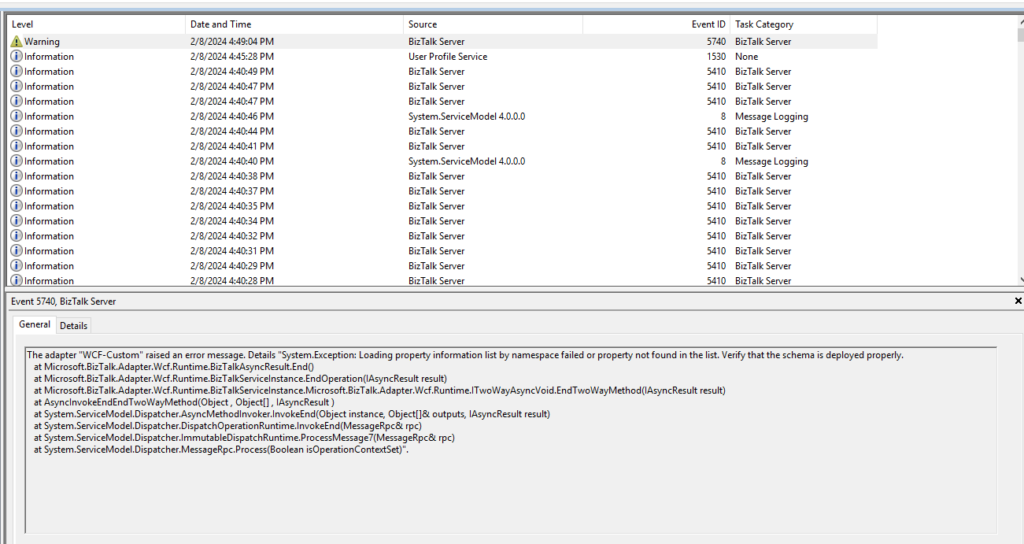
First, it felt strange that BizTalk logged the issue as a warning, especially since the server neither received nor processed the message.
In addition, the message itself can mislead. It suggests verifying whether the schema is deployed correctly. Normally, this type of error clearly indicates that a specific schema or schema version is missing from the environment. In those cases, the error message explicitly names the schema and version. However, that information is missing here, which makes this situation different and more confusing.
📝 One-Minute Brief
BizTalk solutions that integrate with SAP can fail at runtime with cryptic WCF‑SAP adapter errors related to missing properties or namespaces. This article explains how to troubleshoot the error “Loading property information list by namespace failed” and why it usually occurs when required schemas are missing or not deployed correctly. Understanding this behavior helps restore reliable SAP integrations faster.
Cause
Official documentation states that the following exception is encountered while receiving an IDOC with the EnableBizTalkCompatibilityMode binding property set to true. And if the binding property EnableBizTalkCompatibilityMode is set to true, you must add the BizTalk property schema DLL for the SAP adapter as a resource in your BizTalk application, that is, the application in which your project is deployed.
However, our receive location didn’t have the EnableBizTalkCompatibilityMode set to true. Instead, it was set to false.
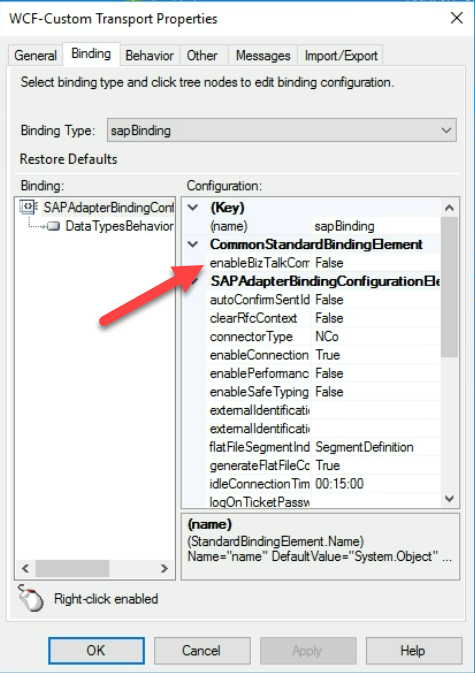
With a lack of better ideas, we decided to try to apply the same solution and add the BizTalk property schema DLL for the SAP adapter as a resource in your BizTalk application, and it solved all of our problems.
Solution
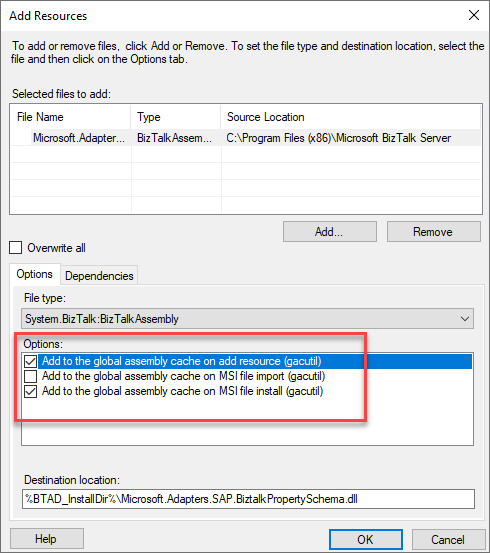
So, to solve this issue, we need to add the BizTalk property schema DLL for the SAP adapter, called Microsoft.Adapters.SAP.BiztalkPropertySchema.dll, as a resource in our BizTalk application. This DLL can be found Microsoft BizTalk Adapter Pack folder, which is normally under:
- <installation drive>:\ Program Files\Microsoft BizTalk Adapter Pack\bin
or in BizTalk Server 2020 under:
- <installation drive>:\Program Files (x86)\Microsoft BizTalk Server
You must perform the following tasks to add this assembly as a resource in your BizTalk application:
- Start the BizTalk Server Administration console.
- In the console tree, expand BizTalk Group, expand Applications, and then the application to which you want to add a BizTalk assembly.
- Expand Applications and the application to which you want to add a BizTalk assembly.
- Right-click Resources, point to Add, and then click BizTalk Assemblies.
- Click Add, navigate to the folder containing the BizTalk assembly file, select the BizTalk assembly file, and then click Open.
- In Options, specify the options for installing the BizTalk assembly to the GAC, and then click OK.
Hope you find this helpful! So, if you liked the content or found it useful and want to help me write more, you can buy (or help me buy) my son a Star Wars Lego!



