


Completing the enormous saga, aka nightmare, to install BAM in one of my latest BizTalk Server installations, and once I thought I solved all the issues… BAM strikes again! Now complaining about the following error:
Error Configuration Framework Feature: BAM Tools
Failed to configure with error message
Exception Message=”Error configuring BAM Tools” Source=”BAMTools” HelpID=”idsErrorConfiguringTools”
Exception Message=”Error executing bm.exe with tracing enabled.” Source=”Microsoft.BizTalk.Bam.CfgExtHelper.Utility” HelpID=”error_ExecuteBm”
Exception Message=”Error executing process: C:\Program Files (x86)\Microsoft BizTalk Server\Tracking\bm.exe” Source=”Microsoft.BizTalk.Bam.CfgExtHelper.Utility” HelpID=”error_ExecuteProcess”
Exception Message=”Microsoft (R) Business Activity Monitoring Utility Version 3.13.717.0
Copyright (C) Microsoft Corporation. All rights reserved.
ERROR: Failed to set up BAM database(s).
Database ‘BAMAnalysis’ has compatibility level larger than 1103 with StorageEngineUsed set to InMemory. Tabular databases with compatibility level at 1200 or above must use StorageEngineUsed set to TabularMetadata.
Source=”Microsoft.BizTalk.Bam.CfgExtHelper.Utility” HelpID=”error_ExecuteProcess”
📝 One-Minute Brief
One-Minute Brief (TL;DR):
Cause
My team didn’t follow the SQL Server installation, we just send to another team the requirements necessary for BizTalk Server and the installation guide, so we were a little surprised by this error.
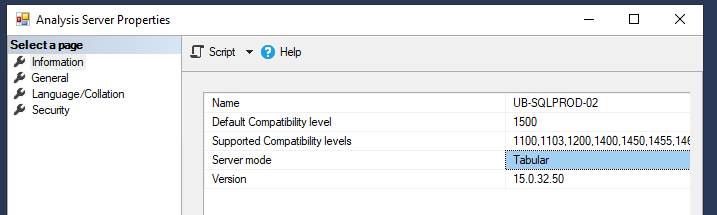
And although I had never seen this error before, the reason was quite simple: This error is caused by the SQL Server Analysis Services (SSAS) instance being installed using the tabular mode, and BizTalk Server needs a multi-dimensional mode SSAS instance.
Solution
You have at least two solutions on the table to solve this issue.
Solution 1: Uninstall and reinstall SQL Server Analysis Services (SSAS)
The trick here is to be able to know how to uninstall SSAS, and to do that, you need to:
- Open Command Prompt as Administrator model on the SQL Server and execute the following command:
<F:\setup.exe /ACTION=uninstall /FEATURES=AS /INSTANCENAME=YOUR_INSTANCE_NAME
- The above command has the following parameters.
- SQL Server ISO setup path.
- Action performed. In here, we are going to uninstall.
- Feature we are going to remove. AS indicates Analysis Services instance.
- The name of our AS instance.
After that, you just need to add new features to the existing installation, in this case, a multi-dimensional mode SSAS instance.
Solution 2: Modify the msmdsrv.ini file
An alternative way is to modify the msmdsrv.ini file. Administrators can modify default server configuration properties of an SQL Server Analysis Services (SSAS) instance by using SQL Server Management Studio. However, properties pages in SQL Server Management Studio show a subset of the properties most likely to be modified. For SSAS, all properties are in the msmdsrv.ini file.
- The default installation file, msmdsrv.ini, can be found in the C:\Program Files\Microsoft SQL Server\MSAS15.MSSQLSERVER\OLAP\Config folder
- Of course, this depends on the version you are using.
On the msmdsrv.ini file:
- Configure the DeploymentMode property to be 0 (zero) and save the file
After that, restart the SSAS instance, and these will change from a tabular instance to a multi-dimensional instance.
Hope you find this helpful! If you liked the content or found it useful and would like to support me in writing more, consider buying (or helping to buy) a Star Wars Lego set for my son.



