


Last Friday, while checking Twitter, I found a tweet from Jon Levesque asking if someone had a sample on how to take SQL data table results and pass a Markdown-formatted table into an Approval Request. By coincidence, two weeks ago, I was helping a colleague add a well-formatted table of results from an SQL expression to a notification email. Two different but similar scenarios.
To be able to create this simple proof-of-concept, you should:
- Access the Flow portal: https://flow.microsoft.com/ and sign in with your account
- In flow.microsoft.com, select My flows in the top navigation bar, and then select + Create from blank to create a Flow from scratch.
- On the Create a flow from blank, select Create from blank to start the process of creating an empty Flow.
📝 One-Minute Brief
A practical walkthrough that shows how to take SQL query results in Microsoft Flow, convert them into a Markdown-formatted table using variables and loops, and include the table in an email notification or an approval request.
Because this is a simple POC and it is intended to be a notification email, we will use the Scheduler trigger to start the Flow from time to time. For that, you need:
- On the Flow designer, on the Trigger event, enter Schedule and select the option Schedule – Recurrence.
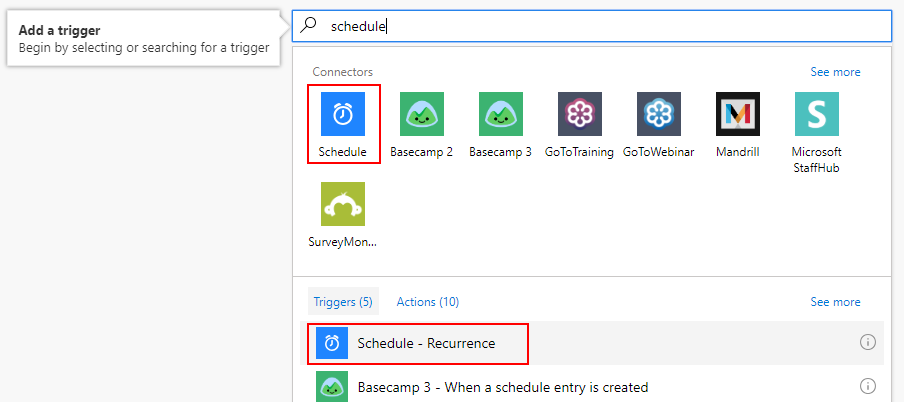
- For this POC, we want to receive a notification on a daily basis, so in the Schedule Trigger configuration, set the:
- Interval property as 1.
- And the Frequency property has Day.
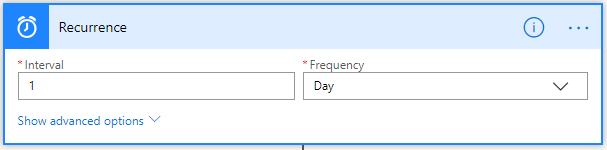
- Add the next step by clicking the +New step button, and then choosing the Add an action option.

- On the Choose an action window, enter SQL Server and select the action SQL Server – Execute a SQL query.
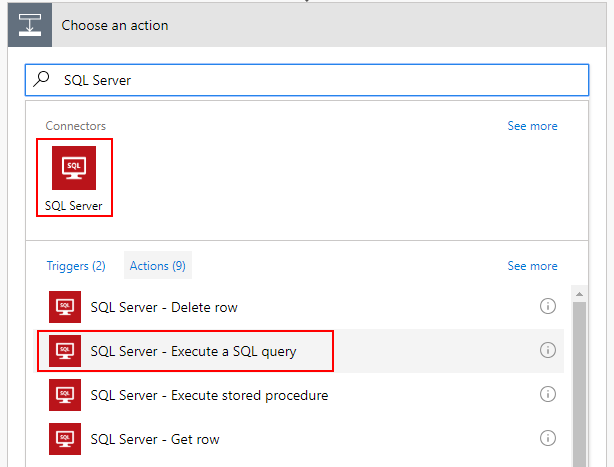
Note: This can be a different action like, get rows or execute a stored procedure.
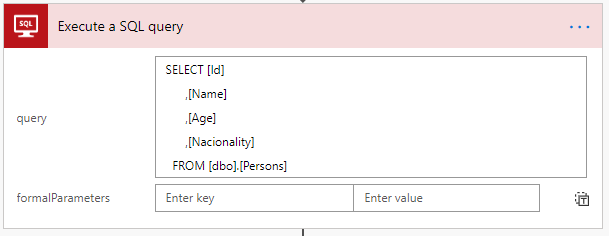
- After you connect to the proper SQL Server and database, on the Execute a SQL query action configuration:
- On the query property, type:
SELECT [Id],
       [Name],
       [Age],
       [Nacionality]
FROM [dbo].[Persons]
- Add the next step by clicking the +New step button and then choosing the Add an action option.
- On the Choose an action window, enter Variables and select the action Variables – Initialize variable.
- On the Variable action configuration:
- On the Name property, type lines.
- On the Type property, specify the type as String.
- On the Value property, leave it blank.

Note: Initialize variable needs to be performed on Top Level, in other words, outside any cycle operation (Do Until or For Each). Initialize variable inside cycles are not permitted.
- Add the next step by clicking the +New step button and then choosing the Add an action option.
- On the Choose an action window, enter Variables and select the action Variables – Append to string variable.
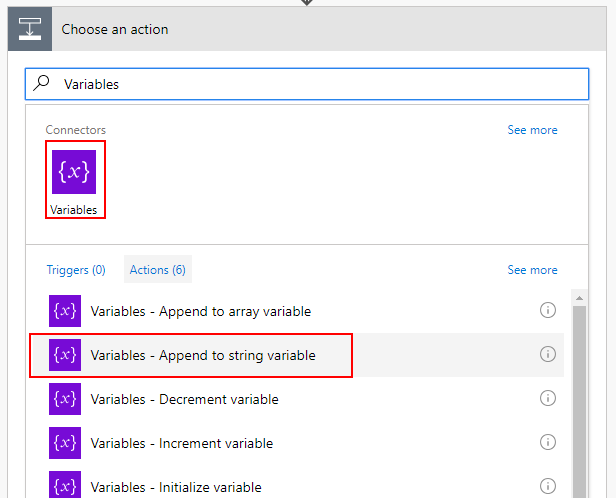
- On the Variable action configuration:
- On the Name property, select lines variable.
- On the Value property type:
<tr>
<td style="border:1px solid black; border-collapse: collapse;">@{items('Apply_to_each')?['Name']}</td>
<td style="border:1px solid black; border-collapse: collapse;">@{items('Apply_to_each')?['Nacionality']}</td>
</tr>
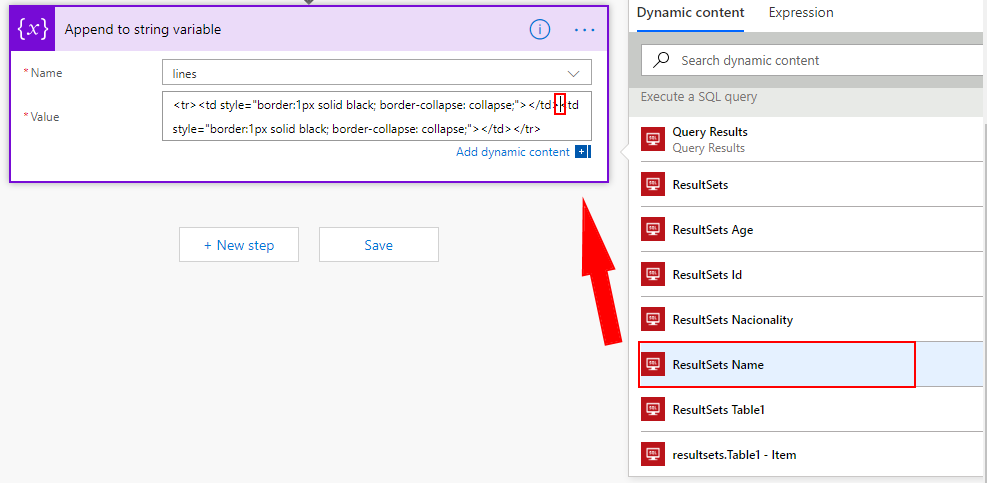
Note: @{items(‘Apply_to_each’)?[‘Name’]} and @{items(‘Apply_to_each’)?[‘Nacionality’]} are inserted and selected from the list of Execute a SQL query action tokens.
- Because we can retrieve multiple rows from SQL Server, the Flow designer will automatically place this Variable – Append to string variable inside a loop that iterates over each SQL row.
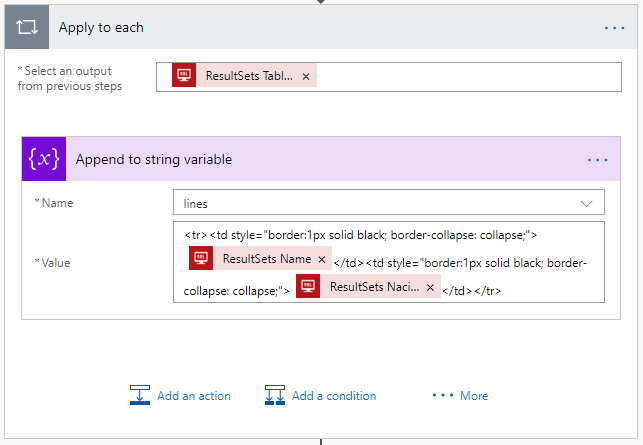
Now that we have our SQL rows partially well-formatted in a Markdown-formatted table, what we need to do is create our notification/Approval Request email. To do that, we need:
- Add the next step by clicking the +New step button and then choosing the Add an action option.
- On the Choose an action window, enter Office 365 Outlook and select the action Office 365 Outlook – Send an email.

- On the Office 365 Outlook action configuration:
- On the To property, type the email address for which you want to send the email.
- On the Subject property, type the subject of the email.
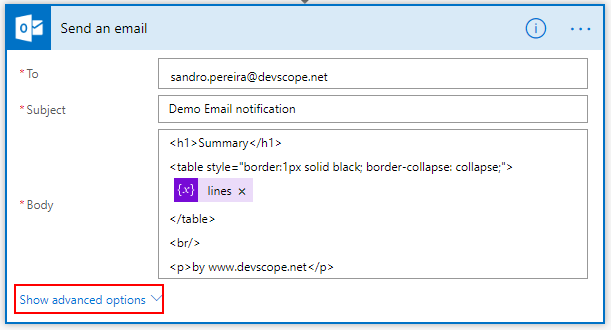
- On the Body property, type:
<h1>Summary</h1>
<table style="bor>er:1px soli> black; bor>er-collapse: collapse;">
@{variables('lines')}
</table>
by www.>evscope.net

Note: @{variables(‘lines’)} is inserted and selected from the list of “Variables” tokens
Now, the final trick for you to receive this type of email:
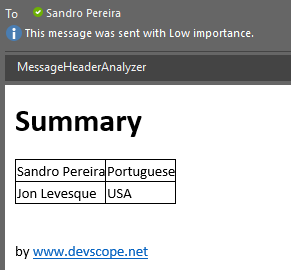
instead of this:

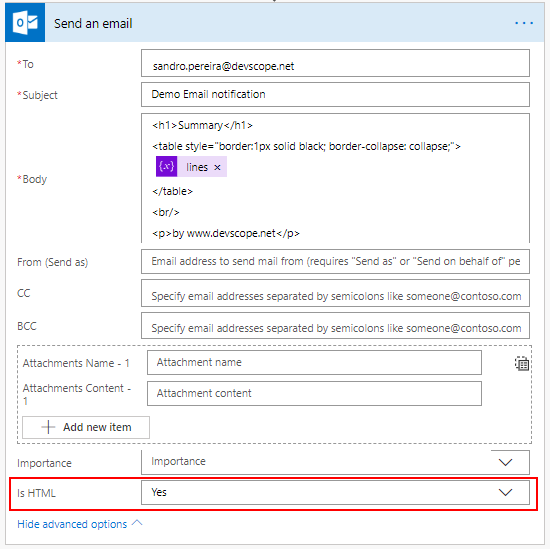
On the Office 365 Outlook action configuration, you need to:
- Click on Show advanced options.
- And on the Show advanced options:
- On the Is HTML property, select Yes.

Hope you find this helpful! If you liked the content or found it useful and would like to support me in writing more, consider buying (or helping to buy) a Star Wars Lego set for my son.




How would you do it in reverse? I have a FLOW that uses the REQUEST connector, and its JSON into has an array object. How can I take that array object and pass it into the SQL server (stored procedure) connection as a table parameter?
Why not use the ‘Create HTML table’ action? And how to use it? I am new, so looking for help. I’m using the SQL Server Connector trigger ‘When an item is modified (v2)’ but cannot make it work.
Hi Marcos, at that point ‘Create HTML table’ action was not available. and sometimes if you really want to customize your table this still the best option.
What is the error that you are facing?
Hi, I’m trying to run SQL “Execute a Stored Procedure” in a Flow that starts with a Form ResponseID.
Basically, if they don’t have a primarykey to process a request the Form branches to let the user fill out the required fields needed to lookup against a stored procedure in SQL. Then it emails the user a primarykey to fill out the request correctly.
It runs without error, verified in SQL Studio that it’s one unique output; however, I can’t get it to output any information in Flow to use going forward.
Any help would be appreciated
Hi,
Thank you so much for your post. For some reason, the Is HTML property does not appear for the Send an email Outlook action.
On the append variable step, I’m only getting Query Results and ResultsSets from the list of “Execute a SQL query” action tokens. I don’t get any of the values in my SQL Query
Hi,
I have found that all of the columns from the Execute SQL Query Results Sets appear only if there are no other steps performed before the Execute SQL Query Step.
As soon as I put a step before the Execute SQL Query step, the only options I have are Query Results and ResultsSets. I get no other option showing Result Sets .
That’s a bit of an issue, because I need to add a variable in my SQL Query, and thus need to add a step to initialize that variable before I execute the SQL Query.
Has anyone ran into this issue, and know a workaround?
Hi Sandro,
hanks for posting this. It works well but how do I add the column headers to the table. In your case Name and Country
“IS HTML” option is not getting in recent version of Office 365. Does it have any alternate?.
thanks but im badly missing the for each loop- which step did you introduced as i followed above and dont get this done.
can this be done in SAP B1 HANA SQL ?
I don’t see why not