


While trying to open a BizTalk Orchestration inside Visual Studio, normally a simple and easy double-click operation to open the BizTalk Orchestration Designer, I got a very famous behavior: BizTalk Orchestration didn’t open with the BizTalk Orchestration Designer; instead, it opened with the XML (Text) Editor
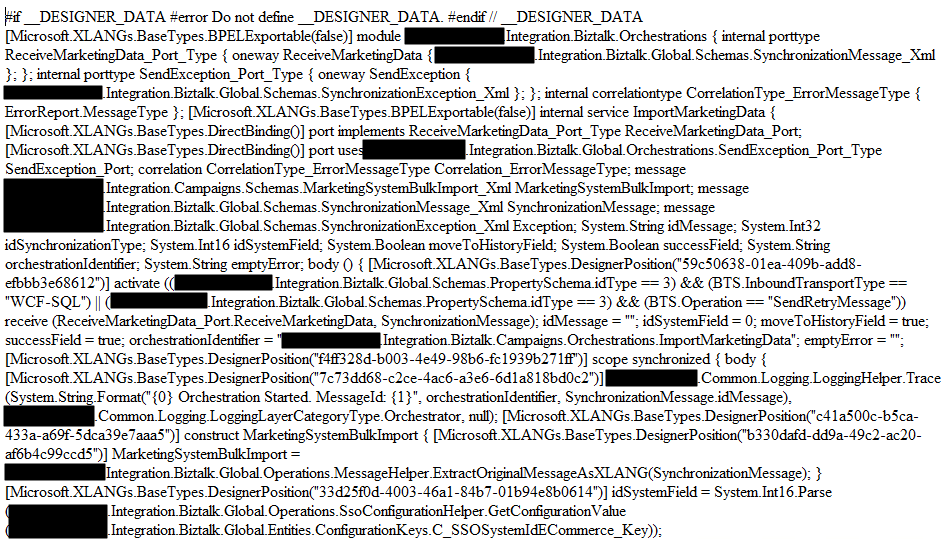
This behavior has been happening to me a lot these last few days. At first, I simply didn’t care because I know how to quickly workaround it, after a few times it just becomes annoying, after a few days and several orchestrations and different projects I got intrigued an entered in “Sherlock Holmes” mode.
📝 One-Minute Brief
A quick fix for an annoying Visual Studio behavior where BizTalk orchestrations open in the XML/Text editor instead of the BizTalk Orchestration Designer. The post explains the likely cause—an incorrect setting in the BizTalk project file—and how to force the Designer to open (and fix the project metadata so it stays fixed).
Cause
Well, I don’t know exactly what can cause this problem, but I suspect that this behavior happens more often when we migrate projects, or when we try to open previous BizTalk Server versions’ projects in recent versions of Visual Studio, especially if we skip one or more versions, for example, from BizTalk Server 2010 to 2013 R2.
And may happen due to different configurations within the structure of the <BizTalk>.btproj file.
The cause of this strange behavior is without a doubt related to a mismatched setting inside the structure of the “<BizTalk>.btproj” file in the XLang nodes (each orchestration inside your project will reflect to one XLang node specifying the name of the file, type name, and namespace. Normally, it has this aspect in recent versions of BizTalk Server:
<ItemGroup>
   <XLang Include="MyOrchestrationName.odx">
      <TypeName> MyOrchestrationName </TypeName>
      <Namespace>MyProjectName.Orchestrations</Namespace>
   </XLang>
</ItemGroup>
But sometimes we will find an additional element:
<ItemGroup>
   <XLang Include="MyOrchestrationName.odx">
      <TypeName> MyOrchestrationName </TypeName>
      <Namespace>MyProjectName.Orchestrations</Namespace>
      <SubType>Designer</SubType>
   </XLang>
</ItemGroup>
When the SubType element is present, this strange behavior automatically opens the orchestration with the XML (Text) Editor.
Solution
First, let’s describe the easy workaround to this annoying problem:
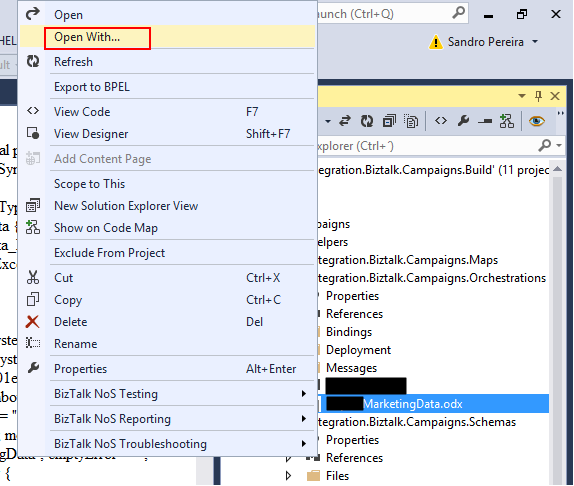
- In the Solution Explorer, right-click on the orchestration name and then select the Open With… option
- On the Open with … window, select the BizTalk Orchestration Designer option and click OK.
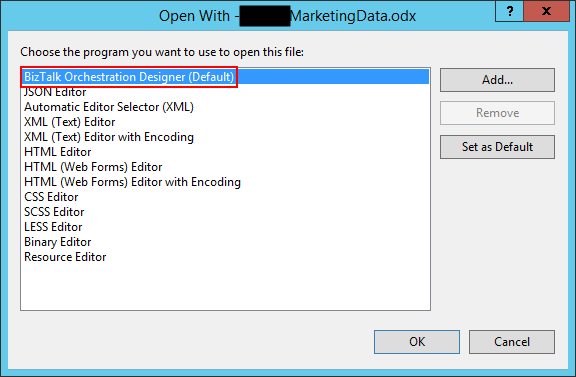
This will force Visual Studio to actually open the orchestration with the Orchestration Design. But again, this will be a simple workaround, because next time you try to open the orchestration in Visual Studio, it will open with the XML (Text) Editor.
You may think that inside the Open with… window, if we:
- Select the BizTalk Orchestration Designer option, and click Set as Default.
- And then click OK.
It will solve the problem, but you are wrong, actually. As you can see in the picture above, it is already configured as the default viewer.
So, to actually solve once and for all this annoying behavior, you need to:
- Open the <BizTalk>.btproj (or project) file(s) that contain the orchestration(s) with this behavior with Notepad, Notepad++, or another text editor of your preference.
- Remove the <SubType>Designer</SubType> line
- Save the file and reload the project inside Visual Studio
If you then try to open the orchestration, it will open with the BizTalk Orchestration Designer.
Hope you find this helpful! If you liked the content or found it useful and would like to support me in writing more, consider buying (or helping to buy) a Star Wars Lego set for my son.




Thanks Sandro, I had this issue in the past but never got a chance to fix it. Now I know why it was failing.
In my studio, even Designer is missing. How do i reinstall orchestration designer
Thanks!
Thanks for coming to my rescue, I had no clue why orchestration designer wasn’t opening