


This week, I received a call from one of my customers reporting a strange issue. Strange because everything was running fine, and suddenly, for no apparent reason, each time someone tried to invoke or browse WCF Services exposed by BizTalk Server, the IIS Application pool configured for those services automatically stopped.
If we tried to browse the services, we got the following error message:
Login failed for user ‘Domain/user’
Exception Details: System.SqlClient.SqlException: Login failed for user ‘domain/user’
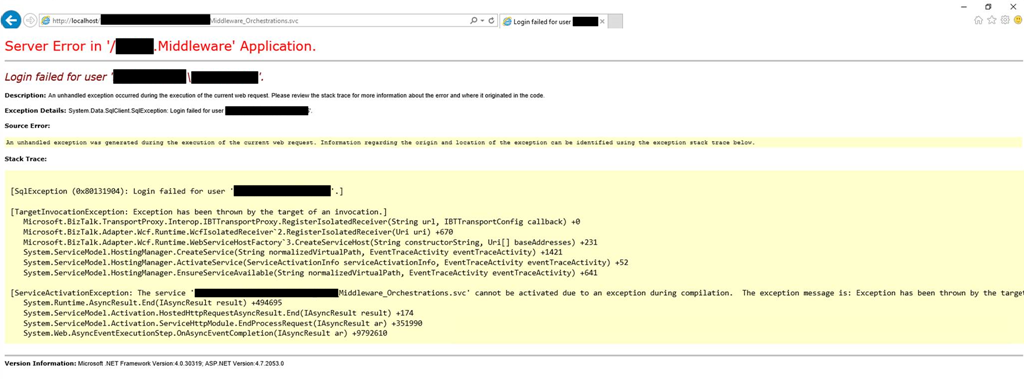
Of course, with that type of error description, the first step we did was to re-enter the credentials for that user in the application pool, but… the same problem persisted.
When we investigated the event viewer for additional error details, we found in the Security log the following message:
Log Name: Security
Source: Microsoft-Windows-Security-Auditing
Date: {date}
Event ID: 4625
Task Category: Logon
Level: Information
Keywords: Audit Failure
User: N/A
Computer: {machine name}
Description:
An account failed to log on.
Subject:
Security ID: SYSTEM
Account Name: {account name}
Account Domain: {domain name}
Logon ID: 0x3E7
Logon Type: 4
Account For Which Logon Failed:
Security ID: NULL SID
Account Name: {account name}
Account Domain: {domain name}
Failure Information:
Failure Reason: The user has not been granted the requested logon type at this machine.
Status: 0xC000015B
Sub Status: 0x0
📝 One-Minute Brief
A troubleshooting guide that explains why an IIS Application Pool stops automatically when browsing or invoking BizTalk‑exposed WCF services, and how a missing local security policy (“Log on as a batch job”) causes authentication failures and service downtime.
Cause
So, at this point, we knew this was a security policy issue, and we suspected that an automated process created by sysadmins was changing something in the Local Security Settings on the BizTalk Server machine.
After some research, we found out that the user account that is running the Application Pool, in which the BizTalk WCF Services are exposed, requires having “Log on as batch job” rights
Note: By definition, this security setting (Log on as a batch job), allows a user to be logged on by means of a batch-queue facility and is provided only for compatibility with older versions of Windows. For example, when a user submits a job by means of the task scheduler, the task scheduler logs that user on as a batch user rather than as an interactive user.
Solution
To add user rights in the Log on as batch job policy, you need to:
- Press the Windows key to open the Start menu.
- Type secpol.msc and click on the Local Security Policy option from the Search window.
- On the left pane, select Local Policies and User Rights Assignment.
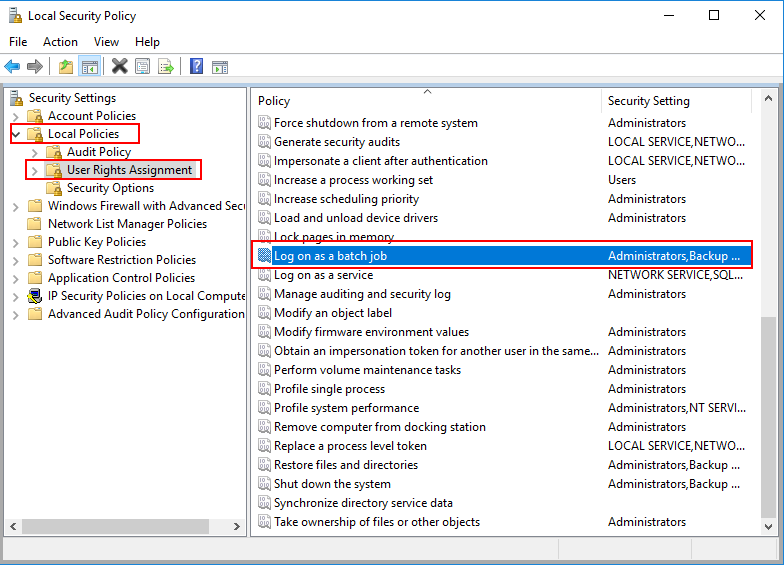
- Right-click on Log on as batch job and click Properties.
- Click Add User or Group… and add the desired user.

- Click OK and then Apply.
Note: Of course, for you to do the above steps, you need to have administrator rights on the computer or be part of specific domain groups in case of Security Settings policies are governed by some AD domain groups.
Note: this problem can also occur and the same solution can be applied to SharePoint.

Hope you find this helpful! If you liked the content or found it useful and would like to support me in writing more, consider buying (or helping to buy) a Star Wars Lego set for my son.



