


Sometimes errors seem to find me; sometimes it feels like I’m chasing errors! And because someone did something that you shouldn’t do, like configuring the build folder of a Functoid project to be <BizTalk Server installation folder>\Developer Tools\Mapper Extensions directory, I got a new and strange error while trying to open a BizTalk map inside Visual Studio: Microsoft BizTalk Mapper Unable to load wrapper. Here is the full error message:
Microsoft BizTalk Mapper
Unable to load wrapper <BizTalk Server installation folder>\Developer Tools\Mapper Extensions\Microsoft.BizTalk.Interop.Agent.dll
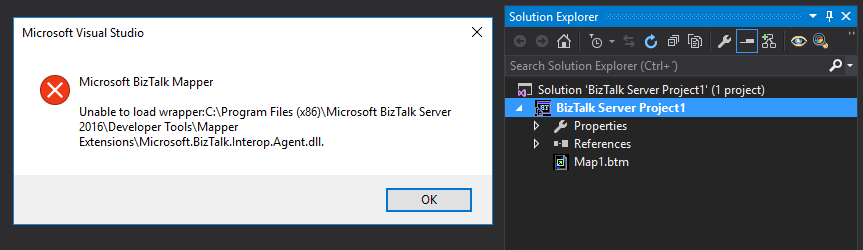
Of course, at that time, I was quite curious to know the cause of this problem because I didn’t do anything wrong, just building a custom Functoid project, and a few minutes before, I was actually working on a map, and I was able to open it without any kind of problems.
📝 One-Minute Brief
A troubleshooting guide explaining why BizTalk Mapper fails with an “Unable to load wrapper” error after building custom functoids and how removing incompatible internal BizTalk assemblies restores normal mapper behavior.
Cause
When you build a project, by default, any kind of project will add the project assemblies as well as the dependencies to the bin\Debug\ – again, this is the default behavior.
In this case, changing this behavior in a Custom Functoid project to the <BizTalk Server installation folder>\Developer Tools\Mapper Extensions directory was causing the problem, because it was adding not only the custom Functoid assembly but also some BizTalk internal assemblies, in this case, the Microsoft.BizTalk.Interop.Agent.dll, that are incompatible with the internal BizTalk Mapper wrapper.
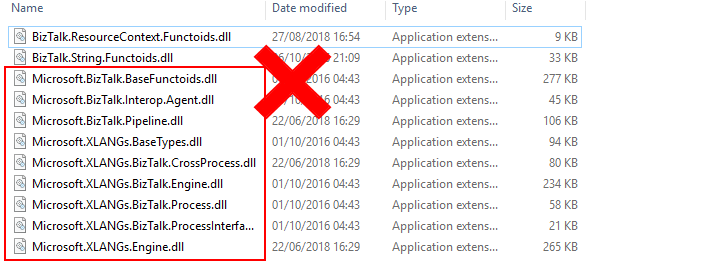
Note: BizTalk Server <installation folder>\Developer Tools\Mapper Extensions directory is where Visual Studio BizTalk project looks for custom functoids to be added to the Toolbox.
Solution
Once again, the solution is simple: you should delete all the unnecessary assemblies, especially the internal ones of the product.
Once you delete all the unnecessary assemblies, in this case, the Microsoft.BizTalk.Interop.Agent.dll, and I also advise you to delete all the ones that are selected on the above picture, the Unable to load wrapper problem will be solved, and you can once again open the BizTalk Mapper without any kind of problems inside Visual Studio.
Hope you find this helpful! If you liked the content or found it useful and would like to support me in writing more, consider buying (or helping to buy) a Star Wars Lego set for my son.



