

The next posts will focus on installing the BizTalk prerequisites and performing the necessary configuration on the BizTalk Server machine.
Before installing BizTalk Server or its prerequisites, make sure you have installed the latest critical Windows updates from Microsoft.
📝 One-Minute Brief
This article explains how to enable and configure Internet Information Services (IIS) before installing BizTalk Server 2013 R2. It details the required IIS roles and features needed for adapters, BAM Portal, EDI, and other BizTalk components, and shows how to configure IIS to support the BAM Portal in 64-bit environments.
Enable Internet Information Services
Microsoft Internet Information Services (IIS) provides a Web application infrastructure for many BizTalk Server features. BizTalk Server requires IIS for the following features:
- HTTP adapter
- SOAP adapter
- Windows SharePoint Services adapter
- Secure Sockets Layer (SSL) encryption
- BAM Portal
- EDI
- UDDI
To install IIS 8.5, use the following steps:
- Start by running the Server Manager, if it is not already open, from either:
- On the Windows taskbar, click the Server Manager button
- On the Start screen, click the Server Manager.
- Under the Manage menu, select Add Roles and Features (or press Add roles and features under the Dashboard panel)

- On the Before You Begin screen, click Next.
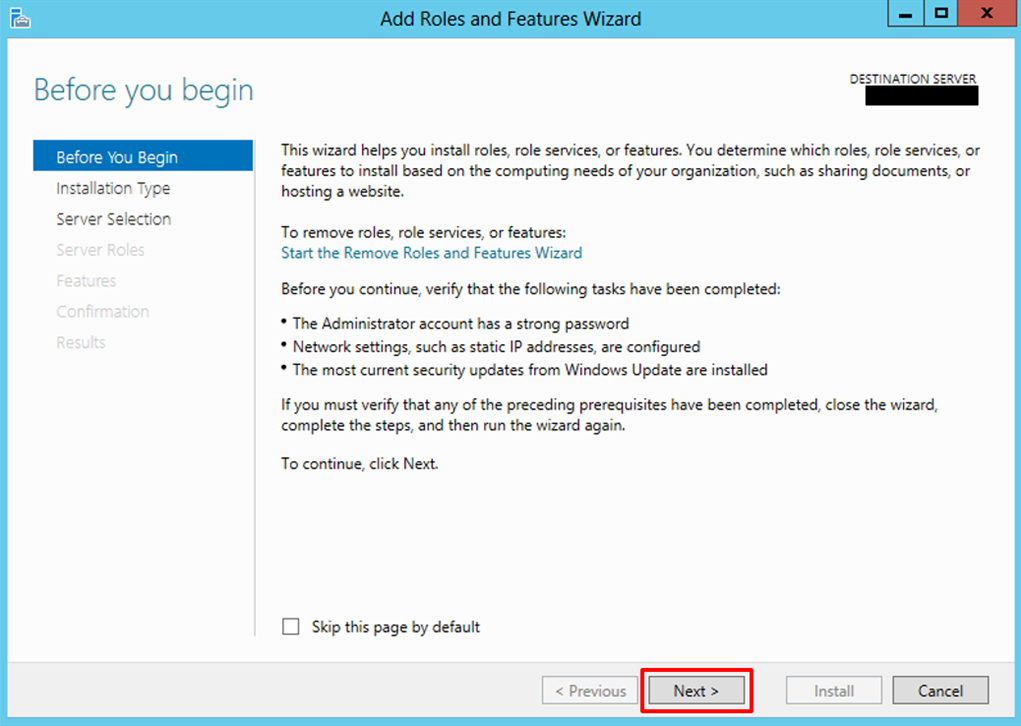
- On the Installation Type screen, select Role-based or feature-based installation and click Next.

- On the Server Selection screen, select the appropriate server, leave the default options, and click Next:
- Select a server from the server pool
- local is selected by default

- On the Server Roles screen, select the Web Server (IIS) option.
- If prompted, click Add Features, and then click Next.


- On the Features screen, no additional features are needed for IIS; however, in addition to the default values, we will need to select the following options:
- .Net Framework 3.5 Features
- SMTP Server (If prompted, click Add Features) – optional
- Windows Identity Foundation 3.5 – optional: Windows Identity Foundation (WIF) is required for the SharePoint Services adapter or SharePoint Online when used with SharePoint Services Client-Side Object Model (CSOM).


- Then click Next.
- On the Web Server Role (IIS) screen, click Next.
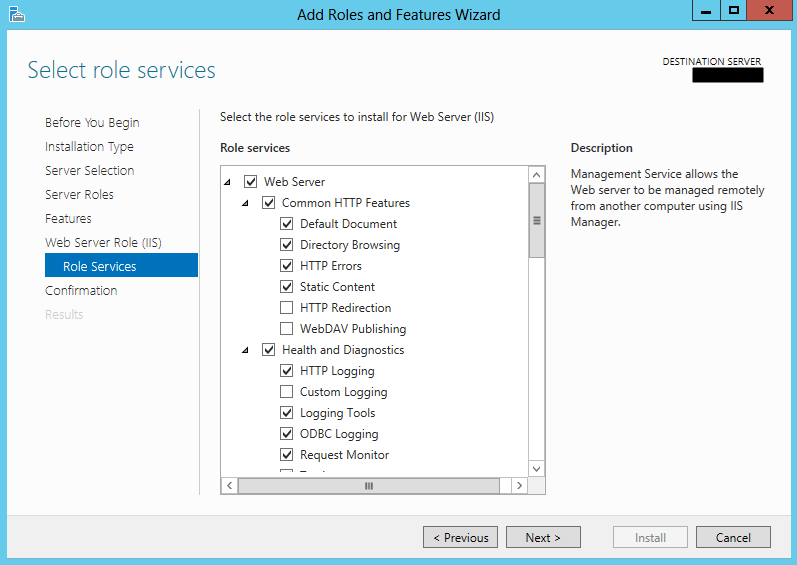
- On the Role Services screen under Web Server Role (IIS), we will customize our installation of IIS with the following options:
- Common HTTP Features
- Default Document
- Directory Browsing
- HTTP Errors
- Static Content
- Health and Diagnostics
- Http Logging
- Logging Tools
- ODBC Logging
- Request Monitor
- Tracking
- Performance
- Static Content Compression
- Dynamic Content Compression
- Security
- Request Filtering
- Basic Authentication
- Digest Authentication
- Windows Authentication
- Application Development
- Select all options
- Common HTTP Features
- o Management Tools
- IIS Management Console
- IIS 6 Management Compatibility
- IIS 6 Metabase Compatibility
- IIS 6 Management Console
- IIS 6 Scripting Tools
- IIS 6 WMI Compatibility
- Then click Next.
- On the Confirmation screen, click Install.

- When the IIS installation completes, the wizard reflects the installation status on the Results screen.
- Click Close to exit the wizard.
Running the BAM Portal in a 64-bit Environment
BAMRunning the BAM Portal in a 64-bit Environment Portal runs only in a 32-bit mode. If you are using Internet Information Services (IIS) in a 64-bit environment, you must set IIS to 32-bit mode to run the BAM portal. To do this, follow these steps:
- Open a command prompt as administrator and run the adsutil command.
- To do this, press the Windows key to switch to the Start screen and type cmd in the Start Search box, right-click on Command Prompt and select from the context menu the Run as administrator option.

- Type the following at the command prompt: cscript c:\inetpub\adminscripts\adsutil.vbs SET W3SVC/AppPools/Enable32bitAppOnWin64 1
- Close the command prompt.
Or:
- Press the Windows key to switch to the Start screen.
- Type Internet Information Services (IIS) Manager or IIS and click on the Internet Information Services (IIS) Manager option on the Apps menu.
- Expand the server and click on Application Pools to display available application pools in the center panel.
- Right-click on DefaultAppPool and select Advanced Settings.

- Change the value of Enable 32-bit Applications from False to True. Click OK.

Related links
- BizTalk Server 2013 R2: Installation and Configuration – Important considerations before set up the server (Part 1)
- BizTalk Server 2013 R2: Installation and Configuration – Install Windows Identity Foundation (WIF) (Part 3)
- BizTalk Server 2013 R2: Installation and Configuration – Install and configure SMTP Server Feature (Part 4)
- BizTalk Server 2013 R2: Installation and Configuration – Install Microsoft Office Excel 2013 (Part 5)
- BizTalk Server 2013 R2: Installation and Configuration – Install Visual Studio 2013 (Part 6)
- BizTalk Server 2013 R2: Installation and Configuration – Install SQL Server 2014 (Part 7)
- BizTalk Server 2013 R2: Installation and Configuration – Configure SQL Server Database Mail feature (Part 8)
- BizTalk Server 2013 R2: Installation and Configuration – Install and Configure BizTalk Server 2013 R2 (Part 9)
- BizTalk Server 2013 R2: Installation and Configuration – Configure SQL Server Network Configuration protocols (Part 10)
- BizTalk Server 2013 R2: Installation and Configuration – Validate Mail account used by BizTalk to send BAM Alerts (Part 11)
- BizTalk Server 2013 R2: Installation and Configuration – Installing BizTalk Adapter Pack (Part 12)
- BizTalk Server 2013 R2: Installation and Configuration – Install and Configure Microsoft UDDI Services (Part 13)
- BizTalk Server 2013 R2: Installation and Configuration – Install and Configure the Microsoft BizTalk ESB Toolkit (Part 14)
- BizTalk Server 2013 R2: Installation and Configuration – Configure BizTalk Server SQL Jobs (Part 15)
- BizTalk Server 2013 R2: Installation and Configuration – Optimize the BizTalk Server 2013 R2 environment (Part 16)
- BizTalk Server 2013 R2: Installation and Configuration – Optimize the BizTalk Server 2013 R2 environment (Part 17)
- BizTalk Server 2013 R2: Installation and Configuration – Optimize the BizTalk Server 2013 R2 environment (Part 18)
- BizTalk Server 2013 R2: Installation and Configuration – Install additional Developer tools (Part 19)
Hope you find this helpful! If you liked the content or found it useful and would like to support me in writing more, consider buying (or helping to buy) a Star Wars Lego set for my son.



