

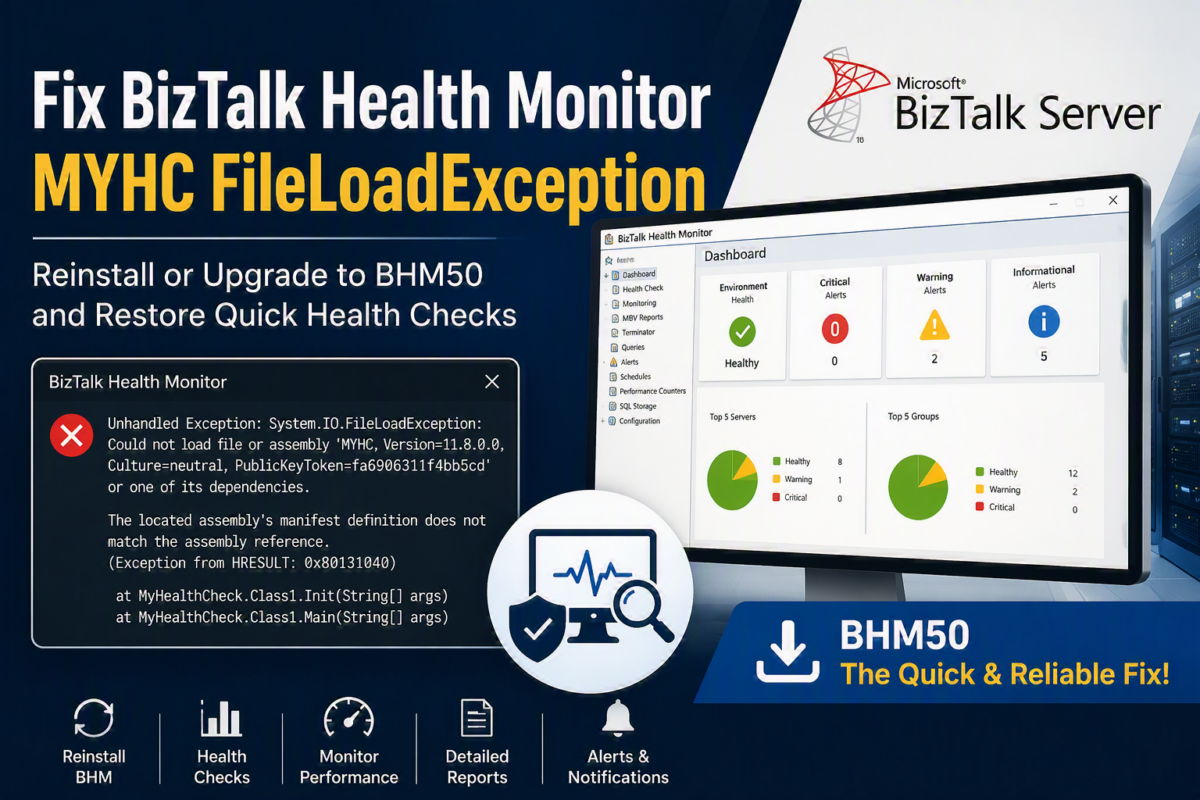
Today, once I was doing a BizTalk Server health check of one of my client’s production environments, I found this BizTalk Health Monitor (BHM) error:
Launching “C:\PROGRA~2\BIZTAL~1\BHMCOL~1.EXE” -PROFILE:C:\PROGRA~3\MICROS~1\BIZTAL~2\MBVSET~1.XML
Unhandled Exception: System.IO.FileLoadException: Could not load file or assembly ‘MYHC, Version=11.8.0.0, Culture=neutral, PublicKeyToken=fa6906311f4bb5cd’ or one of its dependencies. The located assembly’s manifest definition does not match the assembly reference. (Exception from HRESULT: 0x80131040)
at MyHealthCheck.Class1.Init(String[] args)
at MyHealthCheck.Class1.Main(String[] args)
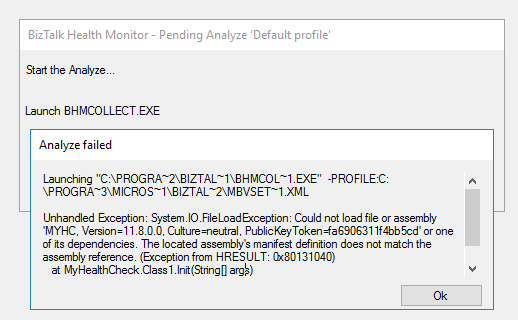
Fortunately, this issue does not affect the performance of BizTalk Server or any solutions and processes running within it. However, it prevents BizTalk Server administrators from performing quick health checks on the environment using the BHM tool.
📝 One-Minute Brief
BHM errors like FileLoadException with MYHC can block BizTalk administrators from running quick health checks. Learn why reinstalling or upgrading BizTalk Health Monitor to BHM50 is the fastest practical fix.
CAUSE
I don’t know exactly why this error started to appear. Perhaps someone deleted some DLLs, or maybe some files became corrupted. To be honest, I don’t know, nor did I spend much time trying to figure it out… and neither should you.
In our case, the environment was running an old version of the BHM tool, so we took the opportunity to upgrade it to the latest version, BHM50.
Solution
Whether you want to reinstall your current BHM version or upgrade to the latest one, the solution is the same: reinstall BHM.
To do that:
- Close BHM.
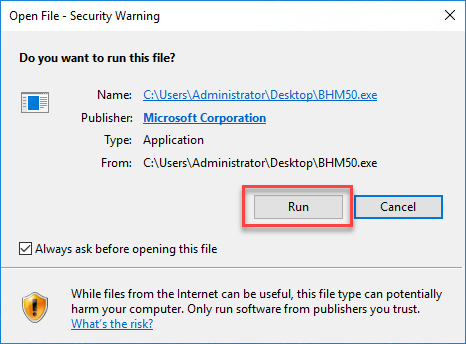
- Double-click the BHM50.exe file and click Run.
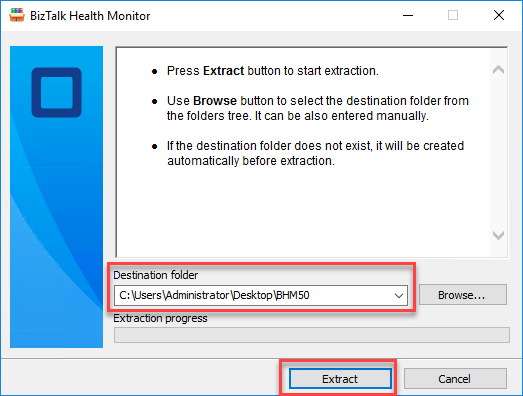
- In the Extract window, select a location to extract all files, then click Extract.
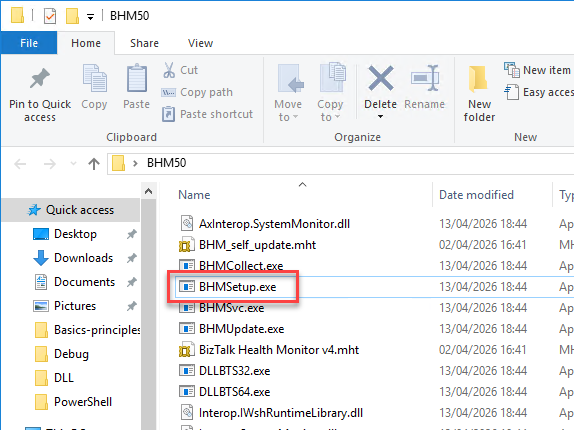
- Navigate to the extraction folder you selected and double-click the BHMSetup.exe file.
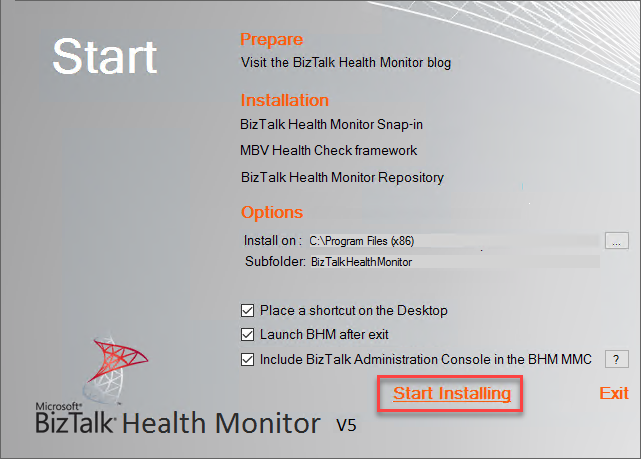
- In the BizTalk Health Monitor v5 Start window, click the Start Installing button.
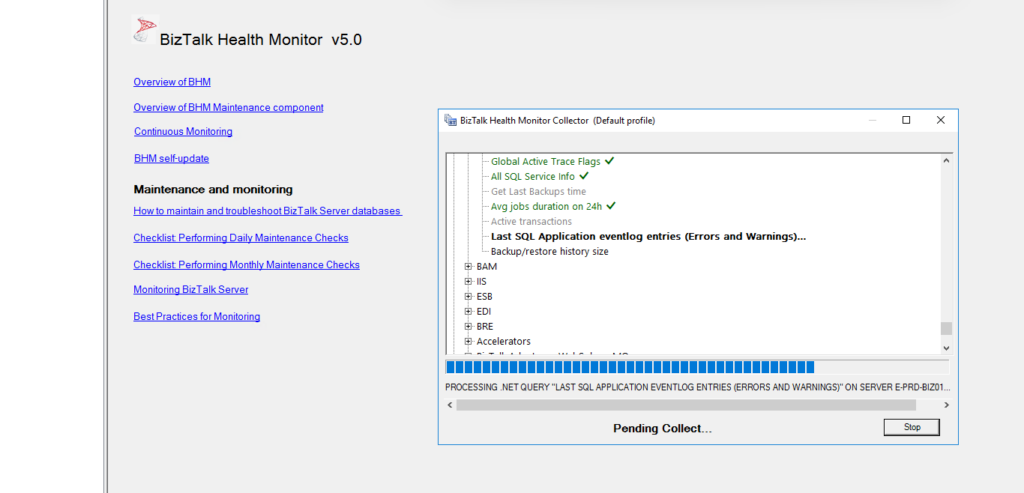
After that, when you launch the BHM tool, you should be able to analyze the environment successfully:
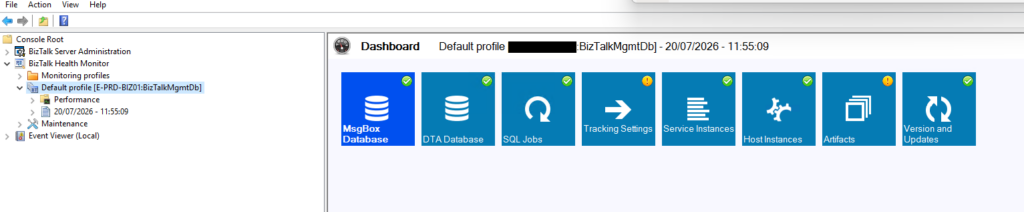
And view the Dashboard report:
Hope you find this helpful! If you liked the content or found it useful and would like to support me in writing more, consider buying (or helping to buy) a Star Wars Lego set for my son.



