


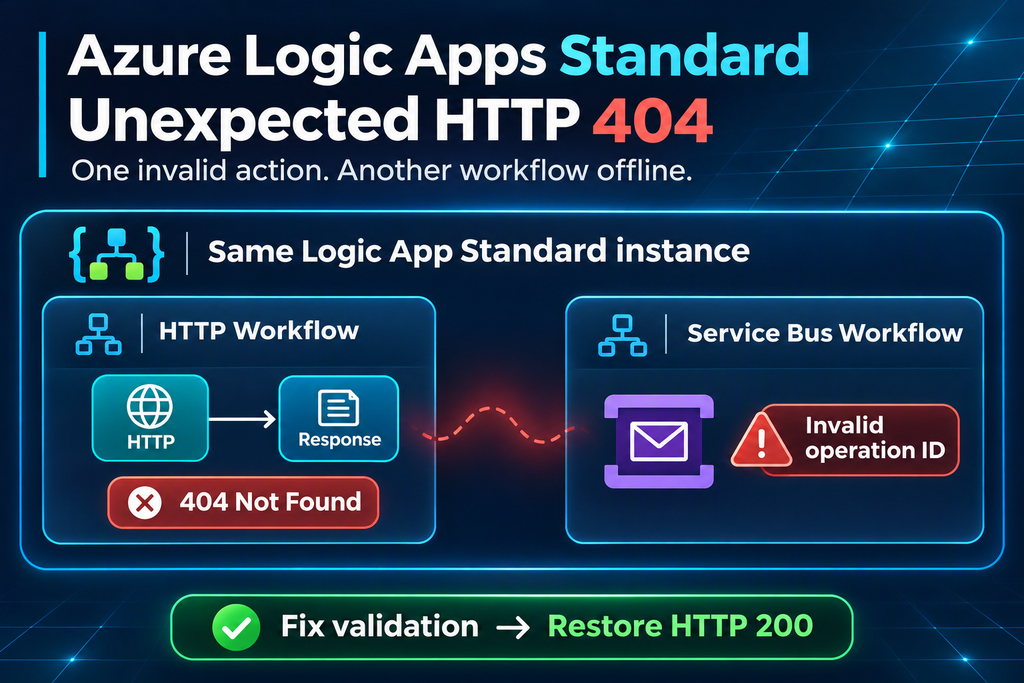
How an invalid Service Bus action in one Azure Logic Apps Standard workflow can cause an entirely independent HTTP-triggered workflow to return a 404.
Scenario
Imagine the following scenario:
- You have an API Management operation that forwards incoming HTTP requests to an Azure Logic App Standard workflow.
- Everything has been working fine.
- Then, one day, the API suddenly starts returning:
HTTP/1.1 404 Not Found
Naturally, your first instinct is to investigate API Management. So, you start asking yourself a few obvious questions:
- Did someone change the API operation configuration?
- Did the backend URL change?
- Is there something wrong with the
rewrite-uripolicy? - Could authentication be causing the problem?
Therefore, you go through the usual troubleshooting steps.
You confirm that the API exists. You verify the operation configuration and check that API Management forwards the request to the expected backend.
However, the backend continues to return HTTP 404.
At this point, things start to get interesting. If everything looks correct in API Management, perhaps you are looking in the wrong place.
So, after a while, you start asking a different set of questions:
- What if the problem isn’t in API Management?
- More importantly, what if it isn’t even in the workflow you’re calling?
📝 One-Minute Brief
An invalid Service Bus operation in one Azure Logic Apps Standard workflow can unexpectedly cause another independent HTTP-triggered workflow to return 404. Learn how to identify the validation error, fix the operation ID, and restore the HTTP endpoint.
Let’s reproduce the scenario
To demonstrate this behavior, I created a fresh Azure Logic App Standard containing two independent workflows.
First Logic App Workflow — The HTTP Endpoint
The first workflow is deliberately simple: When an HTTP request is received → Response.
The response action returns HTTP 200 with the following body:
{
  "test": "success"
}
Nothing complicated. No external dependencies, no transformations, and no Service Bus actions.
Second Logic App Workflow — The Broken Connector
The second workflow contains a Service Bus built-in connector action: Dead-letter the message in a topic subscription
However, its definition uses the following operation ID:
"operationId": "deadletterTopicMessage"
The Logic App runtime reports a validation error:
ServiceProviderOperationIdInvalid

The operation ID 'deadletterTopicMessage'
for service provider '/serviceProviders/serviceBus'
is not valid.
Because the action uses an invalid operation ID, the second workflow fails validation.
So far, nothing particularly surprising.
But here’s where things get interesting.
The Unexpected Behavior
When sending an HTTP request to the First Logic App Workflow, the response is:
HTTP/1.1 404 Not Found
Wait. What?
The First Logic App Workflow has no Service Bus dependency. It doesn’t call the Second Logic App Workflow, and its definition is perfectly valid.
Both workflows are independent.
Yet a validation problem in the Second Logic App Workflow coincides with the HTTP endpoint of the First Logic App Workflow becoming unavailable.
In the test environment, the failure was reproduced without API Management, by calling the Logic App HTTP trigger directly.
Fixing the Problem
The following correction was made in the Second Logic App Workflow.
The invalid operation ID:
"operationId": "deadletterTopicMessage"
Was replaced with the supported operation:
"operationId": "deadLetterTopicMessageV2"
After the corrected workflow definition was accepted, the same HTTP request to Workflow 1 returned:
HTTP/1.1 200 OK
{
  "test": "success"
}
No changes were made:
- On the First Logic App Workflow.
- Or on the HTTP endpoint.
- And no API Management policy modifications were made.
The correction was entirely within the Second Logic App Workflow.
Why V2? And How Did This Happen?
The workflow was using an outdated Service Bus operation ID – deadletterTopicMessage – instead of the supported deadLetterTopicMessageV2.
Interestingly, VS Code deployments may allow workflow definitions containing invalid operation IDs to be published without catching these validation errors, while the Azure Portal validates the definition and prevents saving it.
The takeaway? A successful deployment doesn’t necessarily mean your workflows are valid. Always check the Workflows Validation Summary after deployment.
Too lazy to read? We’ve got you covered! Check out our video version of this content!
Hope you find this helpful! If you enjoyed the content or found it useful and wish to support our efforts to create more, you can contribute towards purchasing a Sauron’s Action Figure for Sandro’s son- yep, not for me!


Thank you for the post.
How do you do your deployment and where do you see the “Workflows Validation Summary after deployment” you speak about?